Table of Contents
To find your Windows PC's local IP address, open Command Prompt, run ipconfig, and read the IPv4 or IPv6 address under the network adapter you are using. To find the public address seen by websites, use a public-IP lookup from that connection or inspect the relevant router information.
These addresses can be different. A PC may also have several addresses when Wi-Fi, Ethernet, VPNs, or virtual adapters are present.
Local and public IP addresses are different
A private IPv4 address identifies a device within a private network. It can be used for local communication, and a router commonly translates private IPv4 traffic for internet access. Saying that a private address “cannot connect to the internet” confuses direct public routing with access through a router.
A public address is globally routable. In many home IPv4 setups, several devices share the router's outward-facing address through NAT. An ISP can also use carrier-grade NAT, and a VPN or proxy may change the address a website sees.
IPv6 commonly uses a different arrangement, so do not assume every device shares one public address. An IP address alone does not reliably identify an individual person. See private and public IP address basics.
Method 1: use ipconfig
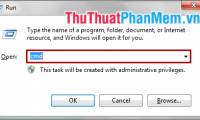
- Press Windows + R, enter
cmd, and press Enter. - Run
ipconfigfor the main address details, oripconfig /allfor additional configuration. - Find the active adapter: usually Wi-Fi for wireless or Ethernet for a cable connection.
- Read the relevant IPv4 or IPv6 address. Do not confuse it with the Default Gateway, which usually identifies the router on that network.

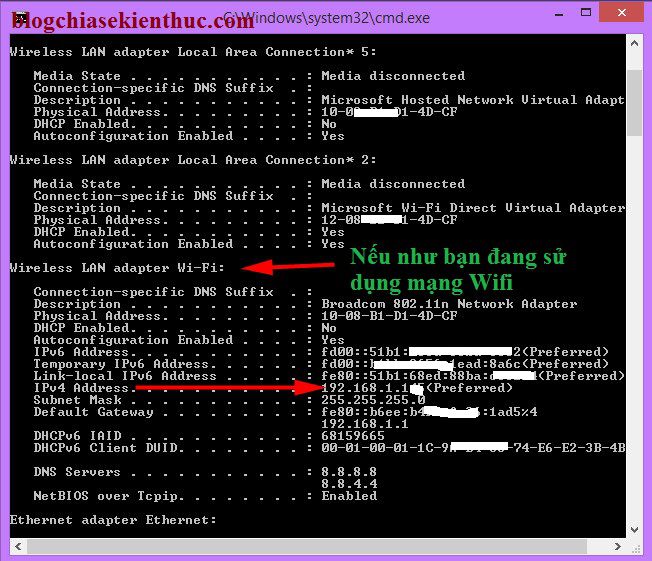
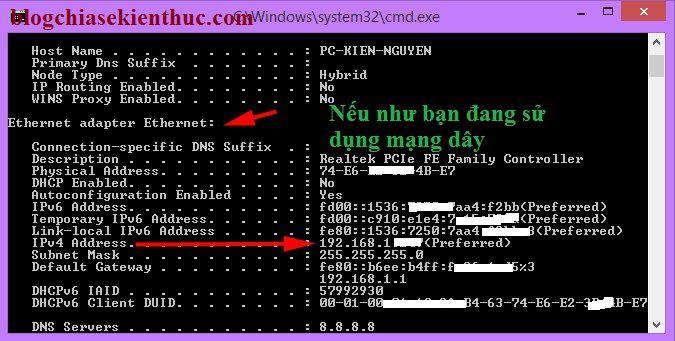
The screenshots show older adapter names and example addresses. Ethernet does not mean ADSL; it describes the local wired connection. If several adapters appear, use the one associated with the connection you are troubleshooting.
Method 2: use the network adapter's Status dialog
- Press Windows + R, enter
ncpa.cpl, and press Enter. - Open the active adapter's Status dialog.
- Select Details and read IPv4 Address or the applicable IPv6 information.
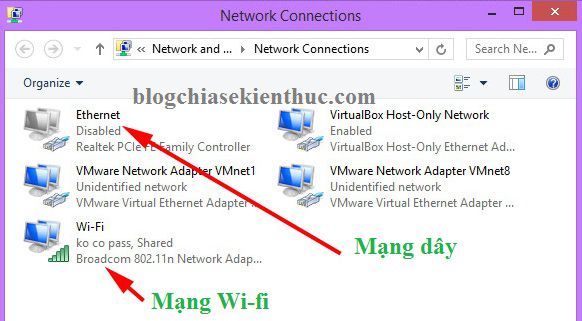
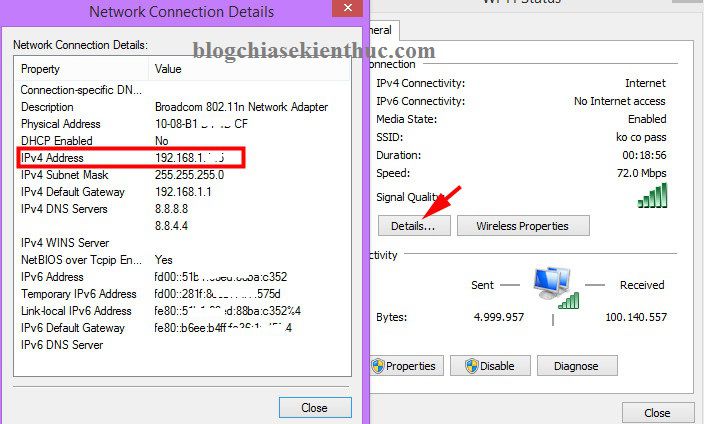
This classic dialog is useful across several desktop Windows versions, although menus and labels vary. Reading an address does not require changing the adapter's properties.
Method 3: use Windows Settings
Windows 11
Open Settings > Network & internet, select the connected Wi-Fi or Ethernet network, and open its properties. Look for the IP-address entries. The exact property page can differ by build and connection type.
Windows 10
Open the connected network's properties from Network & Internet settings or its taskbar connection menu. Scroll to the address information.
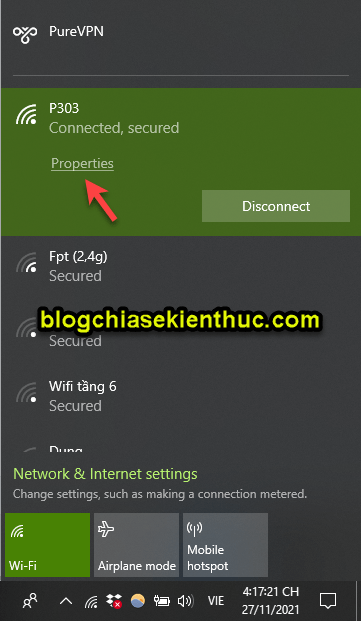
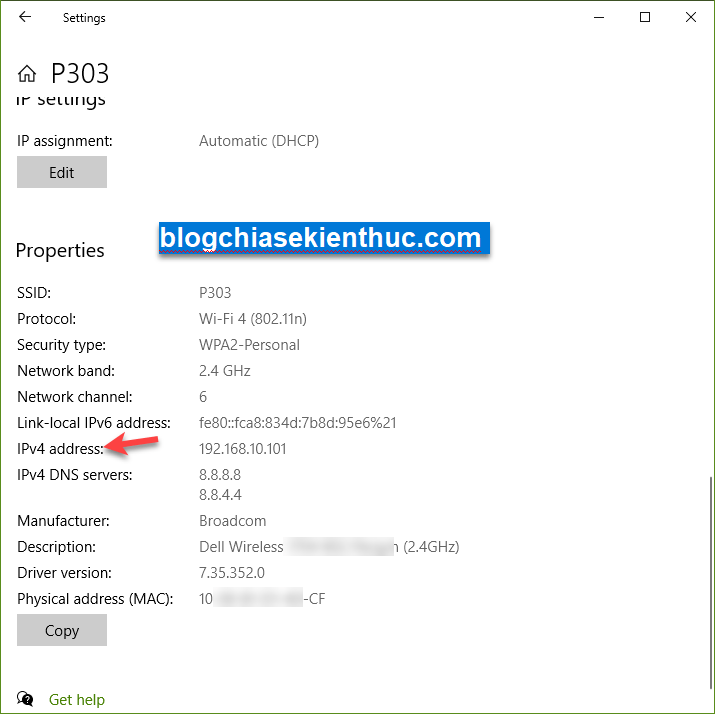
Microsoft's network-settings guide covers the current controls.
Find the public address seen by a website
Open a public-IP lookup website in the browser using the connection you want to check. The result describes that outbound connection; it may show the VPN endpoint, ISP shared address, or IPv6 address rather than a unique address assigned only to your PC.
The older example below illustrates a lookup result. Its displayed address is not your current address.
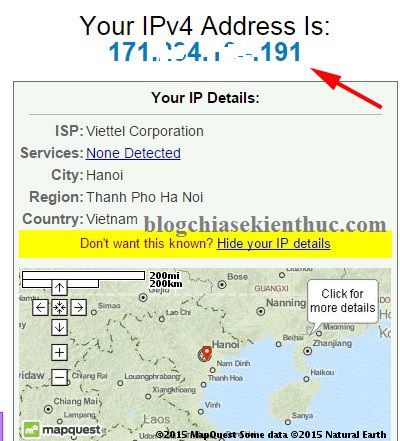
A public lookup requires internet access. Your local adapter address can still be inspected when the internet connection is down. Avoid posting complete network output publicly when a smaller set of troubleshooting details is enough.
What arp -a does—and does not—show
The following command displays cached IPv4-to-link-layer address mappings:
arp -a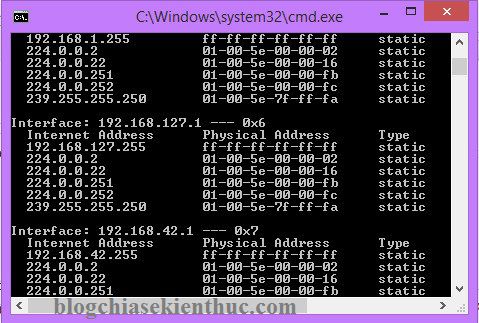
It is not a complete list of every device or address on the LAN. Devices may be absent because your PC has no current cache entry for them. For the command's scope, see Microsoft's ARP reference.
If your goal is diagnosing connectivity, record the active adapter's IP, gateway, and DHCP state rather than collecting unrelated addresses. The guided IP and DHCP check shows how to interpret them.
Related Articles
 2 simple ways to view and read MAC addresses on Windows 10 computers
 How to view MAC address on Windows using Command Prompt
 How to view the IP address, check the computer's IP
 How to check your computer's IP address - How to view and find the IP address
 6 ways to view IP addresses on computers, smartphones or Tablet
 6 simple ways to find the fastest computer IP address
Reader Comments 0
Sign in with email or Google to join the discussion.