Table of Contents
If you forget a Windows administrator password, the correct recovery method depends on whether you sign in with a Microsoft account or a local account. Start with the built-in recovery options below. They protect your files and avoid unsupported password-bypass tools.
Important: Use these steps only on a computer and account you own or are authorized to administer. Do not use third-party password-removal utilities on an untrusted PC; they may alter account data, expose credentials, or leave the system in an insecure state.
Identify the account type
A Microsoft account normally displays an email address on the sign-in screen. A local account uses a username that exists only on that computer. Work or school accounts may be managed by an organization and should be recovered through its IT administrator.

Reset a Microsoft account password
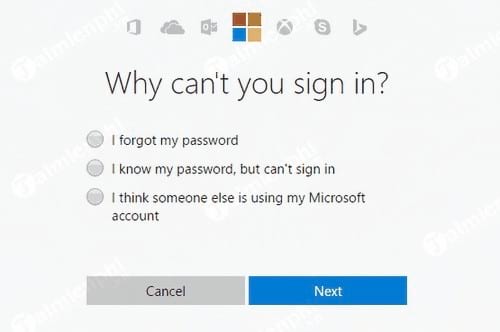
- On another trusted device, open Microsoft's account-recovery page by selecting I forgot my password from the Windows sign-in flow.
- Enter the email address associated with the account and complete the identity-verification steps offered by Microsoft.
- Return to the locked PC, make sure it is connected to the internet, and sign in with the new password. If Windows still shows the old credential state, restart the computer and try again.
The recovery screens can change over time, but the account email and verification prompts remain the key parts of the process.

Reset a local account password
Use security questions
On supported Windows 10 and Windows 11 installations, enter an incorrect password once, select Reset password, answer the security questions, and create a new password. This option appears only when security questions were configured for that local account.
Use a password reset disk
If you created a password reset disk before losing access, connect it, select Reset password on the sign-in screen, and follow the Password Reset Wizard. A reset disk works only for the local account for which it was created.
Ask another administrator to reset the account
If the PC has another authorized administrator account, sign in to it and reset the affected local account through Windows account-management tools. Be aware that an administrator-initiated reset can make some encrypted files or stored credentials inaccessible. The related guide to changing a Windows password with Command Prompt applies only after you already have authorized administrator access.
When no sign-in recovery option works
For an organization-managed device, contact the IT administrator. For a personal PC, use the Windows Recovery Environment and choose Reset this PC. The Keep my files option reinstalls Windows while retaining personal files, but it removes installed apps and resets settings. Back up accessible data first whenever possible.
Older Windows versions may not offer security questions or the current recovery interface. Use the recovery media and account-management options supplied for that version, or seek help from the device manufacturer. After regaining access, create a recovery method and review the guide to managing password-change settings in Windows 10.
Related Articles
 How to Fix Lost Admin Password Error When Logging into6 minutes read
 Forget Windows 7 Password Still Logged in Administrator Account1 minutes read
 Instructions on How to Activate the Admin Account or Reset the6 minutes read
 How to Login to Your Computer When You Forget Your Password10 minutes read
 Reset Pass Windows 10 from the Login Screen4 minutes read
 Reset Password, Recover Login Password on Mac2 minutes read
Reader Comments 0
Sign in with email or Google to join the discussion.