Table of Contents
Learn how to reduce laptop touchpad heat in an instant with clear steps, practical tips, and troubleshooting guidance for a reliable result.
Why does my laptop touchpad suddenly get too hot to the touch?
The touchpad area often gets hot because it's located near the CPU or heat pipes in many thin laptops. The CPU is the most active component of the computer, generating a lot of heat. That's why you sometimes feel your finger getting warm on the touchpad even when not directly touching the processor.
Another cause is overclocking or "Turbo Boost/Precision Boost". Modern CPUs can automatically increase power when more energy is needed. This is great for short bursts, but it generates a lot of excess heat that escapes to the touchpad area. Therefore, this default setting should be removed.
Conversely, if your laptop is running slowly and the touchpad isn't getting hot, you're experiencing the opposite of overclocking. This issue is called 'overheating-induced performance degradation'.
Reduce touchpad temperature by limiting the maximum processor usage to 75-80%
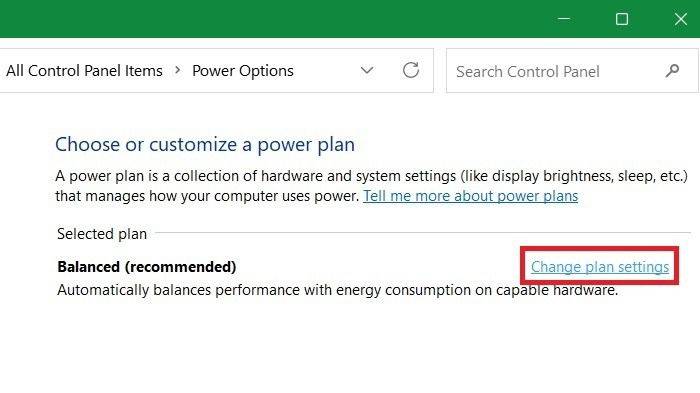
Open the Control Panel and change the View by icon to a large one. Then you can see Power Options . Click on Change plan settings .
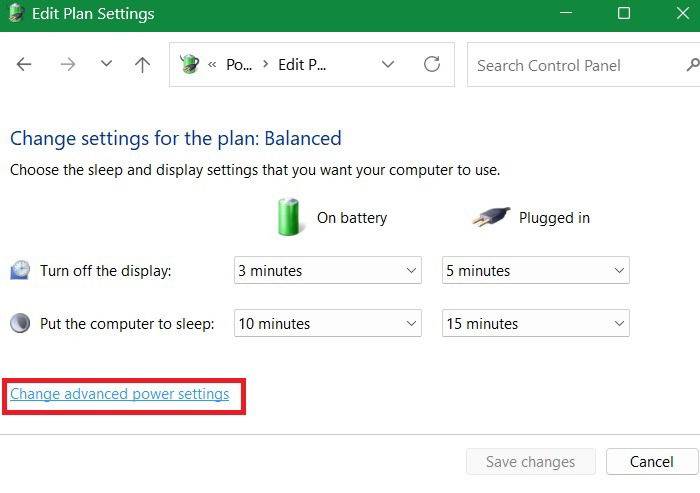
The Edit Plan Settings window will open. Click on Change Advanced power settings . A new pop-up window will open.
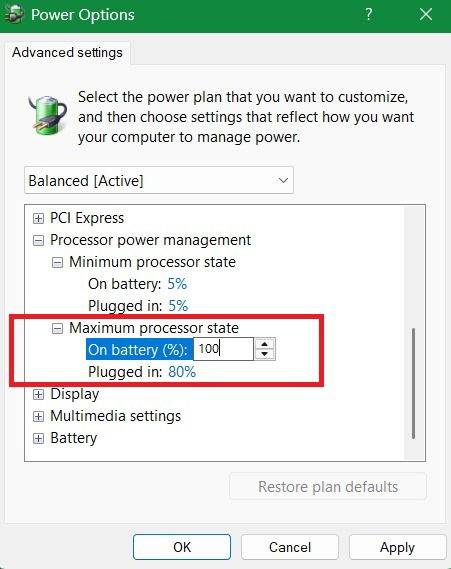
In the new Power Options window, scroll down to Maximum processor state , which is always set to the default value of 100% both when plugged in and on battery. Most laptop users never change this default setting. That's fine if the system is well-cooled, especially with laptop heatsinks.
However, because laptops have limited heat dissipation capabilities, CPU temperatures can skyrocket to 90-100°C, transferring heat to the touchpad. Reducing the maximum processing power to 75-80% will generate less heat and lower the touchpad temperature. Click Apply → OK to save these changes.
Some users report temperature drops even at 99%, but in experience, even 90% is only partially sufficient. Anything below 70% slows down multitasking and causes applications to lag. Currently, 75-80% is the ideal range. Touchpad temperature drops within 90 seconds when it reaches this range.
Prevent overheating by turning off Turbo Boost (Intel) and Precision Boost (AMD)
Intel's Turbo Boost and AMD's Precision Boost are major causes of unnecessary stress on the CPU. Disabling them will prevent unnecessary overheating in the future. Some laptop models may have a Processor performance boost mode toggle switch in the Power Options window. This mode is enabled by default, and you can click Disabled and then Apply → OK .
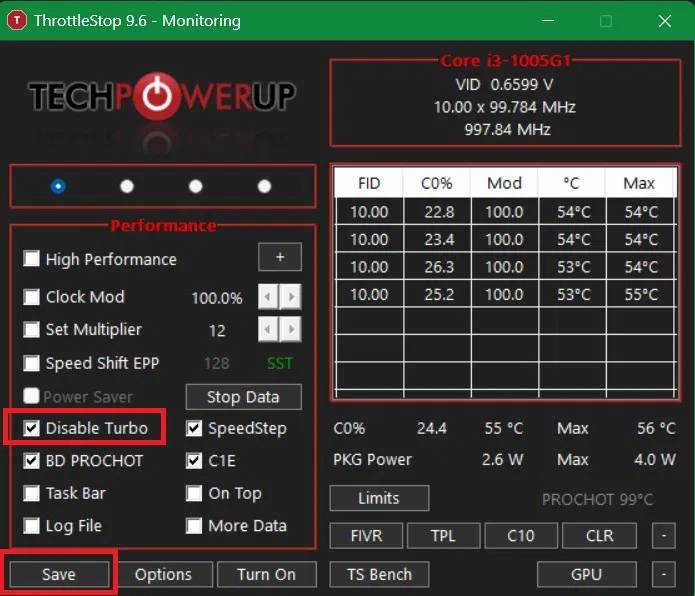
Many laptops don't have these direct switches, so use a tool called Throttlestop. Download a small ZIP file and run it immediately. No installation required. When the application wizard opens, find the option called Disable Turbo and select it. Then click Save and exit the wizard.
Other software measures to reduce touchpad temperature
Besides disabling Turbo Boost/Precision Boost and limiting the maximum processor state, you can cool down the touchpad with these small software tweaks.
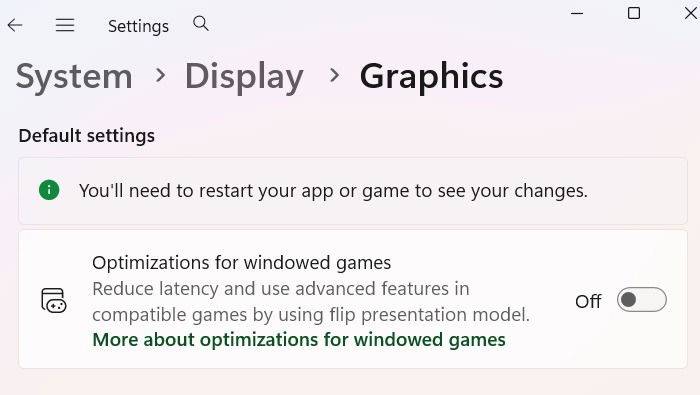
- If you're not a heavy gamer, you can disable a hardware acceleration optimization setting, a major heatsink. Go to Settings → System → Display → Graphics . Here, you need to turn off Optimization for windowed games , which is set as the default.
- You can also reset the power efficiency level. To do this, go to Settings → System → Power & battery . Here, you can change the Power Mode value from Balanced to Best Power Efficiency .
If this option is missing on your device, you can add it with some simple PowerShell tweaks.
Final Thoughts
Use this guide as a practical checklist for how to reduce laptop touchpad heat in an instant. Work through the steps in order, verify each result, and adjust the options to match your needs.
FAQ
What do you need before following this How to Reduce Laptop Touchpad Heat in an Instant guide?
Review the required tools, accounts, settings, or materials mentioned in the article. Learn how to reduce laptop touchpad heat in an instant with clear steps, practical tips, and troubleshooting guidance for a reliable result.
What are the main steps for how to reduce laptop touchpad heat in an instant?
Follow the sections in order, especially Why does my laptop touchpad suddenly get too hot to the touch?, Reduce touchpad temperature by limiting the maximum processor usage to 75-80%, Prevent overheating by turning off Turbo Boost (Intel) and Precision Boost (AMD). Complete each step before continuing and verify the result as you go.
What should you do if the process does not work as expected?
Recheck the prerequisites, update the relevant app or service, review the settings, and repeat the step that caused the issue. Use any troubleshooting notes included in the guide.
Related Articles
 How to Cool Down Your Laptop, Reduce Heat, and Dissipate Heat Quickly5 minutes read
 How to Prevent Heat for Laptops Effectively7 minutes read
 Summary of Some Ways to Turn Off Touchpad on Laptop9 minutes read
 Heat Sinks: Should We Buy Laptop Heat Sink Base?4 minutes read
 Touchpad Freezes: Causes and Effective Solutions8 minutes read
 What Is Multi Touchpad on Laptop?3 minutes read
Reader Comments 0
Sign in with email or Google to join the discussion.