Table of Contents
This practical guide explains how to adjust photo lighting with relight Windows 11. Follow the steps in order, review the requirements first, and use the troubleshooting notes when a setting or option does not work as expected.
How to adjust photo light with Relight Windows 11
Step 1:
You open the photo on the Photos app, then click the Edit button to proceed with editing the image.
Step 2:
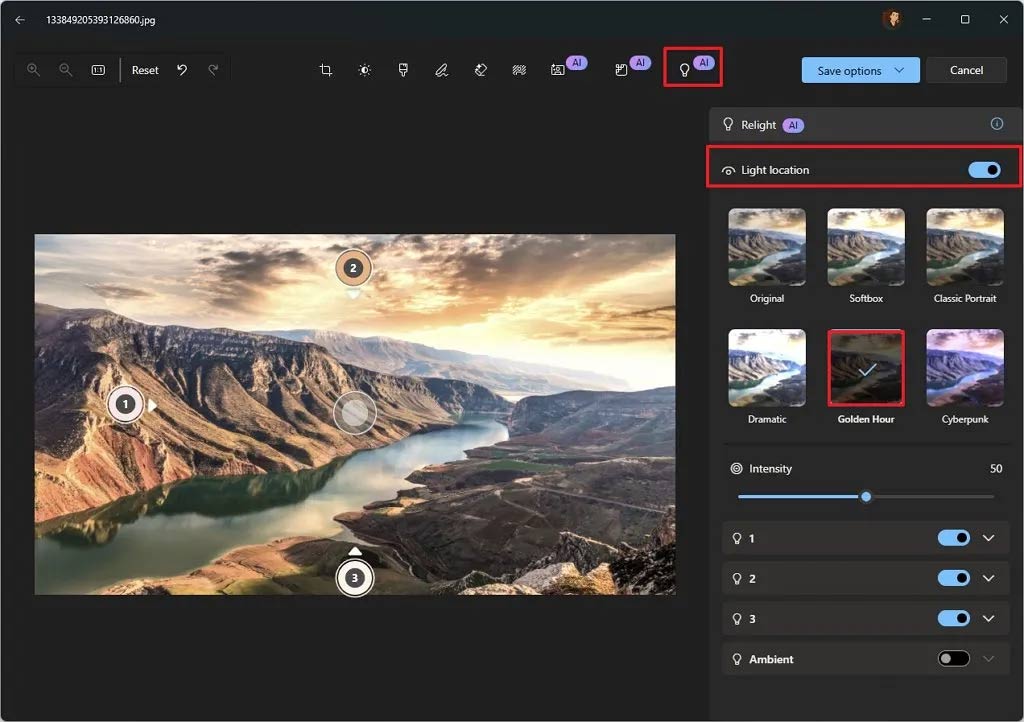
In the toolbar, select Relight and look down below, turn on Light location if available . We can choose from one of the available light settings , including Softbox, Classic Portrait, Dramatic, Golden Hour and Cyberpunk.
Step 3:
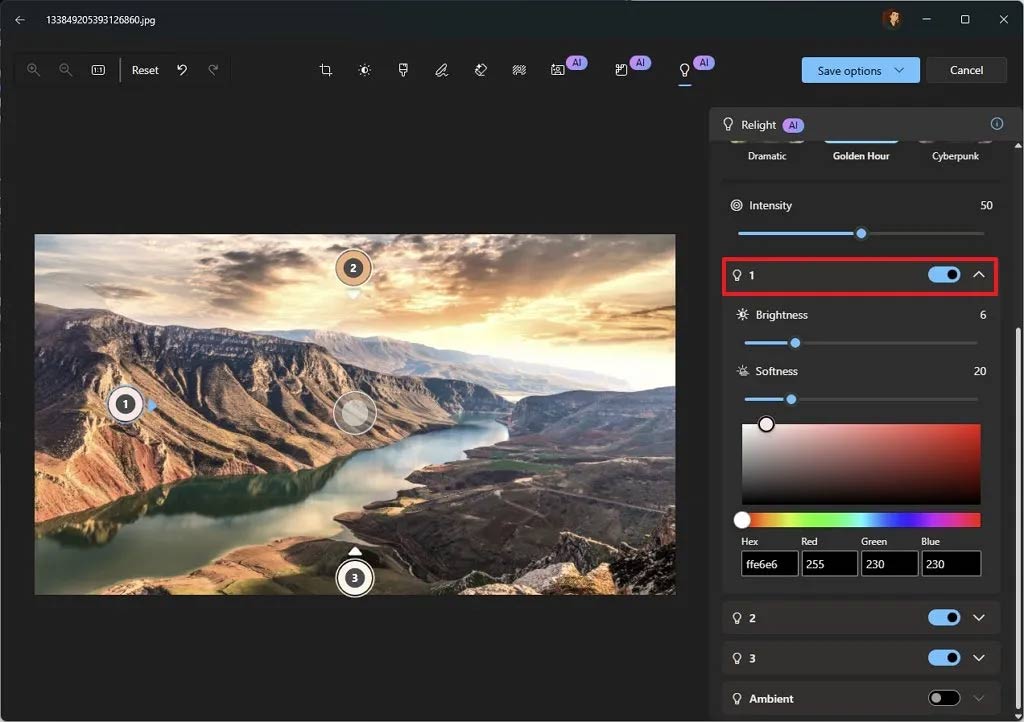
Or you can adjust it manually , turn on light source number 1 and then adjust the brightness, softness, and color of the light source below. Continue to turn on lights number 2, number 3 and also adjust the brightness bars below.
Step 4:
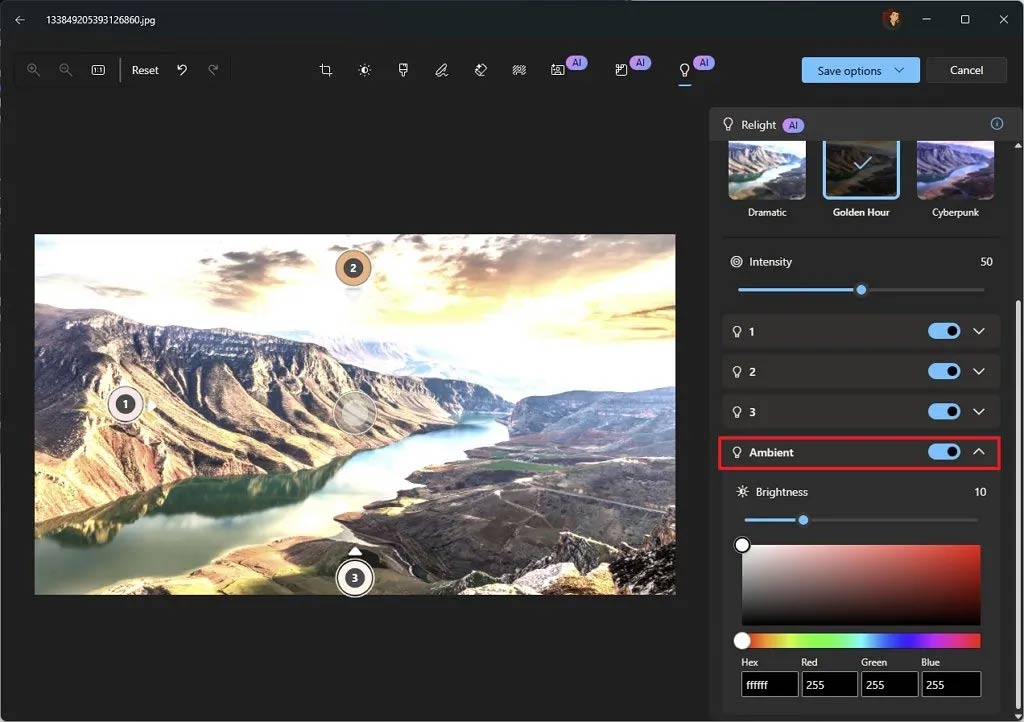
Turn on the Ambient switch to control the brightness and color of the ambient light.
We proceed to adjust the light intensity in the Intensity bar. After adjusting, click Save to save.
FAQ
How to adjust photo light with Relight Windows 11?
You open the photo on the Photos app, then click the Edit button to proceed with editing the image.
What does this guide cover?
This guide explains adjust photo lighting with relight Windows 11, including the main steps, important details, and practical considerations.
Who is this guide for?
It is designed for readers who want a clear, practical overview and a reliable process they can follow without unnecessary complexity.
Related Articles
 How to Adjust Light for Photos Using AI4 minutes read
 How to Enable Dynamic Lighting on Windows 115 minutes read
 How to Adjust Screen Brightness in Windows 11: Step-by-Step Guide4 minutes read
 Click: How to Edit Your Photos on Windows Vista3 minutes read
 Managing Devices with RGB Leds on Windows 11 Is About to Get Simpler3 minutes read
 How to Use Smartphone Filters to Fix Bad Lighting in Photos6 minutes read
Reader Comments 0
Sign in with email or Google to join the discussion.