Table of Contents
Choose the iPhone or iPad gallery below for the wallpaper from Apple’s version 26 releases. The iPhone images include light and dark versions and treatments for the Lock Screen and Home Screen. For a larger copy, use the full-size archive for your device.
iOS 26 wallpapers for iPhone
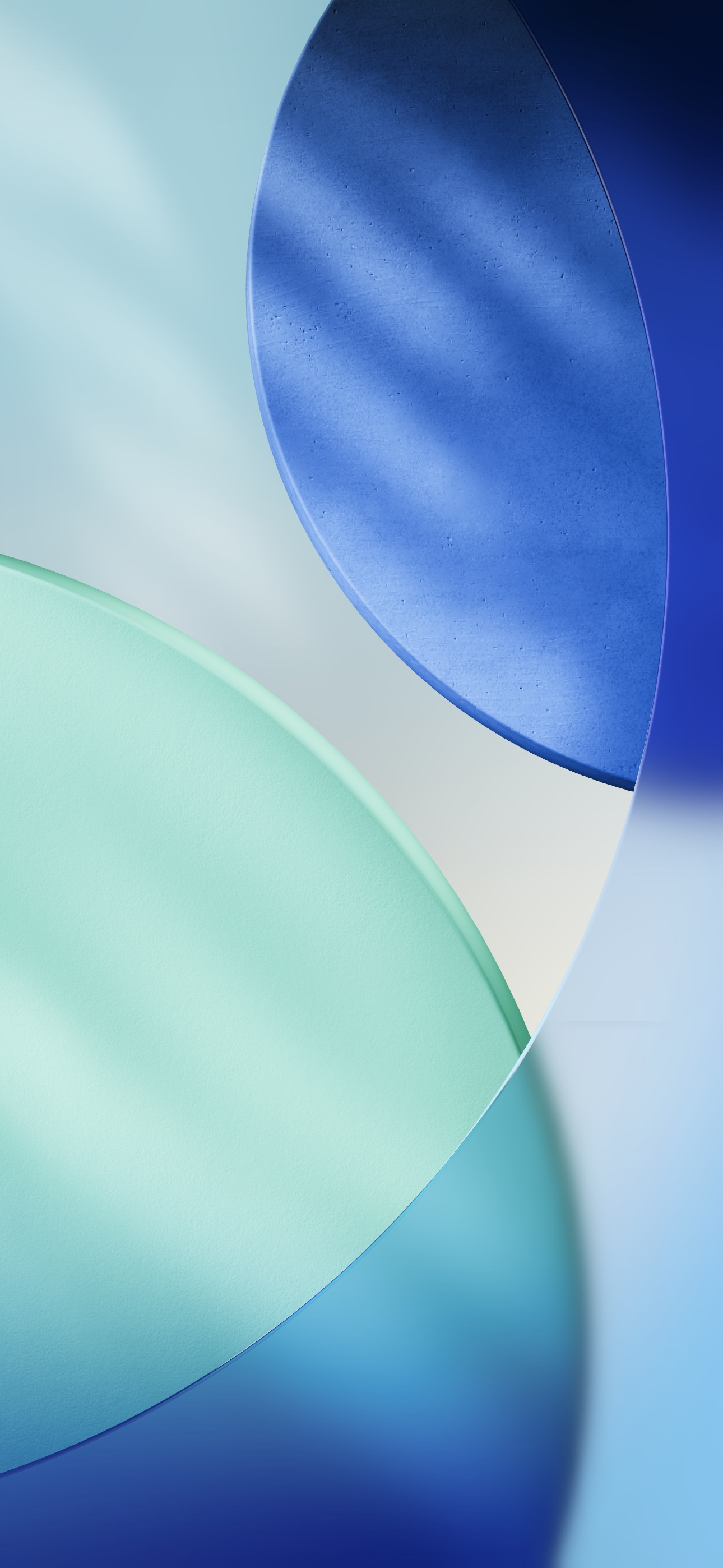
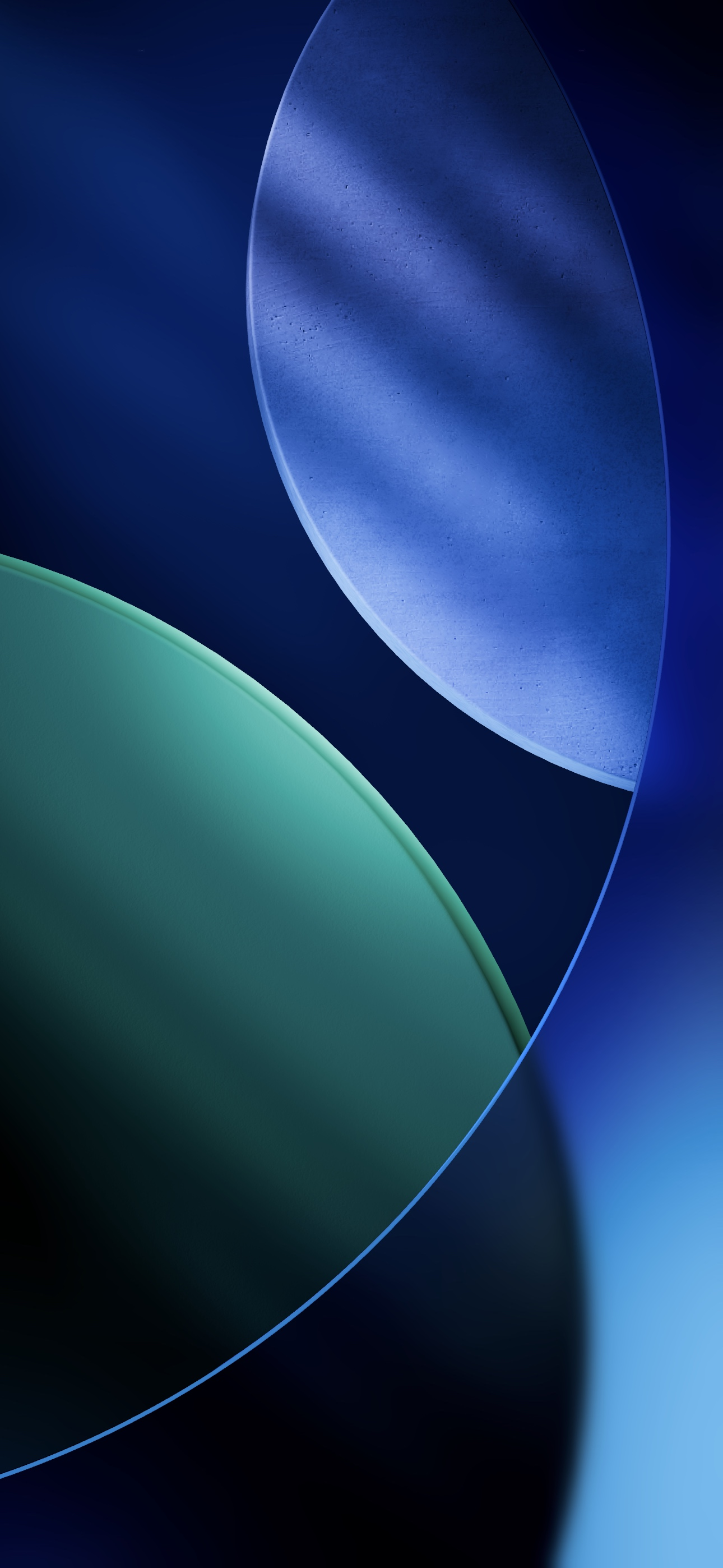
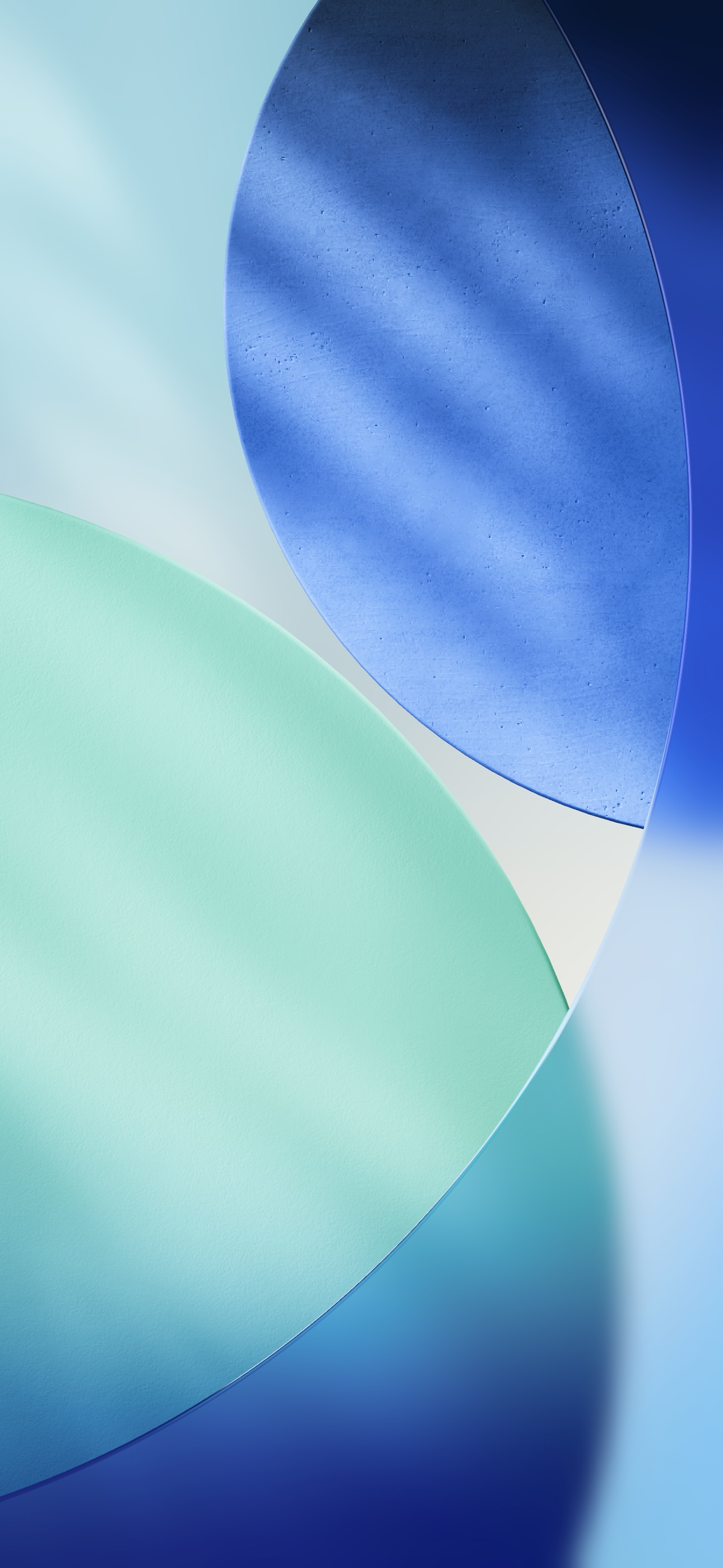



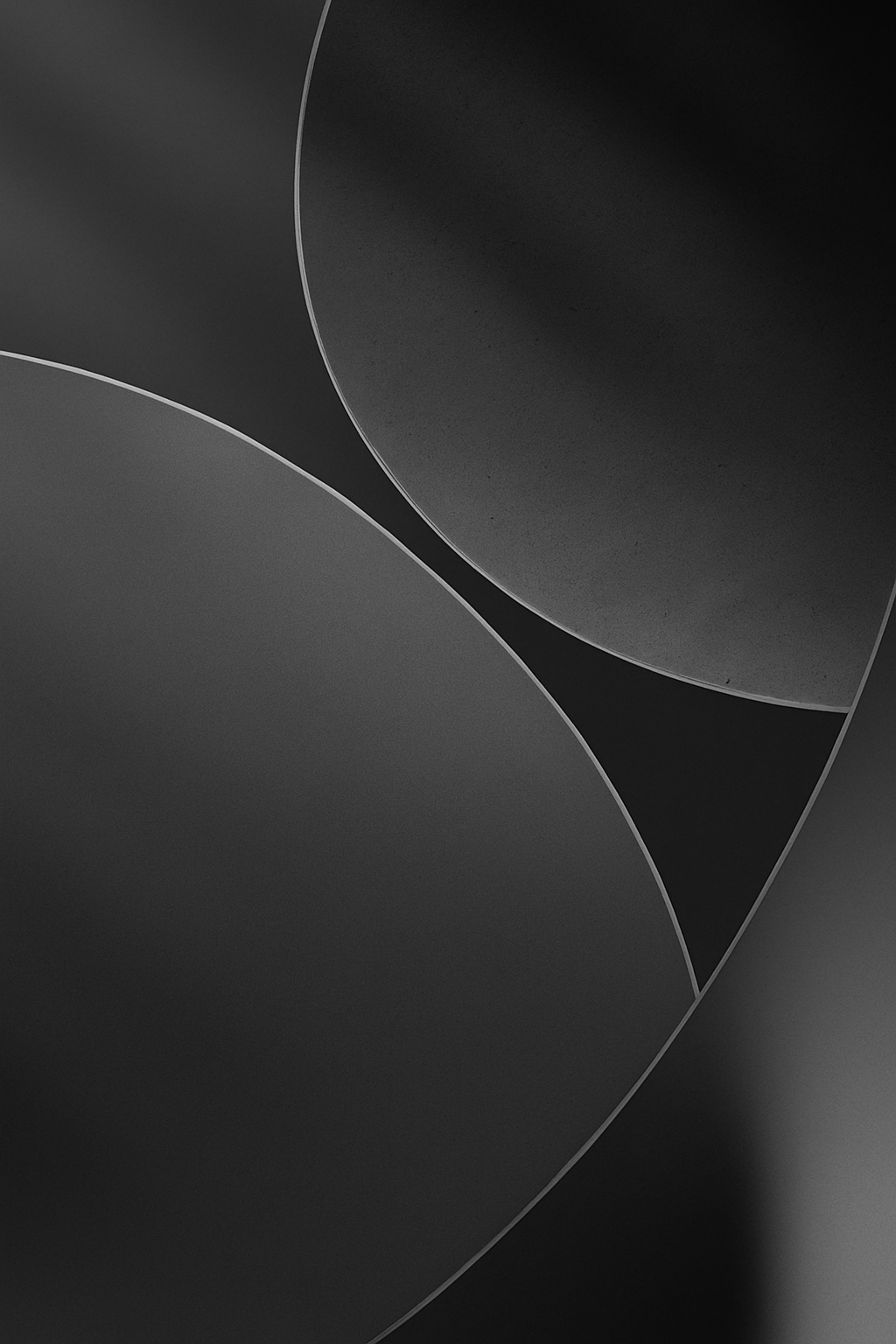
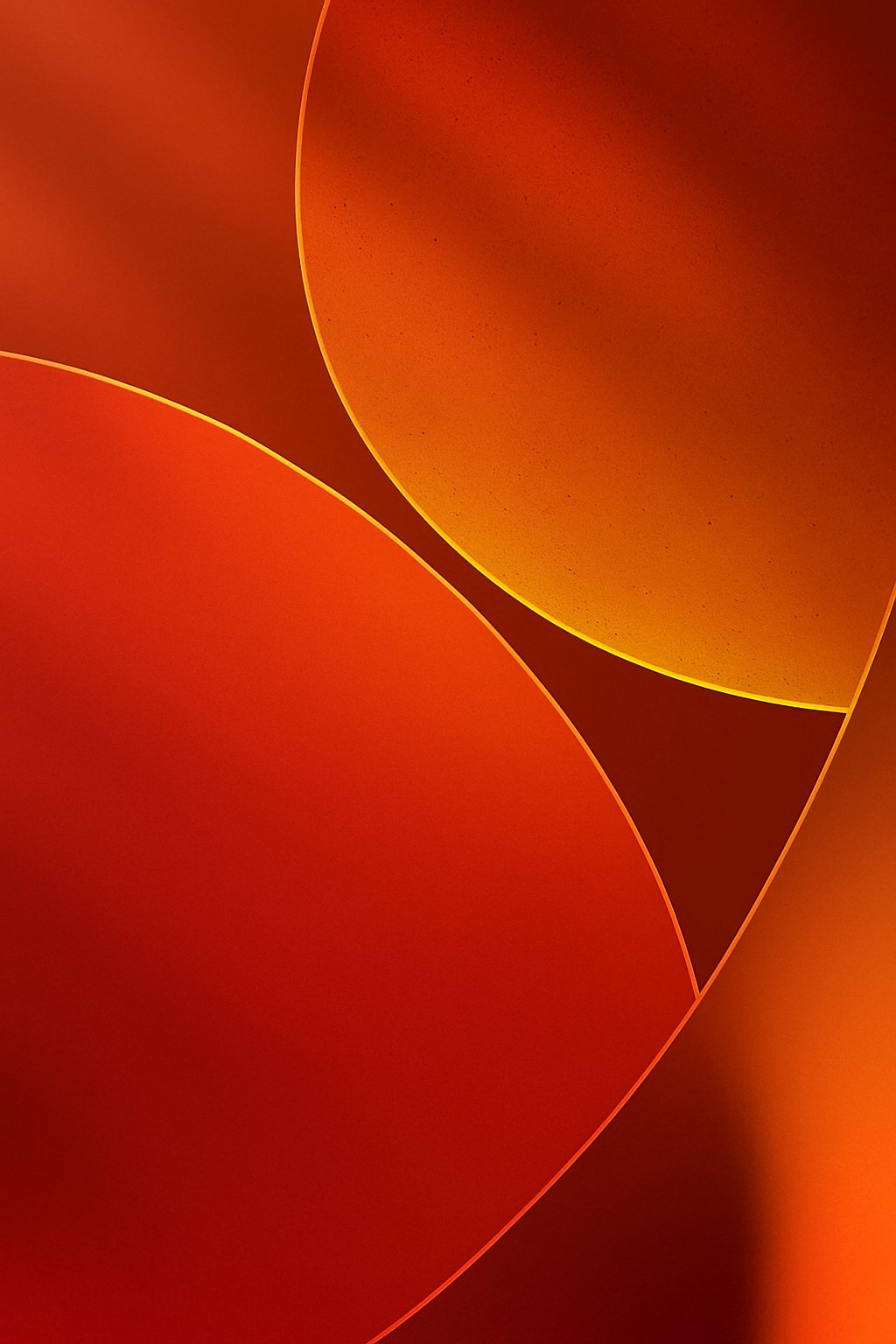
Open the full-size iPhone wallpaper archive to choose a variant. Use the darker image if icons or the Lock Screen clock are hard to read over the lighter one.
iPadOS 26 wallpapers for iPad


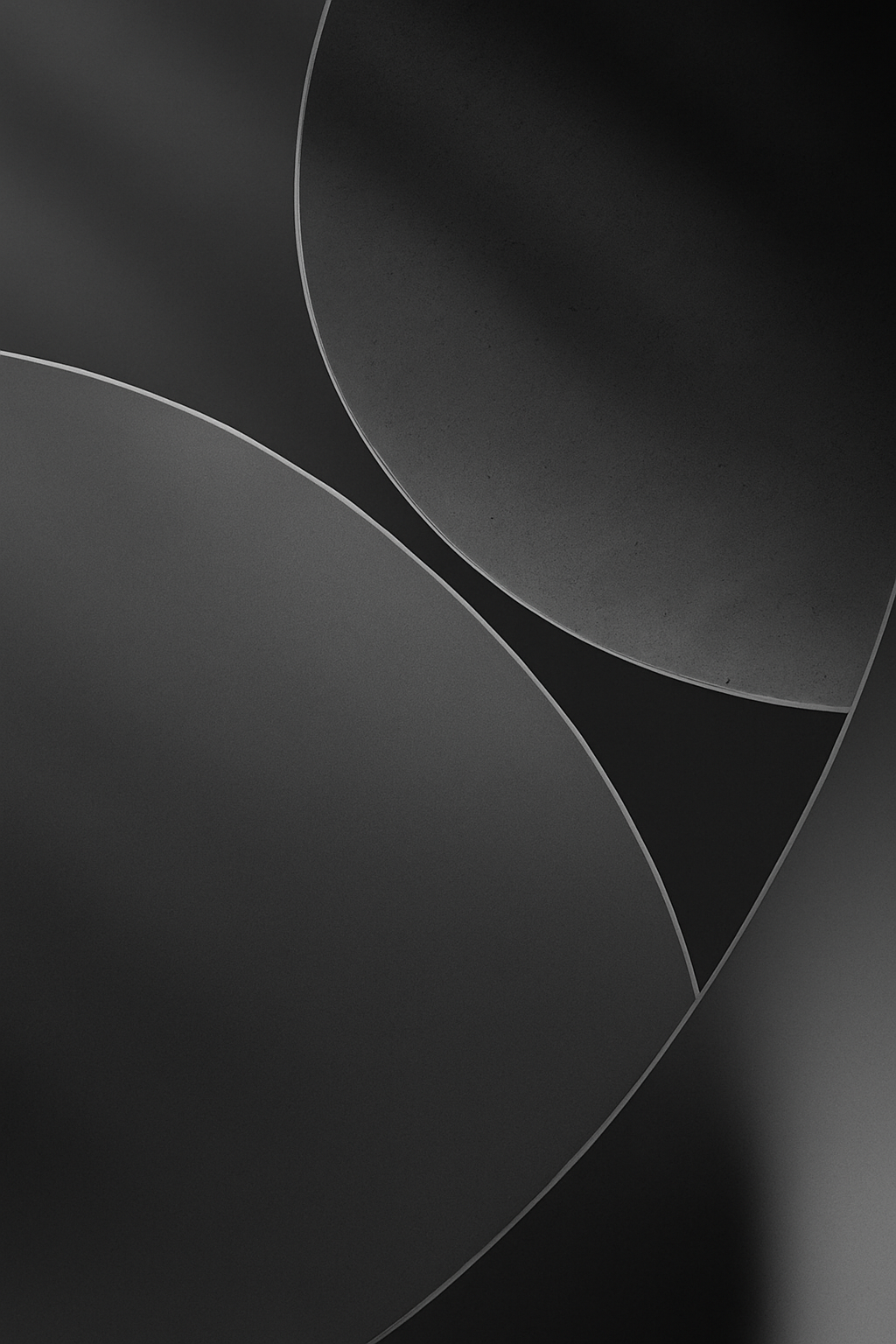
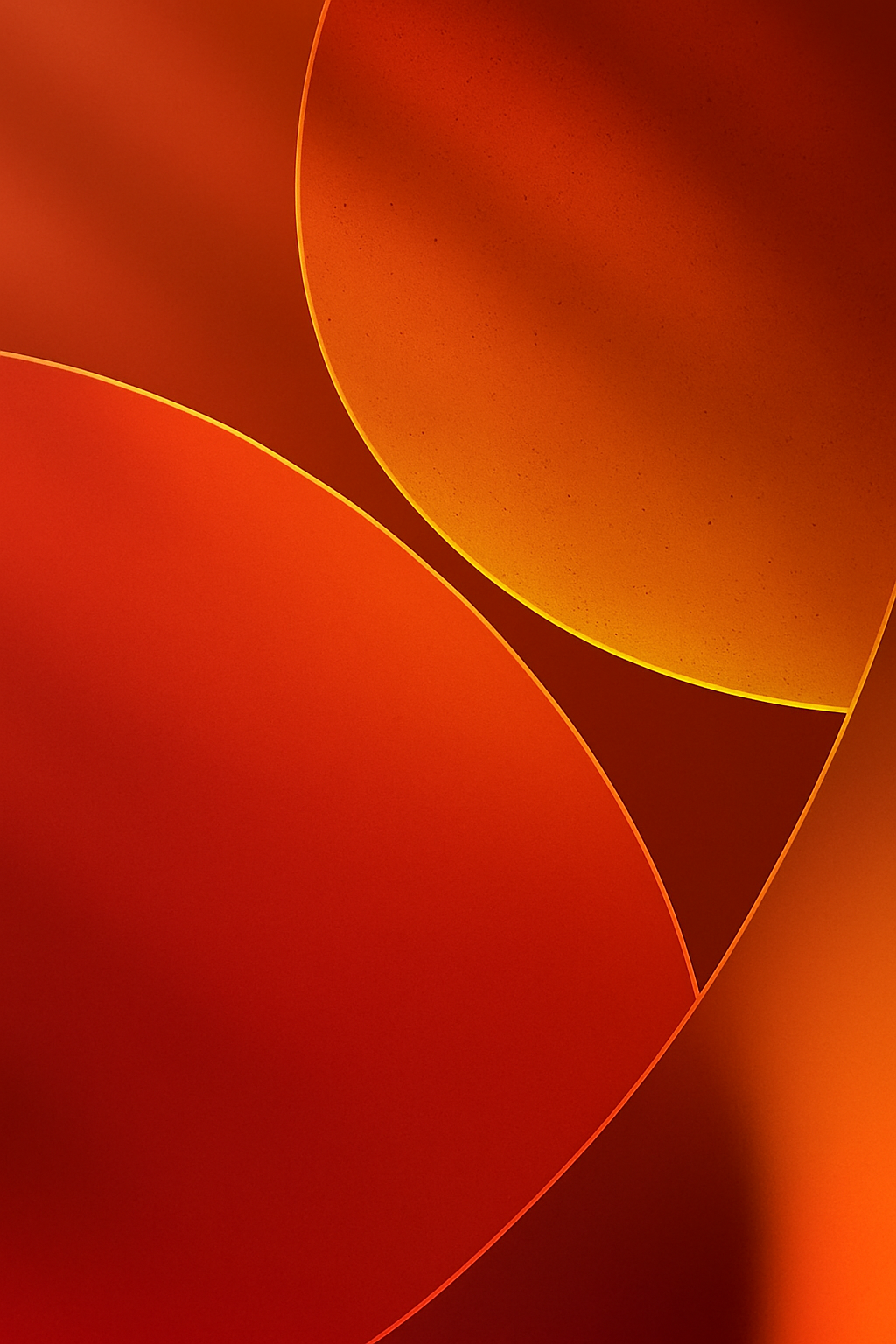
Use the full-size iPad wallpaper archive for the tablet versions. Check how the picture crops in both portrait and landscape if you switch orientations often.
Save and set the wallpaper
- Open the image itself in your browser. On iPhone or iPad, touch and hold it and choose the option to save it to Photos. On a computer, right-click and choose Save Image As.
- On iPhone or iPad, go to Settings → Wallpaper → Add New Wallpaper. Select Photos and pick the saved image.
- Adjust the crop, then tap Add. Choose to set a wallpaper pair or customize the Home Screen separately.

You can use the downloaded image on older devices and Android if it crops to your screen. If icons are difficult to see on a device running iOS 26, try adjusting Liquid Glass transparency.





Reader Comments 0
Sign in with email or Google to join the discussion.