Table of Contents
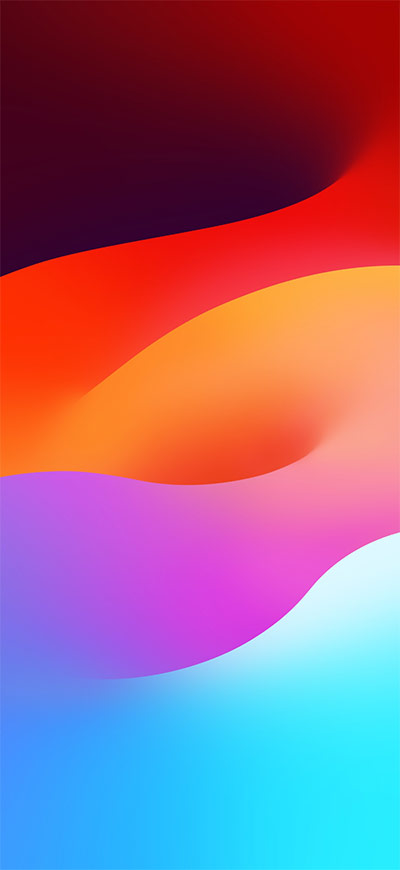
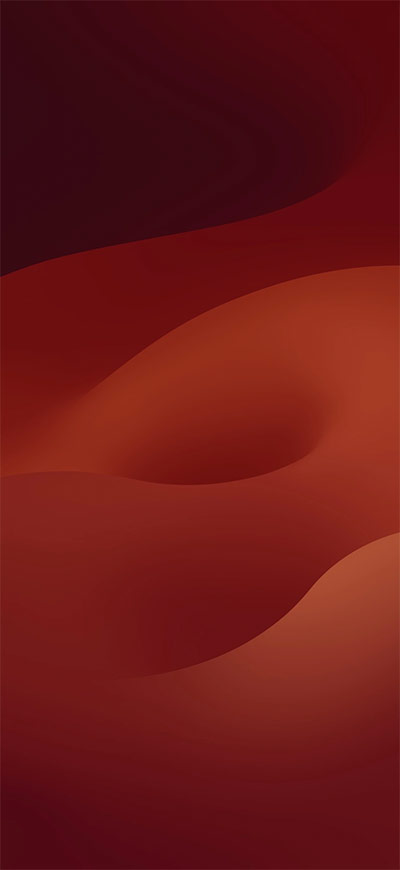
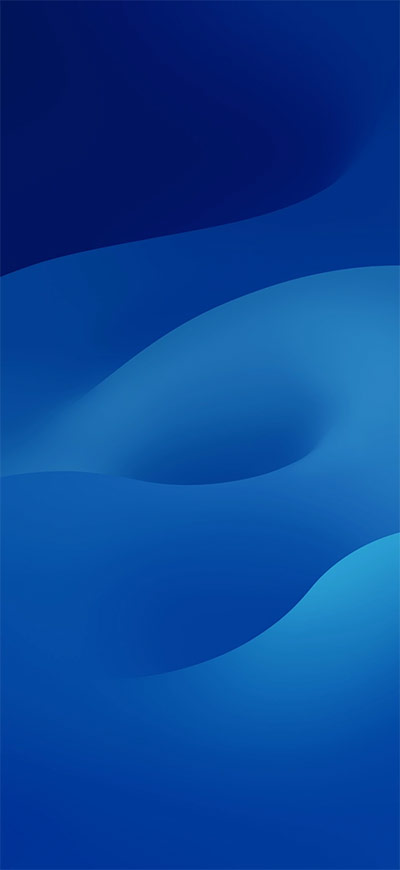
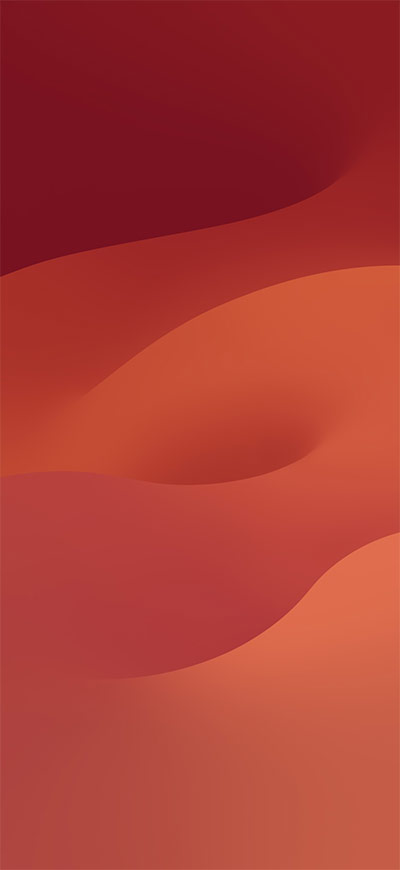
This gallery contains eight iOS 17 wallpapers and color variations for iPhone. The abstract designs use layered gradients and work best in a portrait crop. Open an image before saving it so you can use the largest version available rather than a small page preview.
iOS 17 wallpaper gallery
Compare the lighter and darker versions against the interface you use most often. A bright wallpaper may work well behind dark Lock Screen text, while a dark design can make light text and widgets easier to read.
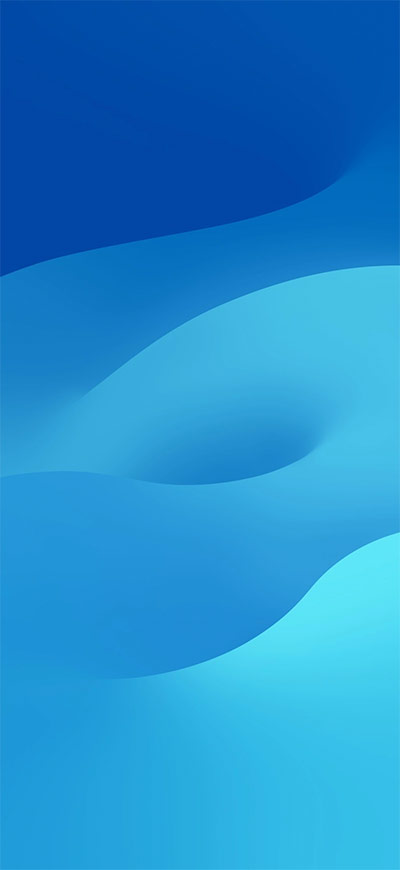
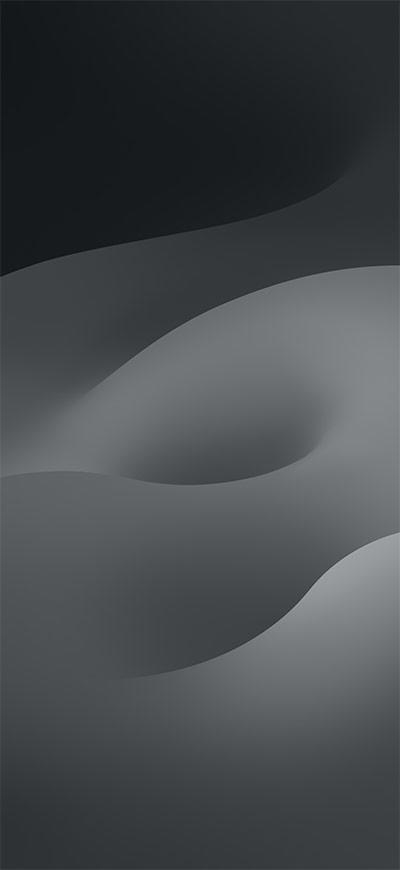
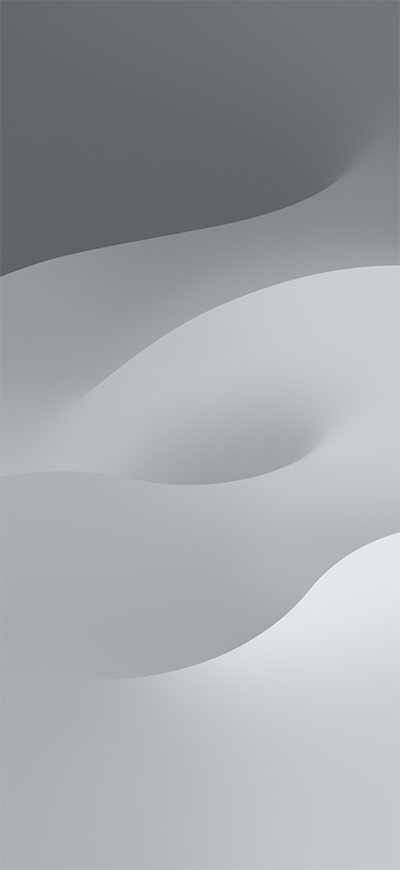
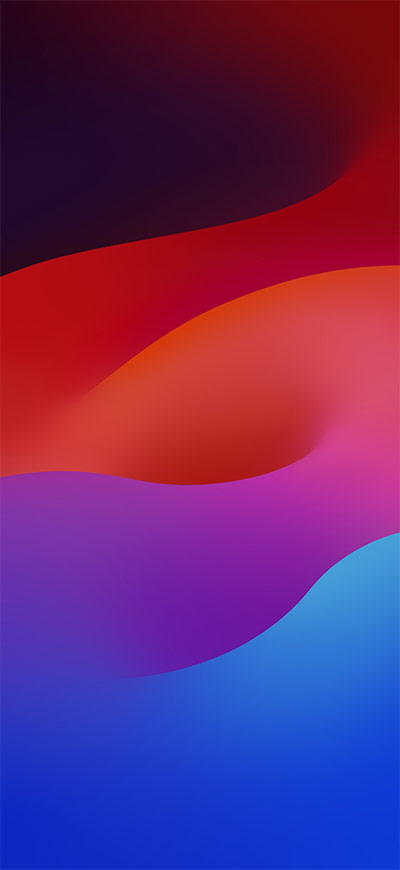
How to save an iOS 17 wallpaper
- Tap the wallpaper you want to open it at the largest available size.
- Touch and hold the image, then choose the browser's save or download command. If you are on a computer, use the image context menu.
- Check the saved image in Photos before setting it. A screenshot may include browser controls or reduce the available resolution, so save the image file directly when possible.
The images shown on a web page may be optimized for display. If your browser opens a larger source image, save that version for the sharpest result.
Set the image as an iPhone wallpaper
- Open Settings > Wallpaper and tap Add New Wallpaper.
- Choose Photos, then select the saved image.
- Pinch to zoom and drag with two fingers to position the gradient.
- Preview the clock, widgets, notifications, and bottom controls. Keep important color transitions away from interface text when possible.
- Tap Add, then choose a wallpaper pair or customize the Home Screen separately.
You can also touch and hold the Lock Screen, authenticate, and use the wallpaper gallery to create or edit a design. Menu labels can differ slightly between iOS releases.
Choose a crop that stays readable
- Lock Screen: leave enough contrast behind the clock and widgets.
- Home Screen: avoid a busy central area that competes with app icons and labels.
- Different iPhone sizes: expect some cropping near the top, bottom, or sides.
- Light and dark appearance: preview both if the phone changes interface colors automatically.
- Depth Effect: abstract images normally do not have a foreground subject for multilayered depth, so focus on color and crop instead.
If you want more styles, browse these Full HD, 2K, and 4K phone wallpapers or the earlier iOS 13 wallpaper collection. You can also personalize the interface with iPhone Lock Screen widgets.
Related Articles
 iOS 18 4K Wallpaper, Download iOS 18 4K Wallpapers4 minutes read
 Download 3D Wallpapers for Your Phone with a Wide Variety of Themes3 minutes read
 Download 1,000 Beautiful Wallpapers from Google Earth3 minutes read
 Free Fire Wallpapers for Latest Computers and Phones3 minutes read
 Collection of Beautiful Wallpapers, Beautiful Wallpapers with2 minutes read
 Cute Wallpapers for Smartphones2 minutes read
Reader Comments 0
Sign in with email or Google to join the discussion.