Table of Contents
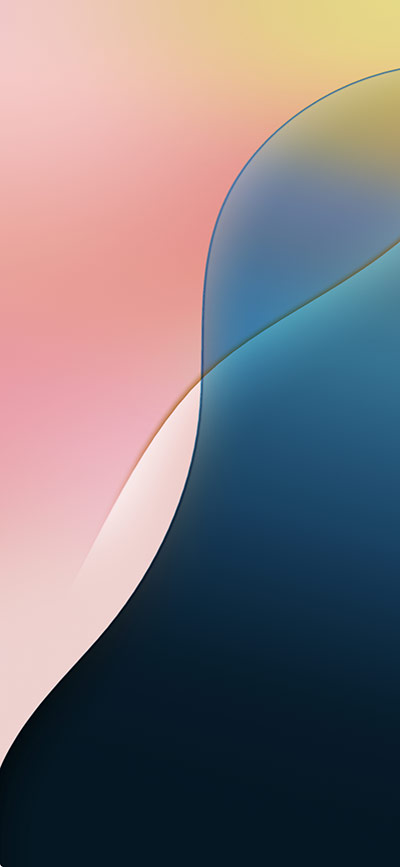
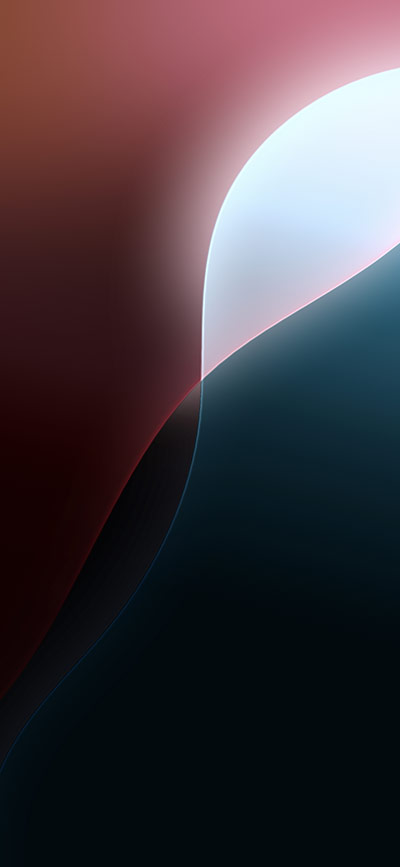
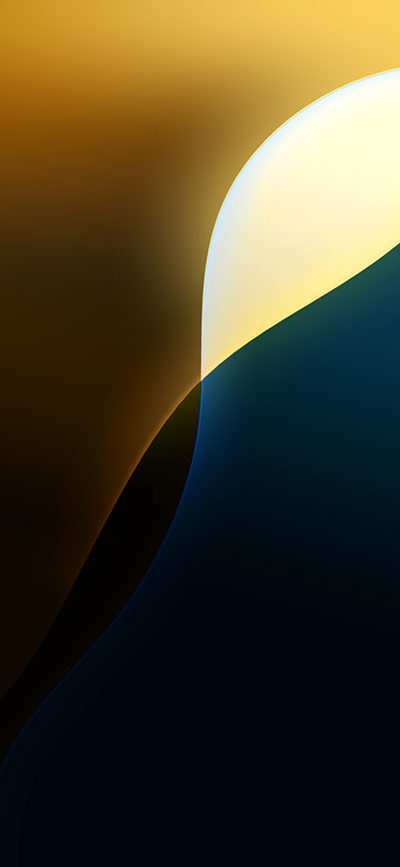
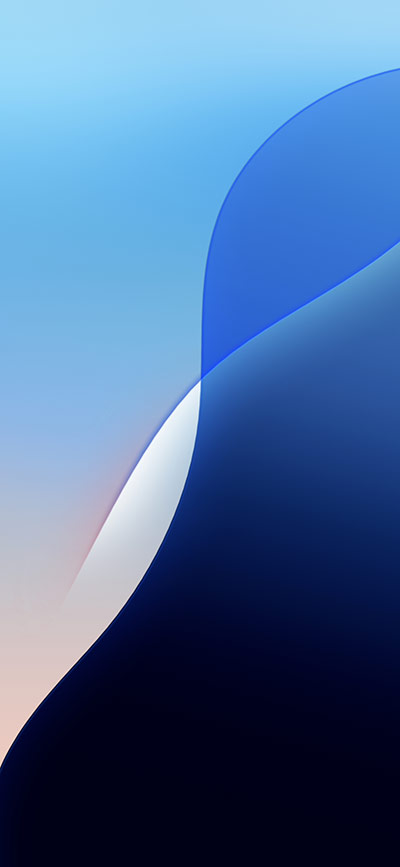
This collection contains eight iOS 18 wallpaper color variants plus four screenshots showing how to preview and save images from a downloaded ZIP file on an iPhone. The abstract designs use smooth gradients and work on both the Lock Screen and Home Screen.
A web preview is not automatically a 4K source file. Open the image at its largest available size and check its pixel dimensions if you need a high-resolution copy for a particular iPhone or another display.
iOS 18 wallpaper gallery
Compare the lighter and darker versions with the interface you use. A darker area behind the clock can improve white-text contrast, while a quieter center often keeps Home Screen icons easier to read.

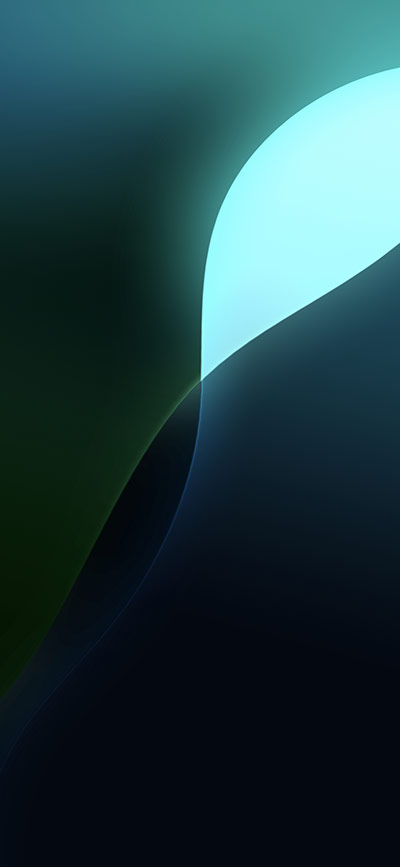
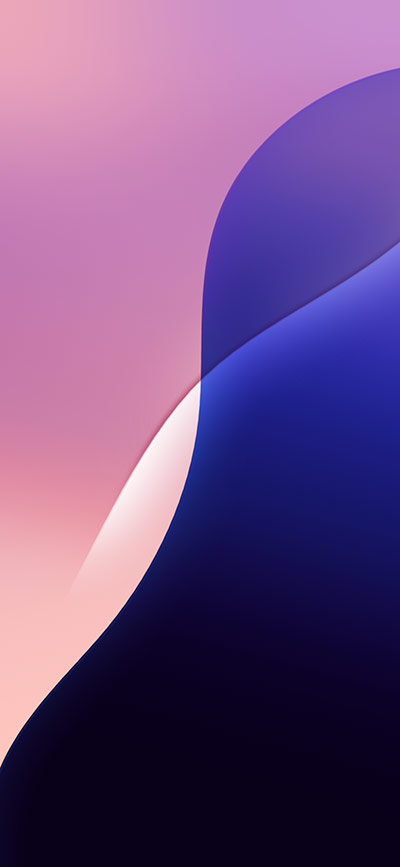
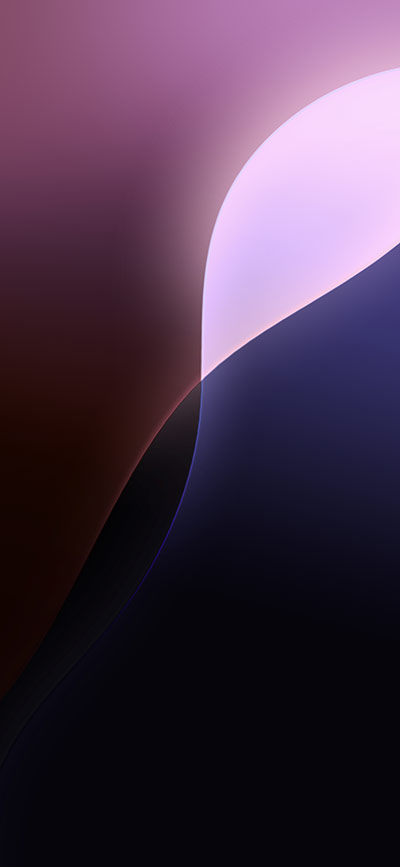
Save a wallpaper directly
- Tap the image you want to open it at full size.
- Touch and hold the image, then choose the browser's save or download command.
- Open Photos and check that the whole image was saved without browser controls or page borders.
- Keep the original file so you can create a different crop later.
Saving the actual image file is usually better than taking a screenshot, which may reduce the usable resolution.
Open a wallpaper ZIP on iPhone
If you download a ZIP archive rather than an individual image, open the Files app and locate the archive. Tapping a ZIP normally extracts it into a folder. On some preview screens, you may instead see an option such as Preview Content.
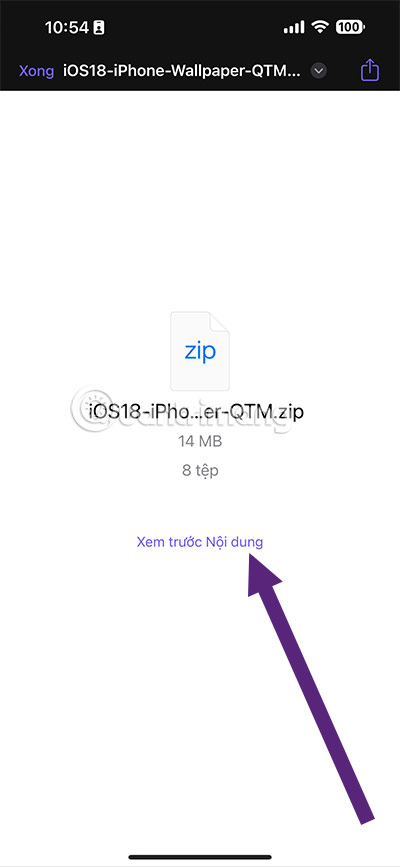
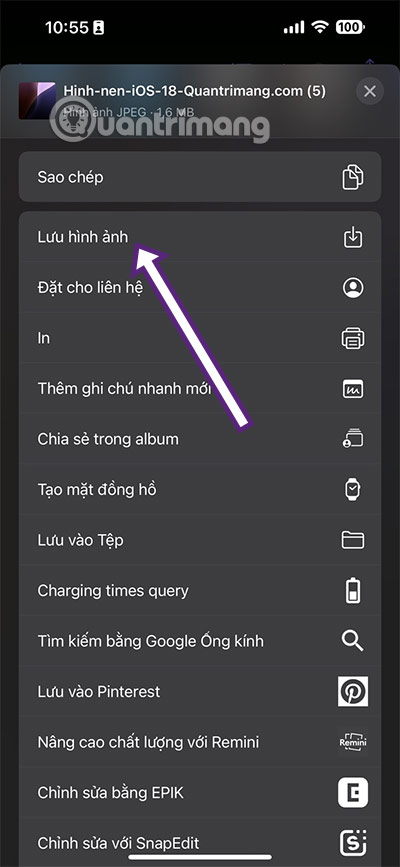
Open the extracted folder or preview, then select the wallpaper you want. Tap the Share button to see the available actions.
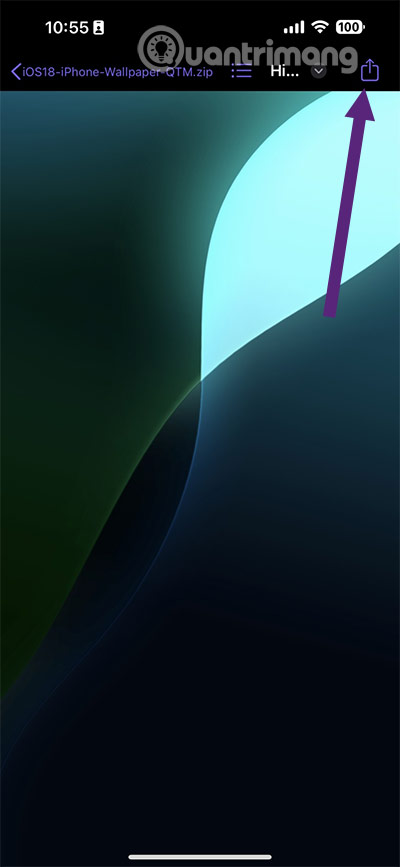
Choose Save Image to add the file to Photos. If that action is unavailable, make sure you selected an image rather than the ZIP itself.
Set the saved image as wallpaper
- Open Settings > Wallpaper.
- Tap Add New Wallpaper and choose Photos.
- Select the saved iOS 18 image.
- Pinch to zoom and drag the image with two fingers to adjust the crop.
- Check the clock, widgets, notifications, and controls, then tap Add.
- Choose a wallpaper pair or customize the Home Screen separately.
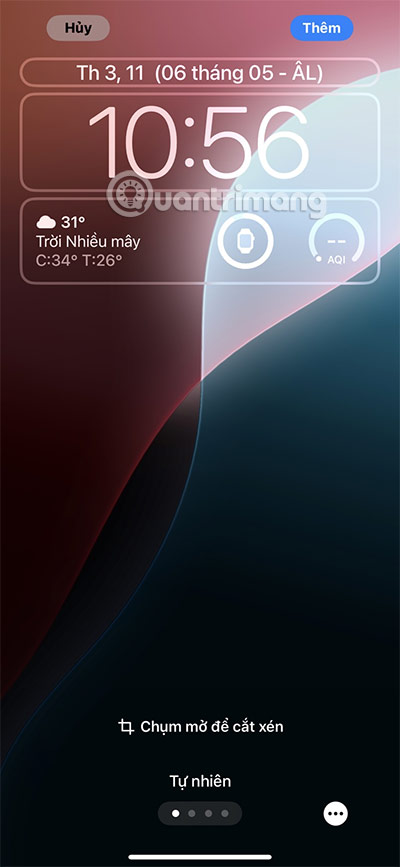
You can also touch and hold the Lock Screen, authenticate, and create or edit a wallpaper from the gallery. Menu labels may vary slightly between iOS releases.
Choose the best crop
- Lock Screen: leave a calm, high-contrast area behind the clock and widgets.
- Home Screen: avoid sharp color transitions directly behind app labels.
- Different iPhone sizes: expect some top, bottom, or side cropping.
- Wallpaper extension: inspect any automatically generated area at the top of the image before saving.
- Separate designs: use the detailed version on the Lock Screen and a blurred or quieter version on the Home Screen if needed.
If the image looks blurry
- Confirm that you saved the full image rather than a gallery thumbnail.
- Reset excessive zoom in the wallpaper editor.
- Check whether the ZIP contains a larger original file.
- Avoid repeatedly exporting or screenshotting the same image.
- Use a source whose pixel dimensions are at least close to the phone display.
For more choices, browse the iOS 13 wallpaper collection, these high-resolution phone backgrounds, or useful iPhone Lock Screen widgets.
Related Articles
 Download Now 200 Wallpapers with Many Different Themes for Your2 minutes read
 Invite to Download 200 Full Hd Themes Wallpapers for Your2 minutes read
 Latest iOS 17 Wallpapers, Stunning iOS 17 Wallpapers4 minutes read
 How to Download One Plus 6 Extreme Wallpaper for Phones3 minutes read
 Computer Wallpaper: Beautiful 3d Wallpaper Set for Computers2 minutes read
 Download a Full Set of 200 Beautiful, Varied Themes for Your2 minutes read
Reader Comments 0
Sign in with email or Google to join the discussion.