Table of Contents
Word’s Bullets and Numbering commands turn separate paragraphs into a consistent list. In Word 2007, both commands are on the Home tab in the Paragraph group. Select existing paragraphs first, or choose a list style and begin typing.
The screenshots below use Word 2007. Newer desktop versions place the same core commands in the Home > Paragraph group, although some dialog labels and online picture options may differ.
Create a bulleted list
- Select the paragraphs you want to format. Each paragraph becomes one bullet.
- Open Home, click the arrow beside Bullets, and choose a style from the Bullet Library.
- To add another item, place the cursor at the end of an item and press Enter. Press Enter twice to end the list.
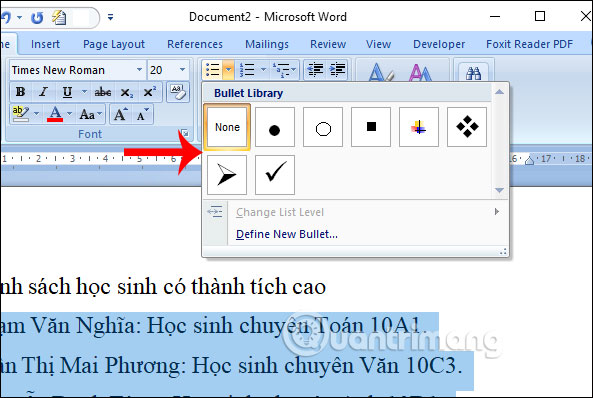
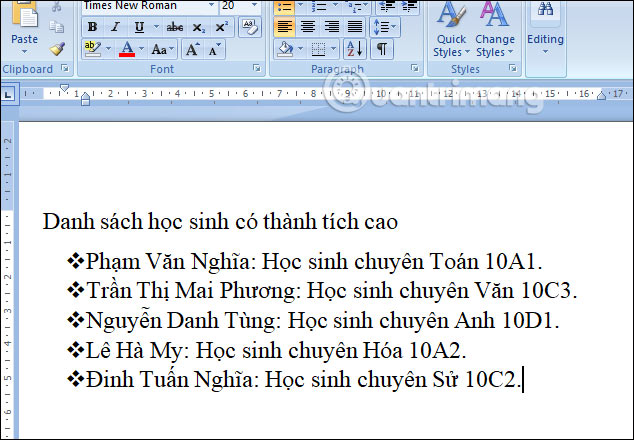
Word applies the chosen bullet consistently to every selected paragraph.
Use a custom symbol
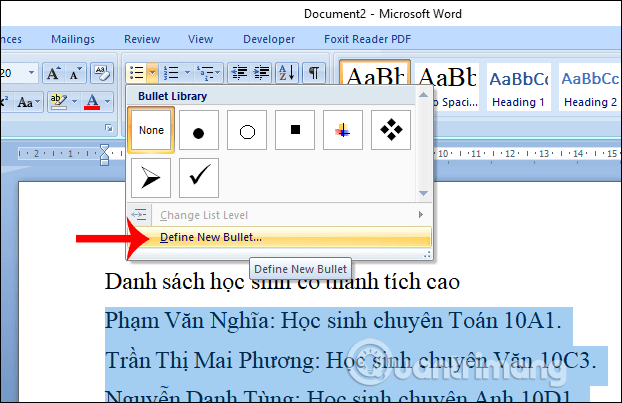
Open the Bullets menu and select Define New Bullet.
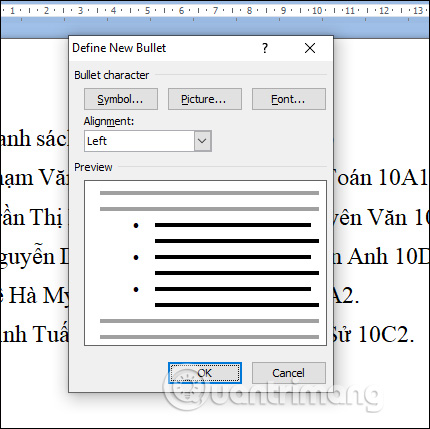
The dialog lets you choose a symbol, picture, font treatment, and alignment. Use the preview to check that the marker is easy to distinguish at normal text size.
Select Symbol to open Word’s character collection, choose a symbol, and confirm with OK.
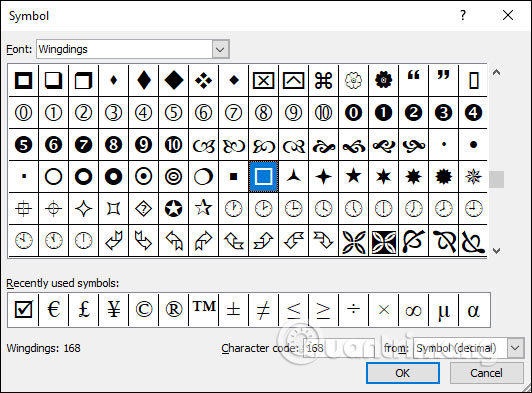
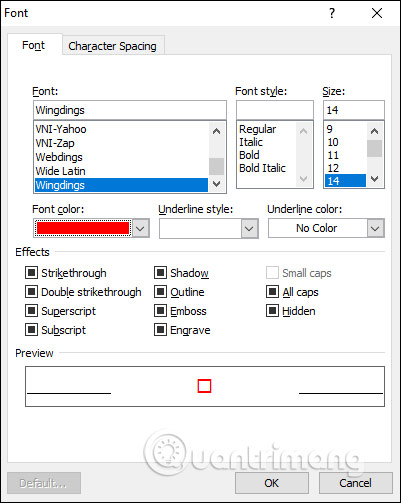
Select Font if the bullet needs a different size, color, or typeface. Avoid decorative markers that become unclear when the document is printed or viewed on another device.
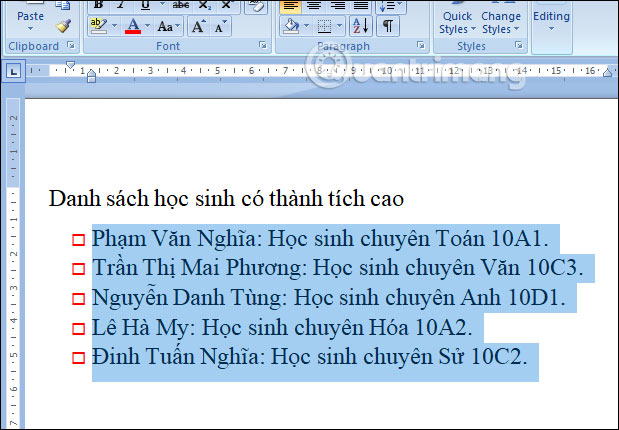
The selected symbol is then applied to the list.
Use a picture as a bullet
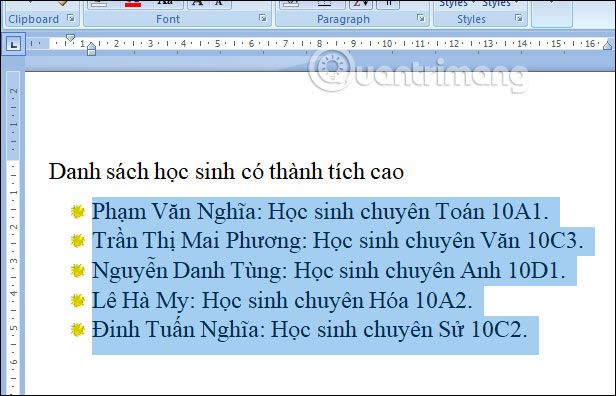
In Define New Bullet, select Picture. Word 2007 can use the available picture-bullet collection or an imported image. Keep the image simple and small so it behaves like a list marker rather than an illustration.
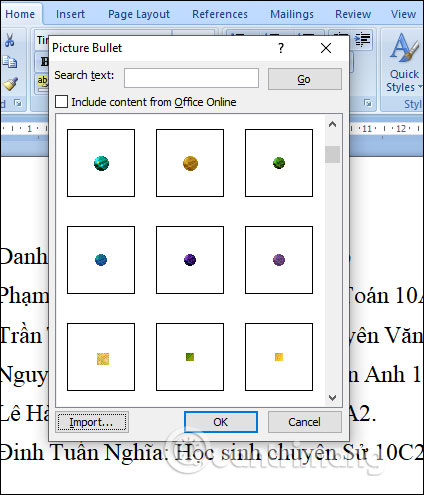
Check the result at the document’s normal zoom level. If the picture overwhelms the text or shifts the line spacing, switch to a standard symbol.
Create a numbered list
- Select the paragraphs that should be numbered.
- On Home, click the arrow beside Numbering.
- Choose a format such as 1, 2, 3 or a lettered or Roman-numeral style.
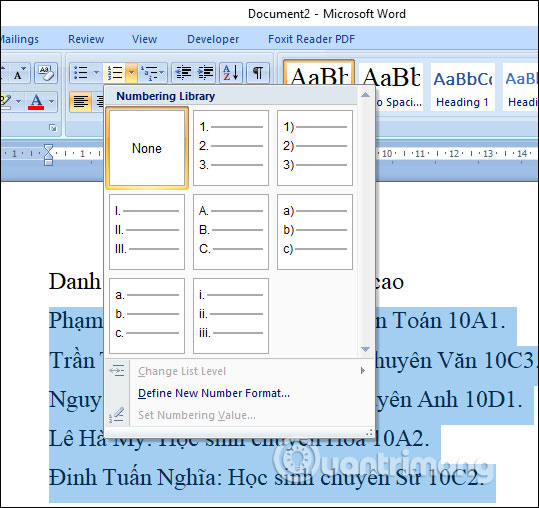
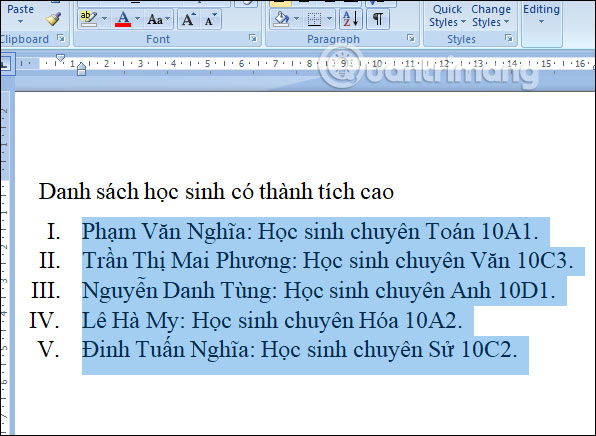
Word numbers the selected paragraphs in order. Press Enter to create the next number automatically.
Change the number format
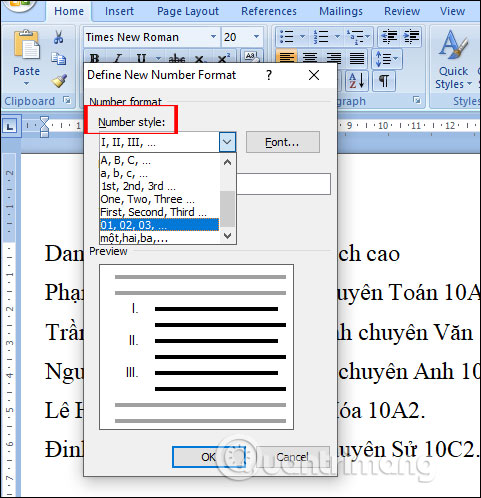
Open the Numbering menu and select Define New Number Format.
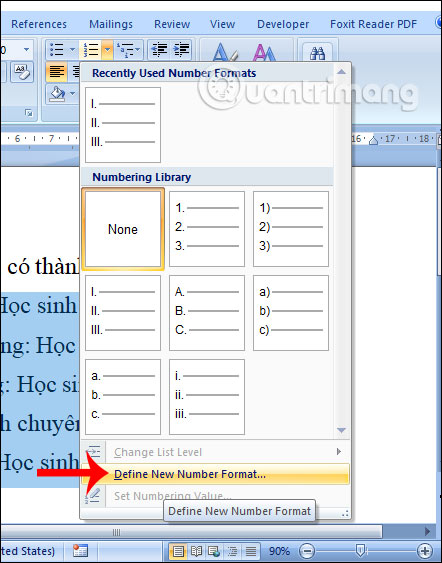
Choose the numbering system in Number style. The Number format box controls punctuation and text around the number. Do not delete the shaded number placeholder itself; remove or add only the surrounding characters.
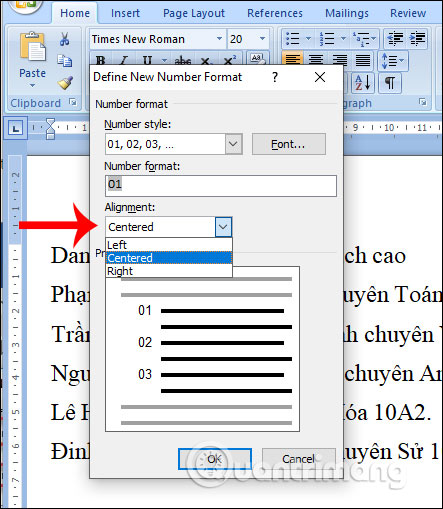
Use Alignment to position the number within its allotted space. Left alignment is usually easiest to scan, while centered or right-aligned numbers can suit specific layouts.
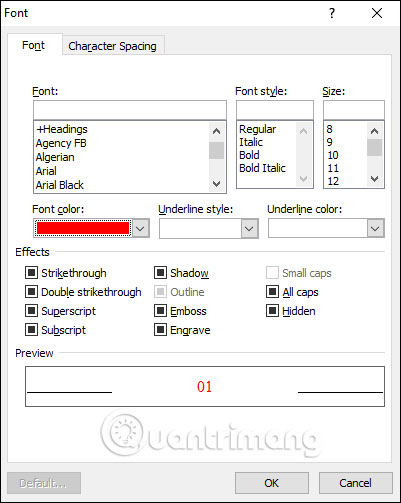
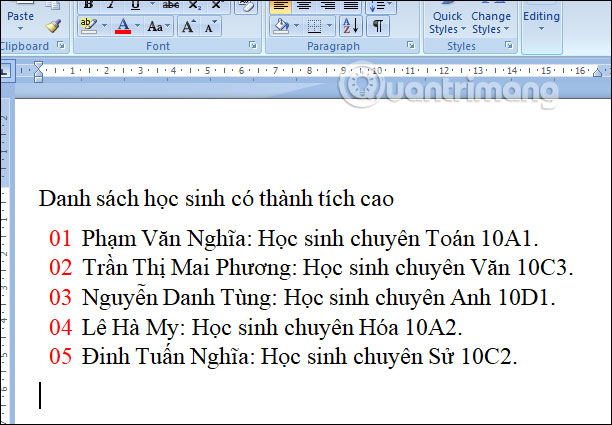
Select Font to format the number independently of the list text, then choose OK and inspect the result.
Continue numbering in a table or separate section
A list may restart at 1 when it moves to another table column or disconnected section. Apply a numbered-list style to both groups first.
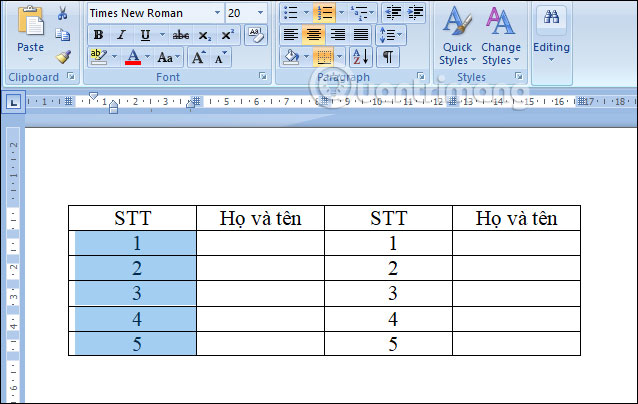
Select an item in the second group, right-click its number, and choose Set Numbering Value.
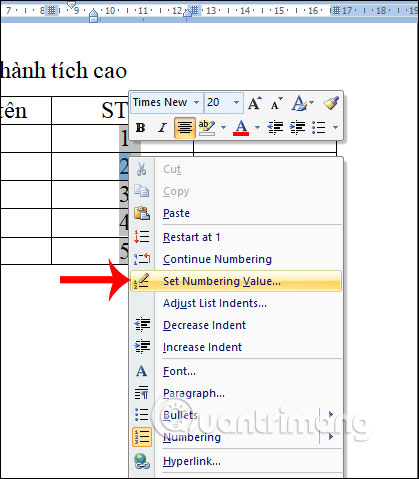
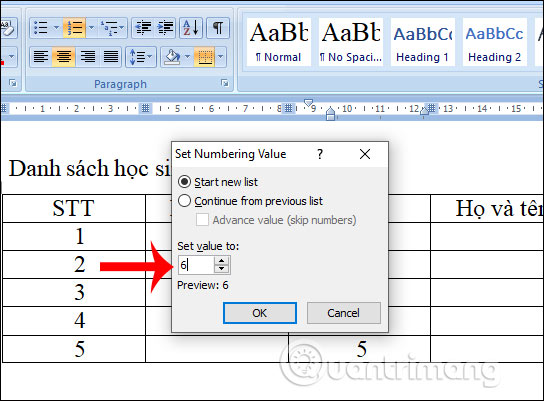
Choose the option to continue from the previous list, or enter the required next value in Set value to. Use a manual starting value only when Word cannot identify the preceding list correctly.
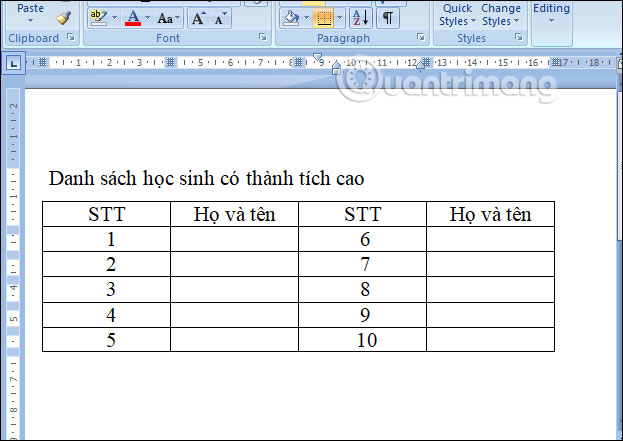
Confirm that the second group now follows the first without duplicates or gaps.
Useful list controls
- Change list level: use Increase Indent/Decrease Indent, or press Tab/Shift+Tab at the start of an item. For a hierarchy with coordinated numbering, use Multilevel List instead of manually typing numbers.
- Restart or continue: right-click a list number and choose the appropriate numbering command rather than editing the displayed number as ordinary text.
- Remove list formatting: select the list and click the active Bullets or Numbering button.
- Undo unwanted automatic lists: press Ctrl+Z immediately after Word converts typed text into a list.
Bullets and Numbering format paragraphs; they do not add page numbers. For that separate task, see how to combine Roman and Arabic page numbers in Word. If the numbered items sit inside a document table, the guide to creating tables in Word explains the table structure used by newer versions.
For Microsoft’s current list behavior and interface notes, consult the official bullet, number, and multilevel-list documentation.
Related Articles
 How to Start Page Numbers on Any Page in Word12 minutes read
 Steps to Cancel Automatic Numbering in Word3 minutes read
 Page Numbering Steps in Microsoft Word Microsoft7 minutes read
 How to Type Pages in Word 20105 minutes read
 How to Number Pages in Word 2007: Page Numbering in Word 20074 minutes read
 Number Pages in Word 2003, Insert Special Characters, Date and Time6 minutes read
Reader Comments 0
Sign in with email or Google to join the discussion.