Table of Contents
This guide answers "Microsoft Store Payment Error Windows 11 How To?" with a clear explanation, practical context, and the details that matter most.
Verify Microsoft account and payment information
The most common cause of payment errors is a problem with your payment method or account settings. Review your Microsoft account to make sure all the information is correct.
Troubleshoot Microsoft Store apps
Step 1:
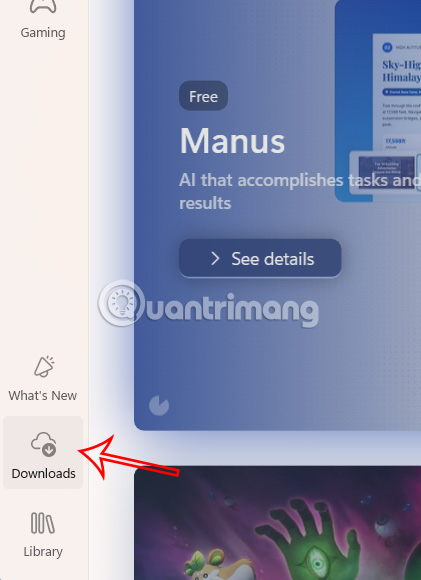
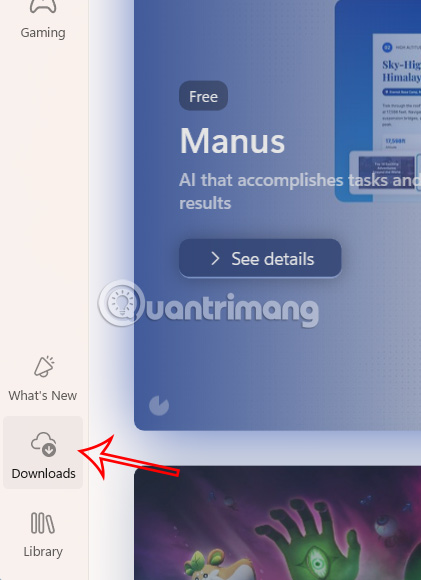
Open the Microsoft Store app then tap Downloads on the left side.
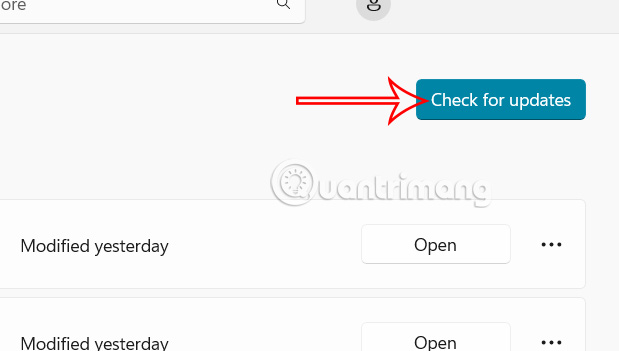
Next click Check for updates to check for new updates and install.
Step 2:
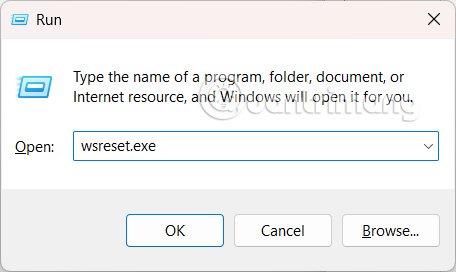
Press Windows key + R and type wsreset.exe . A blank Command Prompt window will appear for about ten seconds, then close and the Microsoft Store will launch automatically.
Go ahead and type get help into Windows Search or the Start menu and select the app. When the app opens, type in your problem and you will see a variety of solutions you can try to fix the problem.
Sign out and sign back in to your Microsoft account in the Store app.
Review system and network configuration
You may be using an old Windows operating system that also affects your payment on Microsoft. Please check and update your operating system to fix the error.
Use another payment card instead
If the error persists after trying the fixes above, the problem may be with the app or payment method. You should try a different payment method, or a different payment card.
FAQ
What should you know about verify Microsoft account and payment information?
The most common cause of payment errors is a problem with your payment method or account settings. Review your Microsoft account to make sure all the information is correct.
What should you know about troubleshoot Microsoft Store apps?
Open the Microsoft Store app then tap Downloads on the left side.
What should you know about review system and network configuration?
You may be using an old Windows operating system that also affects your payment on Microsoft. Please check and update your operating system to fix the error.
What should you know about use another payment card instead?
If the error persists after trying the fixes above, the problem may be with the app or payment method. You should try a different payment method, or a different payment card.
Related Articles
 How to Fix 0x80080005 to Install UWP Application on Microsoft Store6 minutes read
 The Windows Store Will Be Renamed to Microsoft Store in Windows3 minutes read
 Steps to Fix Windows Update and Microsoft Store Errors15 minutes read
 How to Restore the Microsoft Store on Windows 105 minutes read
 How to Pay Apps on Windows Phone with SIM Phone Account3 minutes read
 How to Fix Error 0x80d03805 When Downloading Apps from4 minutes read
Reader Comments 0
Sign in with email or Google to join the discussion.