Table of Contents
There is no universal Acer shortcut that temporarily disables every key on the built-in keyboard. The correct method depends on the goal: press Windows+L to protect an unattended session, shut the laptop down before cleaning, use supported gaming controls for selected keys, or have a malfunctioning keyboard repaired. Removing its driver is not a dependable on/off switch.
Choose the method by what you need
| Goal | Recommended action | What it does |
|---|---|---|
| Leave the laptop unattended | Press Windows+L | Locks the Windows session; the keyboard still works on the sign-in screen |
| Clean the keyboard | Shut down and unplug the laptop | Prevents input and reduces electrical risk |
| Avoid Windows-key interruptions in games | Use the model's supported Acer utility or game mode | May block selected system keys, not the whole keyboard |
| Stop all input temporarily while Windows stays visible | Use a trusted input-lock utility with a tested unlock method | Software-dependent; may also lock the mouse |
| Work around random or stuck keys | Troubleshoot, then repair or replace the keyboard | Addresses the fault rather than hiding it |

Lock Windows when stepping away
Press Windows+L to show the lock screen immediately. This prevents someone from using your open applications without signing in. It does not disable the physical keyboard: keys can still wake the display and enter a password or PIN.
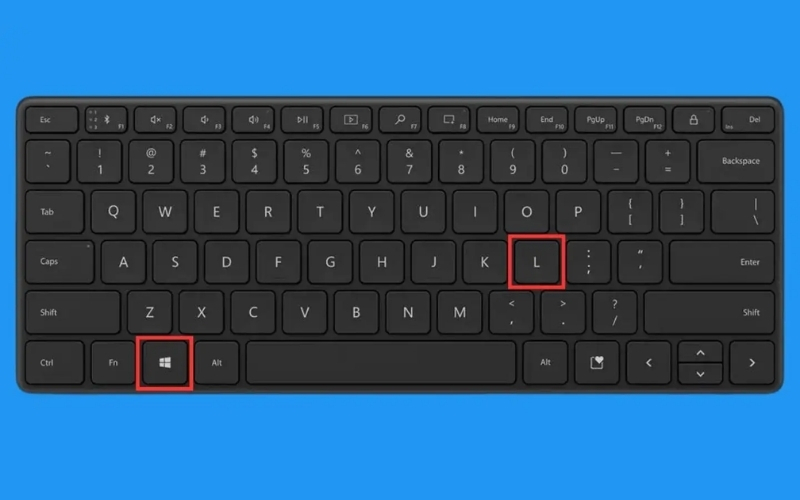
Windows+L protects the user session; it is not a keyboard-disable command.
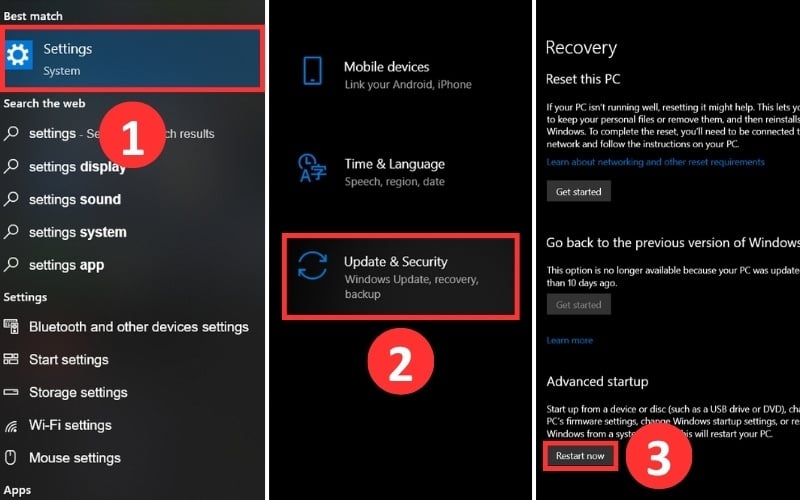
If the Windows key itself does not work, click Start > account picture > Lock, or press Ctrl+Alt+Delete and choose Lock. Function-key mode in BIOS affects the F1–F12 row on some laptops, but it does not normally fix Windows+L and should not be changed for this purpose.
For cleaning, turn the laptop off
Shutting down is safer and simpler than trying to block keystrokes while the laptop remains on. Unplug the charger, remove accessories, and follow Acer's cleaning guidance for the specific model. Apply any approved cleaner to a cloth, never directly to the keyboard, and keep moisture away from gaps.
The separate guide to cleaning a laptop at home covers the rest of the case and display. If the computer truly must stay on, these keyboard-cleaning precautions reduce accidental input and liquid risk, but shutting down remains preferable.
Can Device Manager disable the built-in keyboard?
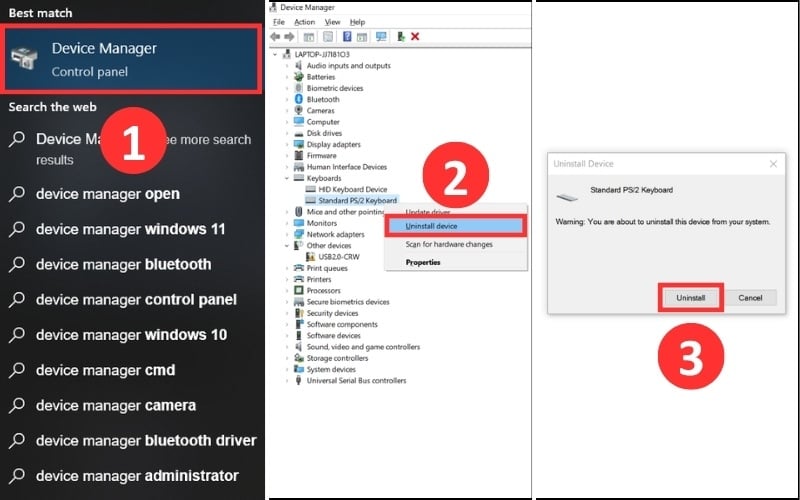
Open Device Manager, expand Keyboards, and inspect the devices. Some systems provide a Disable device command; many built-in laptop keyboards do not. Acer models may expose the keyboard as PS/2, HID, or an I2C device, so a generic name does not reliably identify it.
Uninstall device is a troubleshooting action, not a lasting keyboard lock. Windows may keep the device usable until a restart and normally redetects and reinstalls it afterward. Disabling or uninstalling the wrong entry can also affect an external keyboard.
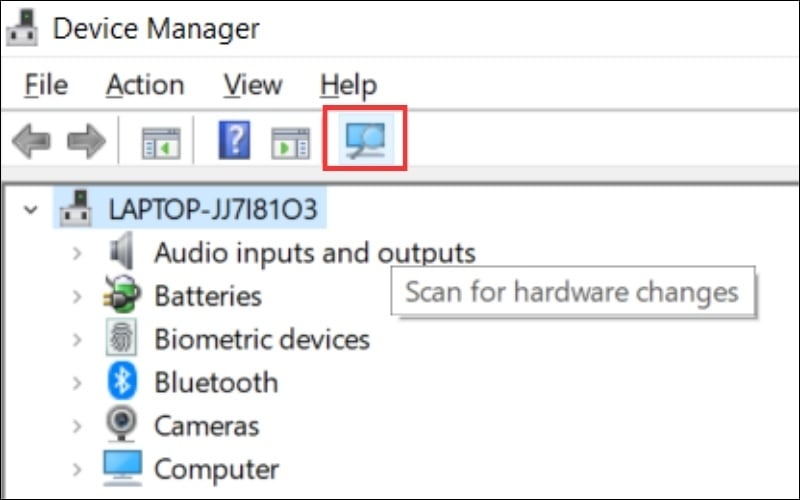
If you test Device Manager, connect a mouse first, note every change, and do not remove storage, chipset, or system devices. To restore a removed keyboard, restart Windows or select Action > Scan for hardware changes.
Block selected keys on Acer gaming laptops
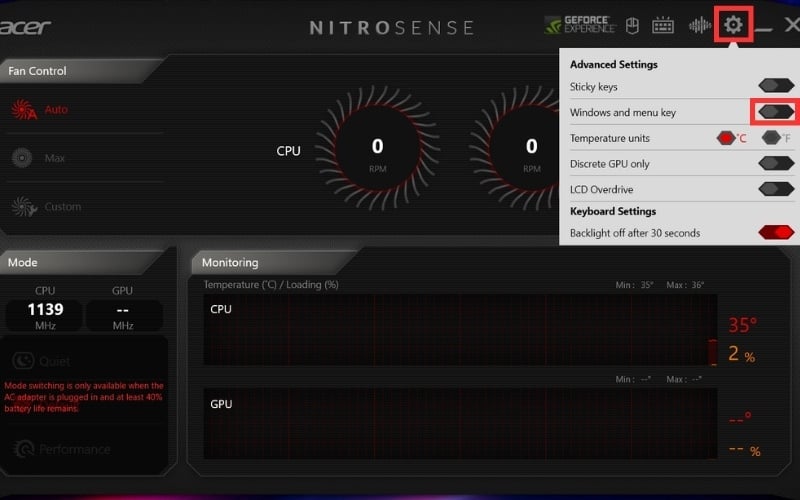
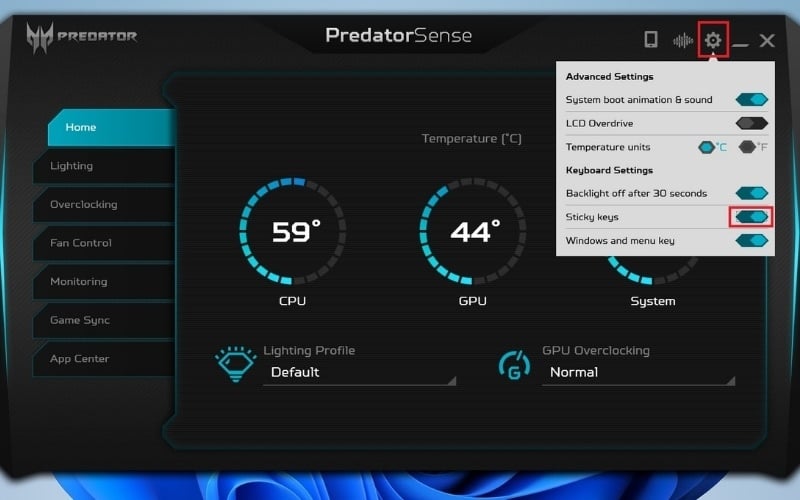
Some Nitro and Predator models include NitroSense or PredatorSense options that can prevent accidental presses of the Windows or menu key during games. The available controls vary by model and software version; open the utility's settings and use only the options shown for your laptop.
A gaming key lock generally affects selected system keys, not normal typing.
If the setting is missing, check the support page for the exact Acer model rather than installing a utility intended for a different product line.
Using a keyboard-lock utility
A third-party utility can intercept all keyboard input while leaving the screen visible, which may help during a presentation or in a household with children. It also creates a lockout risk and gives the program access to keyboard events. Download only from the developer's official source, scan the installer, and avoid abandoned tools or download mirrors.
- Read and test the unlock combination before relying on the lock.
- Keep a mouse or touch input available if the utility permits it.
- Save work first, in case the only recovery is signing out or restarting.
- Do not use such software as a substitute for Windows account security.
Unlock or troubleshoot an unresponsive keyboard
If the keyboard stopped working unexpectedly, begin with a restart and test it at the Windows sign-in screen. Then check these common causes:
- Open Settings > Accessibility > Keyboard and turn off Filter Keys if it was enabled accidentally. Filter Keys can ignore brief or repeated presses; it does not intentionally lock the entire keyboard.
- In Device Manager, select Action > Scan for hardware changes if a keyboard device was removed.
- Install Windows updates and the model-specific chipset, Serial IO, or keyboard-related drivers from Acer support.
- Test an external USB keyboard. If it works while the built-in keyboard also fails in BIOS or preboot menus, a hardware problem is more likely.
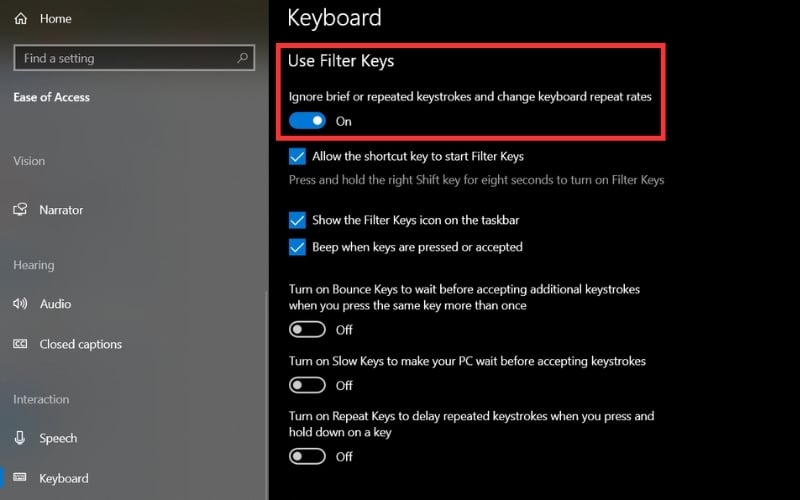
Turn off Filter Keys if normal short presses are being ignored.
When the keyboard needs repair
Repeated characters, liquid damage, dead key groups, a swollen case near the keyboard, or input that continues without touching the keys should not be treated as a software-lock problem. Shut the laptop down if there was a spill or if the case is lifting. A repair technician can inspect the keyboard, ribbon cable, battery, and motherboard safely.

An external keyboard is a temporary workaround, but placing it directly on top of the laptop can press keys, obstruct ventilation, and mark the display when the lid closes. Put it on the desk and repair the built-in keyboard if the fault persists.
Related Articles
 4 Simple and Quick Ways to Lock Your Windows Laptop Keyboard6 minutes read
 How to Lock the Laptop Keyboard, How to Disable the Laptop Keyboard3 minutes read
 12 Quick and Simple Ways to Take Screenshots of Acer Computers9 minutes read
 How to Lock the Laptop Keyboard to Use the Removable USB Keyboard4 minutes read
 How to Cleaning Laptop Keyboard Without Turning Off the Computer (Safe && Effective)8 minutes read
 Acer Will Introduce Laptops Using Touch Keys Later This Year3 minutes read
Reader Comments 0
Sign in with email or Google to join the discussion.