Table of Contents
AnyRecover can scan a hard drive, USB drive or memory card for deleted files that remain recoverable. It may help after accidental deletion or formatting, but no fixed success rate applies to every device or data-loss situation.
Stop using the affected storage as soon as you notice files are missing. Avoid taking more photos on the card, copying files to the drive or installing recovery software onto it. New writes can reduce the chance of retrieving the missing data.
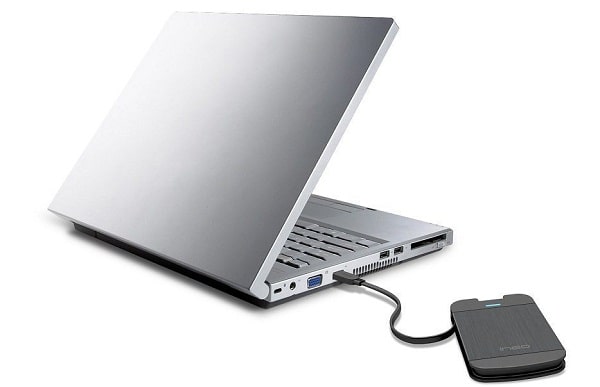
Before installing the program
Check the Recycle Bin or Trash, backups and any cloud-service version history first. If the files are still available there, restoring a known copy is simpler than scanning raw storage.
Use the official AnyRecover user guide to find the current download and supported-system information. Install the program on a different drive from the one containing the lost files. If the loss affects the computer's system drive, minimize further use and consider working from a separate suitable computer.
Review the trial and license limits before paying. Scanning, previewing and saving recovered files can have different restrictions. A scan result alone does not prove that a file is intact.
1. Choose the source device
Connect an external drive or memory card to the computer, preferably using a reliable direct connection. Do not accept a format or initialization prompt just to make it accessible.
Open the computer or hard-disk recovery module and select the location where the missing files were stored. Identify external devices by capacity and model as well as drive letter.
Older AnyRecover versions divide this into modes such as Deleted Files Recovery, Recycle Bin Recovery, Formatted Disk Recovery and External Device Recovery. Choose the option matching the loss; the names and arrangement vary by version.
2. Scan and narrow the results
Start the scan. If a file-type selection is offered, choose the types you need, such as photos or videos. Use filename, path and type filters to reduce the result list.
A quick scan may finish sooner; a deeper scan can take longer and may return files without their original names or folders. The older All-Round Recovery label describes a broader search, not a guarantee of recovery from every cause.
If you cannot find a partition, consult the version's missing-location workflow rather than creating a new partition over the old one. For more background, see deleted and formatted-drive recovery.
3. Preview and recover to another drive
Preview the important results where supported. Check several photos or video clips rather than trusting their names or thumbnails alone. Select the files you want, choose Recover and save them to a separate healthy physical drive with enough space.
Do not recover files to their original device. After saving, open the recovered copies and check that photos display fully, videos play beyond the opening frames and documents contain the expected content. Keep the source unchanged until you have verified the files you need.
When to stop scanning
Software recovery may not help when data has been overwritten or a device cannot be read. If a drive makes unusual noises, disconnects repeatedly or has suffered physical damage, repeated scans can be the wrong next step. Consider specialist assessment, especially for irreplaceable files. This damaged-drive recovery guide explains the distinction.
If one scan finds nothing usable, recheck backups and the selected source before trying further tools. Avoid making repairs, formatting or reinstalling an operating system on the affected storage while recovery is still the goal.
Related Articles
 Recover permanently deleted files on Windows with AnyRecover
 How to recover deleted data using Recuva on computer
 How to recover deleted files from the Windows Recycle Bin
 The company has created an SD memory card that can store data on par with the hard drive you are using
 TOP 20 software to recover deleted data on hard drives, USB, memory cards
 Steps to recover deleted files on USB and External Hard Drive
Reader Comments 0
Sign in with email or Google to join the discussion.