Table of Contents
This updated guide explores instructions to turn off Windows update icon on Windows with practical details, clear explanations, and useful takeaways. The Windows Update icon appears in the system tray on the Windows Taskbar by default when the update is ready for us to install on the computer. Through this icon, users will know whether their computer is ready to update or not.
How to Turn Off Windows Update Icon on Windows
Step 1:
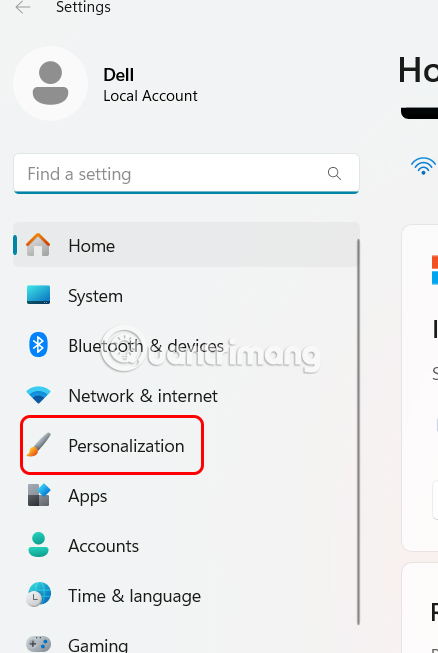
Press the Windows + I key combination to open the Settings interface on your computer. Next, select Personalization on the left side of the interface.
Step 2:
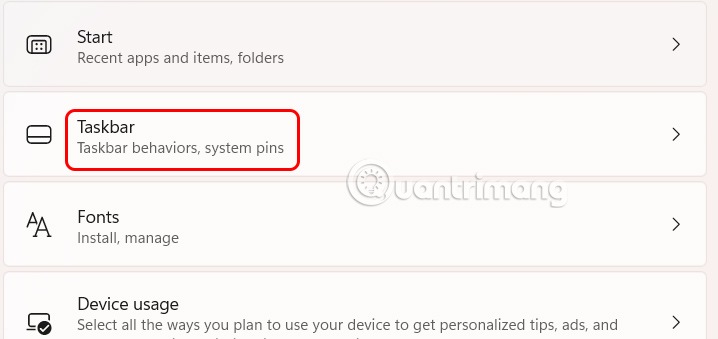
Look at the content next to you and select the Taskbar again to adjust.
Step 3:
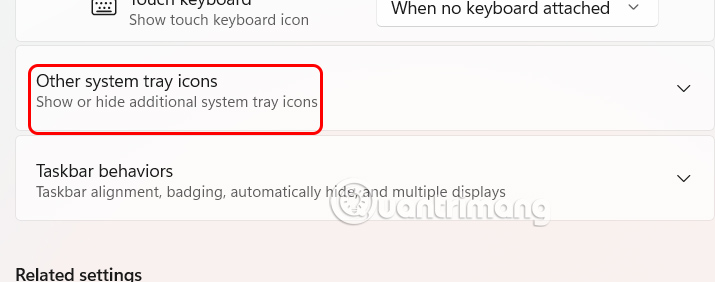
Now the user goes to the Other System Tray Icons setting and clicks on the drop-down arrow icon to expand other options for the system tray.
Step 4:
Displays a list of applications that appear in the system tray. You need to turn off Windows Update Status to hide the Windows Update icon in the system tray on your computer.
Even if your computer is ready to install Windows updates, the icon will no longer appear on your taskbar.
to show the Windows Update icon in the system tray again, just switch it back to On in Windows Update Status.
FAQ
What is the main takeaway about Instructions to Turn Off Windows Update Icon on Windows?
The key is to understand the core idea, compare the available options, and apply the practical guidance that matches your situation.
What should beginners know about Instructions to Turn Off Windows Update Icon on Windows?
Start with the essential steps and terminology. Avoid changing advanced settings until you understand how they affect performance, privacy, cost, or compatibility.
How can I use this information in practice?
Follow the relevant section in order, test one change at a time, and confirm the result before moving to the next step or recommendation.
Related Articles
 How to Turn Off, Turn on, Hide, Icon Icon on the Taskbar in Windows 102 minutes read
 Steps to Turn Off Windows 11 Update, How to Stop Updating5 minutes read
 Turn Off the Win 10 Update, Stop Windows 10 from Updating9 minutes read
 Turn Off Driver Update on Windows Update Windows 103 minutes read
 How to Turn Off Windows 7, Windows 8 // 8.1 Updates3 minutes read
 5 Easy and Detailed Ways to Turn Off Automatic Windows 11 Update6 minutes read
Reader Comments 0
Sign in with email or Google to join the discussion.