Table of Contents
This updated guide compares Windows warnings to watch out for and highlights the details that matter most. Most people find Windows notifications annoying and often ignore them without reading the content. Still, ignoring some important notifications can slow down the troubleshooting process.
Low Disk Space Notification
The Low Disk Space warning appears when your C drive is running out of storage space. Windows needs free space to handle tasks like saving temporary files, installing updates, and managing memory. Without enough space, your system may slow down, freeze, or even crash. Important security updates may also fail to install, compromising the security of your computer.
- Fast method to expand computer storage memory
Windows Defender: Threat Detected
Windows Defender displays a "Threat Detected" alert when it finds malware or potentially harmful software, such as viruses, trojans, spyware, or ransomware, on your computer.
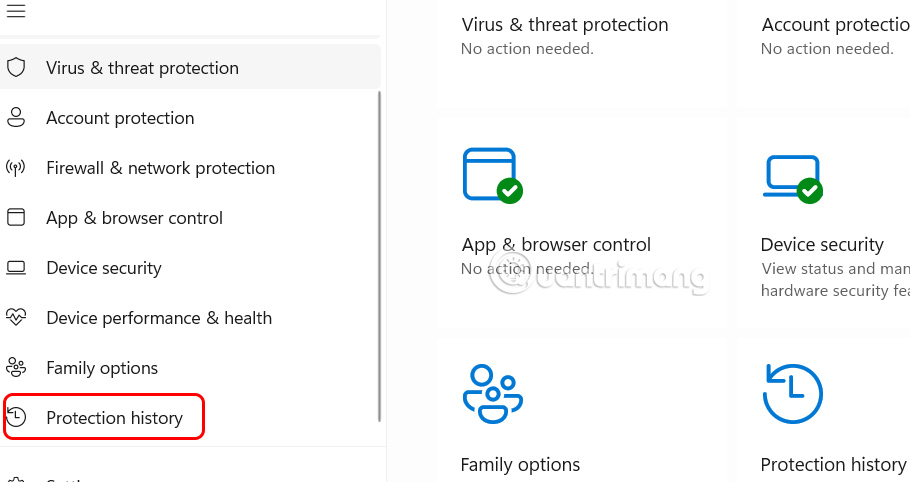
When you see this warning, open Settings > Privacy & Security > Windows Security and choose Open Windows Security . Then, choose the Protection History tab to see recent threats.
Blue Screen BSOD
The Blue Screen of Death (BSOD) appears when Windows encounters a serious error that cannot be recovered from. If BSOD errors occur frequently, it is likely that there is a serious hardware or software problem.
- Ways to fix BSOD blue screen of death error
Battery Warning Signs
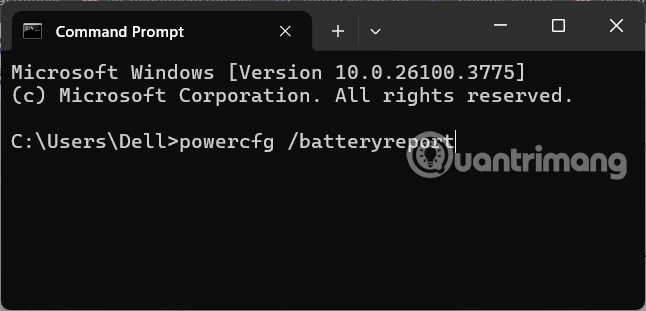
When you see a yellow warning symbol on your battery, it could be an incompatible charger or low power, a faulty or damaged battery. Sometimes, it could also be a driver issue. When you see this sign, generate a battery health report to check the health of your battery.
Open Command Prompt, run the command powercfg /batteryreport and view the battery report.
Drive Error Message
When Windows displays the message There's a Problem With This Drive , there is a problem with the storage drive connected to your computer. Still, this error can be caused by a corrupted system, malware on the drive, or a hardware problem.
When this error appears, Windows will offer to scan the drive and repair any damaged file structures. If the problem is minor, such as an incomplete write operation, then the scan will usually fix it. But if the warning persists, then You need to back up your data and reformat the drive. Finally, if the error is not resolved, consider replacing the drive. If the problem persists, then it may be a hardware issue and you may need to replace the drive.
Unusual Login Warning
When Microsoft notices a suspicious sign-in, such as from a new location, an unknown device, or after multiple failed sign-in attempts, Microsoft will send an alert via pop-up, text message, or email. Since your Microsoft account is linked to Windows and Microsoft services like OneDrive, Outlook, and more, it is important to double-check the sign-in device to keep your account secure.
FAQ
How were the windows warnings to watch out for options evaluated?
The comparison focuses on practical features, ease of use, limitations, compatibility, and the type of user each option is most likely to help.
Which option is best for beginners?
Beginners should prioritize a clear interface, useful documentation, reliable support, and the core features needed for their first project.
Should I choose a free or paid option?
Start with a free option when it covers your needs. A paid plan may be worthwhile when you need advanced tools, commercial rights, collaboration, or professional support.
Related Articles
 How to Enable Speed Warnings on Google Maps3 minutes read
 Alerts: Real Damage to Common Technology Warnings6 minutes read
 4 Security Warnings You Should Not 'Ignore'8 minutes read
 How to Use TV 24 Hours Watching TV and Radio on Windows 103 minutes read
 Few Security Solutions That Can Boost Your Protection9 minutes read
 Google Donates LG G Watch to Google I / O Attendees3 minutes read
Reader Comments 0
Sign in with email or Google to join the discussion.