Table of Contents
This updated guide explores all the ways to shut down your Windows computer with practical details, clear explanations, and useful takeaways. Shutting down your Windows computer is something we all do, but there are multiple ways to do it. Each method can be useful in different situations. Knowing the different shutdown methods can be extremely useful if your system freezes, you're working remotely, or you prefer.
Shut Down Windows Using the Start Menu
Using the Start menu to shut down the Windows system is the default method that everyone knows. Still, before shutting down, It is essential to close all running applications to avoid data loss.
To shut down your Windows computer, first press the Windows key on your keyboard or choose the Start menu icon on your desktop. Then, choose the Power icon and select the Shut down option from the list:
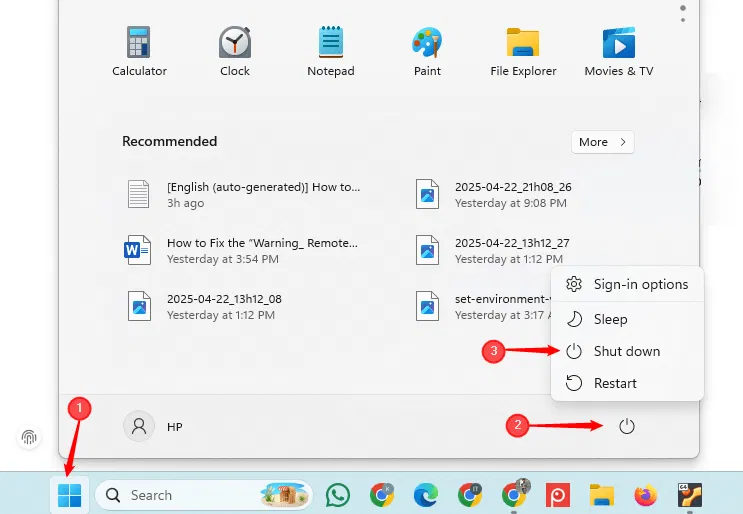
Once you select the shutdown option, your system will close all running programs (if any) and any processes, and then safely power off in a few minutes.
Use Alt + F4 on the Desktop
Want a quick way to shut down your computer? select the desktop to ensure no windows are selected, then hold down the Alt key and press F4. This will open the 'Shut Down Windows' menu. From there, select 'Shut down' and choose OK (or press Enter ) to shut down your computer.
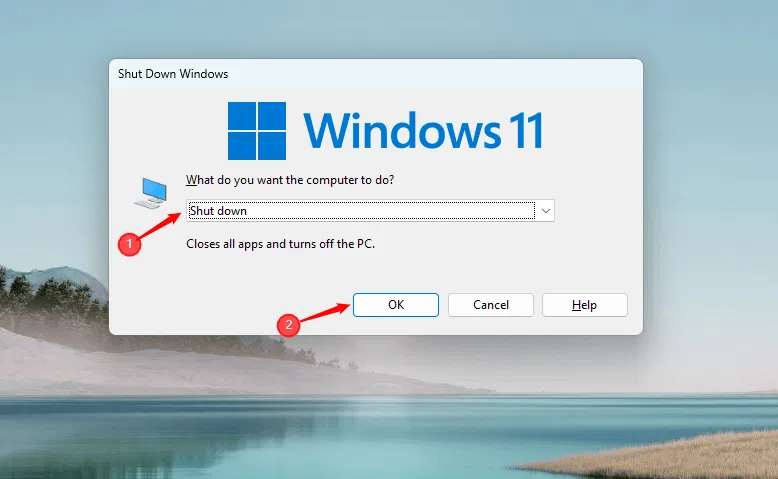
It will close all open applications and shut down your computer.
it is important to note that if you press Alt + F4 on an active application, it will close that application instead. To open the shutdown menu, you must first be on the desktop or have all running applications minimized.
Use Ctrl + Alt + Del
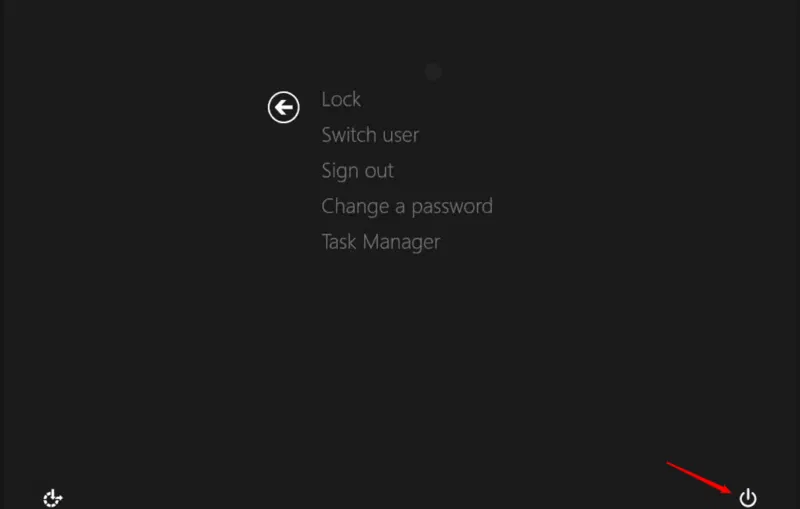
If your Start menu is not working properly or is not responding, you can press Ctrl + Alt + Del on your keyboard. choose the power icon and select shutdown to safely shut down your system.
Using the WinX Menu
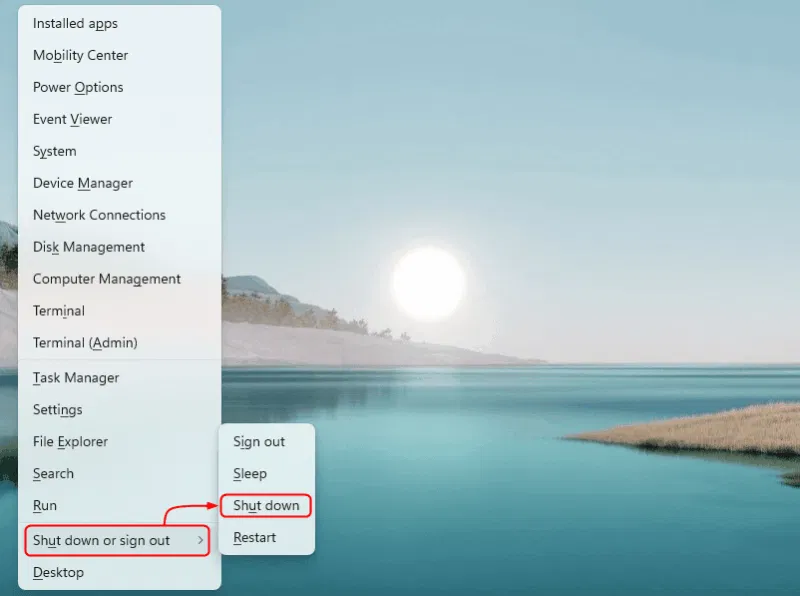
You can use the Power User menu, also known as the WinX menu, to shut down your Windows computer. To open WinX, press the Win + X keys on your keyboard. Hover over the Shut down or sign out option and choose Shut down to shut down your computer.
Using the Power Button
By default, pressing the power button on your laptop puts it to sleep, not shuts it down. But you can easily change this setting. Open the Control Panel from the Start menu, navigate to Hardware and Sound , and select Power Options :
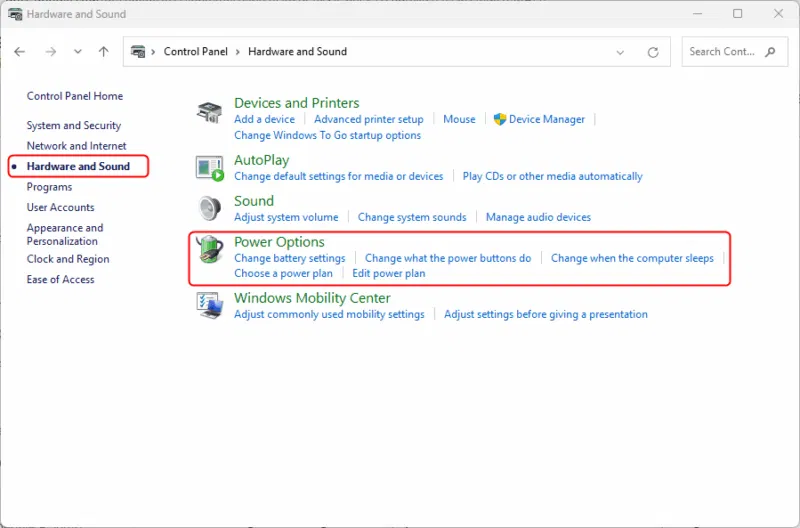
Select the Choose what the power button does option from the left panel to change the behavior of the Power button:

Then, set the power button action to Shut down for both the On battery and Plugged in options. choose the Save changes button to apply the updated settings:
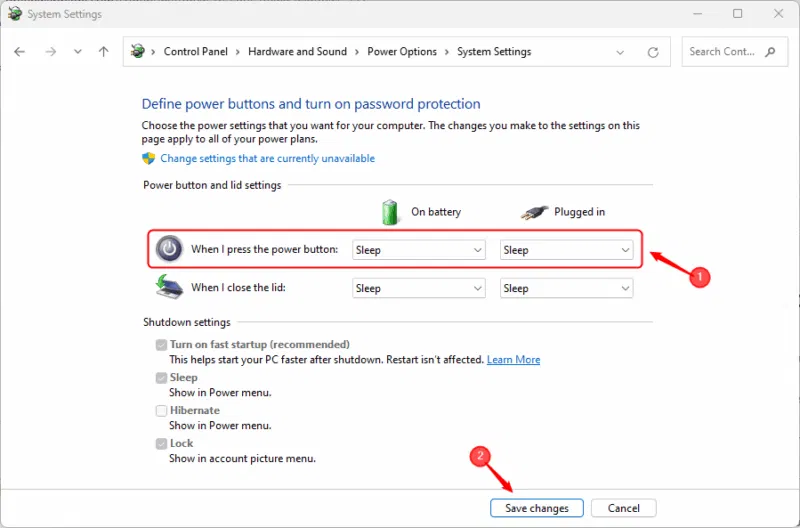
Once you have set the power button action to Shut down , simply press the power button and your system will begin the normal shutdown process.
Using the Run Dialog Box
Another quick way to shut down your Windows computer is to use the Run dialog box. This method is useful if you prefer using keyboard shortcuts or if your Start menu is unresponsive. Press Win + R to open the Run dialog box and enter these string into the input field:
shutdown /s/f/t 0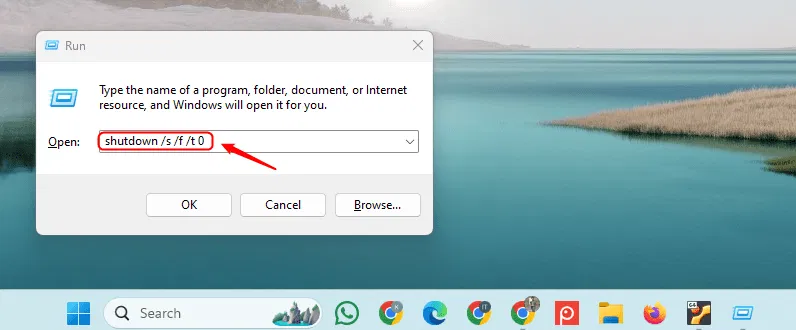
Press the Enter key on your keyboard or choose the OK button to shut down the system.
Using Command Prompt
Windows provides several command line tools to shut down your computer, and the shutdown /s command is one of the simplest:
shutdown /s
This command starts the standard shutdown procedure after a short period of time.
Using PowerShell
You can shut down your Windows computer using PowerShell, which is a command-line tool built into Windows. This method is useful for users who are comfortable working with commands or when other shutdown options do not work. To do this, open Windows PowerShell, type these command into it, and press Enter :
Stop-Computer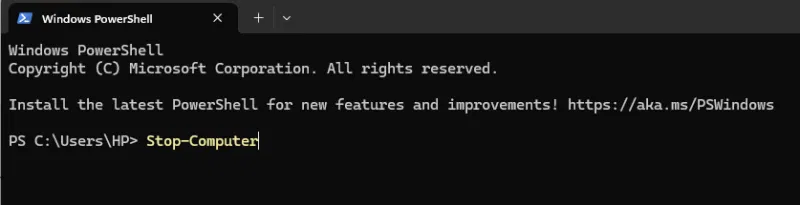
Note : Sometimes this command may not work if your account has limited permissions.
To avoid problems, it is best to run PowerShell with admin rights before using the Stop-Computer command.
Set Windows Shortcut to Shutdown Immediately
You can easily create a shortcut on your Windows desktop that lets you shut down your computer with just one choose. This saves time and gives you quick access to the shutdown function without having to open the Start menu every time.
Right-choose any empty space on the desktop, hover over New , then choose Shortcut .
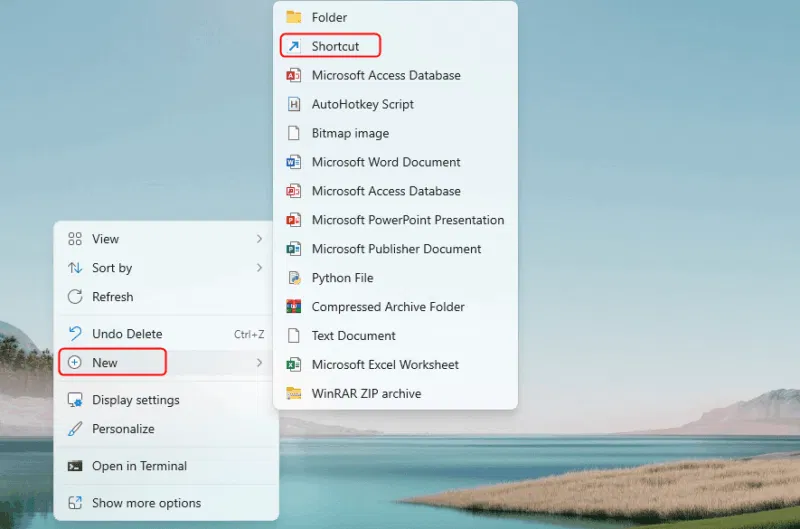
When prompted for the shortcut location, enter these command to shut down your PC immediately:
shutdown.exe /s /t 00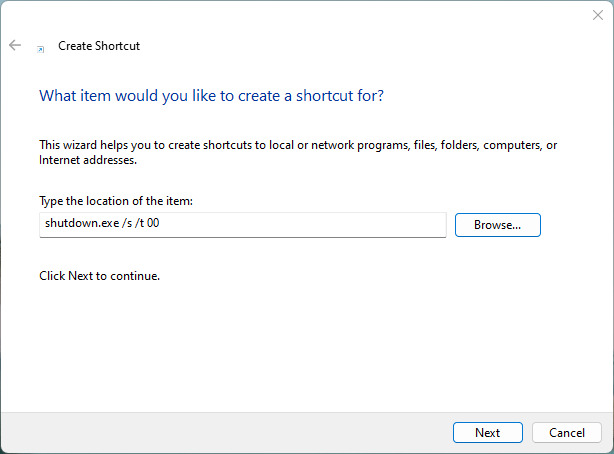
Click Next , name the shortcut as Instant Shutdown and choose Finish :
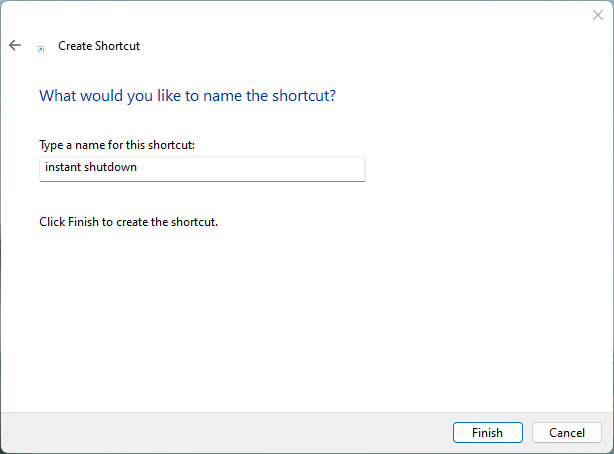
The shutdown shortcut has been successfully created. You can double-choose it at any time to shut down the system:

Schedule Shutdown on Windows
You can schedule your Windows computer to shut down automatically at a specific time using built-in commands.
To schedule a shutdown on Windows, first open Command Prompt and enter these command:
shutdown -s -t 3600Here, 3600 represents the total number of seconds (1 hour) after which the system will automatically shut down. After you run this command, a message will appear on the screen confirming that the PC is scheduled to shut down after 60 minutes:
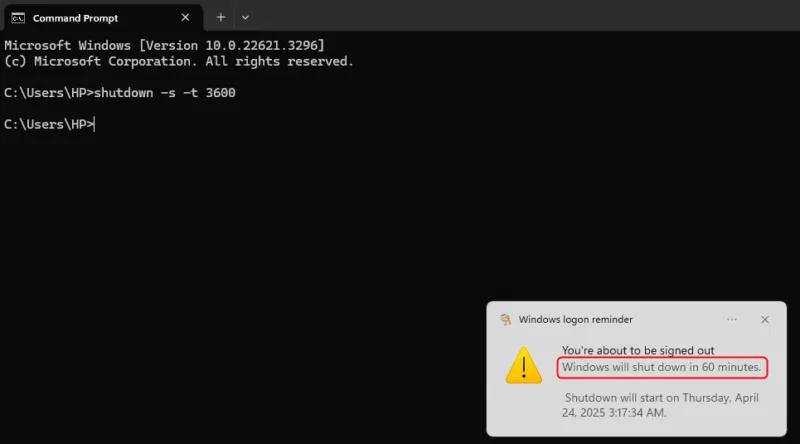
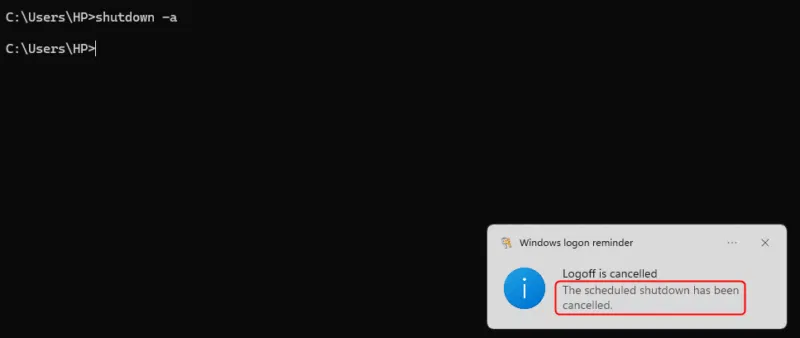
You can cancel a scheduled shutdown at any time. To do so, run these command:
shutdown -aThe output message confirms that the scheduled shutdown command was successfully canceled:
Note : You can use the task scheduler to schedule Windows shutdowns and many other tasks.
This article summarizes all the methods you can use to safely shut down your Windows system. You can view your Windows startup and shutdown history to troubleshoot any problems you may encounter.
Good luck!
See more articles below:
- Instructions to fix the error of not being able to turn off Windows 10 computers and laptops
- 7 ways and customizations in the article will help your Windows 10 "speed like the wind"
- Instructions for partitioning hard drives right in Windows 10
FAQ
What is the main takeaway about All the Ways to Shut Down Your Windows Computer?
The key is to understand the core idea, compare the available options, and apply the practical guidance that matches your situation.
What should beginners know about All the Ways to Shut Down Your Windows Computer?
Start with the essential steps and terminology. Avoid changing advanced settings until you understand how they affect performance, privacy, cost, or compatibility.
How can I use this information in practice?
Follow the relevant section in order, test one change at a time, and confirm the result before moving to the next step or recommendation.
Related Articles
 Menu: How to Shut Down Windows6 minutes read
 Shutdown Windows 10: Ways to Turn Off Windows 10 Computer9 minutes read
 7 Easy Ways to Shut Down Your Computer Using the Keyboard10 minutes read
 The Fastest Ways to Shut Down Windows 10: Complete List7 minutes read
 Learn About Options to Turn Off Your Computer in Windows 76 minutes read
 How to Safely and Properly Shut Down Your Computer for New Users11 minutes read
Reader Comments 0
Sign in with email or Google to join the discussion.