Table of Contents
This updated guide explores instructions to lock the mouse to 1 computer screen with practical details, clear explanations, and useful takeaways. When you use 2 monitors on Windows, sometimes the mouse pointer keeps switching to the second monitor when you move outside the screen. This often happens with some games that automatically set the screen mode to borderless window.
How to Lock Mouse to 1 Computer Screen
Step 1:
First, download the Dual Monitor Tools software from the link below and install it as usual.
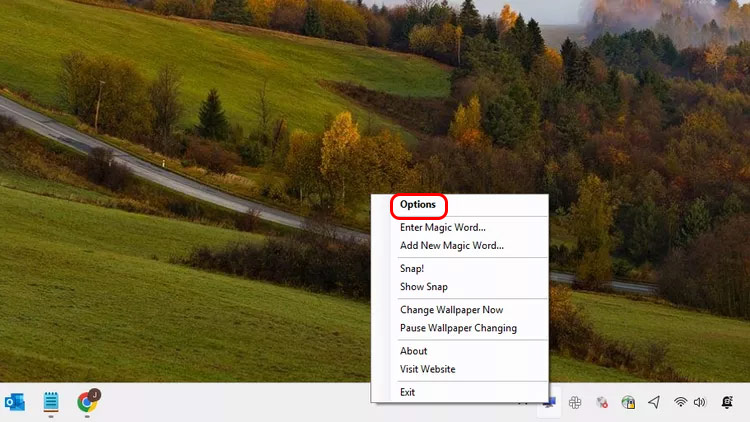
https://dualmonitortool.sourceforge.net/download.htmlAfter installation, right-select the software icon and select Options from the displayed list.
Step 2:
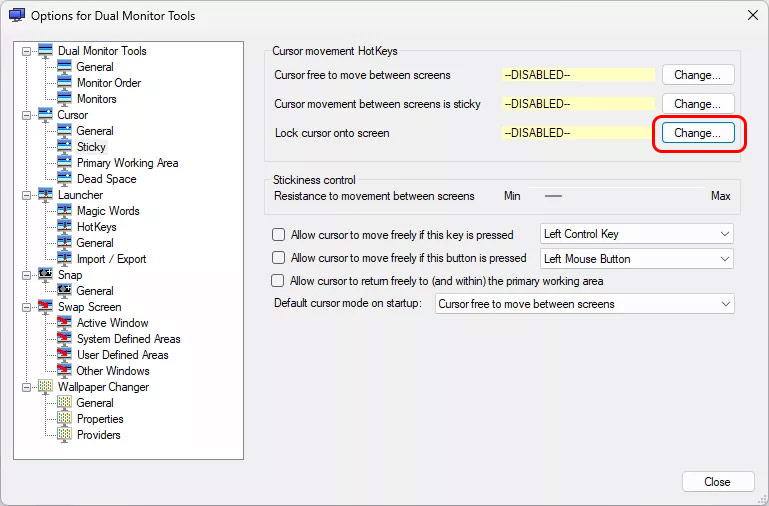
On the left side of the interface, select Cursor and then choose Sticky below. Look to the right and choose Change at Lock cursor onto screen .
Step 3:
Click Enable this Hotkey and then select the mouse lock shortcut in the displayed list.
You can check Allow cursor to move freely if this key is pressed to quickly and temporarily turn off the screen lock if needed.
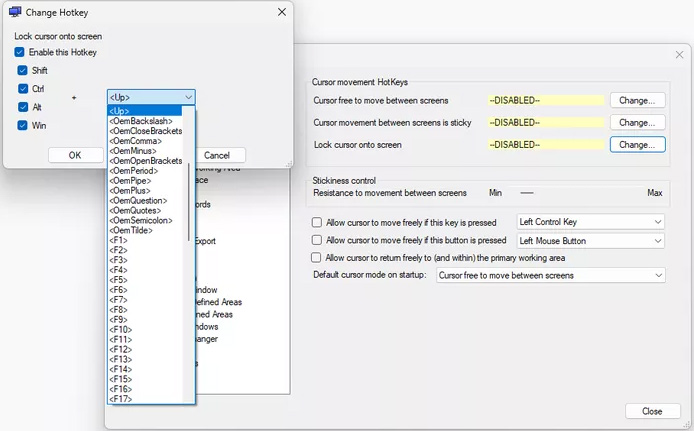
Finally press OK to save, Now you just need to activate the shortcut to lock the cursor to a screen, then press again to return to normal state.
FAQ
What is the main takeaway about Instructions to Lock the Mouse to 1 Computer Screen?
The key is to understand the core idea, compare the available options, and apply the practical guidance that matches your situation.
What should beginners know about Instructions to Lock the Mouse to 1 Computer Screen?
Start with the essential steps and terminology. Avoid changing advanced settings until you understand how they affect performance, privacy, cost, or compatibility.
How can I use this information in practice?
Follow the relevant section in order, test one change at a time, and confirm the result before moving to the next step or recommendation.
Related Articles
 How to Disable Lock Screen Lock Screen on Windows 8, 105 minutes read
 How to Customize iPhone Lock Screen4 minutes read
 Remove Network Icon on Lock Screen Lock Screen Windows 104 minutes read
 8 Things to Know When Buying a Computer Mouse12 minutes read
 Adjust the Speed of the Mouse on the Computer Screen2 minutes read
 8 Best Lock Screen Apps for Android: Lock Screen App for Android7 minutes read
Reader Comments 0
Sign in with email or Google to join the discussion.