Table of Contents
This updated guide compares settings to optimize storage on Windows and highlights the details that matter most. Optimizing storage helps your Windows computer run more smoothly and efficiently, while also making room for important files. Here are 5 simple settings to help you do just that!
1. Enable Storage Sense to Automatically Manage Capacity
Temporary files, old downloads, and the Recycle Bin often take up space. Instead of using Disk Cleanup manually, let Storage Sense clean it up automatically.
How to do:
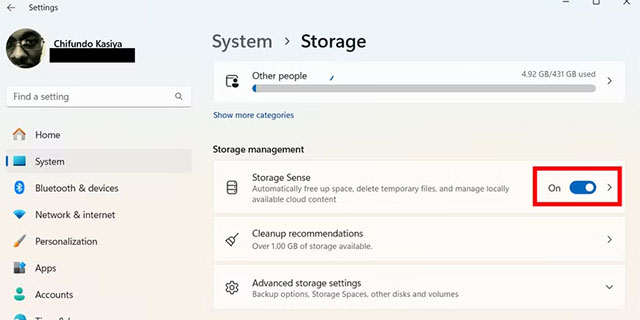
- Press Win + i to open Settings > System > Storage .
- Turn on the Storage Sense switch in the Storage Management section.
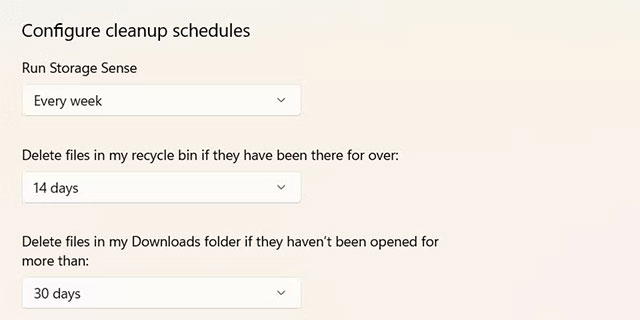
- Click Storage Sense to customize the cleanup schedule (e.g. weekly) and set how often files are deleted from Downloads or the Recycle Bin.
2. Change the Default Save Location of the Folder
To allocate space efficiently, you can move the default folders (like Downloads, Videos) to another drive (for instance, from C: to D:).
How to do:
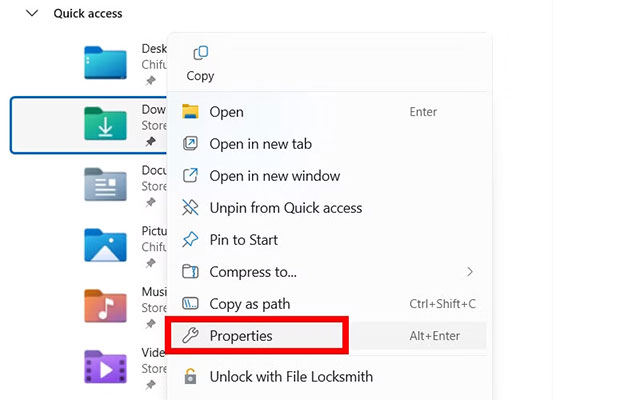
- Open File Explorer with Win + E > Right-select the folder (eg Downloads ) > select Properties .
- Select the Location tab > choose Move > select a new folder on another drive > choose Apply .
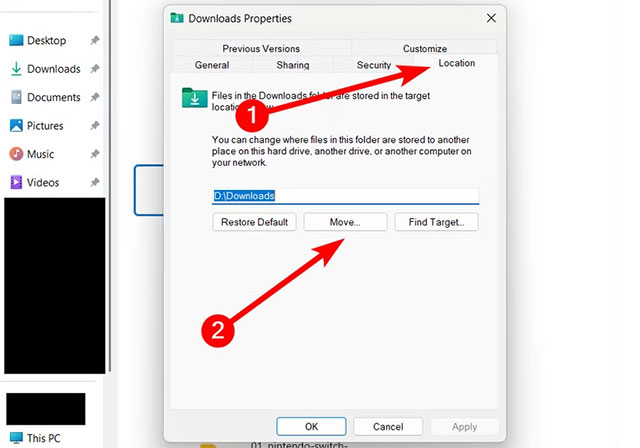
- Select Yes to move all files to the new location.
3. Turn Off Hibernation to Delete the Hiberfil.sys File
If you do not use hibernation, you can disable it to delete the hiberfil.sys file (which usually takes up several GB).
How to do:
Open Command Prompt with admin rights > Enter command:
powercfg -h off
To re-enable it later, use the command:
powercfg -h on
4. Reduce System Restore Size
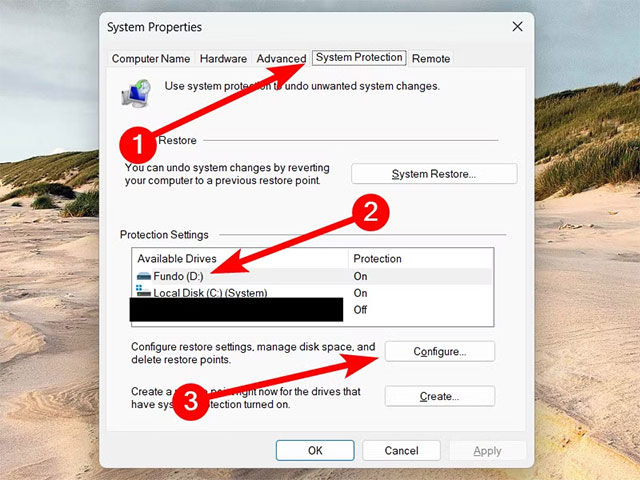
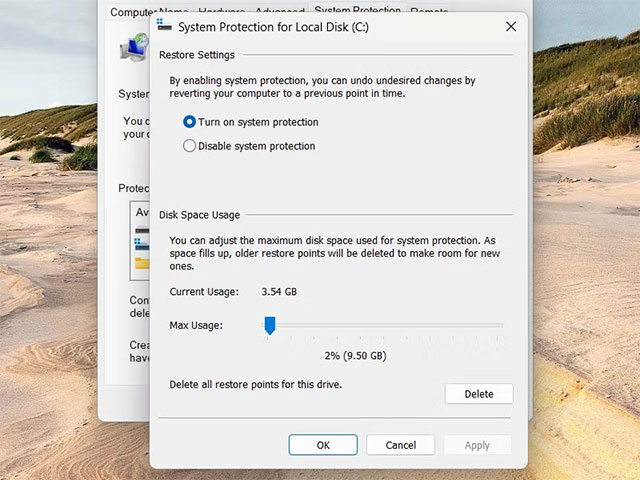
System Restore can take up to 10% of your disk space. You can adjust this to save space:
Press Win + S > Find System Restore > Select Create a Restore Point .
In the System Protection tab, select the drive with System Restore turned on > choose Configure > drag the Max Usage slider down to 1-2%.
5. Compress the Operating System with Compact Os
If your hard drive is small (under 128GB), enable Compact OS to compress system files, saving 2-3GB.
How to do:
1. Open Command Prompt with admin rights > check Compact OS status:
compact /compactos:query
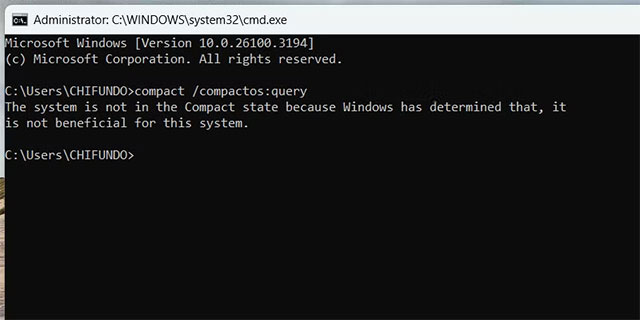
If recommended, enable with the command:
COMPACT.EXE /CompactOS:always
To disable later (if upgrading hard drive), use command:
COMPACT.EXE /CompactOS:never
Additional Notes
Also, you can:
- Deleting large files, uninstalling unused software, or cloud storage also helps free up space.
- Check Storage Sense regularly to maintain system performance. With these 5 simple steps, you will maximize your Windows storage!
Good luck!
FAQ
How were the settings to optimize storage on windows options evaluated?
The comparison focuses on practical features, ease of use, limitations, compatibility, and the type of user each option is most likely to help.
Which option is best for beginners?
Beginners should prioritize a clear interface, useful documentation, reliable support, and the core features needed for their first project.
Should I choose a free or paid option?
Start with a free option when it covers your needs. A paid plan may be worthwhile when you need advanced tools, commercial rights, collaboration, or professional support.
Related Articles
 How to Optimize Wi-Fi on Windows Using Preferred Band Settings6 minutes read
 How to Create and Manage Storage Spaces Right in Settings in3 minutes read
 These ICloud Settings Are Taking up Your Storage: Here's How to Fix It!7 minutes read
 Video Games: How to Optimize Video Game Graphics Settings8 minutes read
 Free Space on macOS Sierra with Optimize Storage5 minutes read
 How to Optimize Windows 83 minutes read
Reader Comments 0
Sign in with email or Google to join the discussion.