Table of Contents
This guide provides a clear, practical overview of "Time Travel Guide Right on Google Earth". It organizes the most useful details, explains important considerations, and highlights the steps or choices that matter most.
How to View Location History on Google Earth
Step 1:
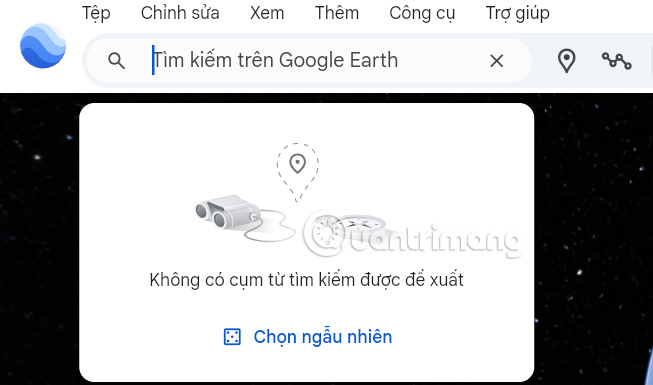
First you also need to access Google Earth on your computer, then we also enter the location in the search bar to display on the Google Earth map.
Step 2:
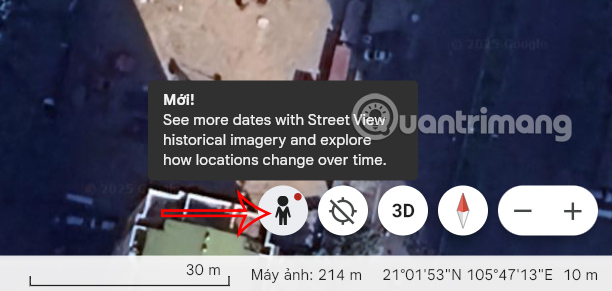
The location you found is marked on the map. Next, tap the person icon at the bottom right of the screen to view the Google Earth map in Street view .
Step 3:
On the toolbar, click View and select Show historical images to see locations in previous stages.

Now you will see the time bar for us to choose. You select a time period you want to see to see the whole scene of the space. This option will show the whole scene on the map around the location you choose.

Step 4:
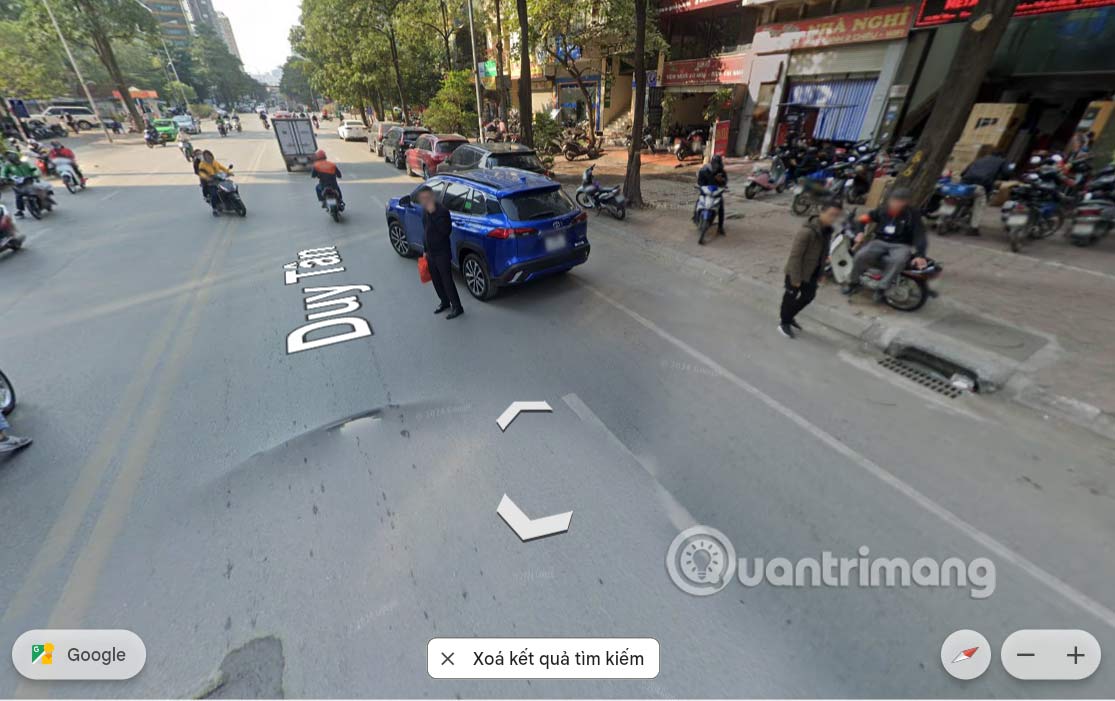
A 360-degree view of the location is then displayed on Google Earth. While viewing, you can move the panorama to see other locations.
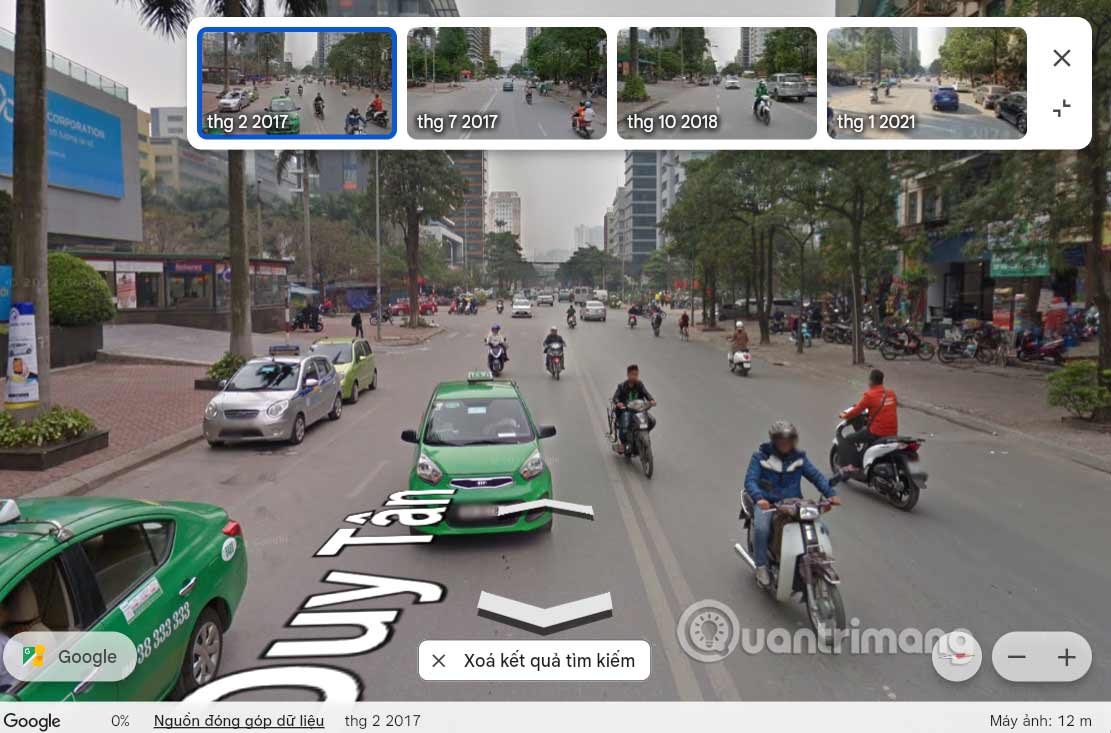
Right in the viewing interface you can also view historical images, click View other days . Then we also choose the previous time to view . Note to you, not all locations on Google Earth have date options.

The results also show you images of the location from previous years.
FAQ
How to View Location History on Google Earth?
First you also need to access Google Earth on your computer, then we also enter the location in the search bar to display on the Google Earth map.
What does this guide cover?
This guide explains time travel guide right on Google earth, including the main steps, important details, and practical considerations.
Who is this guide for?
It is designed for readers who want a clear, practical overview and a reliable process they can follow without unnecessary complexity.
Related Articles
 Google Earth Now Has a Time Travel Feature6 minutes read
 Interesting Photos from Google Earth3 minutes read
 What Happens When You Travel Through the Heart of the Earth2 minutes read
 Google Earth Takes Tourists to Visit Ancient Rome4 minutes read
 5 Ways to Travel Smarter with Google AI6 minutes read
 It Takes Hundreds of Thousands of Years for Light to Travel1 minutes read
Reader Comments 0
Sign in with email or Google to join the discussion.