Table of Contents
In Illustrator, select an image, vector object or group with the Selection tool, then use its bounding box for quick transformations or the Transform panel for exact values. The same basic controls move, resize and rotate both raster and vector artwork; flipping is handled with Reflect or a negative scale.
1. Select the correct artwork
- Choose the Selection tool (V) and click an object to select the whole item.
- Hold Shift and click to add or remove objects from the selection.
- Drag a marquee around nearby objects when you want to select them together.
- Double-click a group to enter isolation mode, or use the Direct Selection tool (A) to work with individual paths or anchor points.
- If an unfilled shape is difficult to select, click its stroke or choose it in the Layers panel.
If you cannot see resize handles, choose View > Show Bounding Box. A locked object or locked layer must be unlocked before it can be transformed.
2. Move an object
Drag from inside the selected object to reposition it. Hold Shift while dragging to constrain movement to horizontal, vertical or 45-degree directions. Hold Alt on Windows or Option on macOS while dragging to move a copy instead of the original.
For precise placement, open Window > Transform or use the Transform section of the Properties panel. Choose a reference point, then enter X and Y coordinates. Arrow keys nudge the selection using the increment configured in Illustrator’s preferences.
3. Resize while preserving proportions
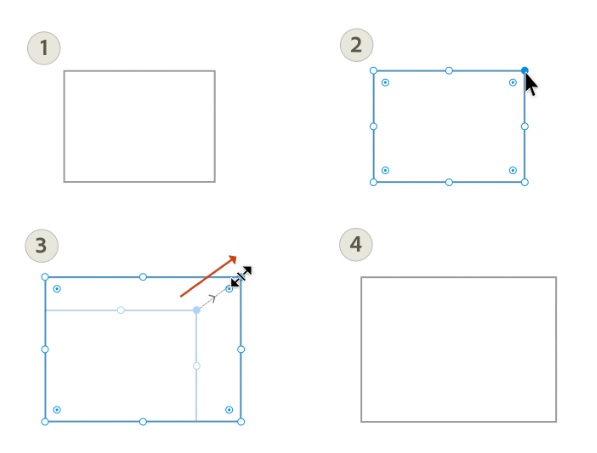
Drag a corner handle of the bounding box to scale the selection. Hold Shift while dragging to constrain proportions. To scale from the center as well, add Alt on Windows or Option on macOS.
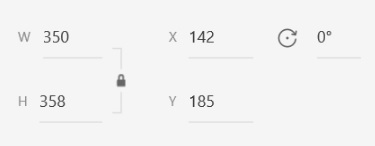
For exact dimensions, enter width and height in the Transform or Properties panel. Enable the link or lock-proportions control before editing one dimension when the aspect ratio must stay fixed.
Scale strokes and effects intentionally
Decide whether stroke weights, rounded corners and effects should scale with the object. Illustrator exposes Scale Strokes & Effects in relevant transform settings. A logo enlarged for a sign may need proportional strokes; a layout element resized to a new box may need its stroke weight unchanged.
Vector paths remain sharp when enlarged. A placed raster image still has a fixed pixel count, so enlarging it can reduce effective resolution and make it look soft in print.
4. Rotate an object
Move the pointer just outside a corner of the bounding box until the rotate cursor appears, then drag. Hold Shift to constrain the rotation to fixed increments. For an exact angle, use the rotation field in the Transform panel or choose Object > Transform > Rotate.
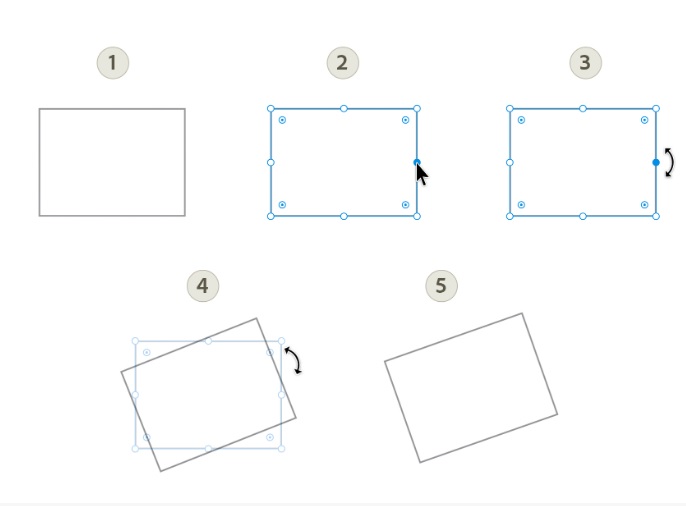
Use the Rotate tool (R) when the object must rotate around a custom pivot. Select the tool, click to set the reference point, then drag or open the Rotate dialog and enter an angle. Choose Copy in the dialog when you need a rotated duplicate.
5. Flip or reflect an object
The most controlled method is Object > Transform > Reflect. Choose a vertical axis for a left-to-right mirror or a horizontal axis for a top-to-bottom mirror, preview the result, then select OK or Copy.
You can also select the Reflect tool (O) and define a custom reflection axis, or use Free Transform and drag a bounding-box handle past the opposite side. For an exact Transform-panel method, enter a negative width or height scale only when you understand the selected reference point.
Quick reference
| Task | Fast method | Precise method |
|---|---|---|
| Move | Drag with Selection tool | Enter X/Y in Transform |
| Resize | Drag a bounding-box handle | Enter width/height or scale percentage |
| Rotate | Drag outside a corner | Enter an angle or use Rotate dialog |
| Flip | Reflect tool or Free Transform | Object > Transform > Reflect |
| Duplicate during transform | Alt/Option-drag | Choose Copy in a transform dialog |
Avoid common mistakes
- Use the Selection tool for whole objects and Direct Selection for paths or points.
- Check the reference point before entering coordinates or rotation angles.
- Inspect linked raster resolution after enlarging an image.
- Group related objects before transforming them as a unit.
- Save a copy before applying repeated or destructive operations.
Adobe documents the current Transform panel and Reflect controls. Continue with TipsMake’s guide to cropping images in Illustrator, drawing straight lines, or the Illustrator shortcut reference.
Related Articles
 Resize, Position, Rotate, and Flip Images in Adobe Illustrator5 minutes read
 How to Color and Change Colors in Adobe Illustrator15 minutes read
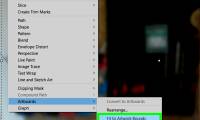 How to Resize Artboards in Adobe Illustrator5 minutes read
 Adobe Illustrator: Complete Guide: Download Adobe Illustrator 2021.26.04 minutes read
 Tutorial Drawing. 'Unicorn' in Adobe Illustrator11 minutes read
 How to Cut Images in AI (Adobe Illustrator)2 minutes read
Reader Comments 0
Sign in with email or Google to join the discussion.