Table of Contents
Illustrator shortcuts are most useful when learned in small groups: navigation first, then selection and drawing, followed by object arrangement. The table below lists dependable default shortcuts for desktop Illustrator on Windows and macOS. A custom shortcut set, non-US keyboard layout or operating-system conflict can change what works.
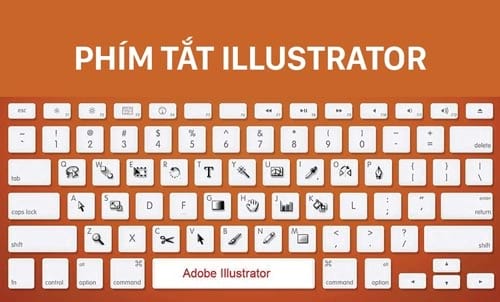
File and edit shortcuts
| Action | Windows | macOS |
|---|---|---|
| New document | Ctrl+N | Command+N |
| Open | Ctrl+O | Command+O |
| Save | Ctrl+S | Command+S |
| Save As | Ctrl+Shift+S | Command+Shift+S |
| Undo | Ctrl+Z | Command+Z |
| Redo | Ctrl+Shift+Z | Command+Shift+Z |
| Copy | Ctrl+C | Command+C |
| Paste | Ctrl+V | Command+V |
| Paste in front | Ctrl+F | Command+F |
| Paste in back | Ctrl+B | Command+B |
| Paste in place | Ctrl+Shift+V | Command+Shift+V |
Essential tool shortcuts
| Tool | Shortcut | Use |
|---|---|---|
| Selection | V | Select and transform whole objects |
| Direct Selection | A | Select anchor points and path segments |
| Magic Wand | Y | Select objects with similar attributes |
| Lasso | Q | Select anchor points freehand |
| Pen | P | Draw precise straight and curved paths |
| Type | T | Create or edit text |
| Line Segment | Backslash () | Draw straight line segments |
| Rectangle | M | Draw rectangles and squares |
| Ellipse | L | Draw ellipses and circles |
| Paintbrush | B | Draw with brush appearance |
| Pencil | N | Draw or edit freehand paths |
| Rotate | R | Rotate around a reference point |
| Reflect | O | Mirror objects across an axis |
| Scale | S | Scale from a reference point |
| Gradient | G | Apply and edit gradients |
| Blend | W | Create steps between objects |
| Eyedropper | I | Sample appearance attributes |
| Hand | H | Pan the document view |
| Zoom | Z | Zoom in or out |
| Artboard | Shift+O | Create and edit artboards |
Viewing and workspace shortcuts
| Action | Windows | macOS |
|---|---|---|
| Hide or show panels | Tab | Tab |
| Show or hide rulers | Ctrl+R | Command+R |
| Fit artboard in window | Ctrl+0 | Command+0 |
| Actual size | Ctrl+1 | Command+1 |
| Zoom in | Ctrl++ | Command++ |
| Zoom out | Ctrl+- | Command+- |
Hold the Spacebar to temporarily use the Hand tool while another non-text tool is active. This is often faster than switching tools repeatedly while zoomed in.
Object and layer shortcuts
| Action | Windows | macOS |
|---|---|---|
| Repeat the last transformation | Ctrl+D | Command+D |
| Group | Ctrl+G | Command+G |
| Ungroup | Ctrl+Shift+G | Command+Shift+G |
| Lock selected objects | Ctrl+2 | Command+2 |
| Unlock all | Ctrl+Alt+2 | Command+Option+2 |
| New layer | Ctrl+L | Command+L |
| Swap fill and stroke | Shift+X | Shift+X |
| Toggle fill/stroke focus | X | X |
| Default fill and stroke | D | D |
How to remember them
- Pick five shortcuts tied to your current work, such as V, A, P, Spacebar and Ctrl/Command+Z.
- Use them for a full project before adding another group.
- Keep menu tooltips visible; Illustrator displays the assigned shortcut beside many commands.
- If a shortcut conflicts with another app or keyboard layout, choose Edit > Keyboard Shortcuts, make a named custom set and document the change.
Adobe maintains the complete Illustrator shortcut reference and explains how to customize shortcuts. To put them into practice, follow TipsMake’s guide to drawing straight lines in Illustrator, learn how Pathfinder combines shapes, or compare Illustrator and CorelDRAW.
Related Articles
 AI Software Shortcuts: Common Adobe Illustrator Shortcuts9 minutes read
 Keyboard Shortcuts in Illustrator Are Often Used, Keyboard Shortcuts Are7 minutes read
 Tutorial Drawing. 'Unicorn' in Adobe Illustrator11 minutes read
 8 Tips for Adobe Illustrator Help You Design Faster11 minutes read
 Adobe Illustrator: Complete Guide: Download Adobe Illustrator 2021.26.04 minutes read
 Lightroom Keyboard Shortcuts - All Adobe Lightroom Keyboard Shortcuts to3 minutes read
Reader Comments 0
Sign in with email or Google to join the discussion.