Table of Contents
When working, having your computer screen upside down can cause many inconveniences and difficulties. This is a fairly common problem, but you can easily fix it quickly without needing a technician. This article will guide you through the simple steps to rotate your computer screen back to normal.
Reasons why your computer screen is upside down
The cause of an inverted screen usually stems from several common situations. Users often encounter this when performing incorrect operations or when the computer experiences display errors, such as:
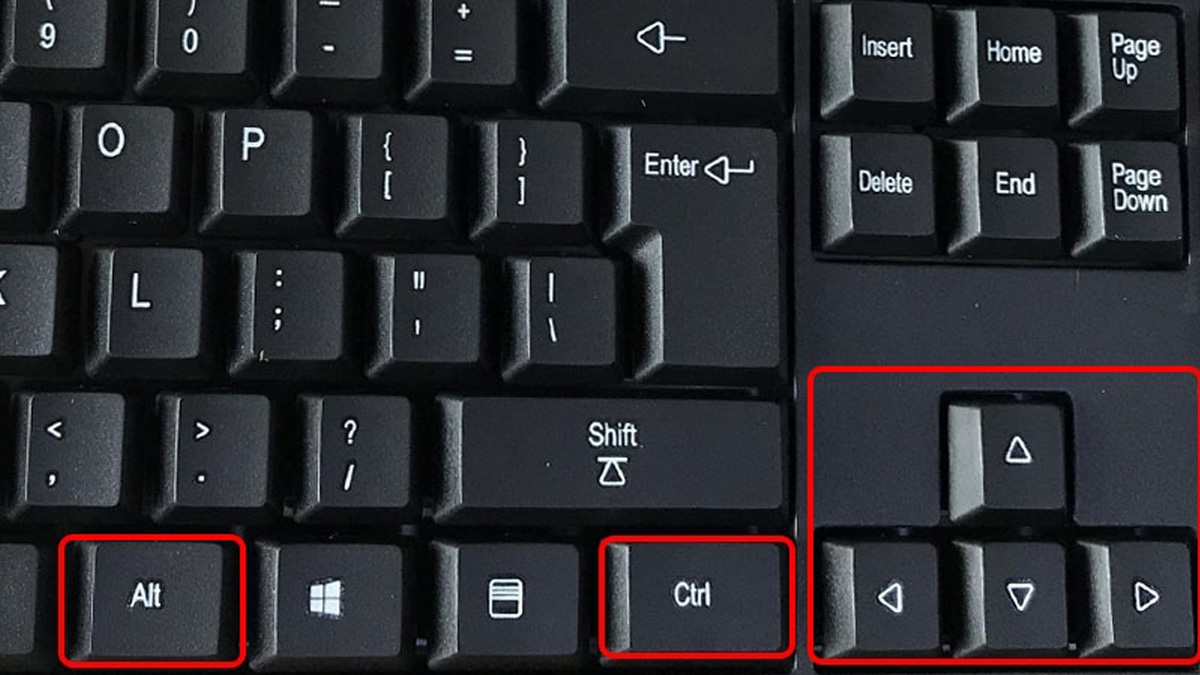
- Pressing the wrong keyboard shortcut : Usually the Ctrl + Alt + arrow key combination , causes the screen to rotate upside down.
- Incorrect display settings : In Display Settings, the wrong rotation mode was selected.
- Faulty or conflicting graphics card drivers : This causes the system to display incorrect information.
- Third-party software interference : Some display editing applications can cause reverse errors.
- Using a hybrid (2-in-1) tablet or touchscreen laptop : When the rotation sensor is overly sensitive, the screen may unintentionally flip upside down.
How to fix a computer screen that is upside down
An upside-down computer screen can be frustrating and hinder your work. Don't worry, this is a fairly common problem and you can quickly fix it yourself at home. The following content will guide you through the simple steps to rotate your screen back to normal.
Use the keyboard shortcut Ctrl + Alt + [Arrow]
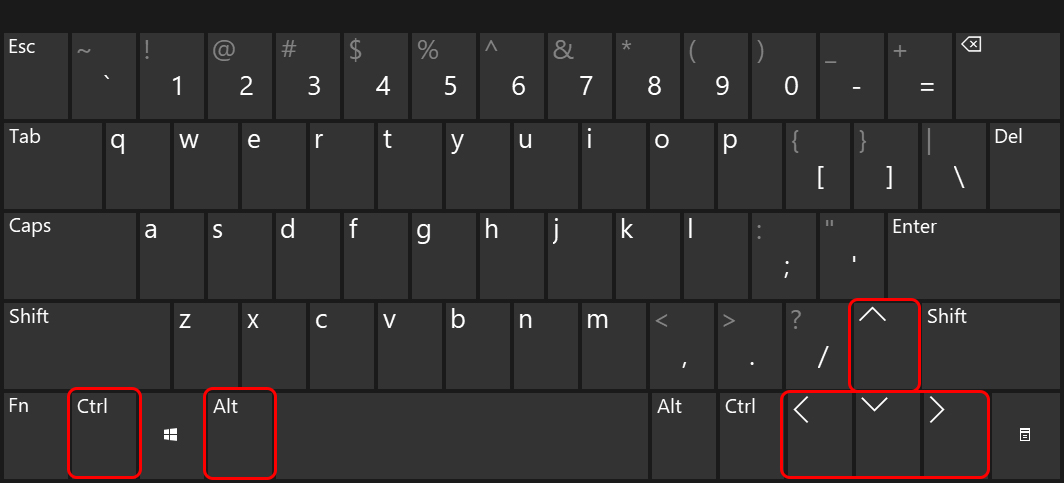
The simplest way to fix an inverted screen is to use the keyboard shortcut Ctrl + Alt + [Arrow]. Depending on the desired screen rotation angle, select the appropriate arrow key.
- Ctrl + Alt + Left Arrow : Rotate the screen to the left.
- Ctrl + Alt + Right Arrow : Rotate the screen to the right.
- Ctrl + Alt + Up Arrow : Rotate the screen upwards (default)
- Ctrl + Alt + Down Arrow : Rotate screen upside down
Use Settings
If your monitor is rotated upside down, you can easily adjust it in Windows Settings. This is not only quick but also gives you precise control over the display orientation.
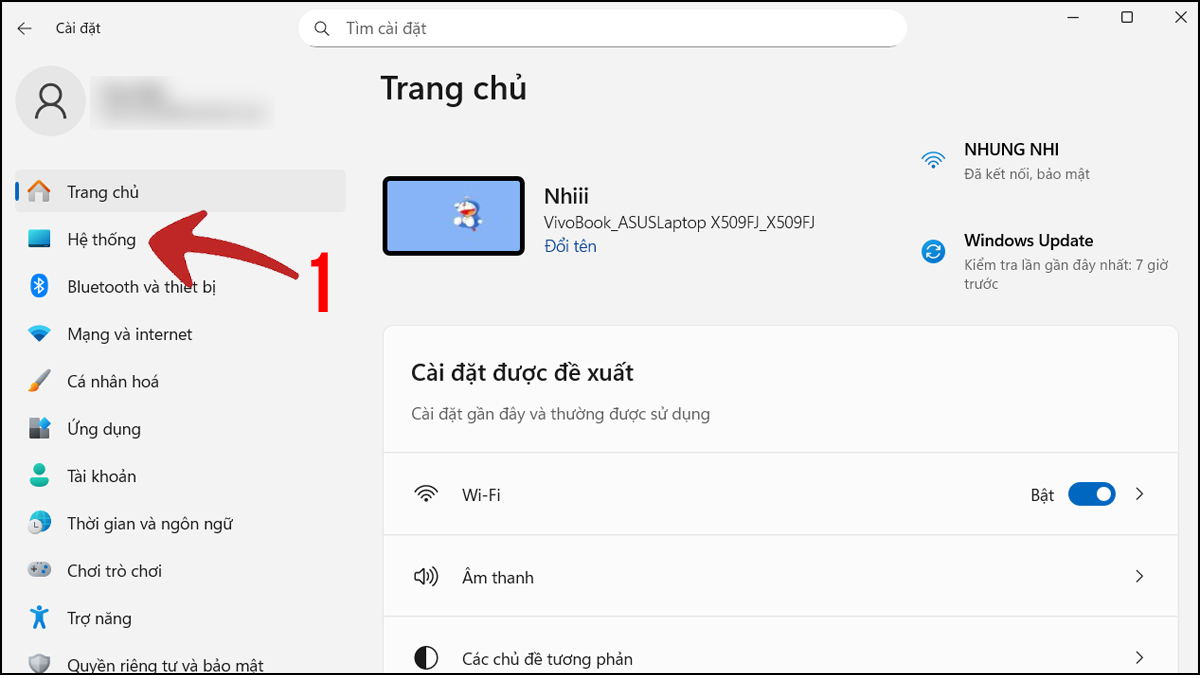
1. Open Settings
- Press the Windows + I key combination , then select System to open the system settings .
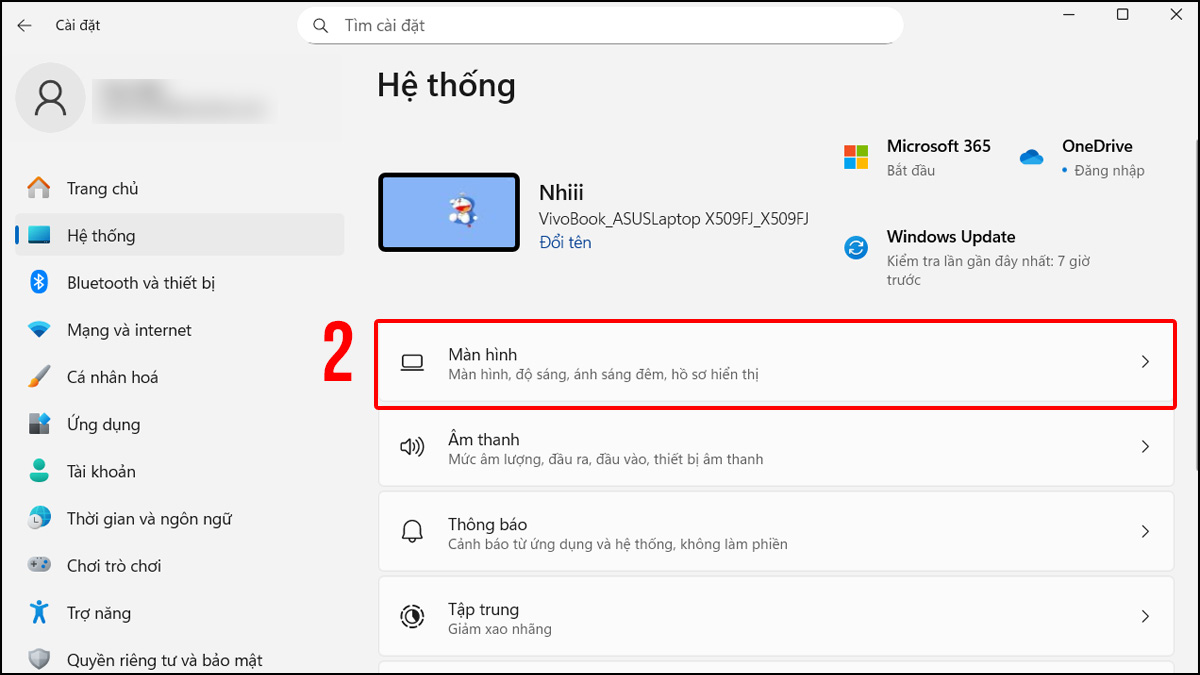
2. Go to the Display section.
- In the list on the right, select Display to open the display settings.
3. Adjust Display orientation
- In the Scale and layout section, click on Display orientation.
- Select Landscape to return the screen to normal.
Looking for a laptop for studying and working? Dell laptops , with their durable performance and reasonable prices, are a wise choice. Explore many genuine Dell models to find the perfect machine for you.
Adjust using the Rotation function
You can fix a laptop screen that's rotated upside down by utilizing the built-in Rotation option in Windows. On the Desktop, simply right- click → Graphics Options → Rotation → Rotate To Normal . The interface will then immediately return to normal, making it more convenient to use.
Troubleshooting on Macbook
If your Macbook screen is displayed upside down, follow these steps to correct it:
1. Open System Preferences
- Click the Apple logo in the upper corner of the screen, then select System Preferences to access the settings.
2. Access Display Settings
- Select the Displays option to open the settings related to the monitor.
3. Select Rotation
- In the Rotation section , you will see screen rotation options. If your computer screen is upside down, select Standard (0 degrees) to restore normal display.
Update or reinstall your graphics card driver
In many cases, the problem of a reversed computer screen stems from faulty or conflicting drivers. You can fix it by following these steps.
1. Check the driver version:
- Press Windows + R, the Run dialog box will appear, type devmgmt.msc and press OK.
- Open Device Manager to check if your current driver has an exclamation mark or warning. If so, this indicates a problem with the driver.
2. Update drivers:
- Right-click on the graphics card → Update driver .
- Select automatic updates so the system can find the appropriate version.
3. Reinstall the driver:
- If you want to uninstall the old driver, click on Uninstall device .
Note: After uninstalling, reinstall the driver from the Intel, AMD, or NVIDIA website that is compatible with your computer. A fresh installation helps prevent system conflicts and resolves the screen inversion issue in Windows 10 or Windows 11.
Check the external monitor (if using multiple monitors)
If you're using multiple monitors simultaneously, it's possible one of them has changed its rotation mode. The steps suggested below may fix the problem.
1. Identify if the screen is rotated:
- Press the Windows + I key combination and select System in Settings.
- Open Display and check the display settings.
2. Adjust the rotation mode:
- In the Display Orientation section , reset it to Landscape .
- Inspect all screens, identify and remove unnecessary additional screens in the "Rearrange your displays" section to ensure no screens are misaligned.
3. Check the connection cable:
- Finally, make sure the HDMI/DP cable is not loose.
Restore the system if there is a serious software error
When a computer experiences software errors, conflicts, or incorrect settings, an inverted screen can be a secondary symptom. In this case, restoring the system is the appropriate course of action.
1. Open System Restore:
- Type ' Restore ' into the Windows search bar and select System Restore (or Create a restore point ).
2. Access System Restore
- Select System Protection and then select System Restore.
- The list of restore points will be displayed in chronological order.
3. Select a suitable restore point .
- Prioritize selecting a time before the screen rotation error occurs.
- Press Next to continue.
4. Confirm system configuration
- Windows will display a message indicating that the settings have been restored.
- Click Next after making sure there are no unintended changes.
5. Start the point recovery process.
- Select Finish to complete the process and confirm the settings.
- The device will restart automatically, and you should not turn it off during the recovery process.
Take it to a professional repair center
If the above methods don't fix the inverted screen issue, it's likely a hardware or deep system problem. If the problem persists, it's best to take your computer to a reputable service center like Dien Thoai Vui for a more thorough diagnosis. There, technicians will help identify the correct cause and safely resolve the issue without affecting your data.
Tips to prevent the screen from being inverted
To prevent your computer screen from being inverted unintentionally, you can keep the following tips in mind:
- Avoid accidentally pressing shortcuts : Avoid pressing Ctrl + Alt + arrow keys if you don't need to rotate the screen.
- Maintain standard mode : Check in Display Settings to make sure the screen is always in Landscape (Standard) mode .
- Graphics card driver : Update your graphics card driver to ensure you're using the latest version to minimize display errors and help your monitor function more stably.
- Select which additional software to install : Limit unnecessary applications that rotate the screen.
- Turn off Rotation Lock: For touchscreen laptops, disable automatic screen rotation while in use.
With these simple tips, you can easily prevent the inverted laptop screen issue and work more comfortably every day.
The problem of a computer screen being upside down isn't too complicated; you can easily and quickly fix it yourself at home. With just a few simple steps, the screen will return to normal, allowing you to continue working and enjoying yourself without any problems.
Related Articles
 How to Fix the Error of the Computer Screen Being Reversed3 minutes read
 How to Fix a Computer Screen That Is Rotated Upside Down5 minutes read
 How to Fix the Error of the Computer Screen Being Turned3 minutes read
 Keyboard Shortcuts to Rotate Your PC Screen3 minutes read
 How to Fix Black Computer Screen Error on Windows 105 minutes read
 Computer Screen Shrinks on Both Sides: Causes and Solutions5 minutes read
Reader Comments 0
Sign in with email or Google to join the discussion.