Table of Contents
Quick answer
PowerPoint is not just a presentation tool; it can also be used to create interactive crossword puzzles. By combining tables, animations, triggers, and hyperlinks, you can design engaging games to support teaching or increase interaction in your presentations.
Create a simple crossword puzzle in PowerPoint with a board, animations, and triggers. This tutorial will help you make a fun minigame in just a few steps.
How to create a crossword puzzle in PowerPoint
Here's an example of a minigame designed by Free Download:
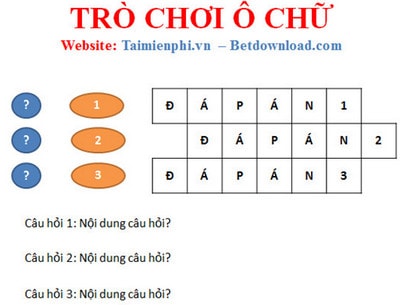
Making:
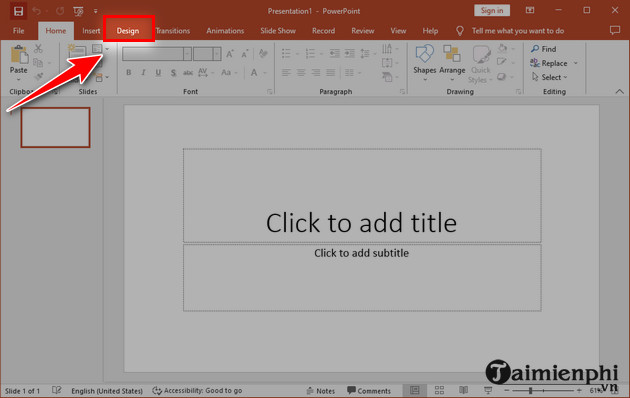
Step 1 : Open PowerPoint and select " Design ".
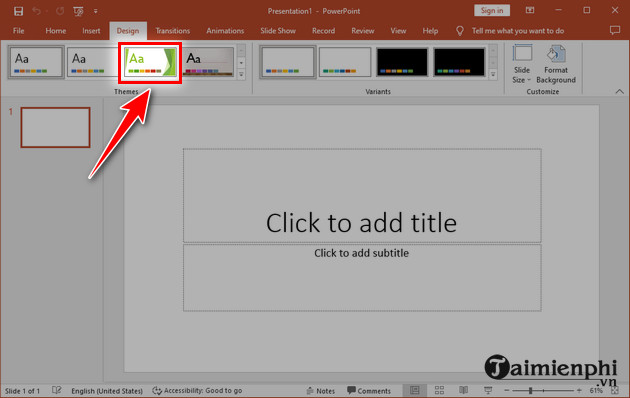
Choose a background for PowerPoint.
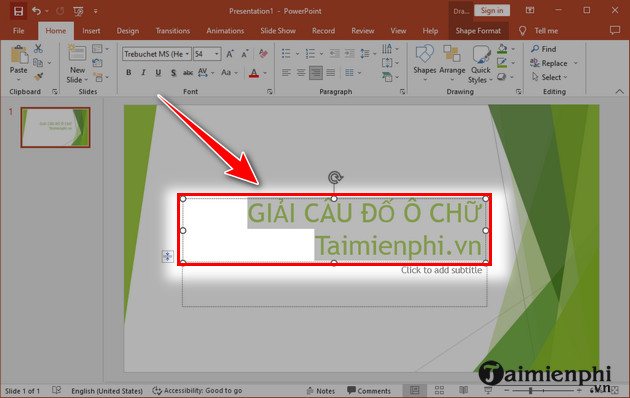
Next, click in the middle of the interface, type the title , and adjust the size, color, etc., of the text.
To create an effect, click " Animations " and then select the appropriate effect from the options below.
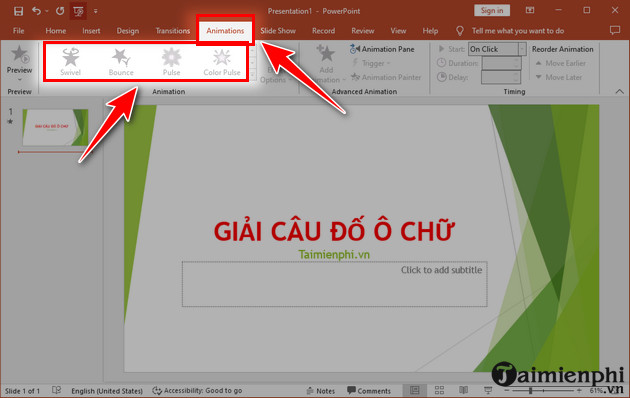
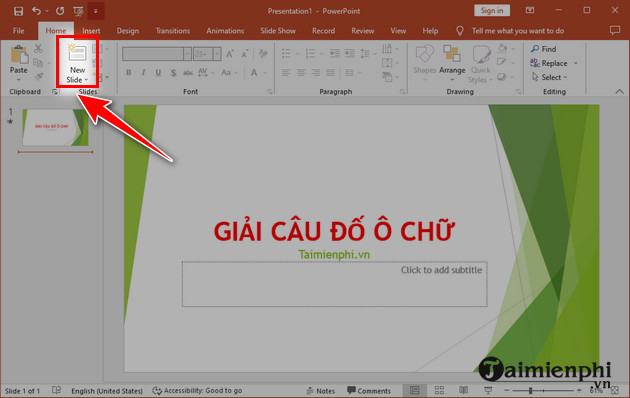
Step 2 : To open a new slide, click " New Slide ".
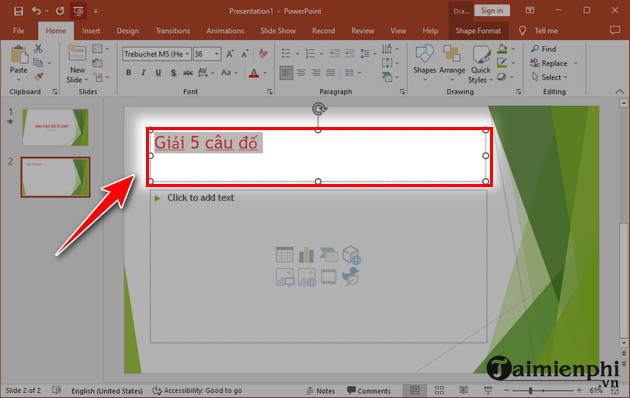
You can also write an introduction or something similar on the slide and edit it as in step 1.
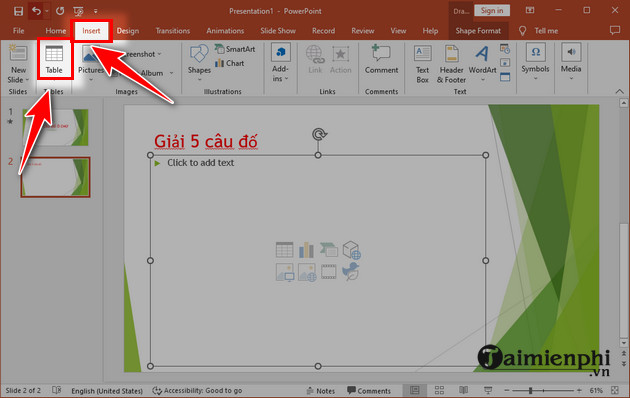
Once finished, click " Insert, " then select " Table, " and then choose the number of cells you want to create.
Now, readjust the squares to the appropriate size.
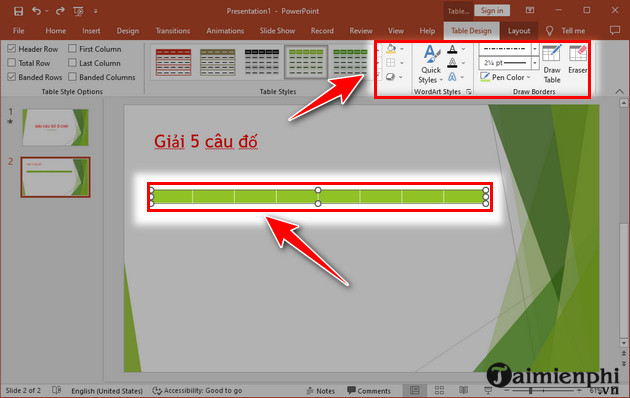
Next, fill the background color and add a border at the top of the interface.
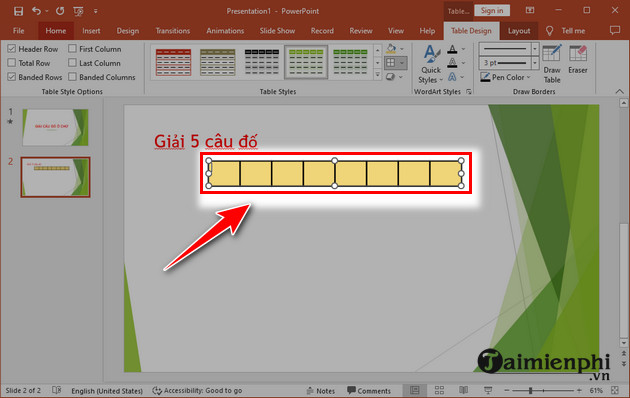
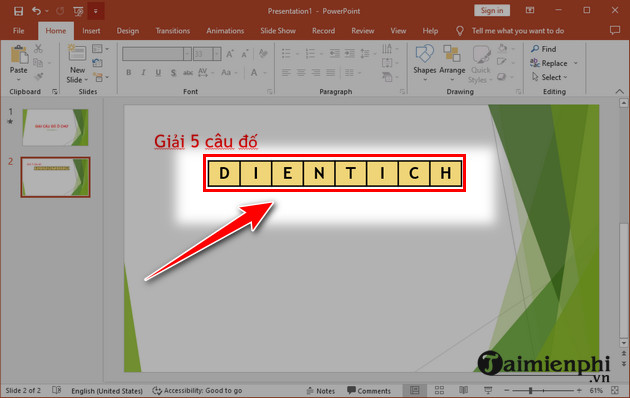
Step 3 : Write your answers in the squares. You can change the font, size, and alignment to make it more visually appealing.
Step 4 : Press the shortcut " Ctrl + D " to duplicate it and delete all the text within it to create a row of cells without text, as shown in the image. This row is used to cover the answer.
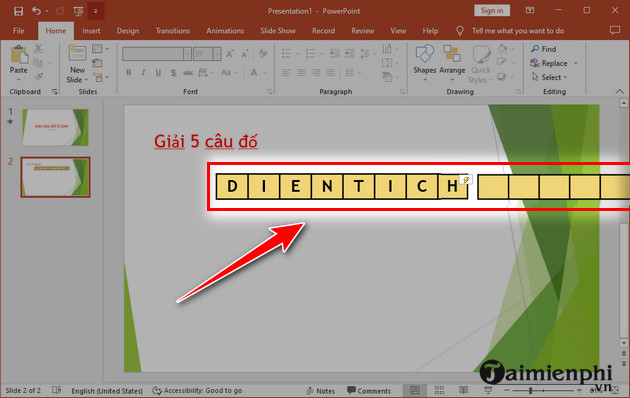
We select the empty cell, then " Animations, " and then " All Animations " to create a disappearing effect. Next, we select " Trigger " and then " On click of, " meaning that when you click on it, it will disappear automatically. After that, we stack it on top of the row of cells with text to see the result.
Step 5 : To save time, highlight the cells you want to duplicate, then press Ctrl + D to create duplicates. Press Ctrl + D as many times as you want questions.
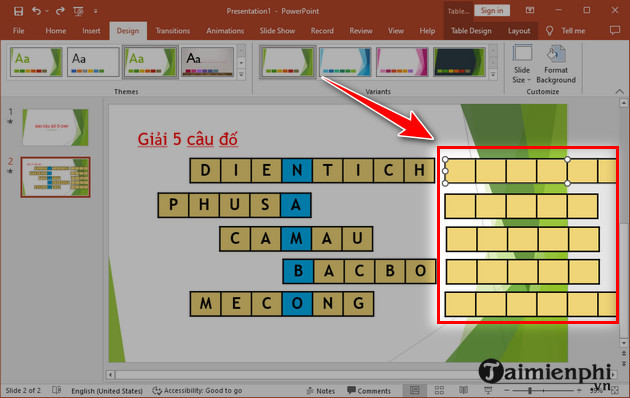
If there are fewer answer options than the number of cells, highlight the cells you want to delete , right-click on them, and select "Delete row" to remove them. Remember to do the same for the remaining cells that don't contain answers.
Step 6 : Remember to highlight the correct answer for that problem and arrange them accordingly.
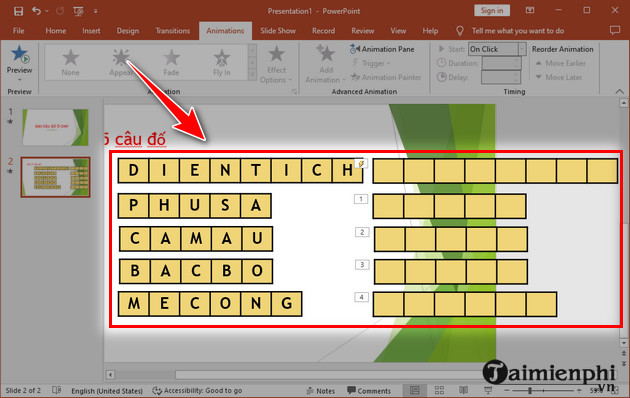
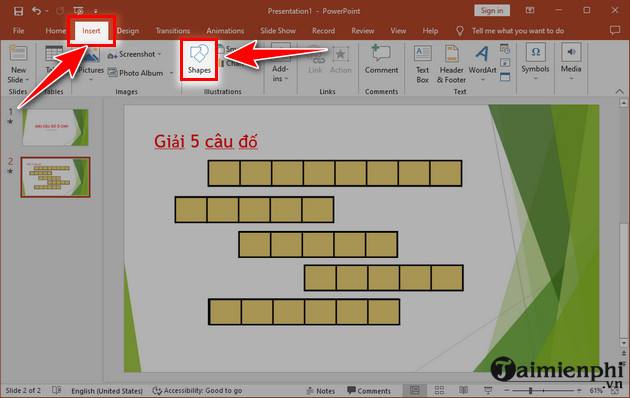
Step 7 : Click " Insert " then "Shapes " to choose the shape you like.
Step 8 : Next, click on the desired location as shown below, then adjust the size and background color accordingly.
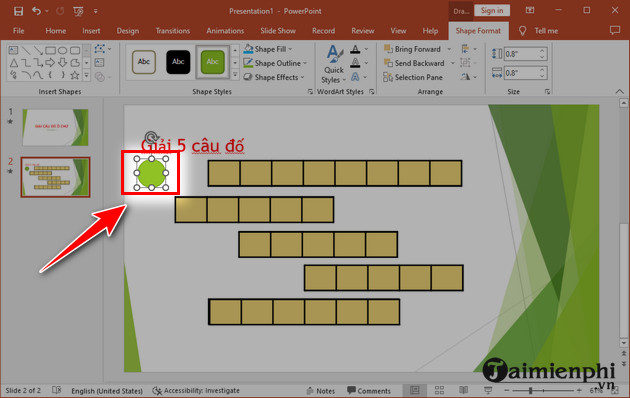
Once you've finished editing, right- click and select " Add Text " to add the appropriate numbering.
Next, press the Shift key and drag your mouse to create other similar number cells aligned with the rows of letters.
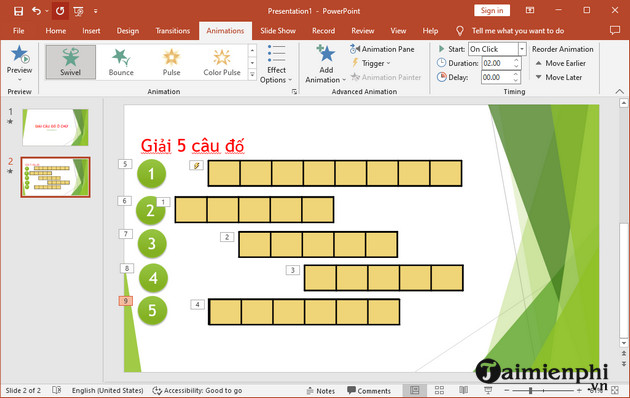
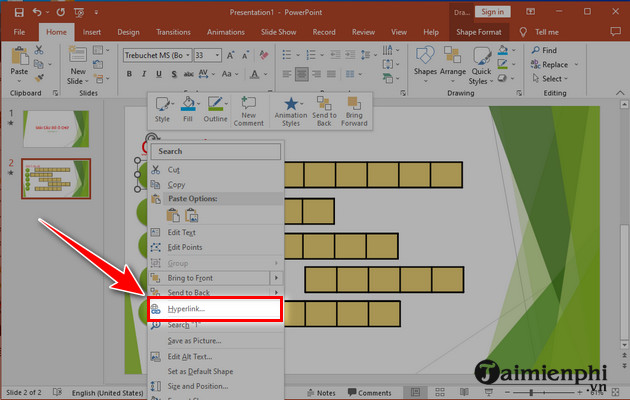
To have a question displayed when you click on a number, right-click on that number and select Hyperlink.
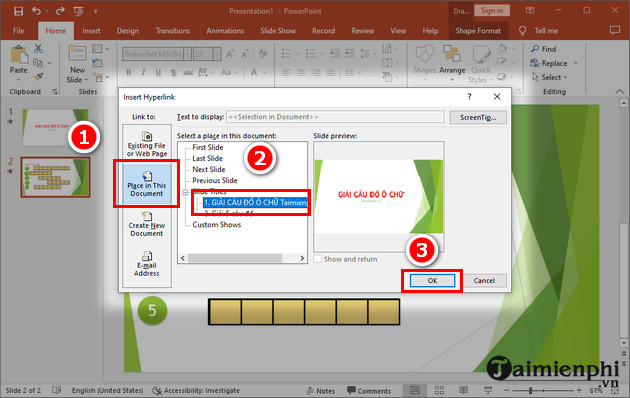
Next, select the appropriate location for the hyperlink in the current PowerPoint presentation , then choose the slide containing the corresponding question to attach the image slide below. Finally, click " OK ".
Now, remember to save your PowerPoint presentation.
Watch the detailed tutorial video:
Now you can create your own custom crossword puzzles in PowerPoint for use in teaching, presentations, or entertainment. By incorporating animations, slide linking, and a streamlined layout, your game will become more lively and engaging.
Related Articles
 How to Create a Crossword Game on PowerPoint: PowerPoint Crossword9 minutes read
 The 5 Most Interesting Crossword Apps on Android for Those Who Love the Crossword4 minutes read
 How to Create Crossword Puzzles on Canva AI Extremely Quickly5 minutes read
 How to Creating Effects in PowerPoint: Step-by-Step Guide5 minutes read
 How to Create Typewriting Effects in PowerPoint4 minutes read
 How to Use Effects in PowerPoint6 minutes read
Reader Comments 0
Sign in with email or Google to join the discussion.