Table of Contents
To change a personal Facebook name, open Accounts Center > Profiles, select your Facebook profile, choose Name, and review the change. To rename a Facebook Page, switch into the Page and open Settings > Page setup > Name. These are separate settings, and changing a Page's name does not change its username or web address.
Before changing a Facebook name
- A personal profile name should be the name you use in everyday life and may need to match an accepted identity document.
- Facebook generally limits personal profile name changes to once every 60 days.
- Unusual capitalization, repeated punctuation, symbols, titles, phrases, and impersonation can cause a request to be rejected.
- For a Page, you need Facebook access that includes permission to manage the Page. Task access alone may not be enough.
- Changing a Page name is subject to review and does not automatically change the Page username.
Meta's current profile name rules explain which formats are accepted.
Change your personal Facebook name on Android or iPhone
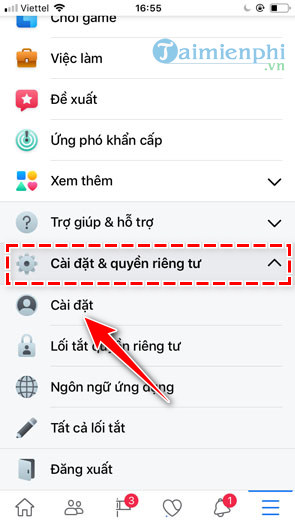
- Open the Facebook app and tap Menu or your profile picture.
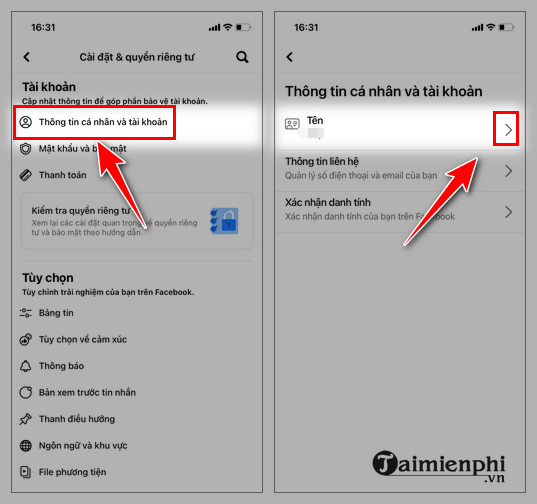
- Choose Settings & privacy, then Settings.
- Open Accounts Center.
- Select Profiles, choose the Facebook profile, and tap Name.
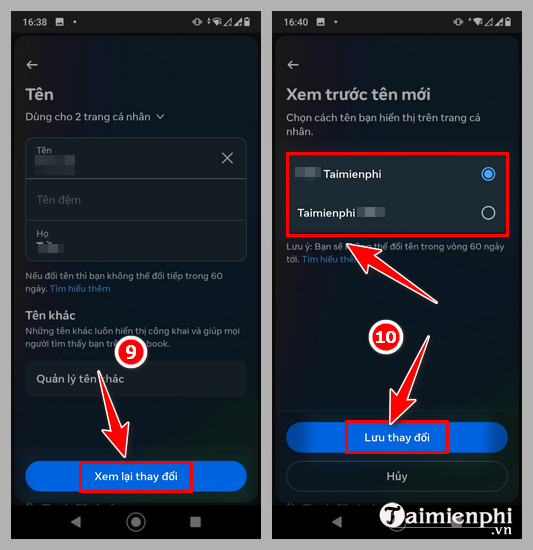
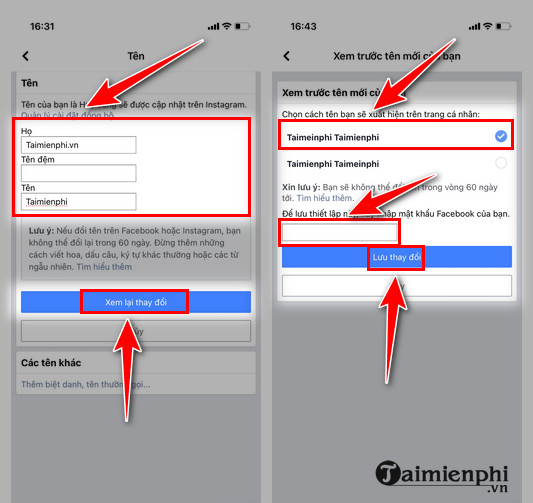
- Enter the first, middle, and last name as appropriate, then tap Review change.
- Check the displayed order and select Save changes. Facebook may ask for your password or another security check.
Menu placement differs slightly between Android and iPhone, but both lead to Accounts Center. The screenshots below show the app flow; labels may vary by version.
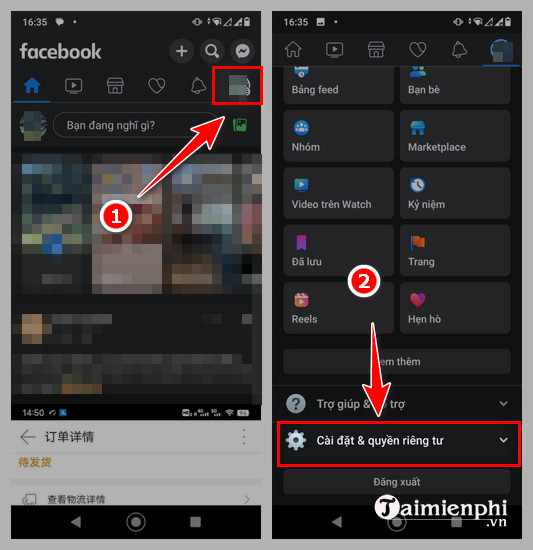
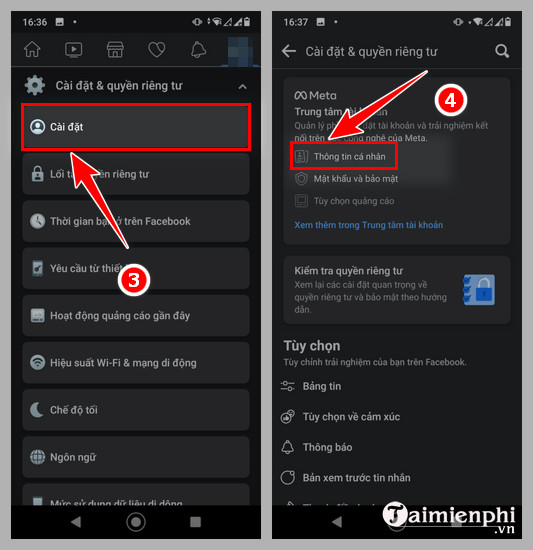
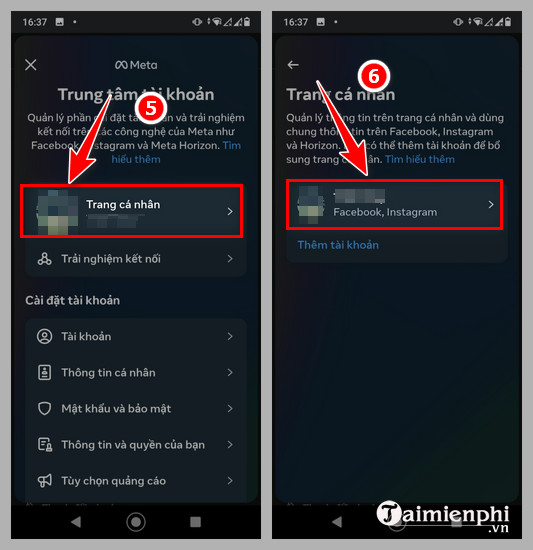
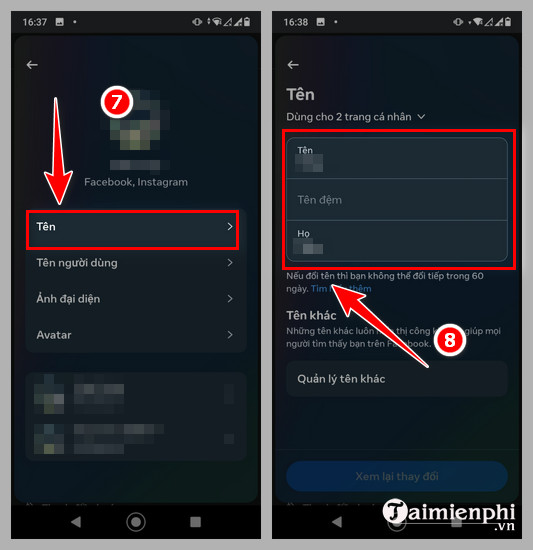
iPhone interface
On iPhone, the Menu button is commonly at the bottom right. Open Settings & privacy > Settings, then follow the same Accounts Center path.

Change your personal Facebook name on a computer
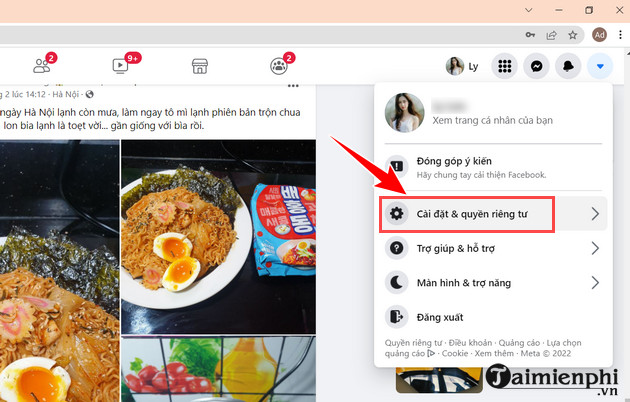
- Log in at Facebook and select your profile picture in the upper-right corner.
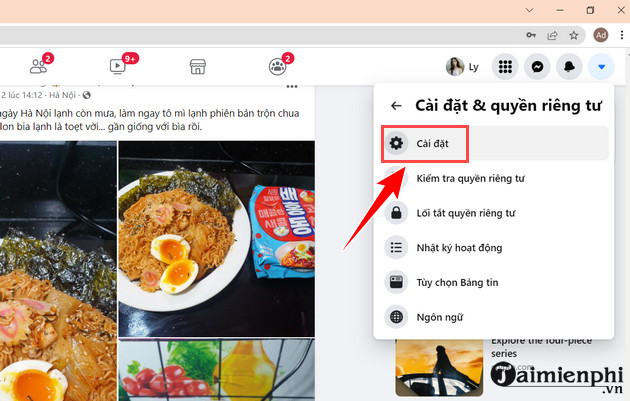
- Open Settings & privacy > Settings.
- Select Accounts Center, then Profiles.
- Choose your Facebook profile and select Name.
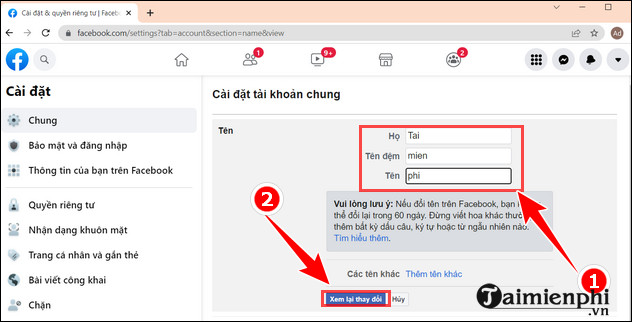
- Enter the updated name, review how it will appear, and save the change.
Facebook's name-change instructions show the current path. If you cannot sign in to reach Settings, use the Facebook login guide or reset a forgotten password first.
Older desktop interface
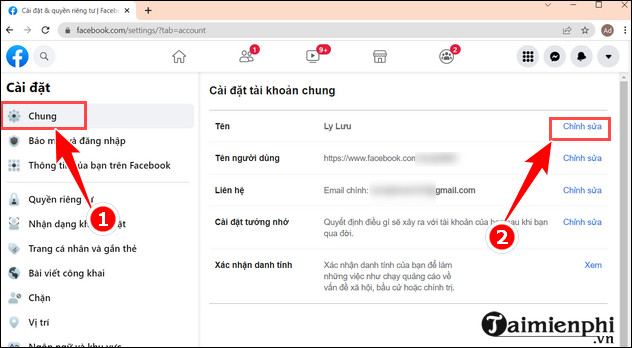
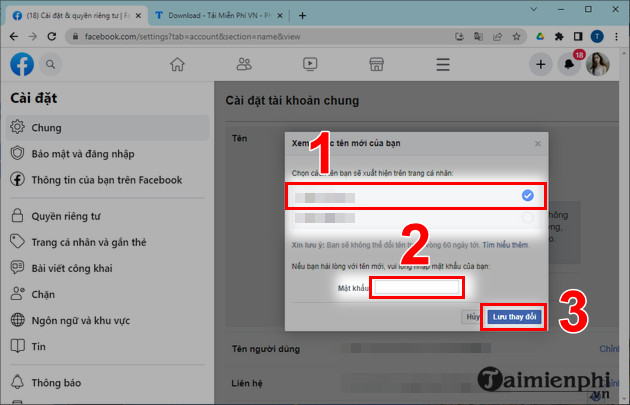
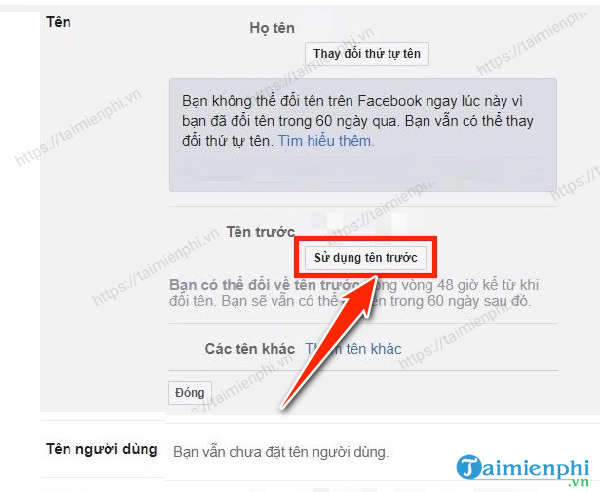
Older Facebook versions placed the name control under General account settings. The screenshots remain useful for recognizing that interface, but current accounts normally use Accounts Center.
Add a nickname or another name instead
If you want friends to find you by a nickname, maiden name, professional name, or another recognized name, you may not need to replace the primary profile name. In Accounts Center, open the profile's name settings and look for Manage other names. Choose the type of name and decide whether to show it near the top of the profile. Meta provides a separate guide to manage other names.
Change the name of a Facebook Page
You must switch from your personal profile into the Page before looking for the Page name setting:
- Open the account/profile menu and switch into the Page you manage.
- Open the Page menu, then Settings & privacy > Settings.
- Select Page setup and then Name.
- Enter the proposed Page name and choose Review change.
- Confirm the request. Facebook may ask for your password and may review the new name before applying it.
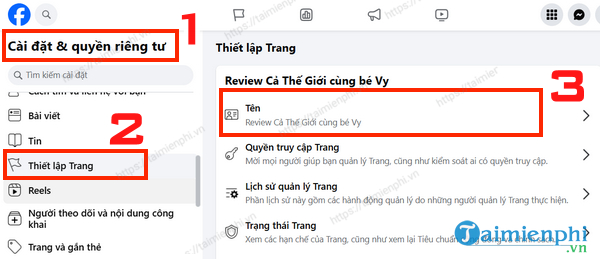
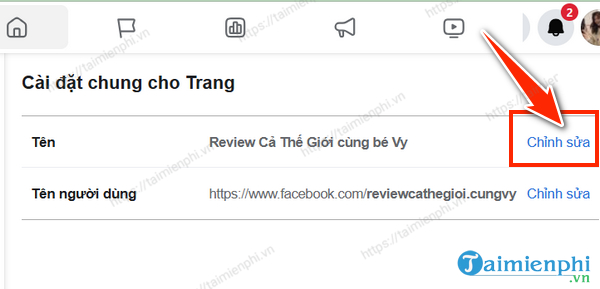
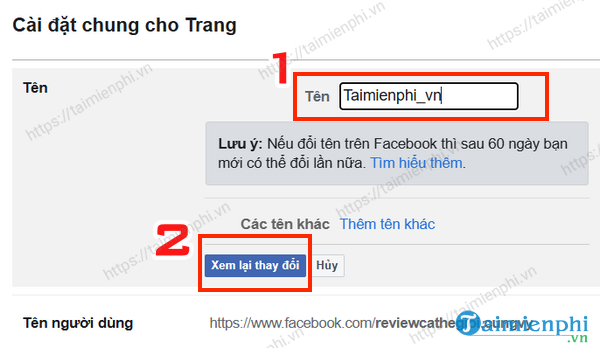
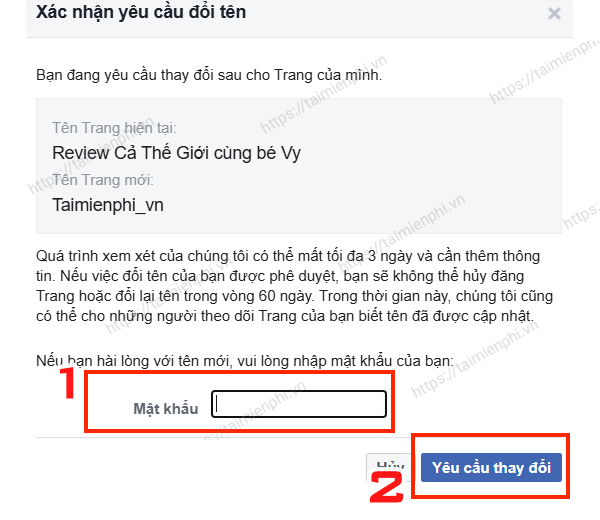
Consult Facebook's Page name change guide if the control has moved. For broader Page and social-network guidance, visit TipsMake's online social network section.
Page name versus Page username
The Page name is the prominent label visitors see. The username is the unique handle used in the Page URL and mentions. Renaming the Page does not update the username. If both must change, edit them separately and check any website links, QR codes, ads, email signatures, or printed material that uses the old URL.
Why Facebook may reject or hide the name option
- Changed recently: A personal name normally cannot be changed again within 60 days.
- Name format violates policy: Remove promotional phrases, unnecessary punctuation, symbols, titles, and unusual capitalization.
- Identity confirmation required: Follow the in-product request and submit only documents Facebook accepts through its official form.
- Insufficient Page access: Ask a person with full Facebook access to make the request or update your Page permissions.
- Page restrictions: A recently renamed, limited, or policy-restricted Page may not be eligible for another change.
- App or browser issue: Update the app, try a current desktop browser, and reopen Settings. Do not use third-party “renaming” services.
Facebook's name-change troubleshooting page covers common profile restrictions. If the issue involves a Page review or an inaccessible administrator account, use TipsMake's guide to contact Facebook support.
After the change
Review the name on your profile or Page and update the separate username only if needed. Tell close contacts about a major personal name change so they recognize the account, and update brand references to a renamed Page. Avoid submitting repeated requests while one is pending, as that can delay review or create conflicting changes.
Related Articles
 How to Change Facebook Fanpage Name on a Computer or Phone4 minutes read
 How to Change the Facebook Fanpage Page Name5 minutes read
 How to Change Facebook Fanpage Catalog: Create Facebook Fanpage5 minutes read
 How to Change the Name of the Fanpage Facebook Page4 minutes read
 Delete Facebook Fanpage on Computer and Phone4 minutes read
 Guide to Hide Facebook Fanpage Like Activity3 minutes read
Reader Comments 0
Sign in with email or Google to join the discussion.