Table of Contents
A Facebook group poll lets members vote on a question directly in the group feed. The available settings depend on the group's permissions: administrators can restrict who creates posts, and some groups may not offer the poll post type.
Create a Facebook group poll on a phone
- Open the Facebook app, select Groups, and open the group where you want to post.
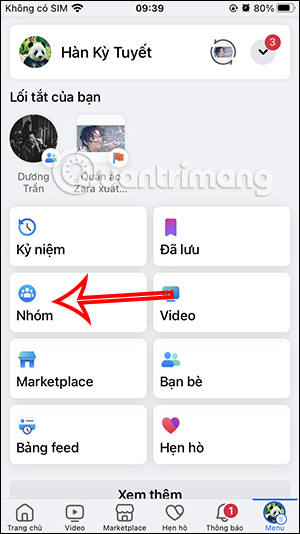
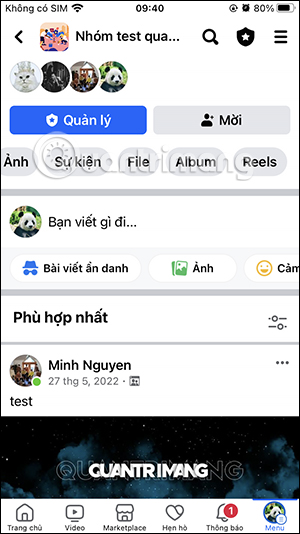
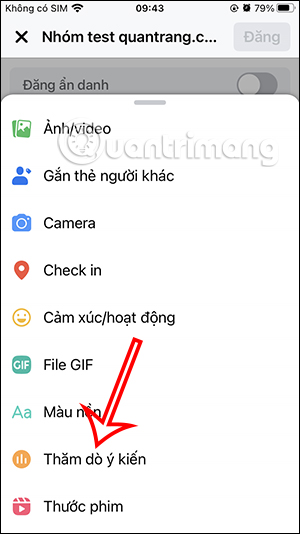
- Tap the post composer, then open the list of post types and choose Poll.
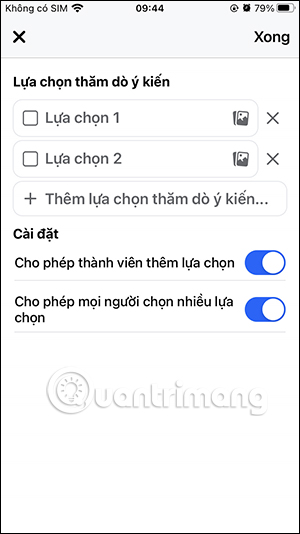
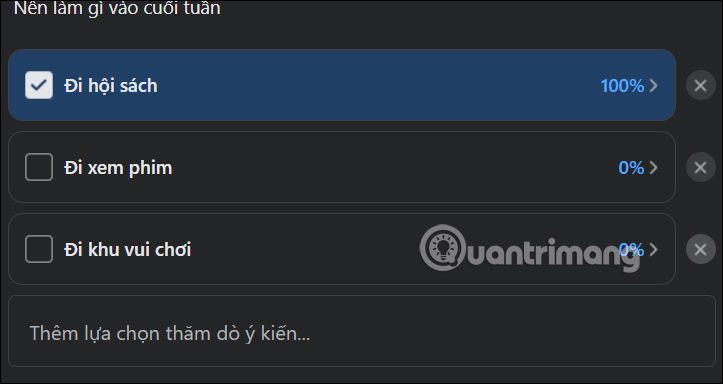
- Enter one clear question and add the answer options. Review any settings that control whether members can select multiple answers or add options.
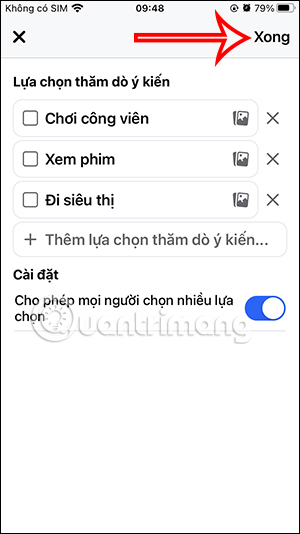
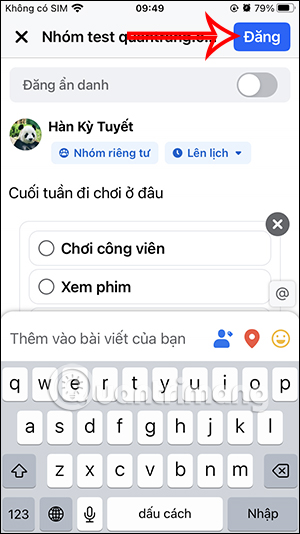
- Tap Done, check the completed poll, and select Post.
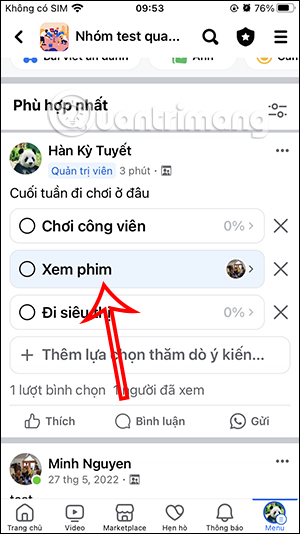
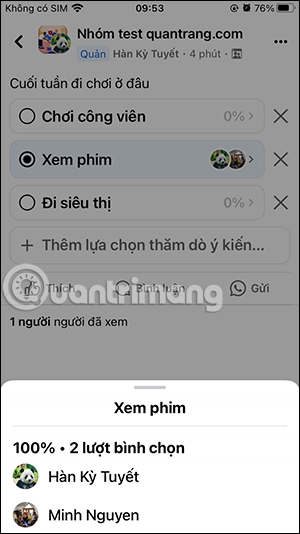
After people vote, the post shows the response count. Open the results to see the available voter details; visibility can vary for anonymous group features and Facebook's current interface.
Create a Facebook group poll on a computer
- Open Facebook, select Groups, and go to the target group.
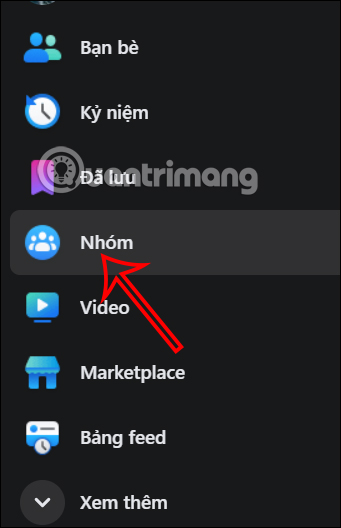
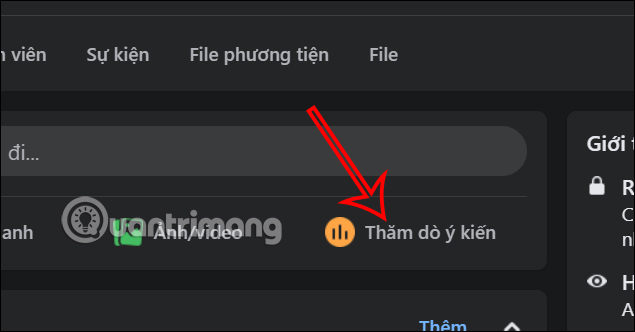
- Start a new post and select Poll. If it is not shown, open the additional post options.
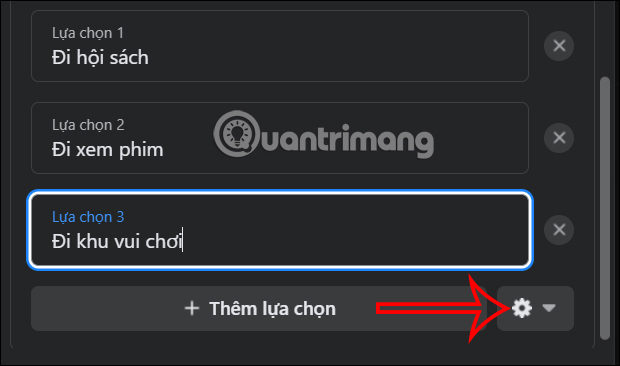
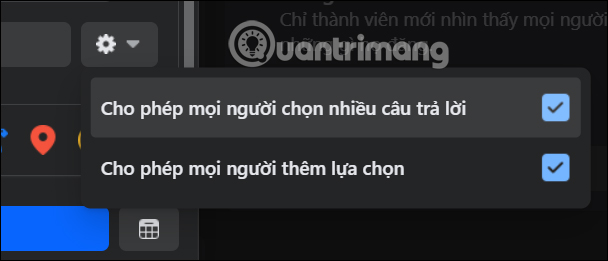
- Write the question, add the choices, and use the available settings to control voting or member-added options.
- Select Post. The poll then appears in the group feed, where eligible members can vote.
Tips for a useful poll
- Ask one specific question and make the answer choices mutually clear.
- Include an “Other” option only when it will produce useful responses.
- State a closing time in the post text if the decision has a deadline.
- Check group rules before polling members or collecting sensitive opinions.
If the Poll option does not appear
Confirm that you are posting inside a group rather than on a profile or Page, and check whether group administrators limit post types. Updating the Facebook app or trying the desktop site can also reveal a feature that is missing from one interface.
Related Articles
 How to Create a Poll on Messenger3 minutes read
 How to Create a Poll on Facebook: Create Facebook Poll4 minutes read
 How to Create a Poll in the Facebook Group on Your Phone5 minutes read
 How to Create Poll Vote on Facebook Messenger4 minutes read
 Instructions for Creating Groups on Facebook: Create Facebook Group6 minutes read
 How to Create Poll on Zalo Computer: Create Zalo PC Poll4 minutes read
Reader Comments 0
Sign in with email or Google to join the discussion.