Table of Contents
Messenger group chats may include built-in polls for collecting votes without counting separate replies. Depending on your app version and account, you may see a standard multiple-choice poll, a member-vote prompt, or both.
Create a member-vote question
- Open the Messenger group chat and open the chat tools or poll menu.
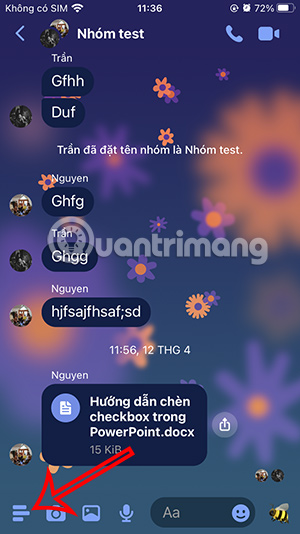
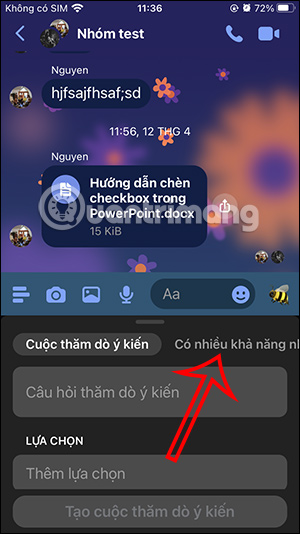
- Select Most likely to or the comparable member-vote option.
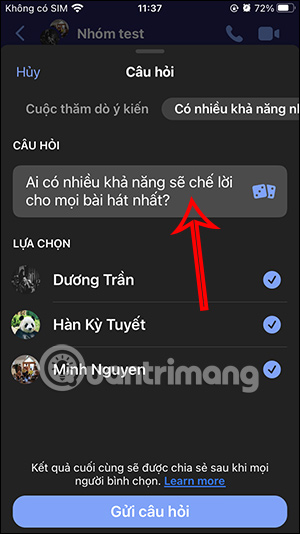
- Choose a suggested question, use the dice control to cycle through prompts, or replace the prompt with your own.
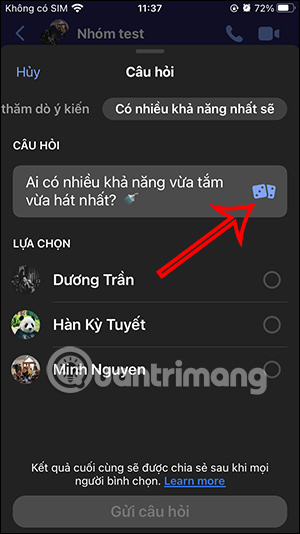
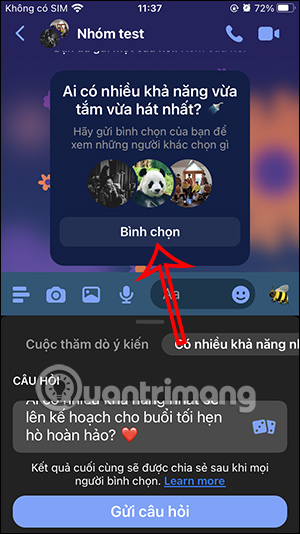
- Review the group members available as answers, then select Submit Question.

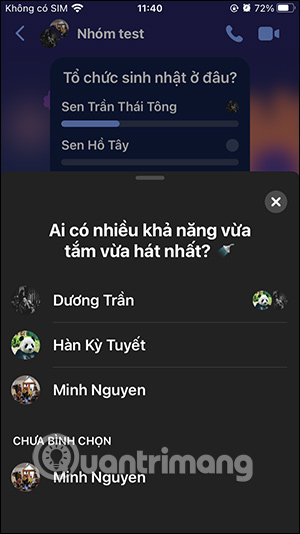
Group members can select Vote on the posted question. Open the poll to see recorded votes and which participants have not responded.
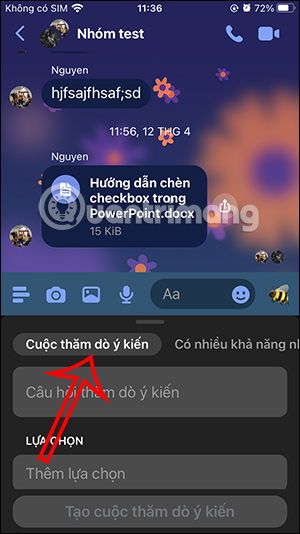
Create a multiple-choice poll
- Open the group chat's tools menu and choose Poll.
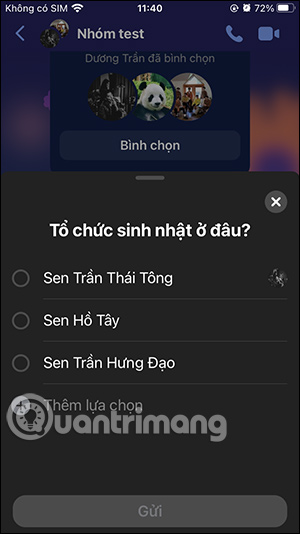
- Enter a clear question and add the answer choices. Check spelling before posting because editing options may be limited.
- Select Create Poll to publish it to the conversation.
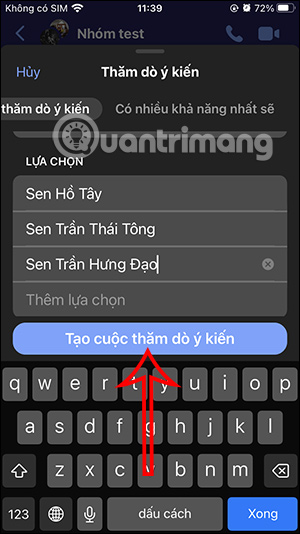

Participants can open the poll and choose an answer. Their profile pictures may appear beside the selected options, allowing the group to see participation and results.
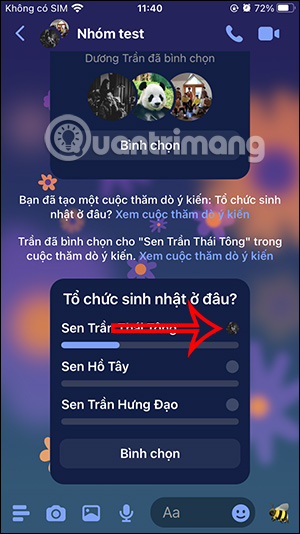
Open the poll for a detailed result view. If Messenger offers Add option, participants can contribute another answer unless the poll's settings restrict it.
If the poll option is missing
Poll availability can differ by device, app version, chat type, and region. Update Messenger, confirm that you are in a group conversation, and check the chat's expanded tools menu. If the feature is still absent, ask members to react to numbered choices in a message as a simple alternative.
Related Articles
 How to Create Poll Vote on Facebook Messenger4 minutes read
 How to Create a Poll on Facebook: Create Facebook Poll4 minutes read
 How to Create a Poll in a Facebook Group3 minutes read
 How to Create Poll on Zalo Computer: Create Zalo PC Poll4 minutes read
 How to Create Polls in YouTube Shorts Videos3 minutes read
 Instructions for Creating a Group on Messenger3 minutes read
Reader Comments 0
Sign in with email or Google to join the discussion.