Table of Contents
Microsoft Copilot connectors let you search supported services such as OneDrive, Outlook, Gmail, Google Drive, and Google Calendar from a Copilot conversation. The current Copilot interface enables connectors from the prompt's Open (+) menu; older versions of the Windows app may instead show them under the profile settings. Only connect accounts whose content you are permitted to use with Copilot.
Connect a service in Copilot
1. Open Copilot and sign in
Start the Microsoft Copilot app on Windows or go to Copilot.com in a browser. Sign in with the Microsoft account you intend to use.
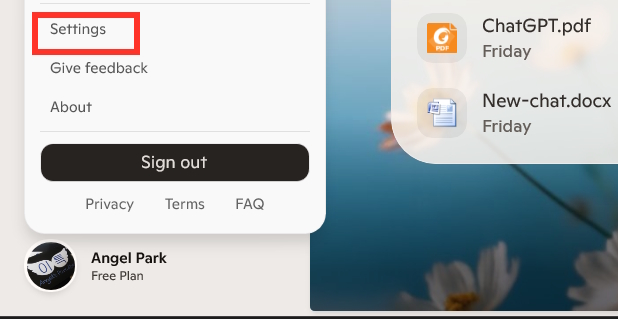
2. Open the connectors menu
In the current web interface, select the Open (+) button beside the prompt and choose Use connectors. Microsoft changes the layout periodically, so if this option is not beside the prompt, open your profile and look for Connectors in Settings.
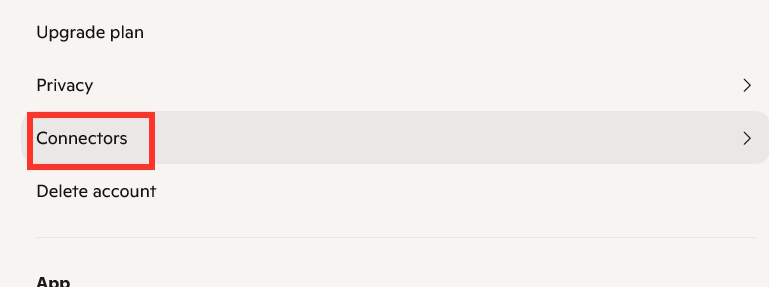
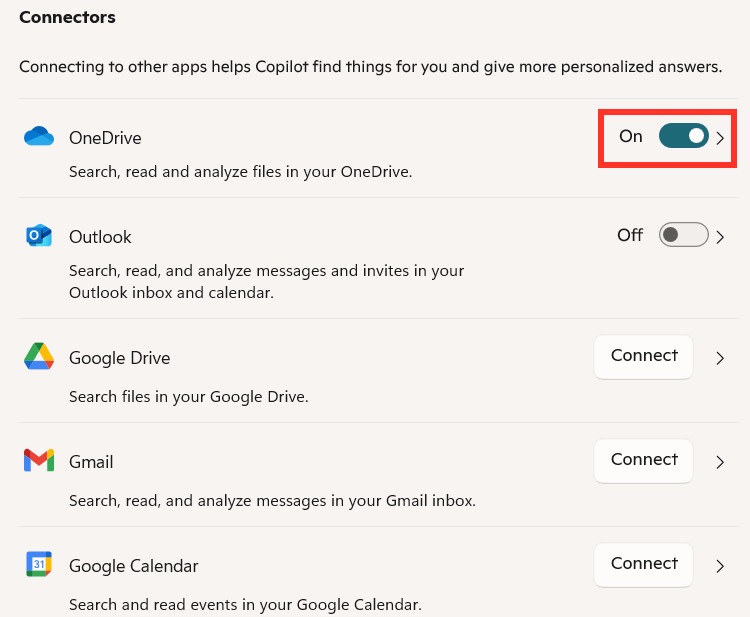
3. Choose a Microsoft or Google service
Select the connector you want to use. Microsoft services associated with your signed-in account may appear as a toggle. A Google service normally requires a separate sign-in and authorization flow.
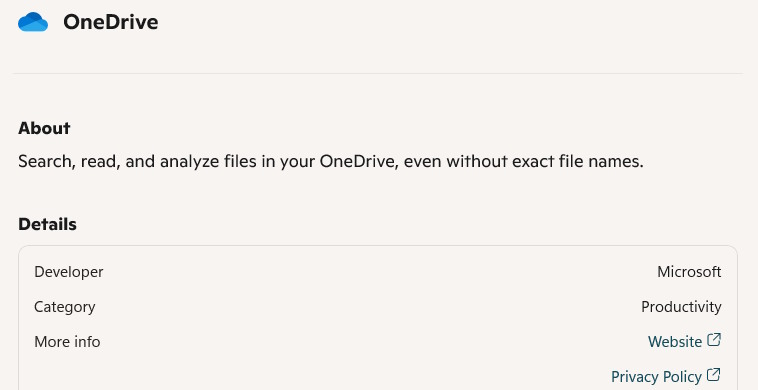
4. Authorize a Google account
For Gmail, Google Drive, or Google Calendar, choose Connect and continue to Google. Verify the Google account displayed on the consent screen, read the requested permissions, and approve only if they are appropriate for your use.
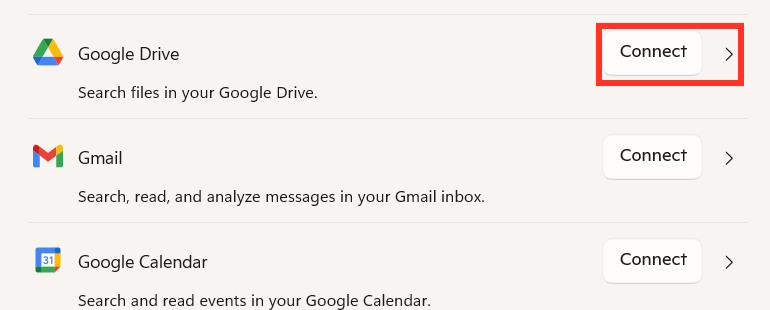
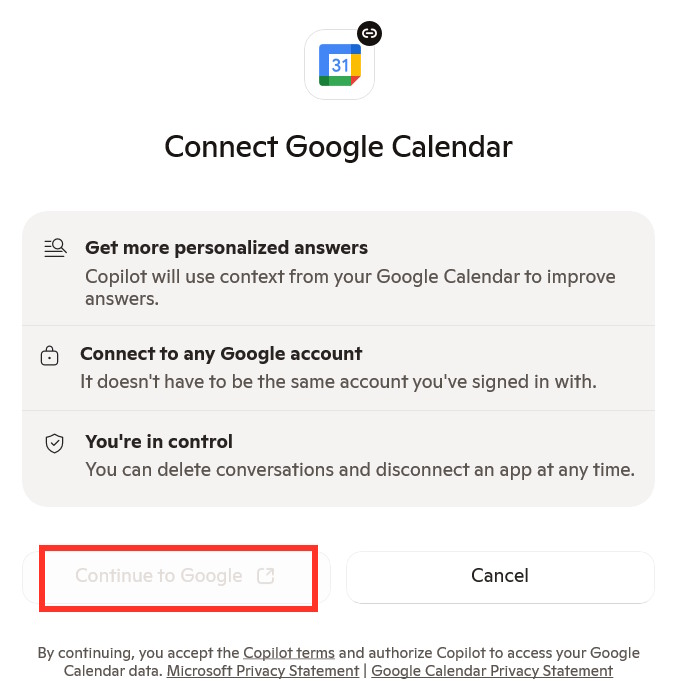
5. Enable the connector for a conversation
Return to Copilot and turn on the services needed for the current conversation. Microsoft says you can enable multiple connectors and switch them on or off from the connectors menu. Ask a specific question, such as:
- “Find the most recent email from Alex about the supplier contract.”
- “Locate the presentation in my Google Drive that mentions the Q3 launch.”
- “Summarize the project notes in my OneDrive folder.”
Check the returned source before relying on a summary. Similar filenames, old email threads, or incomplete context can lead to the wrong result.
Privacy and account checks
- Use a work or school account only if the organization's policy permits the connector.
- Review the exact permissions on the Microsoft or Google consent screen.
- Avoid asking Copilot to expose confidential content in a shared conversation.
- Disconnect an account when it is no longer needed, especially on a shared device.
- For sensitive decisions, open and verify the original email, event, or file.
If the connector option is missing
Update the Copilot app, confirm that you are signed in, and try Copilot.com in a current browser. Feature availability can depend on account type, region, organization policy, and rollout status. A managed account administrator may disable external connections.
If authorization fails, remove the existing connection and reconnect it, checking that browser pop-ups and third-party sign-in are not blocked. Do not confuse these personal Copilot connectors with Microsoft 365 Copilot connectors configured by an administrator for organizational data sources.
Microsoft's connector support page reflects the current menu path and supported behavior. For more context on choosing assistants, see our comparison of popular AI assistants.
Related Articles
 Instructions for Using Copilot in OneDrive3 minutes read
 Microsoft Upgrades Copilot with a Series of New Features: from Bing4 minutes read
 How to Back up Email on Gmail to Onedrive: Save Emails to Onedrive6 minutes read
 How to Turn Off Copilot in Windows 11: Step-by-Step Guide4 minutes read
 How to Connect Gmail to n8n via Google Cloud Console9 minutes read
 minutes read
Reader Comments 0
Sign in with email or Google to join the discussion.