Table of Contents
Canceling Copilot Pro, deleting Copilot activity, and closing a Microsoft account are three different actions. Cancel the subscription through the company that bills you, then remove Copilot history or memory separately if that is your goal. You normally do not need to close your Microsoft account, which would also affect Outlook, OneDrive, Xbox, and other Microsoft services tied to it.
First, identify who bills the subscription
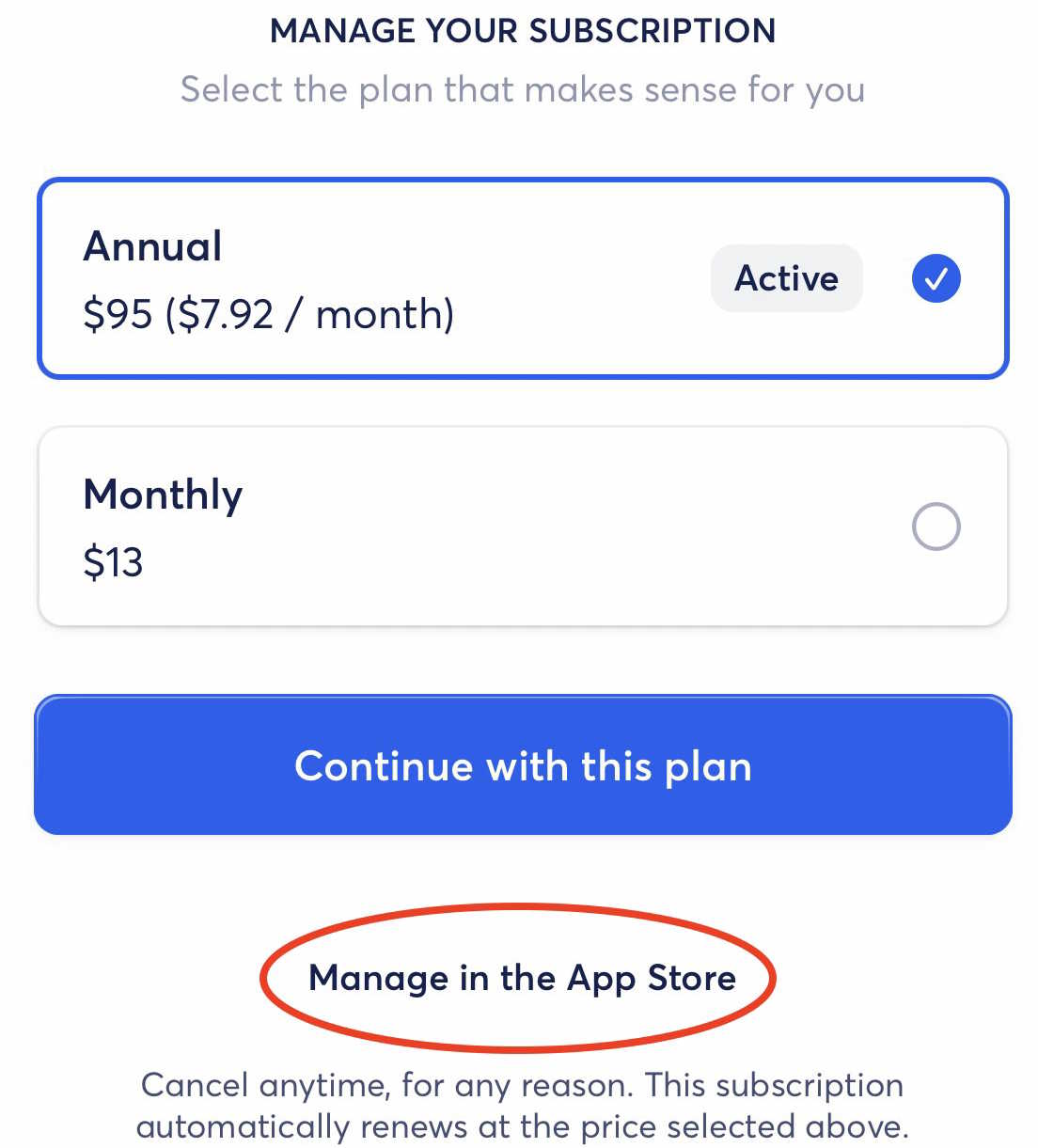
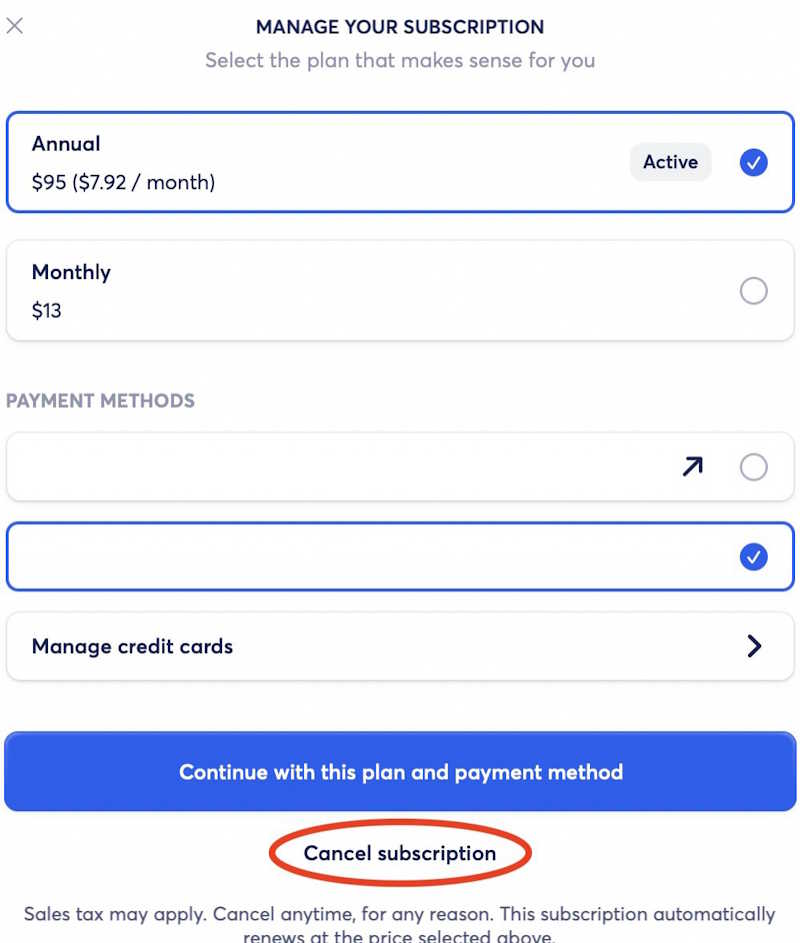
Check the purchase receipt or the subscriptions page on your device. A Copilot Pro subscription purchased directly from Microsoft is managed in the Microsoft account dashboard. A subscription purchased in the iOS or macOS app is billed and canceled by Apple. Deleting the Copilot app does not cancel either subscription.
Cancel Copilot Pro purchased from Microsoft
- Open the Microsoft Services & subscriptions page.
- Sign in with the same Microsoft account that purchased Copilot Pro.
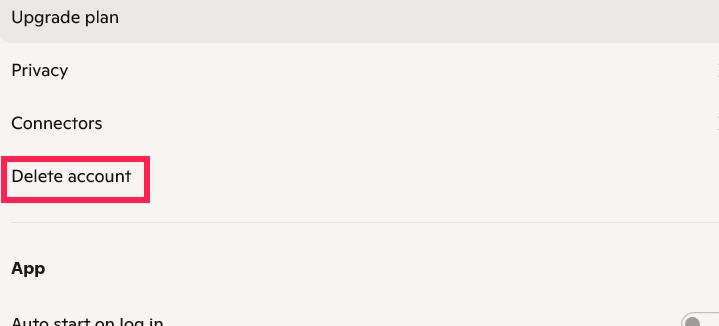
- Find Copilot Pro and select Manage.
- Choose the cancellation option shown and follow the confirmation steps.
- Return to the subscriptions page and confirm that the next charge is canceled or an expiration date is displayed.
If Copilot Pro is not listed, check whether you signed in with another Microsoft account or bought it through an app store. For a work or school Copilot license, contact the organization's administrator; an employee generally cannot cancel an organization-managed license from a personal billing page.
Cancel a Copilot subscription billed by Apple
On iPhone or iPad
- Open Settings and tap your name.
- Tap Subscriptions.
- Select the Copilot subscription.
- Tap Cancel Subscription and confirm.
On a Mac
- Open the App Store and select your name.
- Select Account Settings.
- Beside Subscriptions, select Manage.
- Open the Copilot subscription and select Cancel Subscription.
Use the same Apple Account that made the purchase. If there is no Cancel button and an expiration message is shown, Apple says the subscription is already canceled. See Apple's subscription cancellation guide for the current interface.
Delete Copilot conversations and activity
Canceling a subscription does not automatically erase conversation history. For a personal Microsoft account, open the Microsoft privacy dashboard and go to Privacy > Empower your productivity > Copilot > Copilot app activity history. You can export the history first or choose to delete all activity.
You can also remove individual conversations from Copilot's history. If you signed in to the Copilot app with an Apple ID, Microsoft directs users to Account > Privacy > Clear my history in the app.
Delete saved Copilot memory separately
Conversation history and saved memory are separate. To remove memory in personal Copilot, open your profile, choose Memory, and delete individual items or all memory. You can also ask Copilot to forget a specific saved detail. Verify the result by asking what it remembers about you.
Do not close your Microsoft account just to stop Copilot
Microsoft Copilot generally uses your Microsoft identity rather than a separate account that must be deleted. Closing that Microsoft account can remove access to email, cloud files, purchases, subscriptions, and other services. Consider it only if you intend to stop using the entire Microsoft account and have reviewed Microsoft's closure warnings.
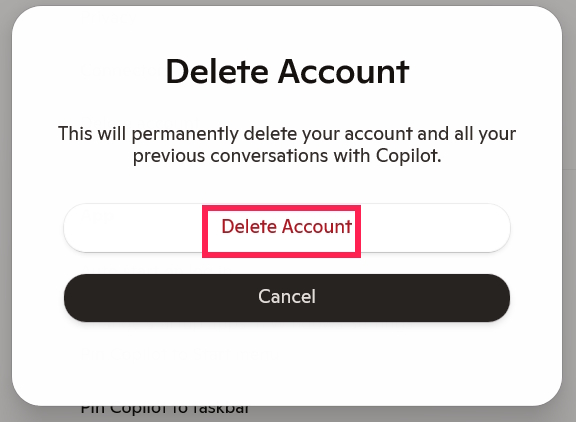
If your version of the app shows a Delete account option, read the confirmation screen carefully to determine whether it deletes an app-specific Apple-ID profile or starts a broader account process. Do not assume that pressing it cancels a separately billed subscription.
Final checks
- Confirm the subscription page shows cancellation or an end date.
- Save any conversations or files you need before deleting activity.
- Disconnect linked services if you no longer want Copilot to search them.
- Keep the cancellation confirmation or receipt.
Microsoft documents the separate procedures for canceling Copilot Pro and managing Copilot activity history. If you linked mail or storage accounts, see how to manage Copilot connectors as well.
Related Articles
 Instructions for Canceling Copilot Pro Subscription: What to Know4 minutes read
 Instructions for Deleting Microsoft Copilot Activity History3 minutes read
 How to Delete Copilot History in Edge Windows5 minutes read
 Is your Copilot account temporarily suspended? Here's how4 minutes read
 How to Permanently Delete Tik Tok Account on the Phone4 minutes read
 Instructions to Delete Mocha Account on the Phone4 minutes read
Reader Comments 0
Sign in with email or Google to join the discussion.