Table of Contents
After installing fonts on your MacBook, to type text with diacritics, you need to switch to the Vietnamese keyboard language.
Instructions on changing the keyboard language on a Macbook.
Add new keyboard languages
Step 1: Open Spotlight (press cmd + space), type "system" into the search box, and select System Preferences from the results. Alternatively, you can click the Apple icon in the upper left corner of the screen and select System Preferences.
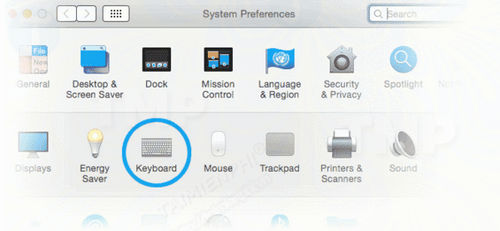
Step 2: Click on Keyboard.
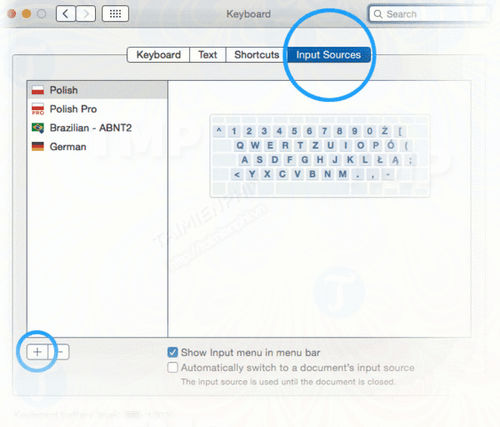
Step 3: In the Keyboard window, switch to the Input Sources tab, then click the (+) icon in the bottom left corner.
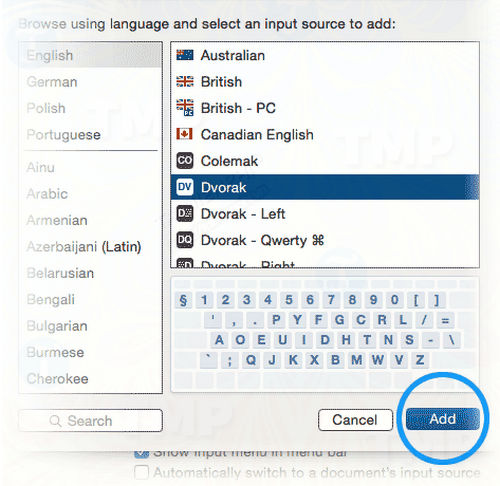
Step 4: In the popup window, select the language you want to add in the left pane, then choose a specific layout for that language from the list on the right. Finally, click the Add button to add the language to the system.
Change keyboard language on Macbook
Step 1: Access Keyboard in System Preferences.
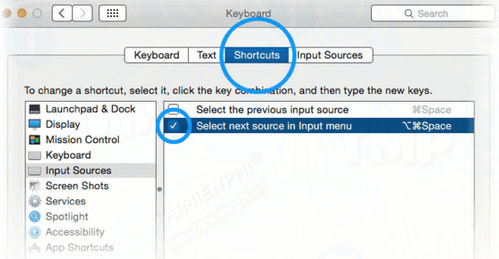
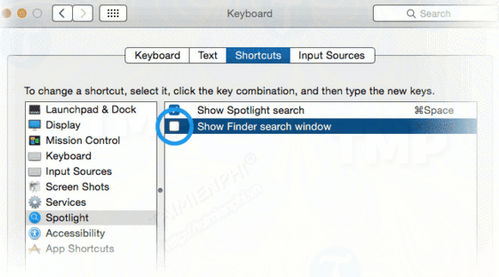
Step 2: Switch to the Shortcuts tab in the Keyboard window.
Step 3: Select Input Sources from the list on the left and check the box "Select next source in Input menu." You will see a small warning because this shortcut is already being used by Spotlight.
Step 4: Select Spotlight from the list on the left and uncheck "Show Finder search window." The warning will no longer appear.
Step 5: From now on, you can change the MacBook keyboard language using the shortcut Cmd + Opt + Space.
With TipsMake's guide on changing keyboard language on your MacBook, you can easily switch between keyboard languages. Additionally, you can refer to other tips to improve your MacBook usage skills, such as a compilation of MacBook shortcuts . Good luck!
Related Articles
 3 Ways to Test Macbook Keyboard for Free, Simple and Accurate8 minutes read
 How to Clean MacBook Pro Keyboard: Practical Guide10 minutes read
 How to Switch Keyboard Input Languages in Windows 8.14 minutes read
 How to Automatically Turn Off the Macbook Keyboard Backlight3 minutes read
 How to Fix a Macbook Error Where the Keyboard Cannot Type8 minutes read
 How to Quickly Open the Virtual Keyboard on a MacBook6 minutes read
Reader Comments 0
Sign in with email or Google to join the discussion.