Xingtu is a TikTok video editing or image editing application on TikTok with many artistic and beautiful editing filters. With Xingtu you will have many tools to adjust videos with basic edits, or beautify them with unique effects.
How to Install Xingtu 醒图 on Computer
Step 1:
First, download the Xingtu APK file to your computer according to the link below.
Step 2:
Then you open the emulator on your computer, here the article will install Xingtu on your computer using the BlueStacks emulator.
We will drag the Xingtu APK file into the BlueStacks interface as shown below.

Step 3:
You will then see the Xingtu installation process proceed.

Next, users click on the Xingtu app icon to use on the computer and that's it.

Instructions for Using Xingtu on the Computer
Step 1:
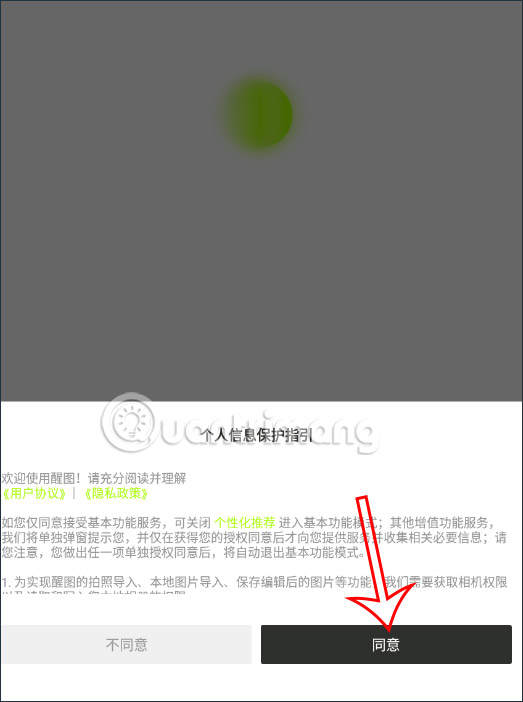
Click on the Xingtu icon to run. In the first interface, click the black button to accept the terms of the application.
Step 2:
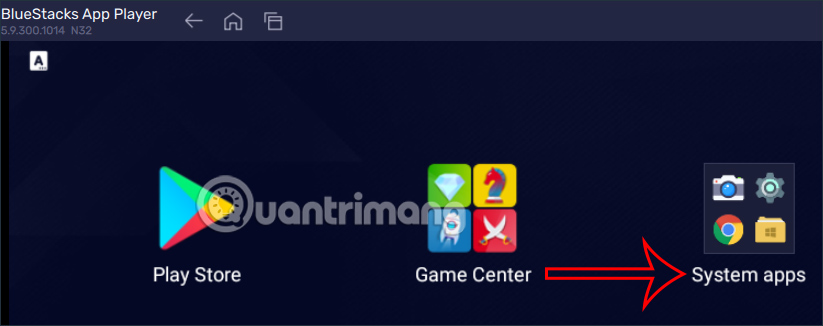
To be able to edit images and videos on Xingtu computer, you will first have to import files into BlueStacks . Return to the BlueStacks interface, click on System apps .
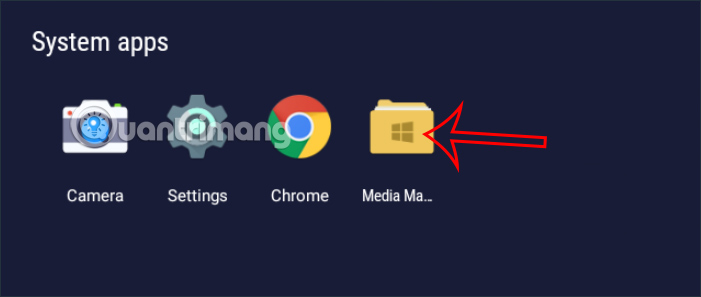
We will click on the Media Manager folder to access the file management folder on BlueStacks.
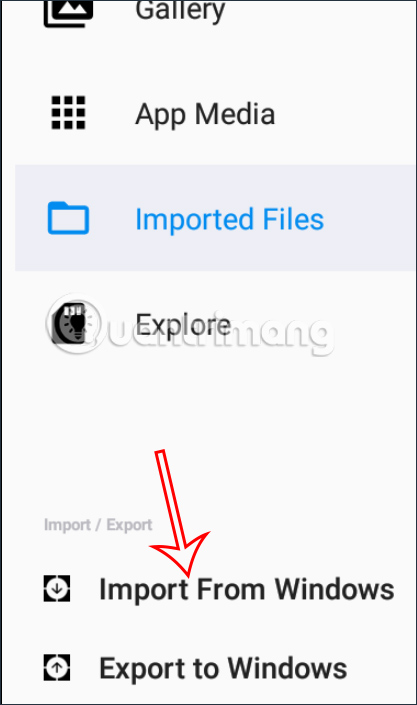
Click Import From Windows to import media files into BlueStacks .
Step 3:
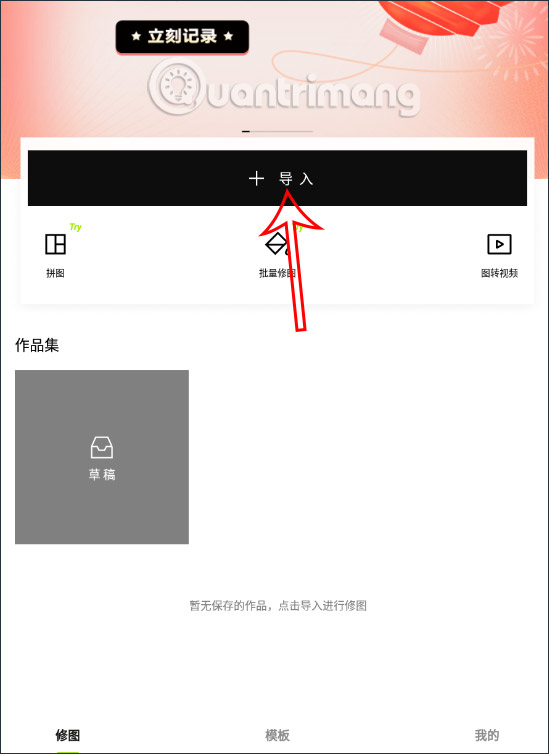
Switch to the main interface of the Xingtu application on the computer. Here you click on the plus sign to add the editing file on Xingtu.
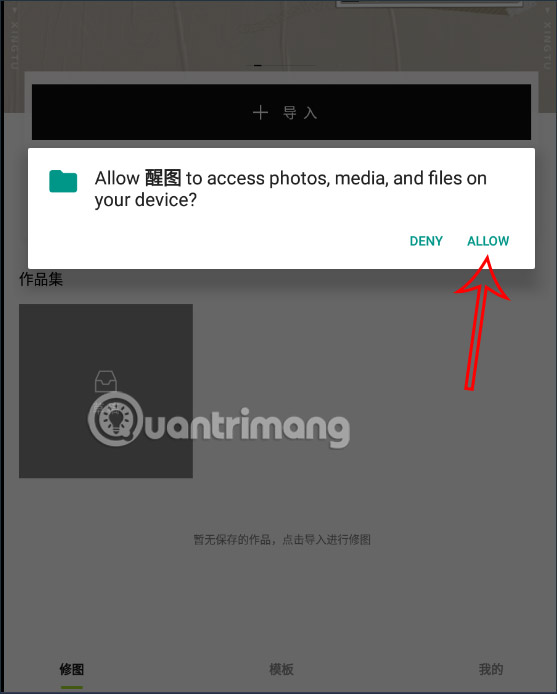
The application will ask the user for consent to access media files on the device, click Allow to agree.
Step 4:
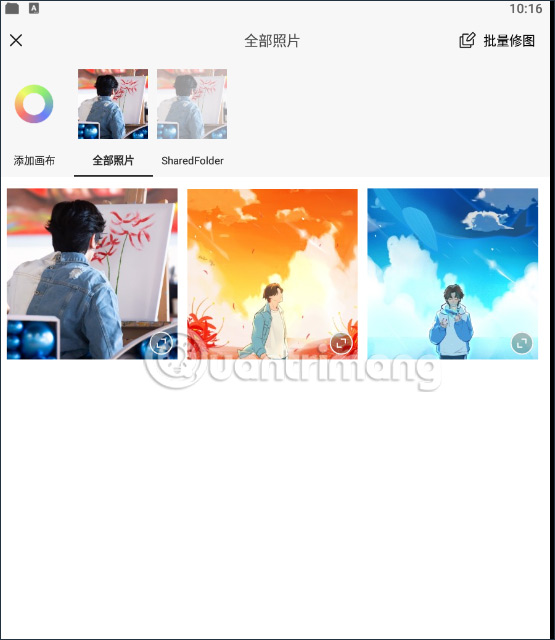
We will select the file item on the device and then select the image we want to edit on the application.
Step 5:
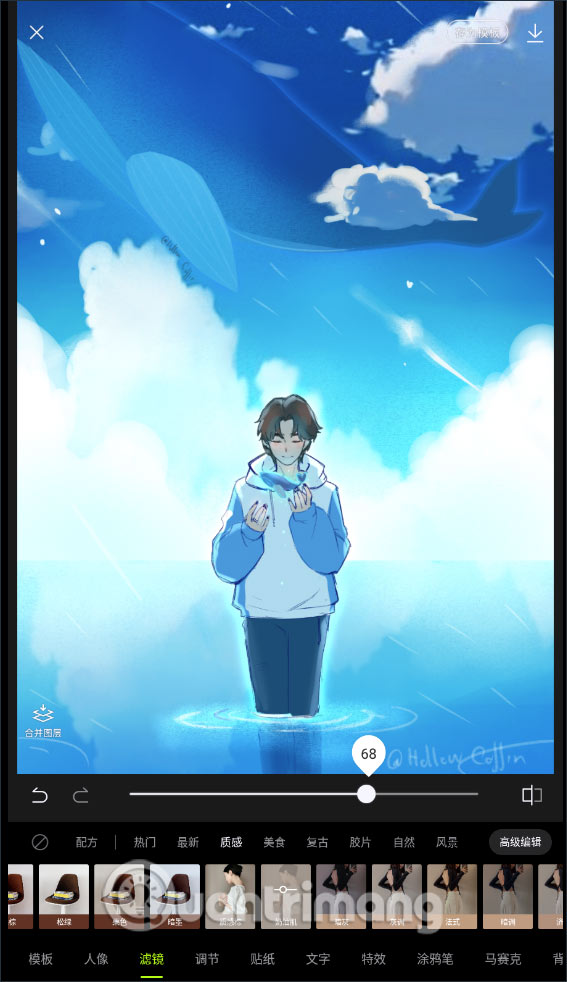
This is the image editing interface on the Xingtu computer application. You use tools to change the image as you like.
Step 6:
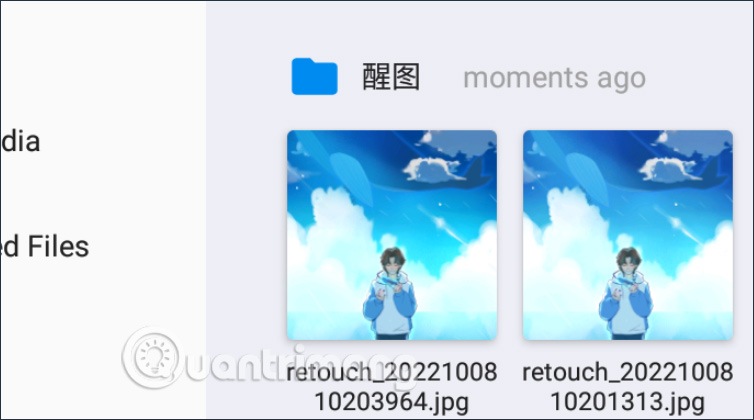
After finishing editing, click on the arrow icon to download the photo . The photo will be saved in the file management folder on BlueStacks. We also open Media Manager on BlueStacks to see the image management folder downloaded from Xingtu.
Step 7:
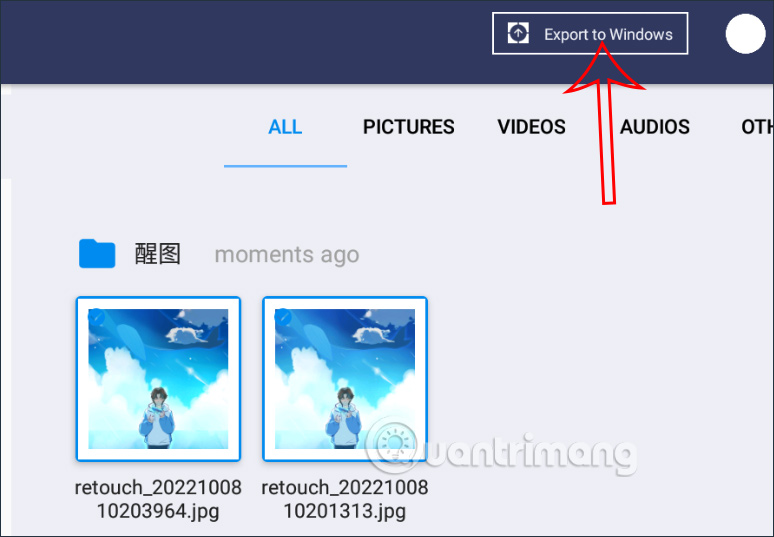
If you want to export multiple images edited on Xingtu to your computer , click Export to Windows and then select those images .
Click Export to Windows and then select a folder to save the image .
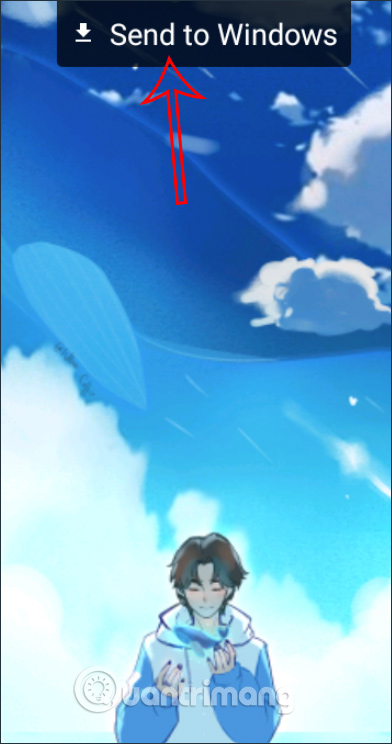
If you only want to transfer 1 photo , click on that photo and select Send to Windows to transfer the photo to a folder on your computer.





Reader Comments 0
Sign in with email or Google to join the discussion.