Table of Contents
Learning how to unpin default folders Windows 11 doesn't have to be complicated. This updated guide presents a clear workflow, practical checks, and troubleshooting advice you can use while completing the process.
Key Takeaways
- Follow the steps to unpin default folder via file explorer settings.
- Explore unpin default folder via registry editor.
- Learn how to use winaero tweaker to unpin default folder.
How to Unpin Default Folder via File Explorer Settings
Step 1:
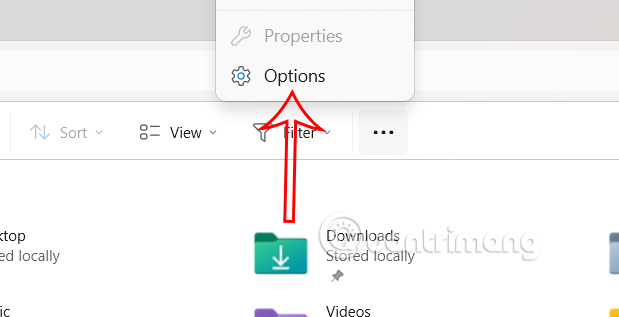
Press Windows + E to open File Explorer, then select the 3-dot icon and select Options in the displayed list.
Step 2:
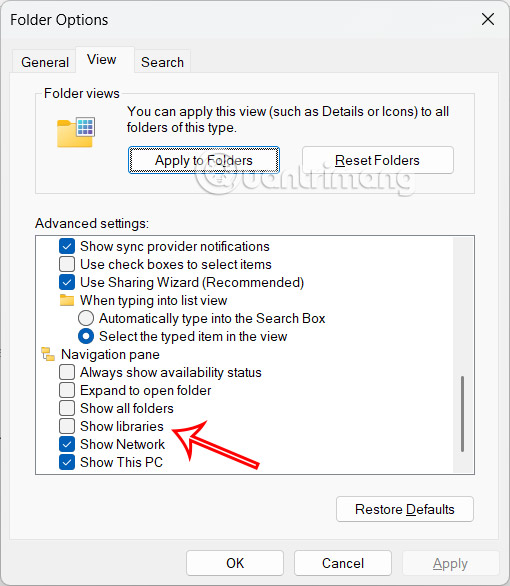
Switch to the new interface, select the View tab then uncheck Show libraries or Show frequently used folders to unpin the default folder on the computer.
Finally click Apply, then click OK to save the new settings.
Unpin Default Folder via Registry Editor
Step 1:
Open the Run dialog box and enter the keyword regedit to access Registry Editor. Next, access the path below.
HKEY_LOCAL_MACHINESOFTWAREMicrosoftWindowsCurrentVersionExplorerFolderDescriptions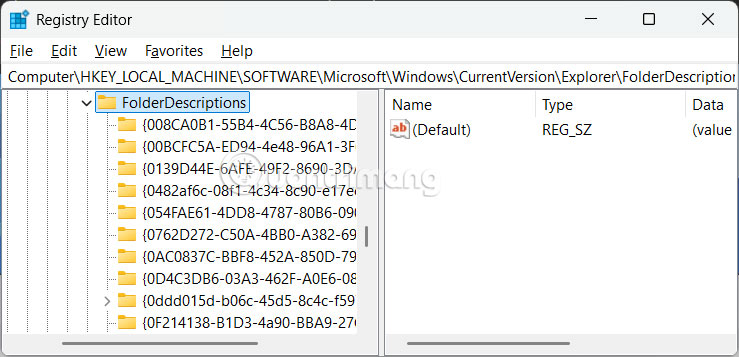
Step 2:
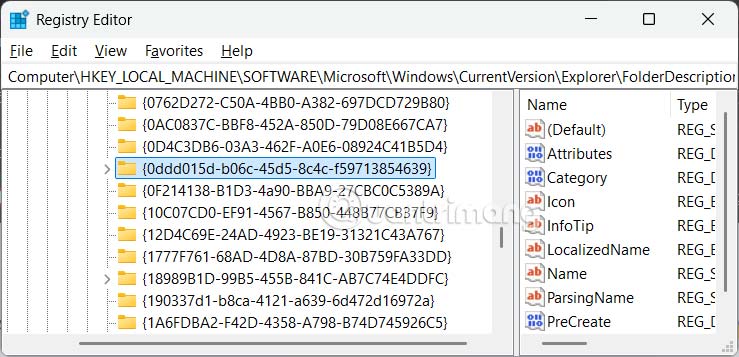
Within this key, you will find subkeys that correspond to default folders such as Documents, Pictures, Music, Videos, and Downloads. Each folder has a unique identifier (GUID). Locate the GUID for the folder you want to delete.
- Documents: {f42ee2d3-909f-4907-8871-4c22fc0bf756}.
- Pictures: {0ddd015d-b06c-45d5-8c4c-f59713854639}.
- Music: {a0c69a99-21c8-4671-8703-7934162fcf1d}.
- Videos: {35286a68-3c57-41a1-bbb1-0eae73d76c95}.
- Downloads: {7d83ee9b-2244-4e70-b1f5-5393042af1e4}.
Step 3:
Select the folder and look to the side, right-click and select New > DWORD (32-bit) Value. We name this value ThisPCPolicy.
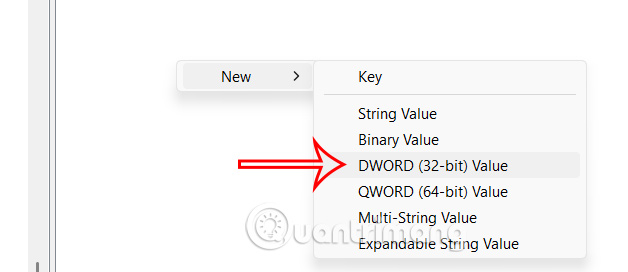
Step 3:
Double-click this value and enter 1 to unpin the Windows 11 default folder.
Finally restart your computer to apply.
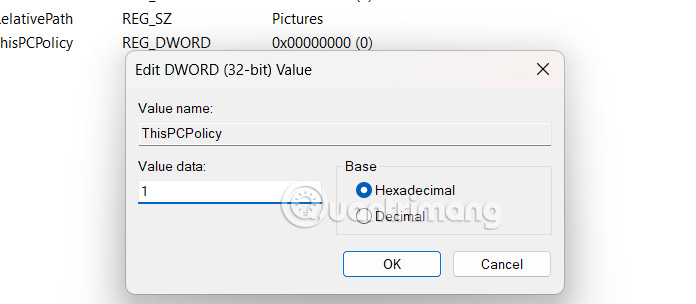
Use Winaero Tweaker to Unpin Default Folder
You download Winaero Tweaker software from the link below.
Then open Winaero Tweaker and select File Explorer in the left sidebar. Next select Customize This PC Folders and you will see a list of default folders that are checked.
- How to Customize Windows with Winaero Tweaker.
Uncheck the folders you want to remove from the File Explorer sidebar and save your changes.
Final Thoughts
The most reliable way to handle unpin default folders Windows 11 is to follow the process in order, verify each important setting, and test the result before moving on. Use the guidance above as a practical reference, then adjust the details for your device, software version, or specific goal.
FAQ
What should I check before I unpin default folders Windows 11?
Use the latest available software, confirm that your device meets the requirements, and make sure you have the necessary permissions, account access, or backup before changing anything.
Why might I be unable to unpin default folders Windows 11?
Common causes include outdated software, missing permissions, incompatible settings, incomplete setup steps, or a temporary network problem. Recheck the process from the beginning and restart the app or device if needed.
Is it safe to unpin default folders Windows 11?
It is generally safe when you use official tools, review every permission, and back up important data before making system-level or account-level changes.
Related Articles
 The Simplest Way to Show and Hide Folders on Windows 103 minutes read
 How to Delete Large Folders Quickly on Windows 114 minutes read
 Instructions for Pinning Folders to Windows Taskbar4 minutes read
 How to Search for Empty Folders in Windows 11: Step-by-Step Guide3 minutes read
 How to Restore the Default Location of Individual Folders on Windows 103 minutes read
 How to Setting Password to Protect Files and Folders in Windows8 minutes read
Reader Comments 0
Sign in with email or Google to join the discussion.