Table of Contents
Learning how to turn your Windows 11 PC into a bluetooth audio transmitter doesn't have to be complicated. This updated guide presents a clear workflow, practical checks, and troubleshooting advice you can use while completing the process.
Key Takeaways
- Review step 1: pair the bluetooth device with your PC.
- Explore step 2: install the bluetooth audio receiver application.
- Follow the steps to use.
Step 1: Pair the Bluetooth Device with Your PC
On mobile devices (iPhone/Android):
- IPhone: Open Settings > Bluetooth > turn on the Bluetooth switch.
- Android: Pull down the notification bar twice > tap the Bluetooth icon.
On Windows 11:
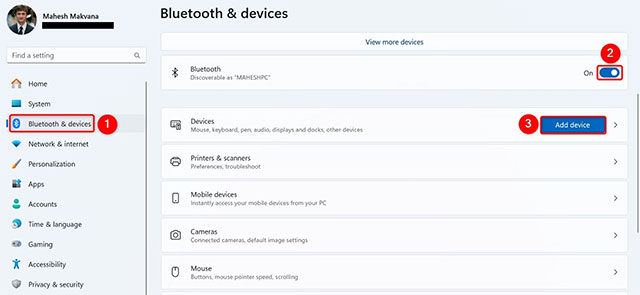
- Open Settings (press Windows + I ) > select Bluetooth & devices in the left sidebar.
- Turn on Bluetooth if not already enabled > click. Add device (next to Devices ).
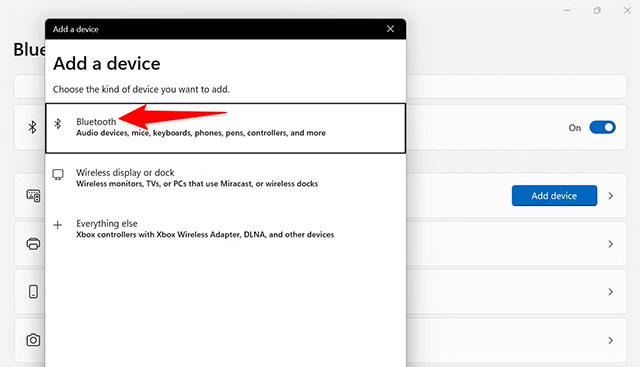
- Select Bluetooth > wait for PC to scan for devices > select your device name from the list.
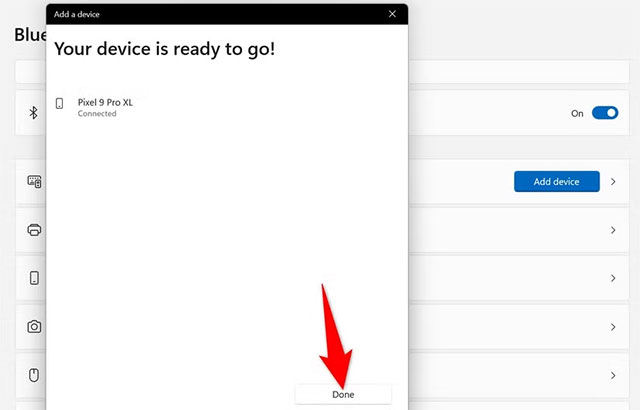
- When the Your device is ready to go! Message appears, tap Done To finish.
Step 2: Install the Bluetooth Audio Receiver Application
Windows 11 doesn't support this feature out of the box, so you'll need to download the Bluetooth Audio Receiver app from the Microsoft Store:
- Open Microsoft Store (press Windows + S > type " Microsoft Store ").
- Search for Bluetooth Audio Receiver > click Get to download and install.
- Open the app > select the device paired in Step 1 > tap. Open Connection .
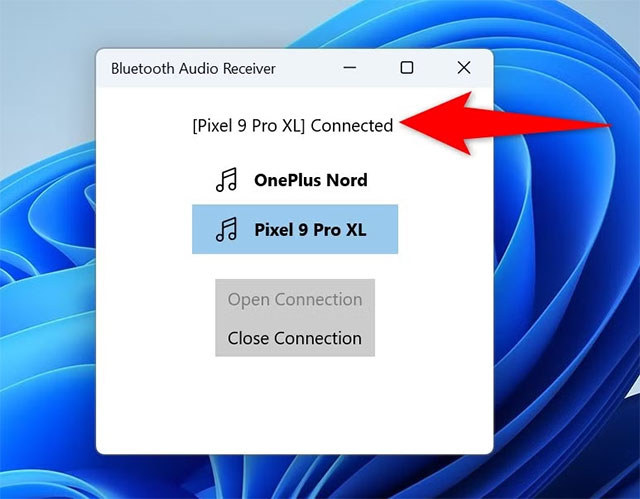
- Your PC is ready to receive audio when you see the message [ Device Name ] Connected.
How to Use
On phone: Open a music app (Spotify, YouTube, etc.) and play the song. The sound will play through your PC speakers.
- Adjust the volume: Use the volume button on your phone or the speaker icon in the Windows system tray.
- Disconnect: Open Bluetooth Audio Receiver app > tap Close Connection (no need to unpair).
Common Troubleshooting
Try these troubleshooting tips if you're having trouble connecting or playing music on your Windows 11 PC.
PC can't find device:
- Make sure the device is in discoverable mode.
- Android: Open Settings > Connected devices > Pair new device > keep this screen open while pairing.
No sound on PC:
- Check that the PC volume is not muted.
- If using headphones: Right-select the speaker icon > select Sound Settings > Choose where to play sound > select the correct playback device.
Audio Interrupted:
- Make sure the distance between PC and device is less than 10m, no obstacles.
Note: The Bluetooth Audio Receiver app is free but may display ads. Additionally, you can pair multiple devices and switch between them at will. Good luck!
Final Thoughts
The most reliable way to handle turn your Windows 11 PC into a bluetooth audio transmitter is to follow the process in order, verify each important setting, and test the result before moving on. Use the guidance above as a practical reference, then adjust the details for your device, software version, or specific goal.
FAQ
What should I check before I turn your Windows 11 PC into a bluetooth audio transmitter?
Use the latest available software, confirm that your device meets the requirements, and make sure you have the necessary permissions, account access, or backup before changing anything.
Why might I be unable to turn your Windows 11 PC into a bluetooth audio transmitter?
Common causes include outdated software, missing permissions, incompatible settings, incomplete setup steps, or a temporary network problem. Recheck the process from the beginning and restart the app or device if needed.
Is it safe to turn your Windows 11 PC into a bluetooth audio transmitter?
It is generally safe when you use official tools, review every permission, and back up important data before making system-level or account-level changes.
Related Articles
 Microsoft Upgrades Windows 11 with Bluetooth LE Audio: Crisp Sound4 minutes read
 How to Share Audio Between Two Devices on Windows5 minutes read
 How to Open Bluetooth on Windows 10 - Instructions to Turn on, Turn Off3 minutes read
 Microsoft Supports the AAC Bluetooth Audio Codec on Windows3 minutes read
 How to Turn on Bluetooth on Win 109 minutes read
 Le Audio, the New Bluetooth Standard That Helps Listen on3 minutes read
Reader Comments 0
Sign in with email or Google to join the discussion.