Table of Contents
With recent iOS versions, sending GIF images in iPhone messages has become much simpler, without having to directly install messages anymore.
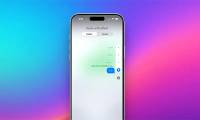
With the latest iOS versions, sending GIFs in iPhone messages has become much simpler without having to install the message directly. iPhone. iPhone has linked with GIPHY so you can easily find animated images on different topics, and much more. Here are instructions for sending GIFs in iPhone messages
How to Send GIFs in iPhone Messages
Step 1:
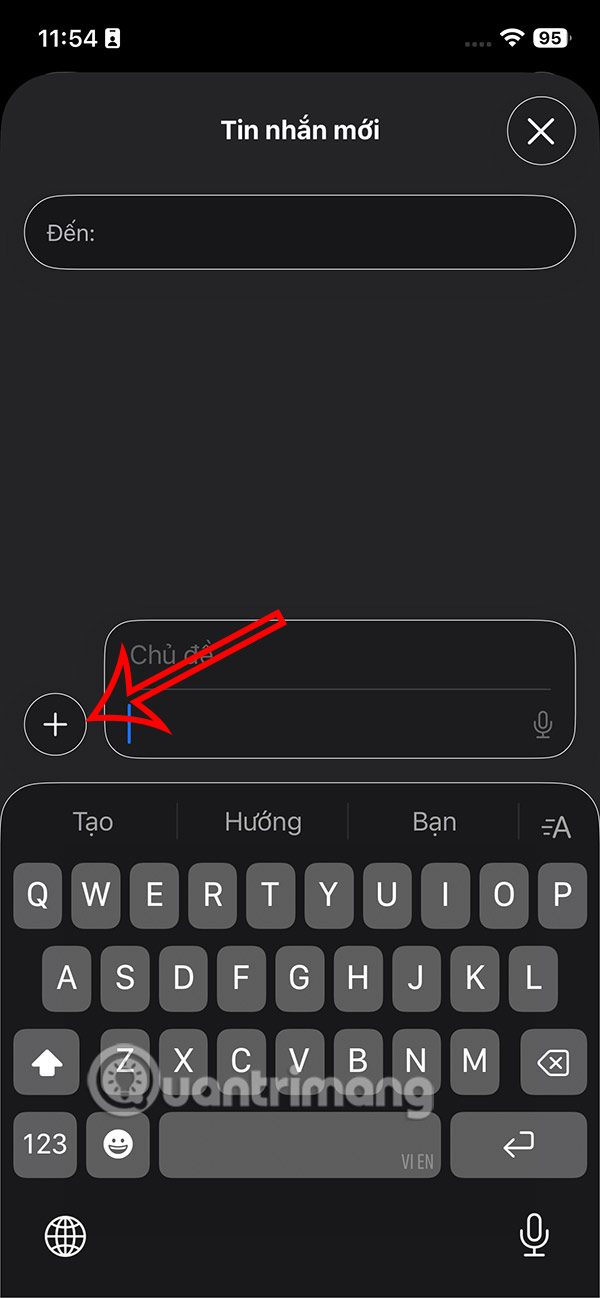
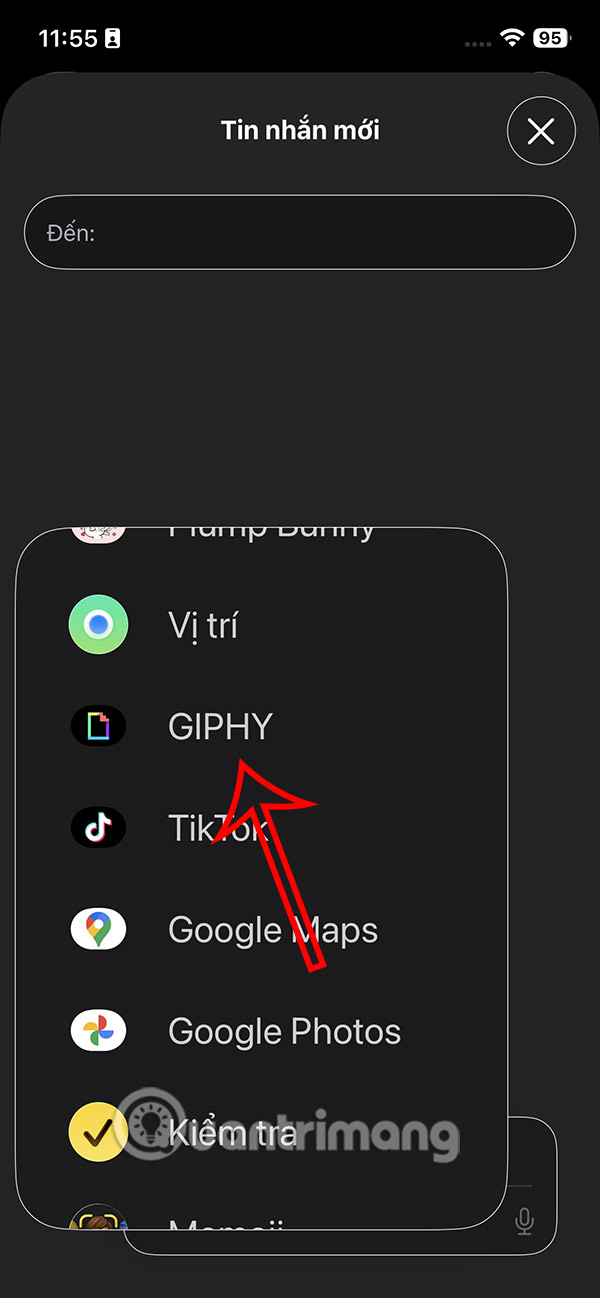
We tap The plus icon In the messaging box on the iPhone. Displaying the options for sending messages, we Tap on GIPHY To find animated images.
Step 2:
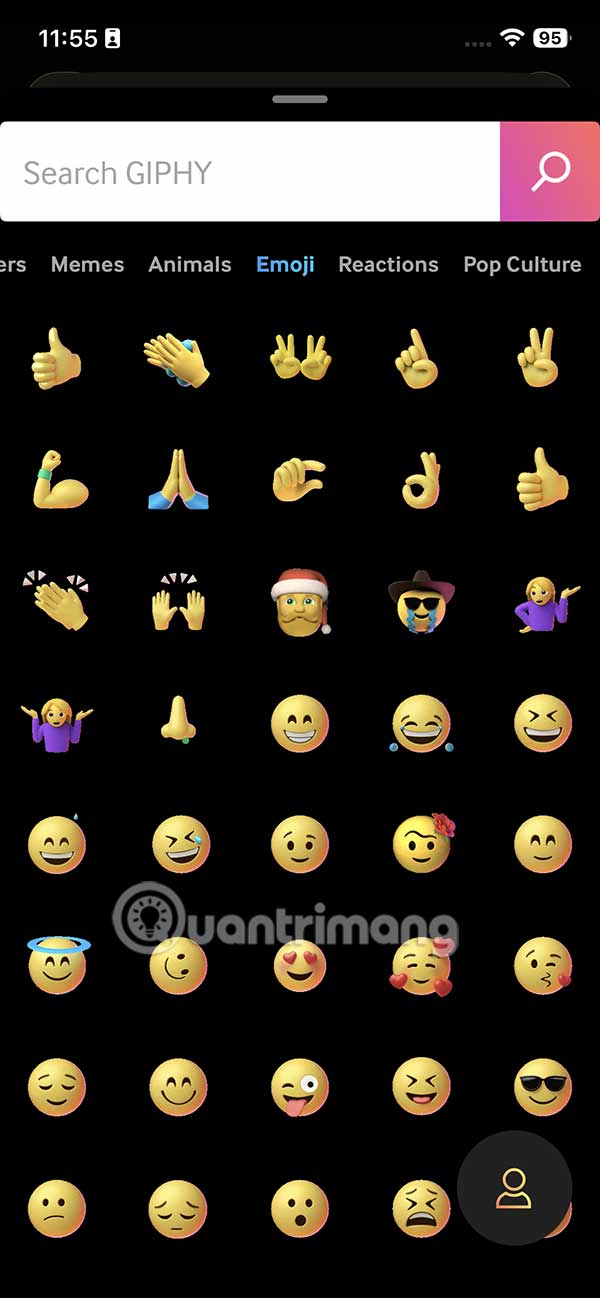
Display the animation gallery interface on GIPHY, now we just need To enter the animation keyword you want to search. Also, you can also search for other items to send in iPhone messages.


Step 3:
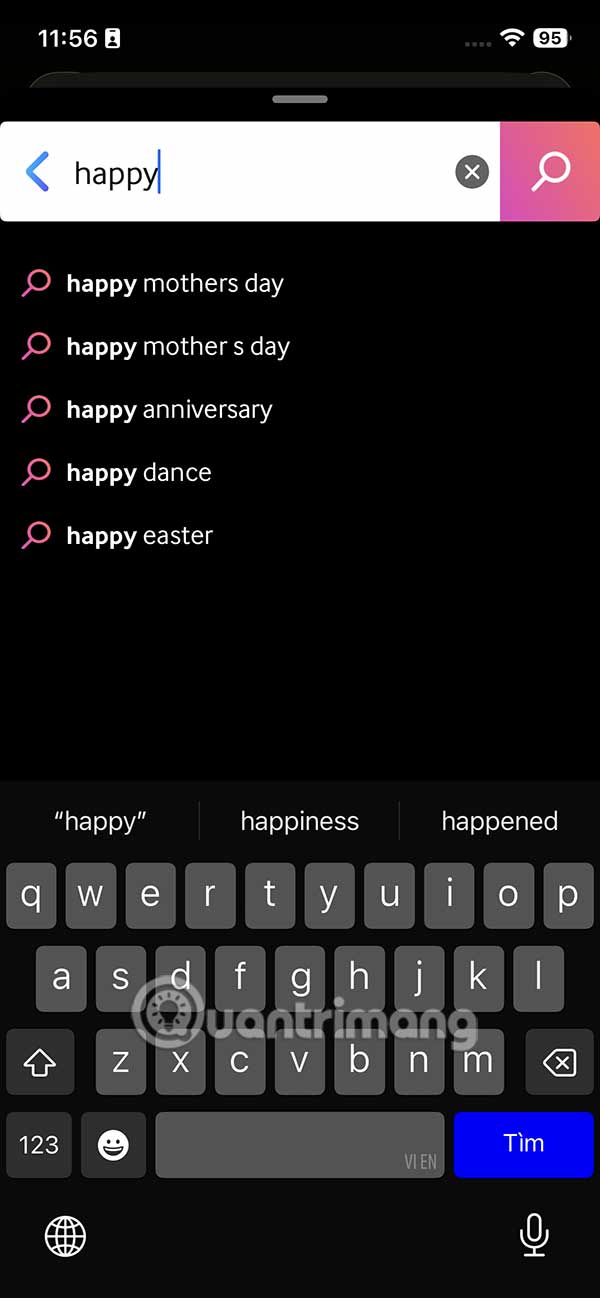
The GIF gallery on GIPHY in iPhone messages has as many options as when you use the application. The GIFs based on the keywords you enter are extremely rich for users to choose from. If you want to send an GIF, just tap on it.

Finally you type your message and then send the GIF in the message as usual.

FAQ
How do you send GIF images in iPhone messages: step-by-step guide?
In practical terms, with recent iOS versions, sending GIF images in iPhone messages has become much simpler, without having to directly install messages anymore.
What should you check before getting started?
Review the requirements, compatible device or software version, and any warnings described in the guide before making changes.
What should you do if the steps do not work?
Repeat the steps in order, confirm that your app or system is up to date, and review the troubleshooting details provided above.
Related Articles
 How to Send Text Messages Instead of Imessage Messages on iPhone or iPad5 minutes read
 How to Send Messages to Multiple Contact Numbers on iPhone10 minutes read
 Fixed an Error That Could Not Be Sent via Messages on iOS6 minutes read
 How to Send Handwritten Messages on iPhone - New Feature Updated on iMessage4 minutes read
 How to Send Invisible Messages on iPhone2 minutes read
 How to Speed up Sending Photos in iPhone Messages2 minutes read
Reader Comments 0
Sign in with email or Google to join the discussion.