Table of Contents
This practical guide explains how to send invisible messages on iPhone. Follow the steps in order, review the requirements first, and use the troubleshooting notes when a setting or option does not work as expected.
How to send invisible messages on iPhone
Step 1:
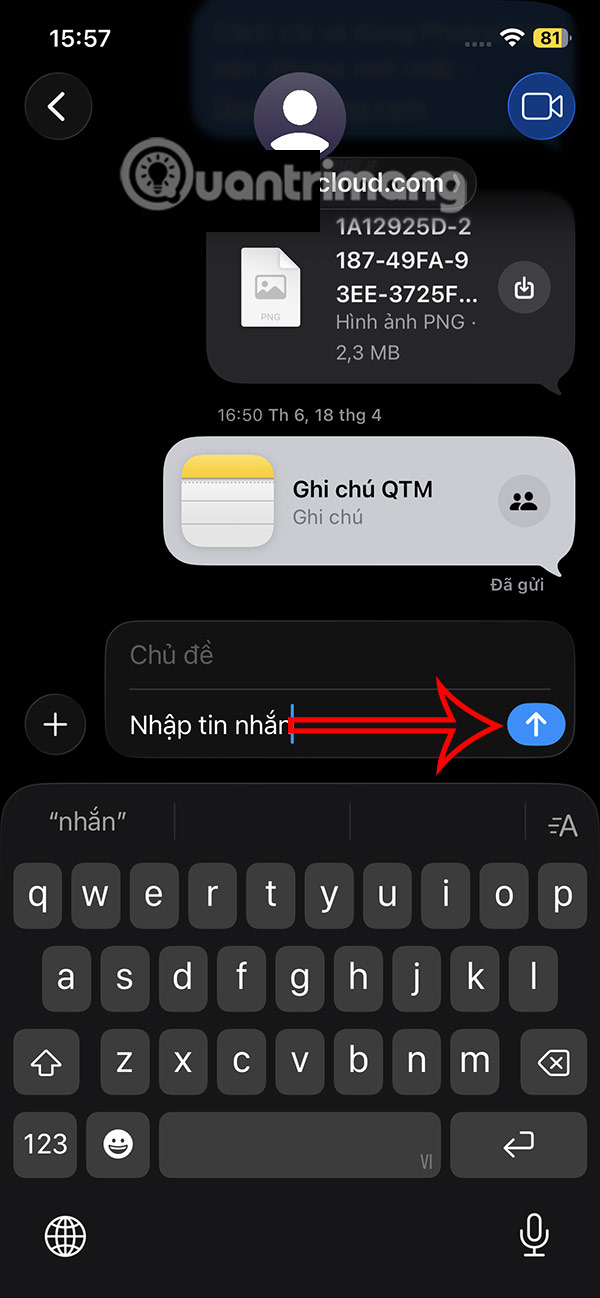
You type the message content as usual, then press and hold the blue arrow icon to display the effect. Now you will see the effects, press the Invisible Ink effect to use for the message.

Step 2:
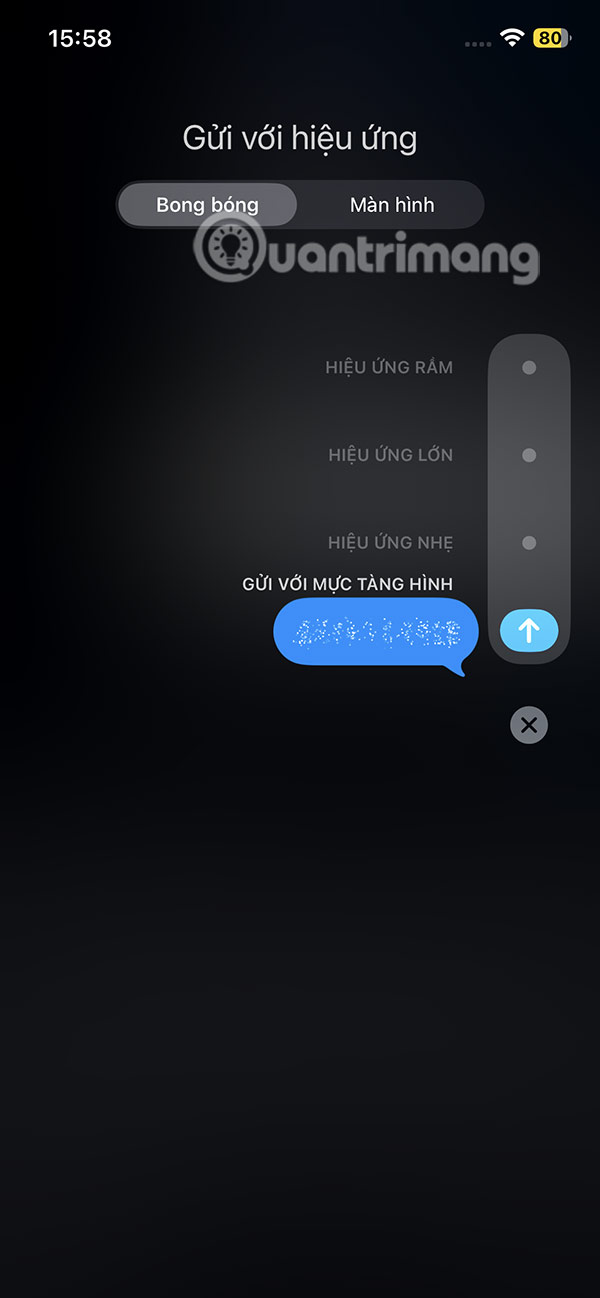
Now you will see the invisible iPhone message as below. You only need to tap on the send icon to send the invisible message.
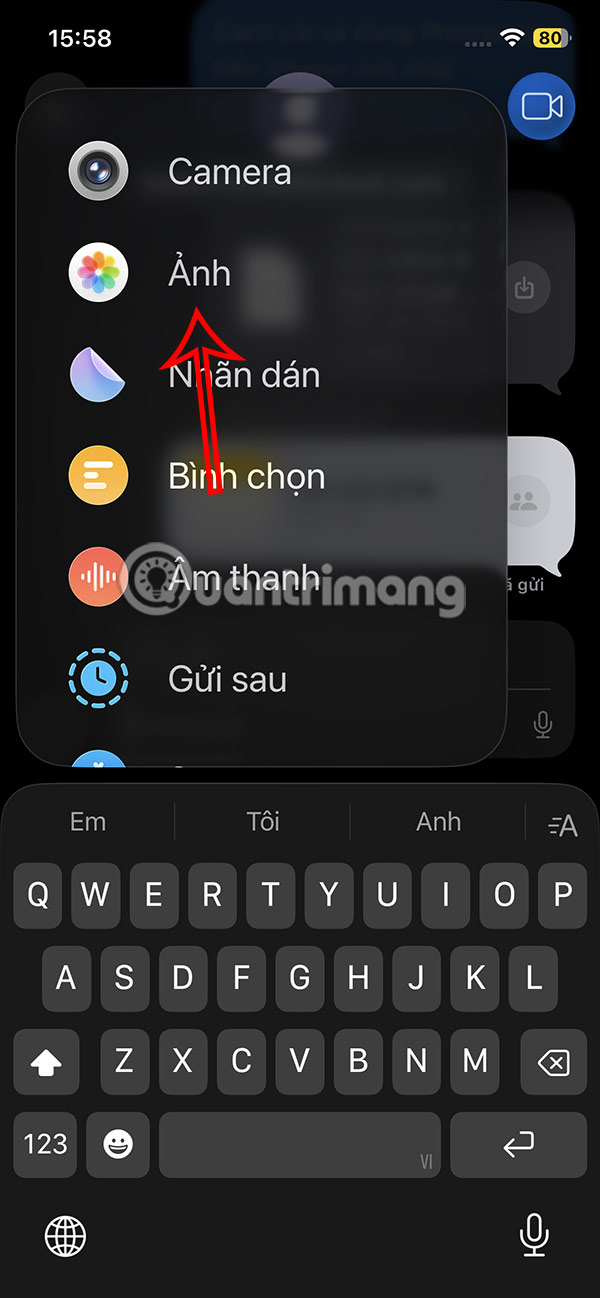
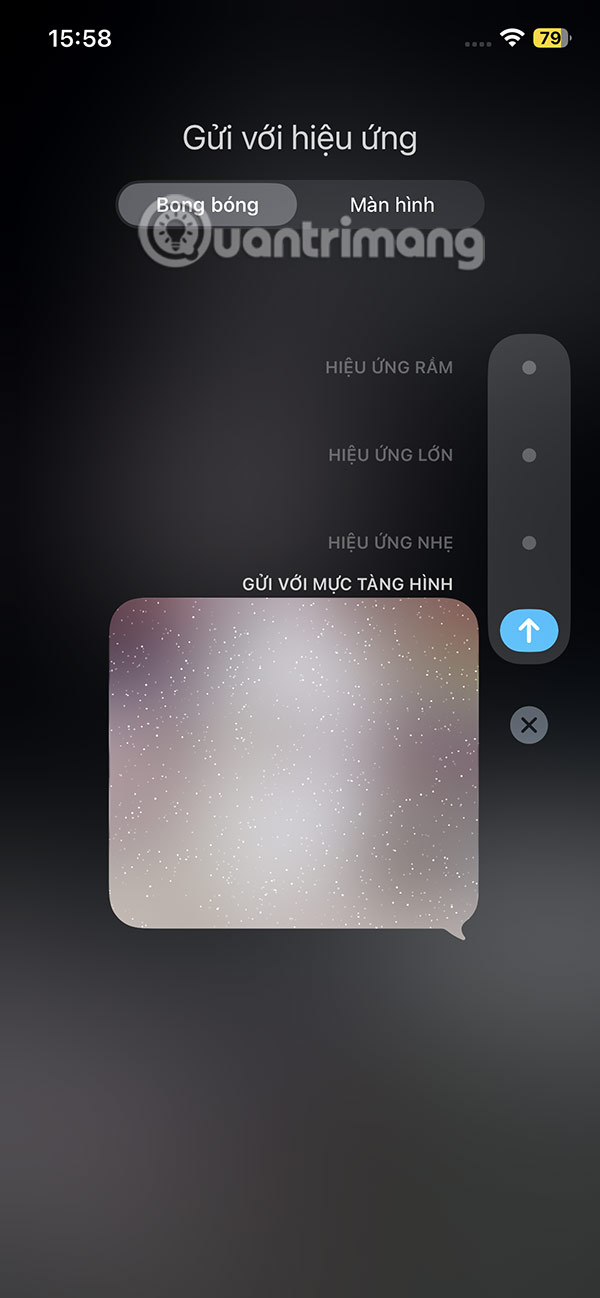
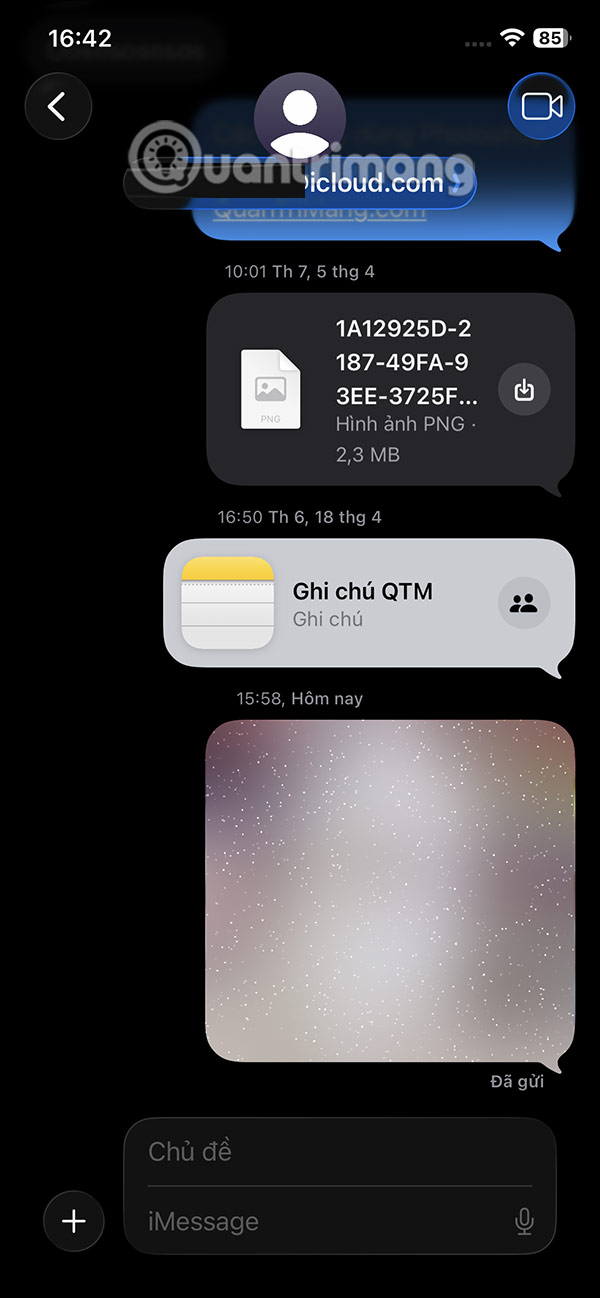
With images, you do the same. Tap the plus icon and select Photo to send the photo in iPhone messages. Then also tap and hold on the image and select the invisible effect to use for the image. The image result is also invisible as below.

Step 3:
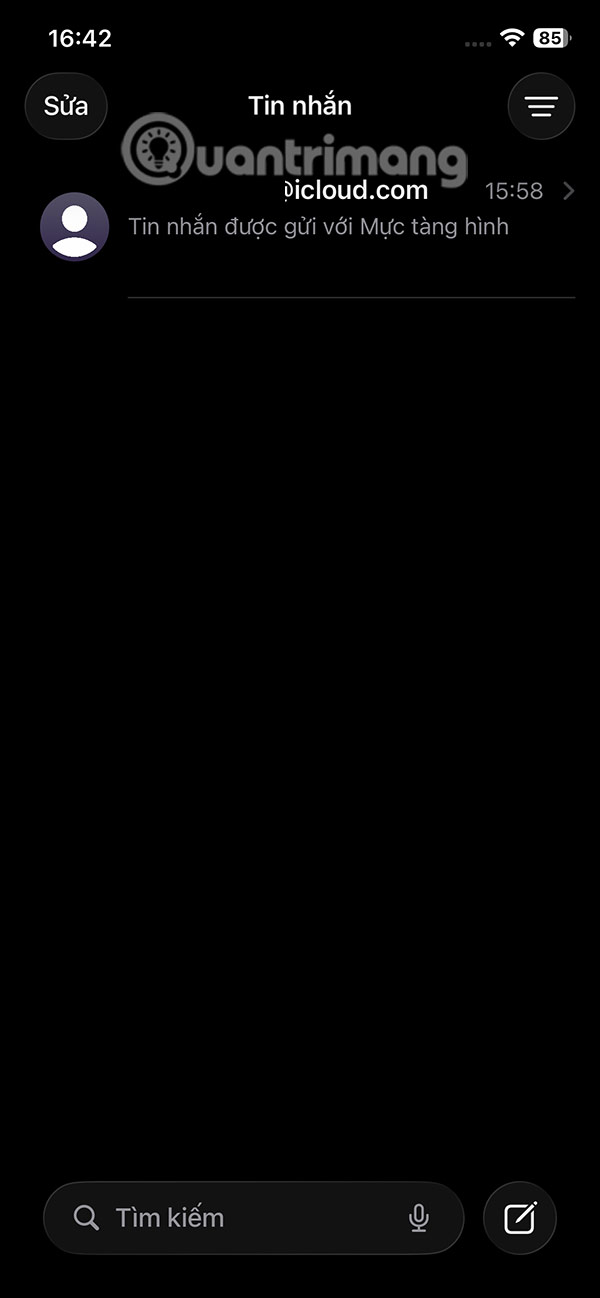
The recipient will receive the invisible message with a notification that says Message Sent in Invisible Ink. To view the content, simply tap or swipe across to see the content. The blur effect will then automatically return.
FAQ
How to send invisible messages on iPhone?
You type the message content as usual, then press and hold the blue arrow icon to display the effect. Now you will see the effects, press the Invisible Ink effect to use for the message.
What does this guide cover?
This guide explains send invisible messages on iPhone, including the main steps, important details, and practical considerations.
Who is this guide for?
It is designed for readers who want a clear, practical overview and a reliable process they can follow without unnecessary complexity.
Related Articles
 How to Send Text Messages Instead of Imessage Messages on iPhone or iPad5 minutes read
 How to Send Messages to Multiple Contact Numbers on iPhone10 minutes read
 How to Send Handwritten Messages on iPhone - New Feature Updated on iMessage4 minutes read
 How to Speed up Sending Photos in iPhone Messages2 minutes read
 Instructions for Sending Handwriting Messages on iOS 106 minutes read
 Instructions for Sending Audio Messages on Viber4 minutes read
Reader Comments 0
Sign in with email or Google to join the discussion.