Table of Contents
Starting with iOS 26, Apple added a new feature to the Messages app settings that allows users to send low-quality photo previews to others.
In iOS 26 and later, Apple added a new feature to the Messages app settings that lets you send low-quality photo previews to others before sending the full photo. Here's how to use the setting to send photos faster in messages on iPhone.
How to Send Pictures Faster in iPhone Messages
Step 1:
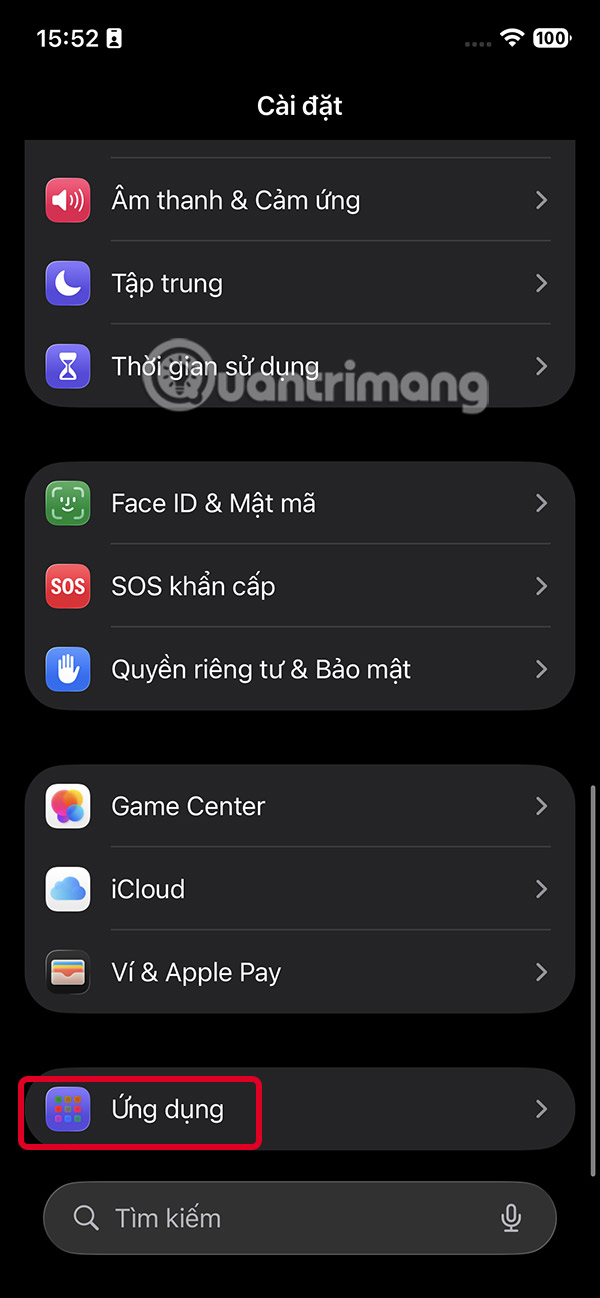
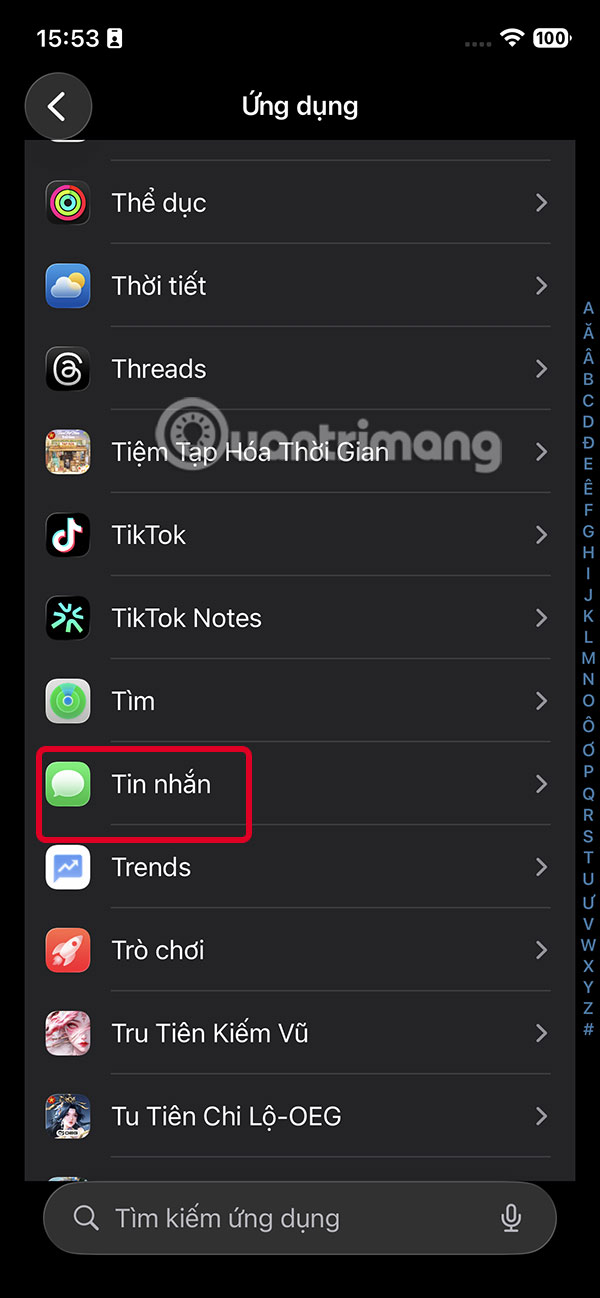
You access Settings then Click on Applications At the bottom of the interface. Switch to the new interface, users find and click on The Messages application To proceed with adjustments.
Step 2:
In the message app customization interface, scroll down and Enable Send low quality photo previews .
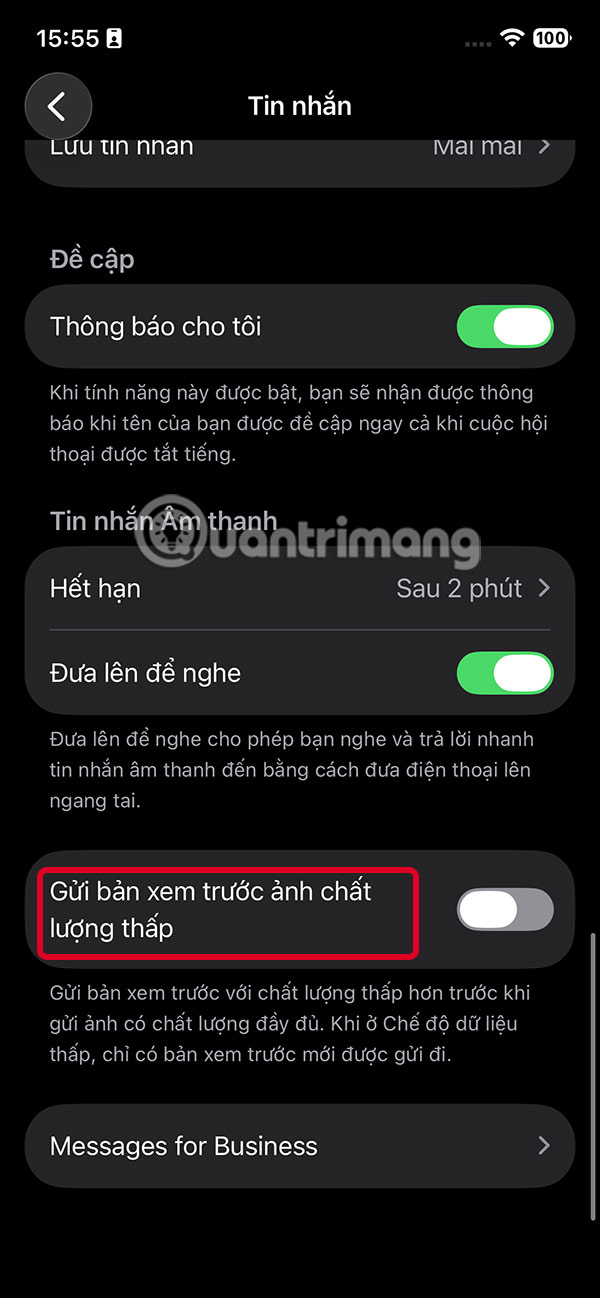
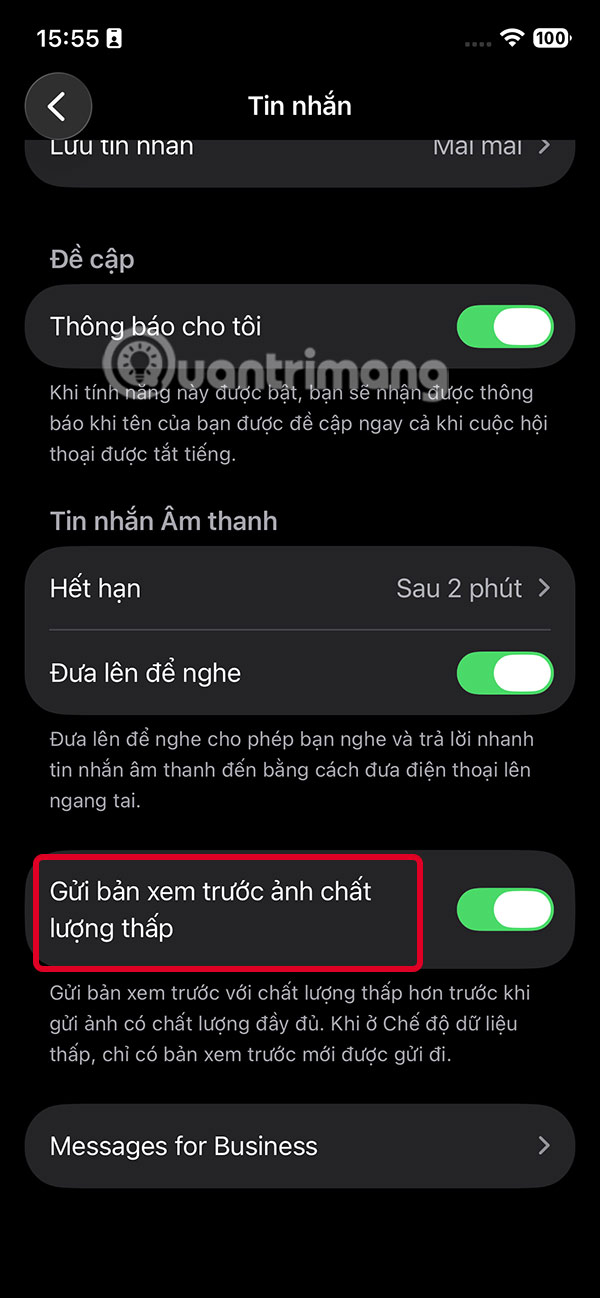
This feature makes sending photos to recipients extremely efficient and faster as they can preview the photo right before receiving the full resolution photo.
When your phone is running low on data and you turn on low data mode, your iPhone will only send low quality photo previews to save data.
FAQ
How do you speed up sending photos in iPhone messages?
In practical terms, starting with iOS 26, Apple added a new feature to the Messages app settings that allows users to send low-quality photo previews to others.
What should you check before getting started?
Review the requirements, compatible device or software version, and any warnings described in the guide before making changes.
What should you do if the steps do not work?
Repeat the steps in order, confirm that your app or system is up to date, and review the troubleshooting details provided above.
Related Articles
 How to Turn Off Sending SMS Messages on iPhone3 minutes read
 How to Send Handwritten Messages on iPhone - New Feature Updated on iMessage4 minutes read
 How to Send High Quality HD Photos on Instagram3 minutes read
 Instructions for Sending Audio Messages on Viber4 minutes read
 How to Schedule Sending Messages on iPhone with Scheduled7 minutes read
 How to Send Location Directly in Messages on iPhone3 minutes read
Reader Comments 0
Sign in with email or Google to join the discussion.