Table of Contents
Space mode uses depth data captured by iPhone's advanced camera to create 3D effects for photos and videos.
Space Mode uses depth data captured by iPhone's advanced camera to create 3D effects for photos and videos. When viewed with Apple Vision Pro, these photos and videos come to life with depth and realism, perfect for capturing your most memorable moments. Here's how to shoot and record space videos on iPhone.
How to take photos and videos of space on iPhone
Note on space video shooting:
- IPhone 17, iPhone Air, iPhone 17 Pro, iPhone 17 Pro Max
- IPhone 16, 16 Plus, 16 Pro, 16 Pro Max
- IPhone 15 Pro or 15 Pro Max running iOS 17.2 or later. For Space Photos, make sure your device is running iOS 18.1 or later.
- Hold iPhone in landscape mode.
To take a spatial photo on your iPhone, open the camera on your phone, then switch to landscape mode and tap Spatial. Then choose to take a photo or record a video in spatial mode, depending on you, then press the white circle button in the middle to do it.
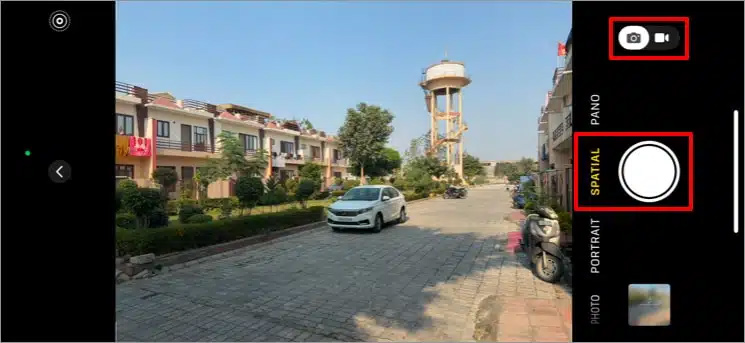
Note that space video is recorded in 1080p resolution at 30 frames per second. Each minute of space video takes up about 130MB of storage, compared to about 65MB for one minute of standard 1080p 30fps video.
How to view space photos and videos on iPhone
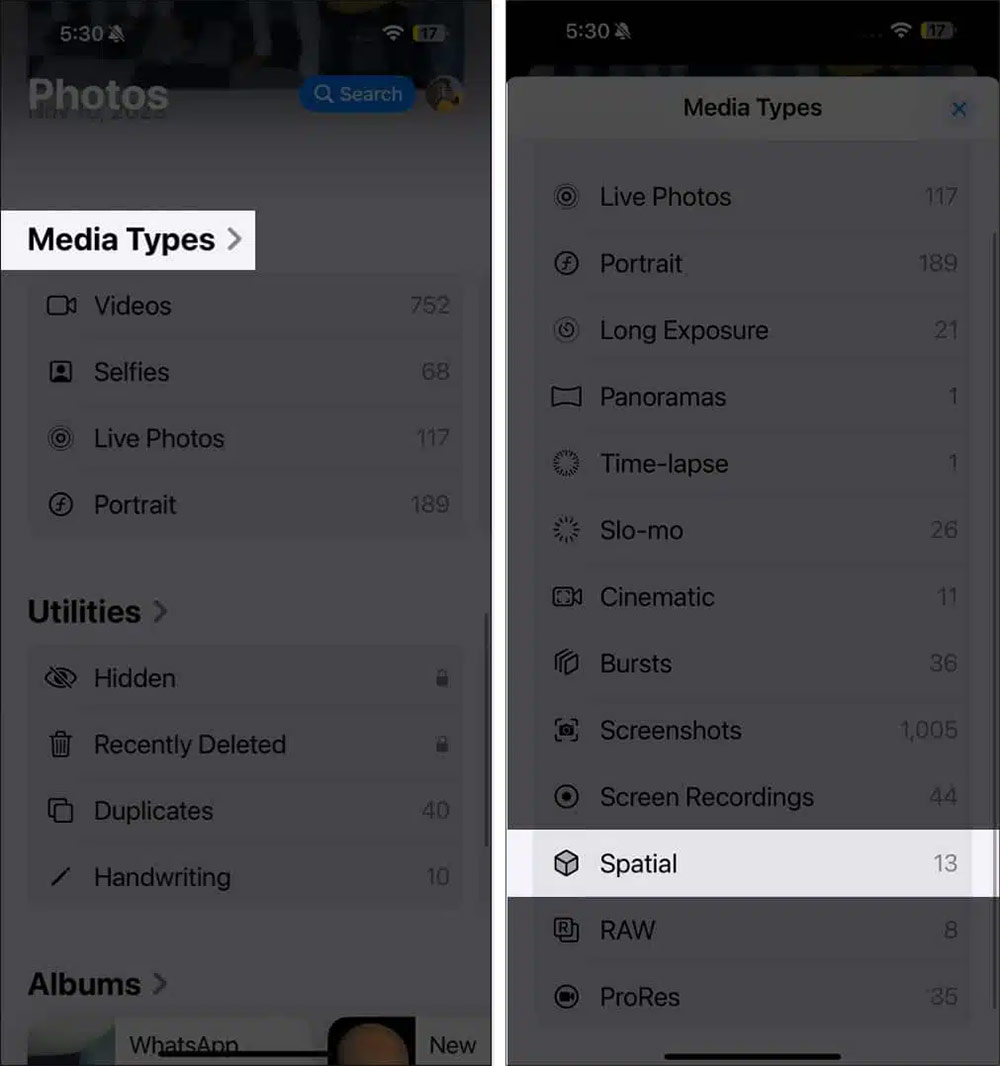
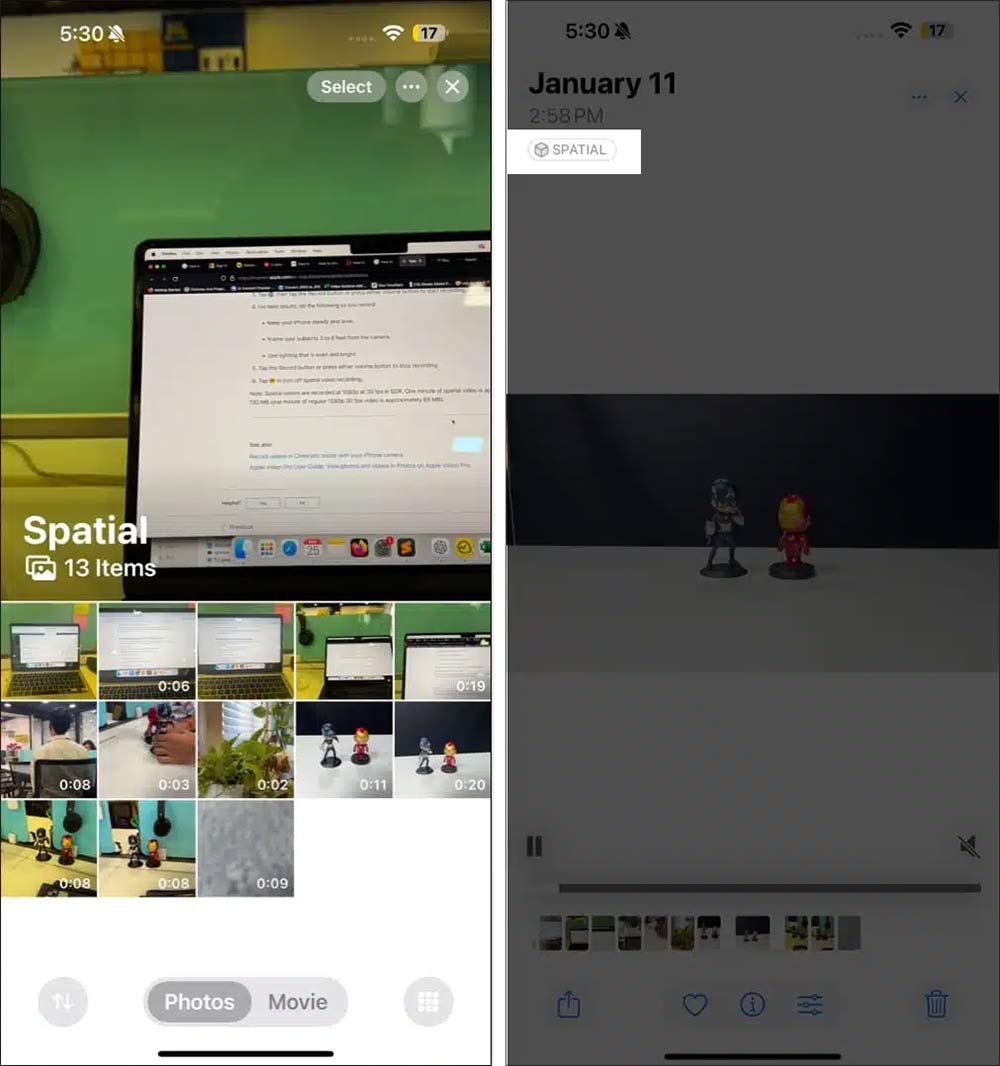
Open the album and click on Media Types, find the Spatial tab to see the spatial photo content.
Photos and videos in space mode have tags attached to them.
FAQ
How do you take photos and videos of space on iPhone: step-by-step guide?
In practical terms, space mode uses depth data captured by iPhone's advanced camera to create 3D effects for photos and videos.
What should you check before getting started?
Review the requirements, compatible device or software version, and any warnings described in the guide before making changes.
What should you do if the steps do not work?
Repeat the steps in order, confirm that your app or system is up to date, and review the troubleshooting details provided above.
Related Articles
 How to Compress Photos, Videos Increase iPhone Capacity7 minutes read
 Instructions to Transfer Photos from iPhone to Macbook Extremely Fast3 minutes read
 Cannot Use Space Scene on iPhone How to Fix: Explained3 minutes read
 How to Delete Multiple Photos Saved on iPhone for a While7 minutes read
 How to Download Instagram Photos and Videos to iPhone with InstaSaver4 minutes read
 Complete on Photos Apps on iPhone and iPad - Part 13 minutes read
Reader Comments 0
Sign in with email or Google to join the discussion.