Table of Contents
Resetting network settings on Android will restore all network related settings to their original state.
Resetting network settings on Android will restore all network-related settings to their original state. If you reset network settings on Android, you will need to set up WiFi, Bluetooth, VPN, and mobile data from scratch. Here's how to reset network settings on Android.
How to reset network settings on Android
Note, depending on the phone model you are using, the operation will be different. Below are instructions for Xiaomi phones. For other phone models, you can enter the keyword Reset in the search bar to find the settings faster.
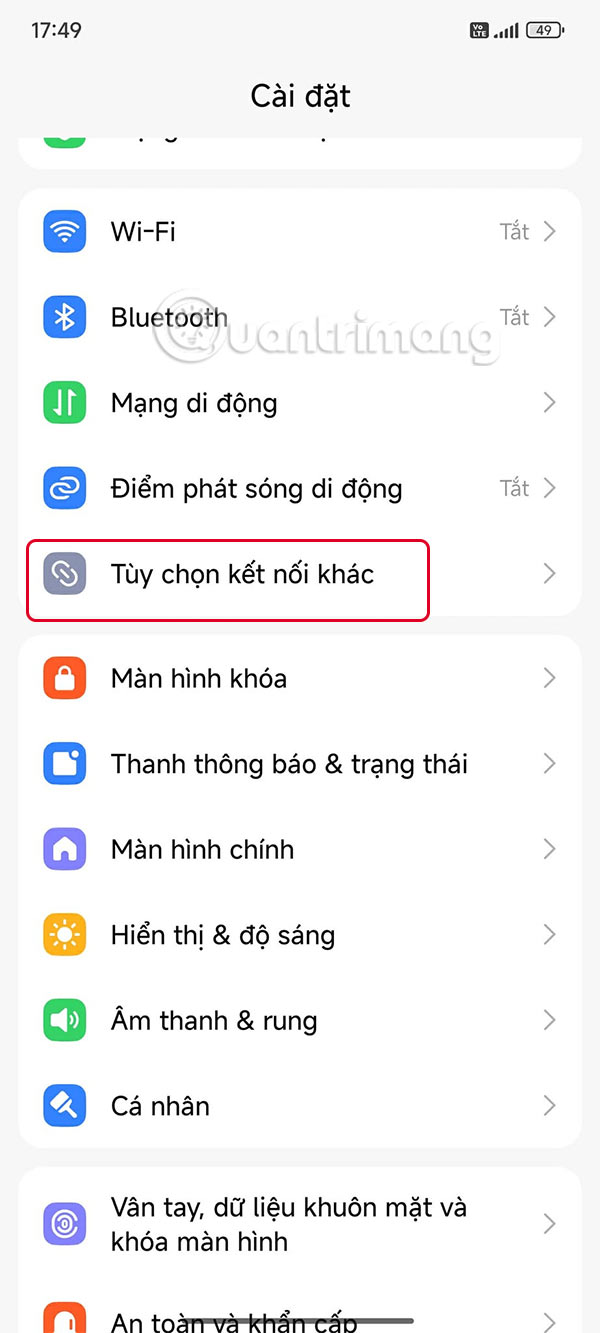
Step 1:
Users access Settings On Android phones then tap on More connection options .
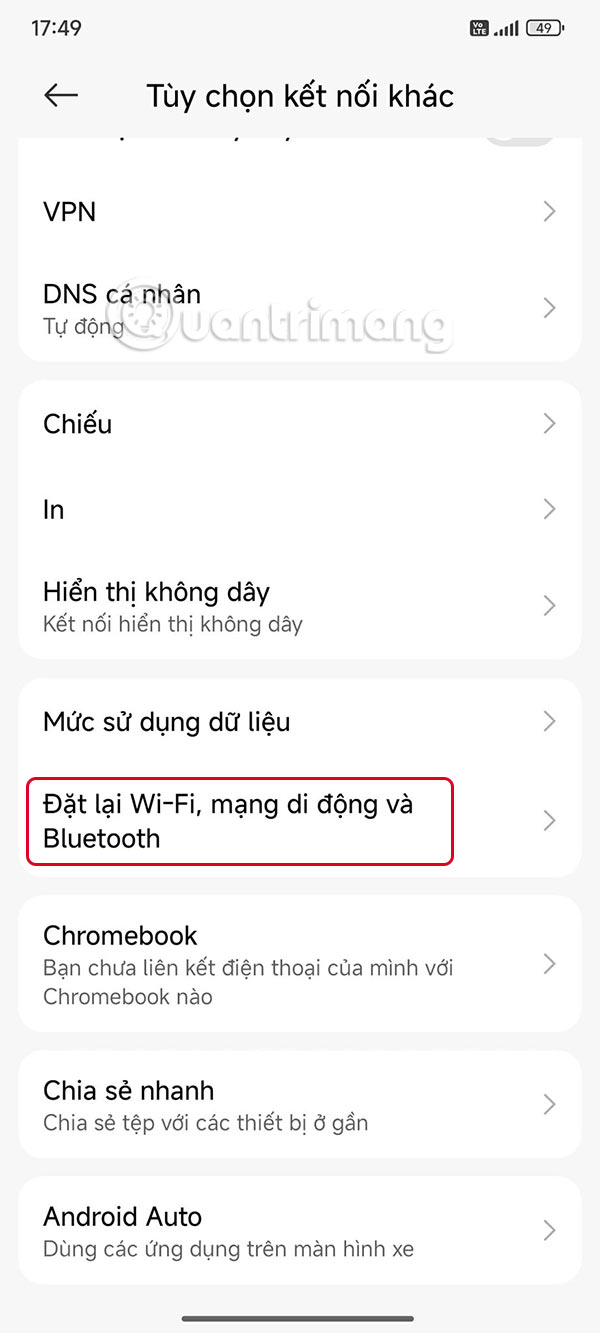
Step 2:
Next, the user clicks on Reset WiFi , Mobile network and Bluetooth To reset.
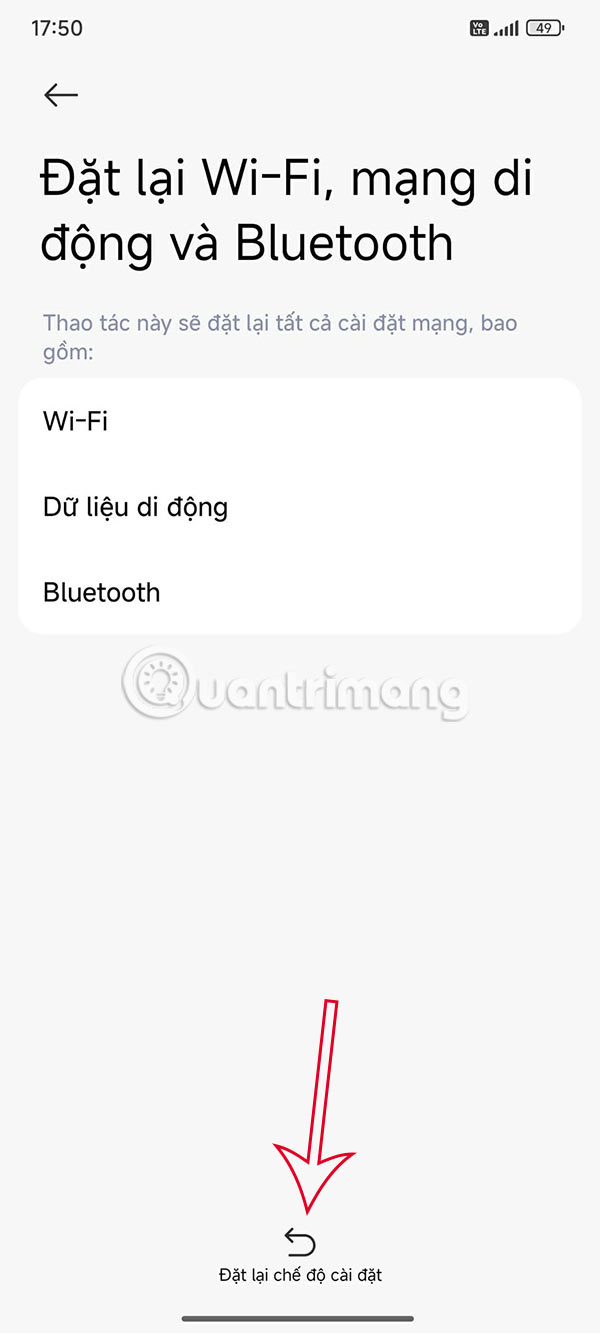
Step 3:
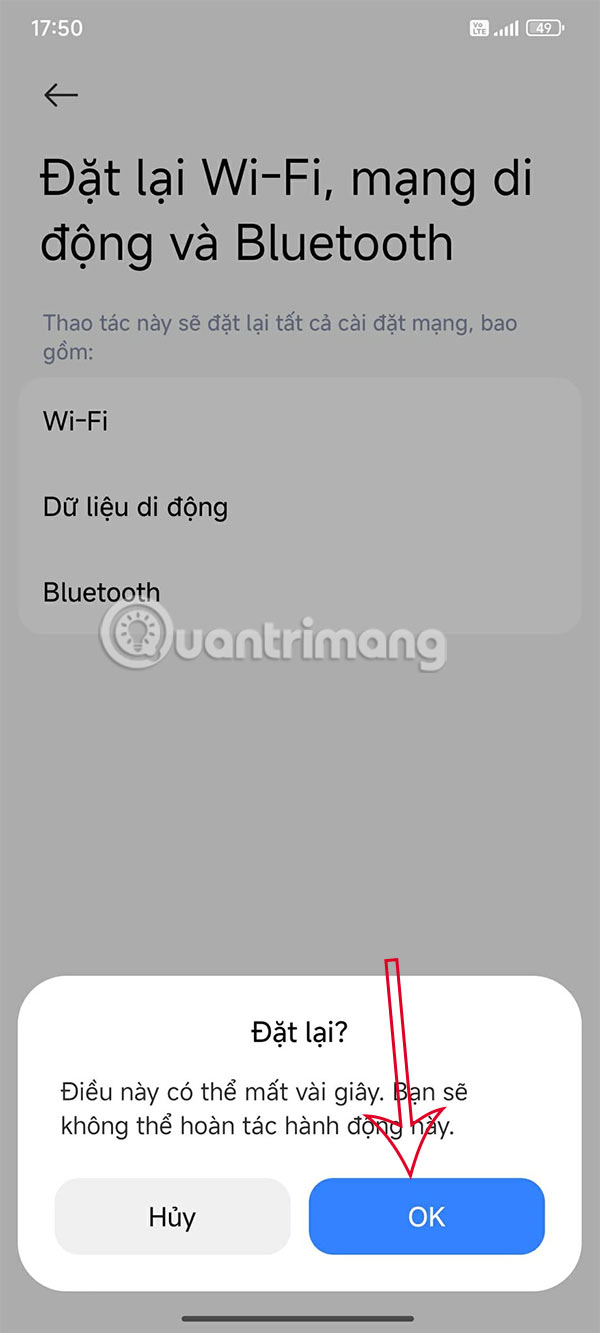
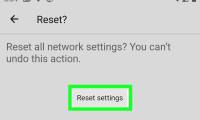
In this interface you will see the connection modes on your Android phone, Click Reset settings . A notification will appear below the screen, Click OK To reset network settings on Android.
Samsung network settings reset guide
The steps to reset network settings of Samsung smartphones are slightly different.
Step 1:
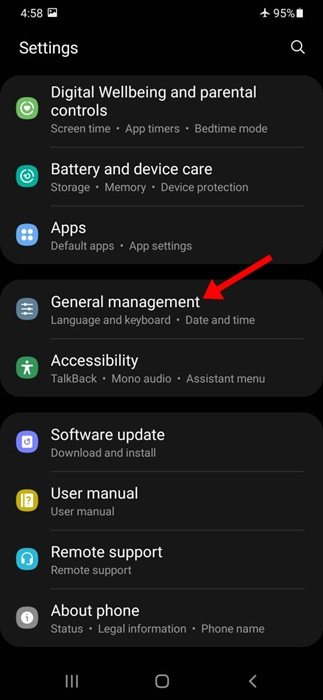
First, click on The gear icon , then Click on General Management .
Step 2:
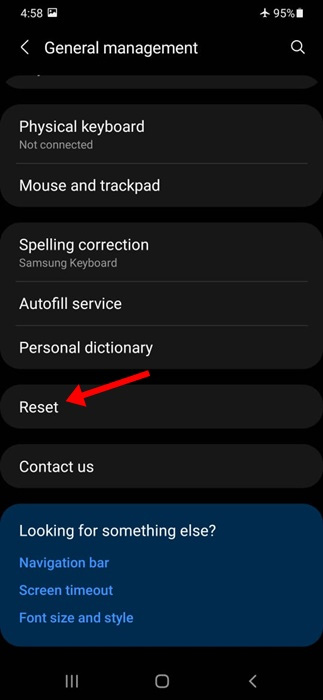
Switch to the new interface, scroll down and click on Reset .
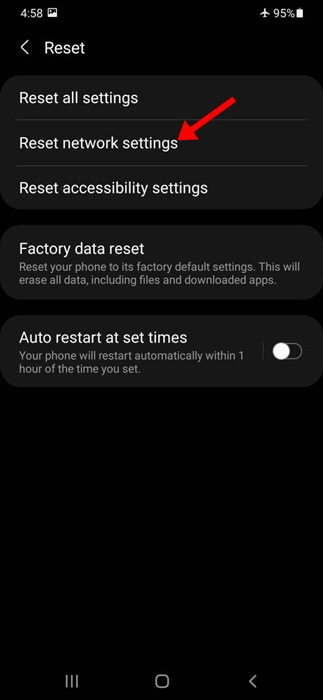
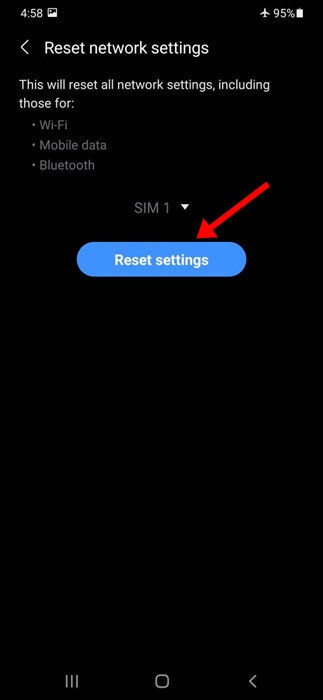
Now we just need to click on Reset network settings To reset the network. Continue to Select Reset Settings To reset the network on Samsung and you're done.
FAQ
How do you reset network settings on Android: step-by-step guide?
In practical terms, resetting network settings on Android will restore all network related settings to their original state.
What should you check before getting started?
Review the requirements, compatible device or software version, and any warnings described in the guide before making changes.
What should you do if the steps do not work?
Repeat the steps in order, confirm that your app or system is up to date, and review the troubleshooting details provided above.
Related Articles
 How to Reset Network Settings on Android: Practical Guide5 minutes read
 How to Reset Network Settings on a Mac4 minutes read
 How to Reset the Network, Reset the Network Connection on iPhone4 minutes read
 How to Reset Windows 10 Internet Settings: Practical Guide6 minutes read
 How to Reset Android Phone: Clear Instructions4 minutes read
 Instructions 2 Simple Ways Reset Windows 10 (the Last Part)9 minutes read
Reader Comments 0
Sign in with email or Google to join the discussion.