Table of Contents
Dividing contacts on iPhone will help you easily contact each group, such as groups of relatives, friends or work contacts.
Grouping contacts on iPhone helps you easily contact each object, such as groups of relatives, friends or work contacts. This also helps you quickly find contacts, or send mass messages on iPhone faster. Below are instructions for grouping contacts on iPhone.
How to group contacts on iPhone
Step 1:
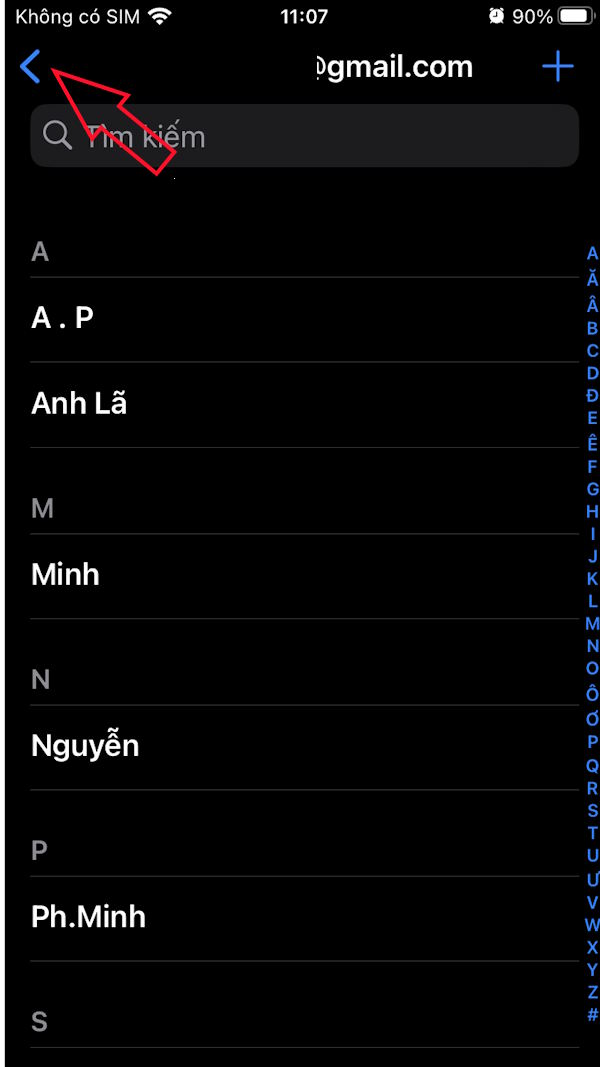
In the contacts interface on iPhone, Click on the arrow icon To open the List interface. Now the user selects Add List In the top right corner.

Step 2:
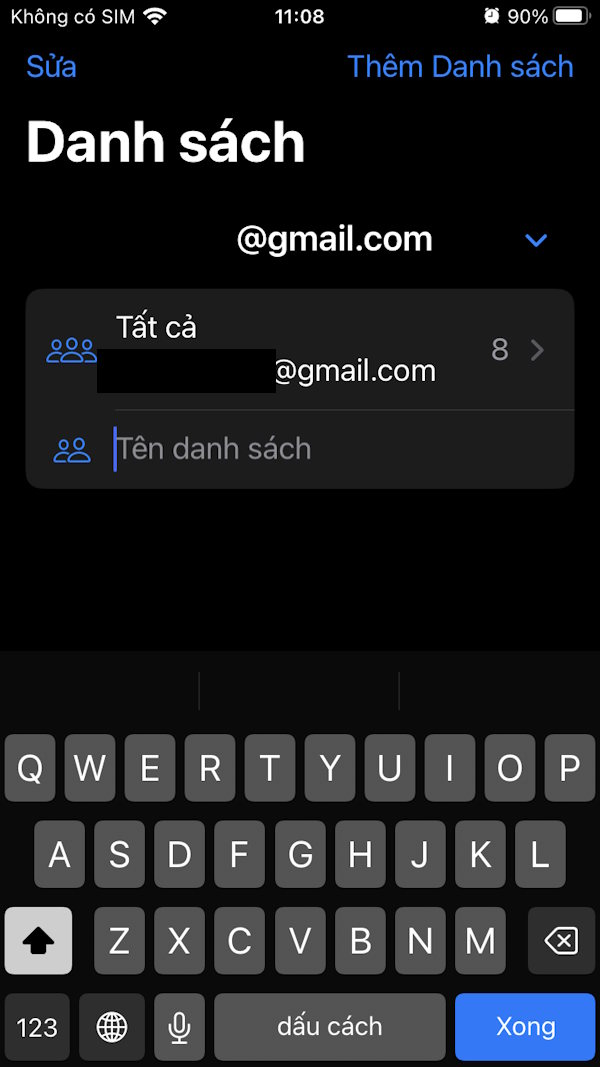
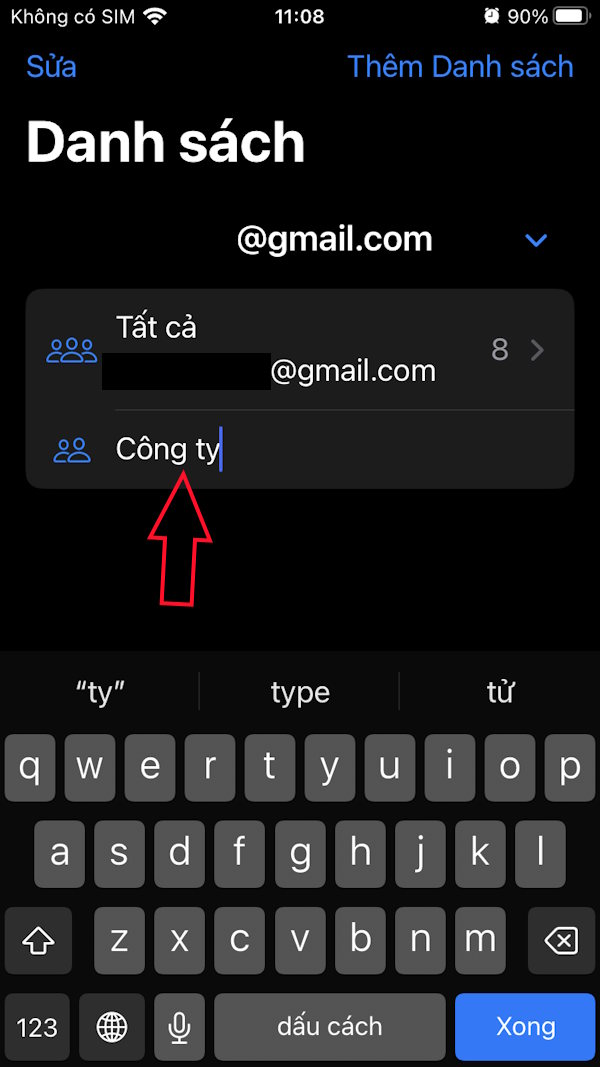
You Enter the name for the contact group You want to add contacts to this group.
Step 3:
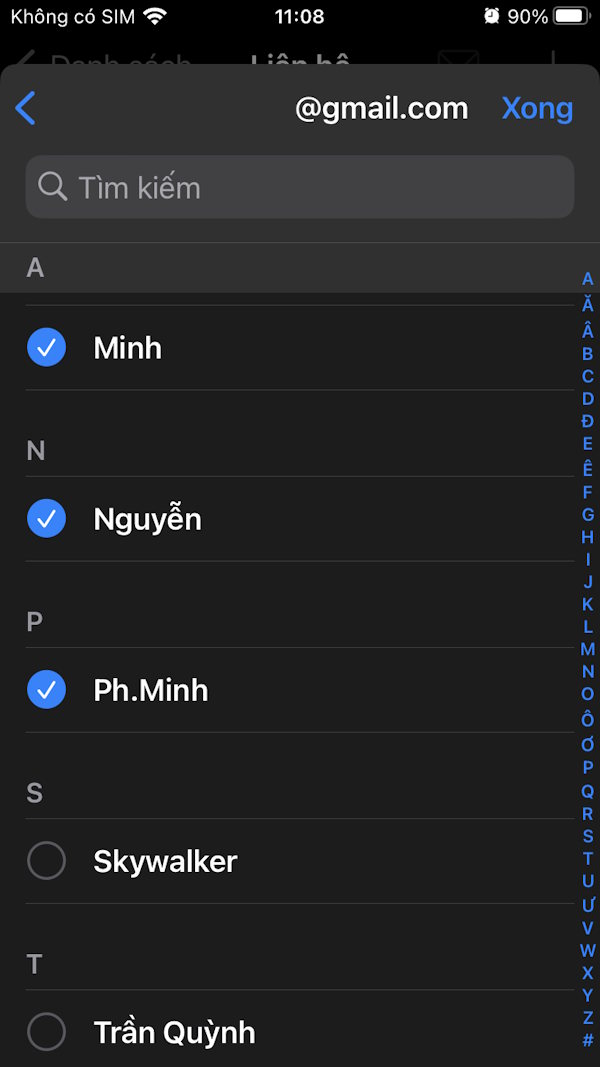
Users Click Add contact To select contacts to this group. You Select the contacts to add to this contact group .
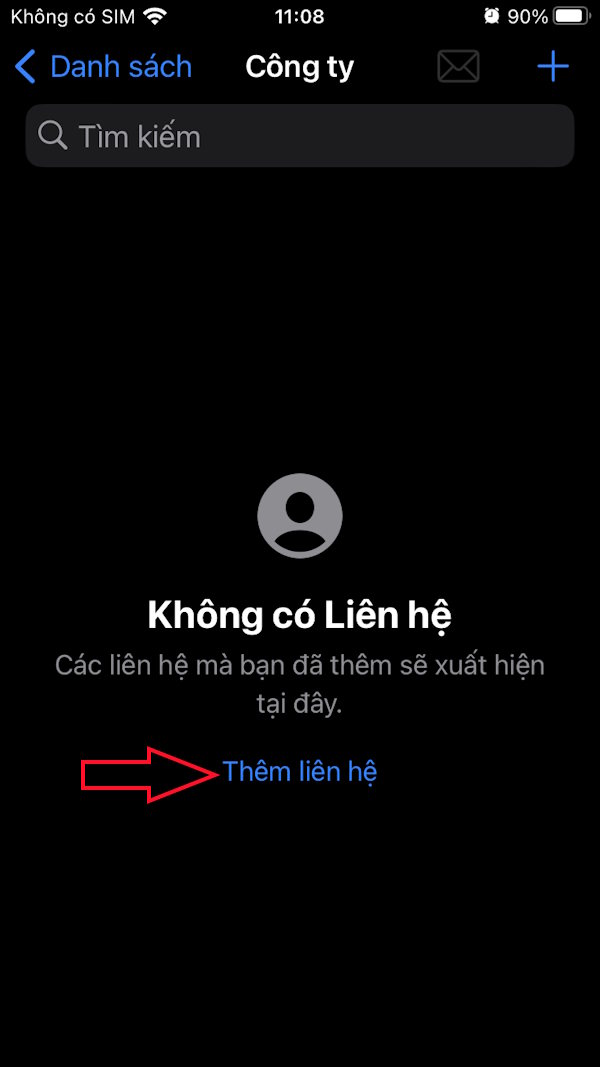
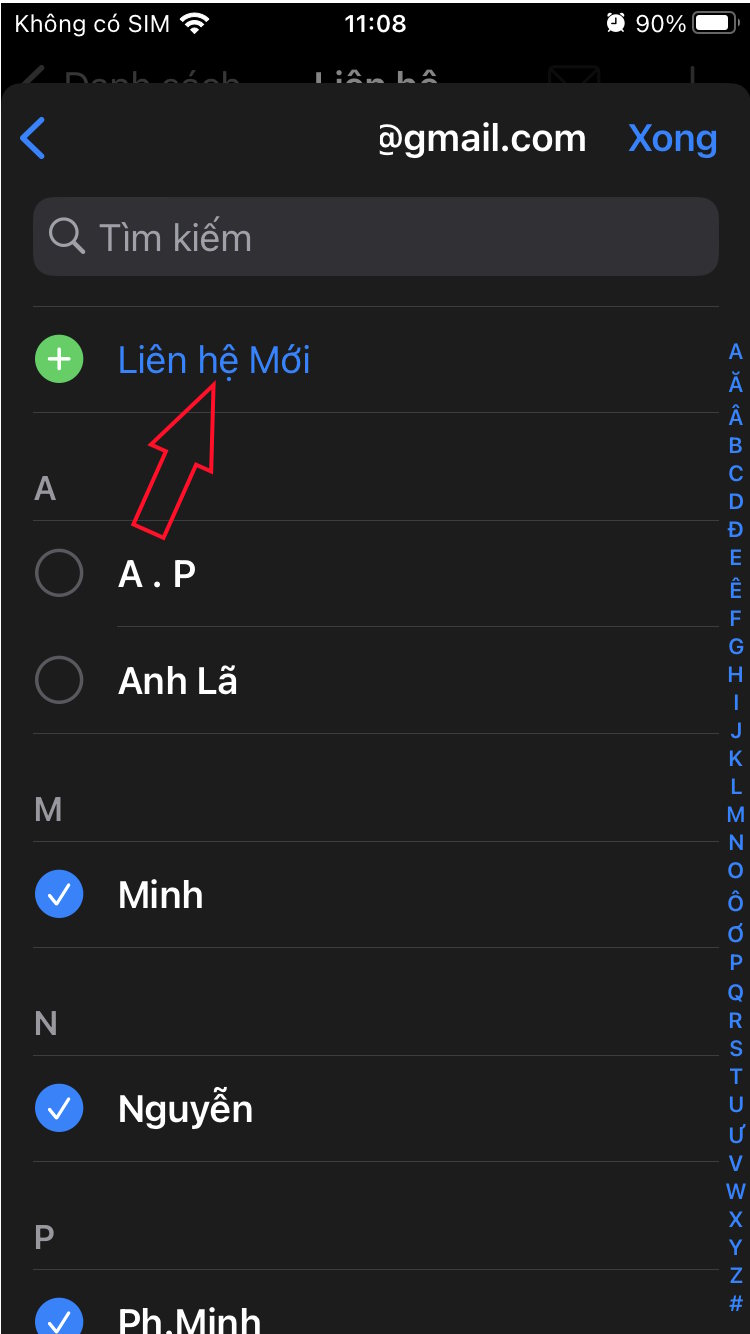
Or you can Add new contacts To this contact group if you want.

Step 4:
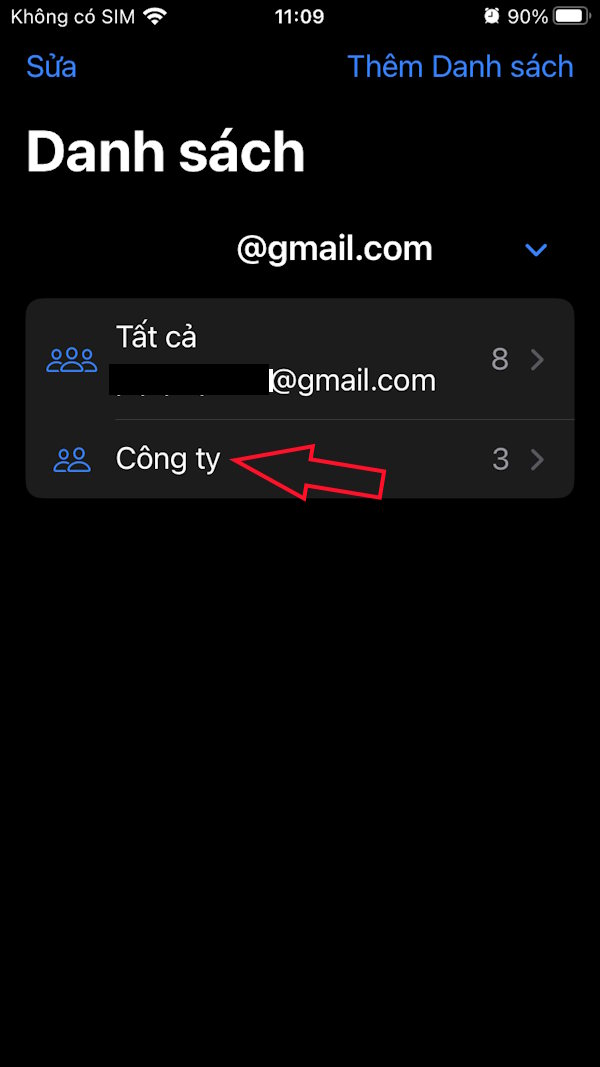
So you have completed grouping contacts on iPhone with different contact groups.
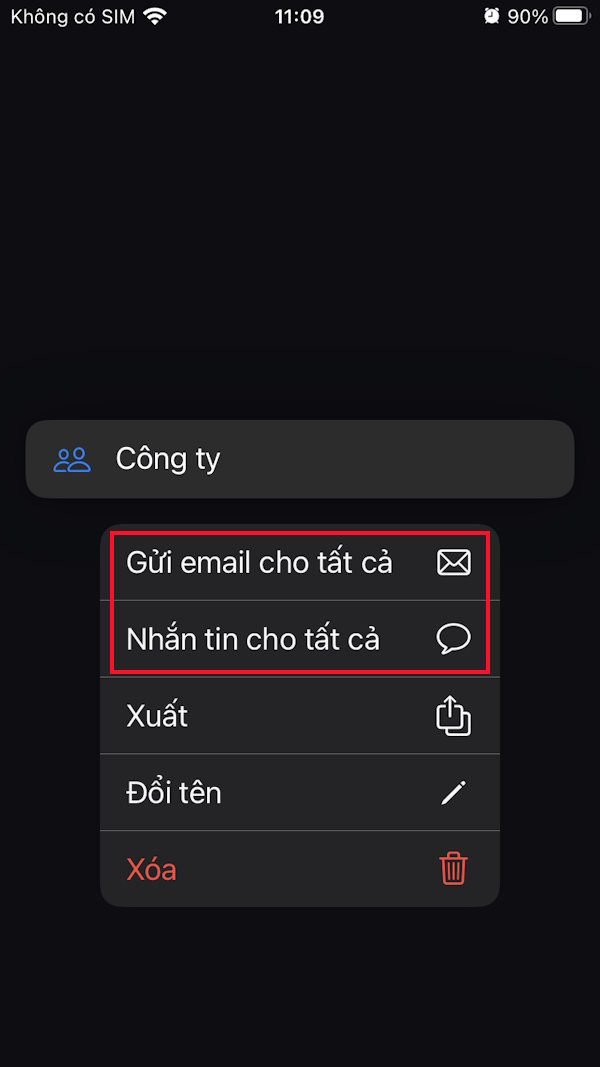
When you Press and hold on a contact group, Options Will appear as shown, you can send messages to all contacts in this contact group at the same time.
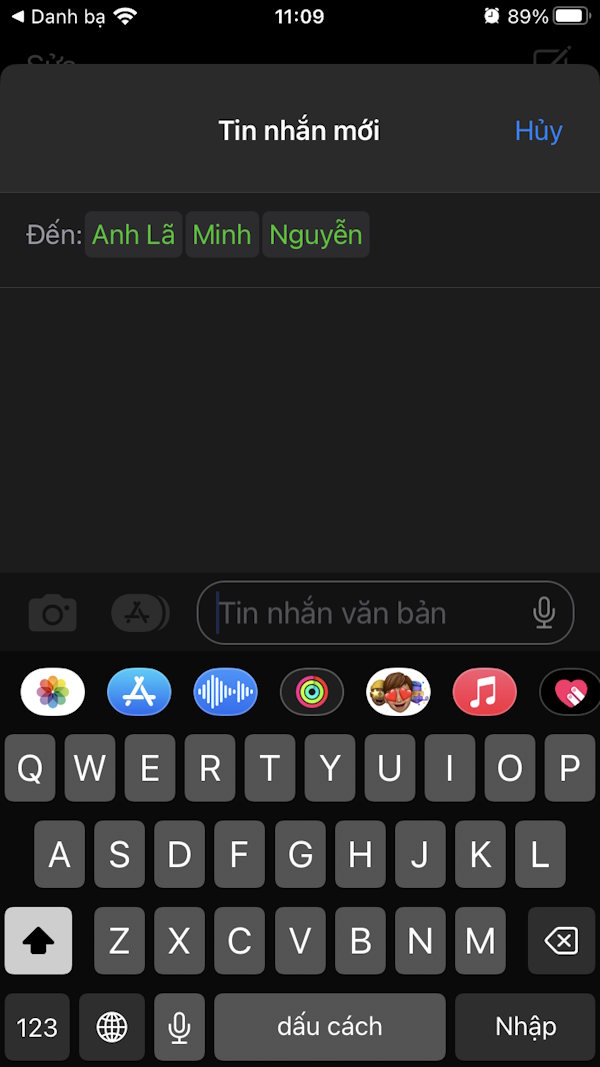
Step 5:
Tap and hold on a phone number in this contact group and you can delete the contact asking this contact group.
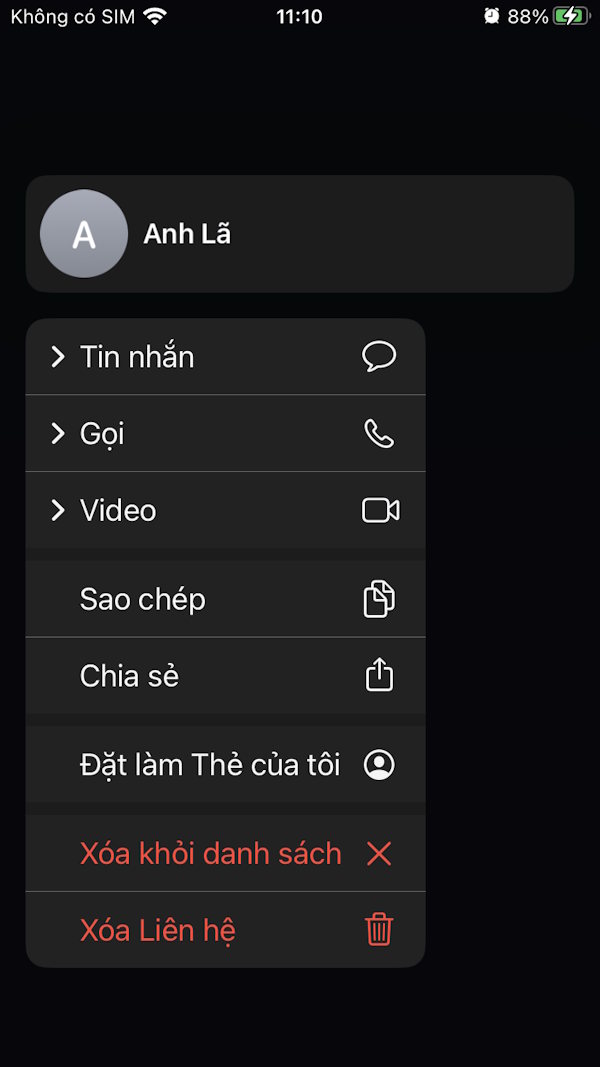
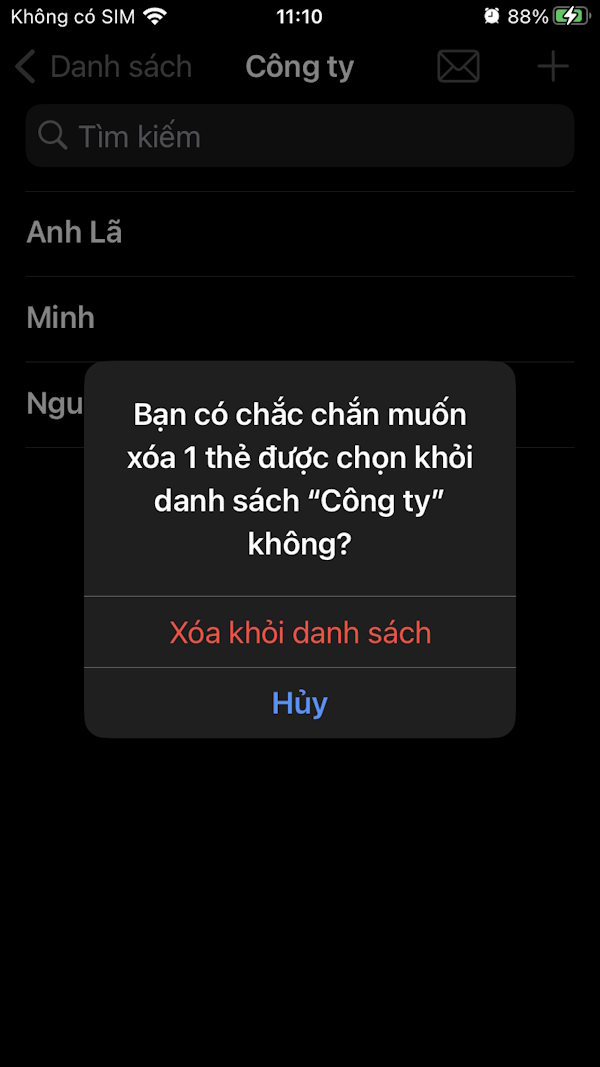
FAQ
How do you group contacts on iPhone?
In practical terms, dividing contacts on iPhone will help you easily contact each group, such as groups of relatives, friends or work contacts.
What should you check before getting started?
Review the requirements, compatible device or software version, and any warnings described in the guide before making changes.
What should you do if the steps do not work?
Repeat the steps in order, confirm that your app or system is up to date, and review the troubleshooting details provided above.
Related Articles
 How to Copy, Copy Contacts from iPhone to SIM with Itools7 minutes read
 Hide iPhone Contacts: Instructions for 4 Ways to Hide Contacts4 minutes read
 Instructions on How to Delete Contacts on iPhone3 minutes read
 How to Import Contacts from SIM to iPhone: Step-by-Step Guide4 minutes read
 Revealing How to Transfer Contacts from iPhone to SIM Super Quickly Explained5 minutes read
 How to Copy Contacts from SIM to iPhone4 minutes read
Reader Comments 0
Sign in with email or Google to join the discussion.