Table of Contents
IOS 26.2 introduces a new feature that displays a screen notification light to alert users. You can choose to have both the screen LED and the camera LED flash when you have a new notification.
IOS 26.2 introduces a new feature that displays a screen warning light to let users know. Unlike Android, which has a notification light, the iPhone does not have a notification LED when you receive a call, message, or other alert. But when you update to iOS 26.2, you can choose both the screen LED and the camera LED to flash when there is a new notification. Here are instructions to turn on the iPhone screen warning light.
How to turn on iPhone screen warning light
Step 1:
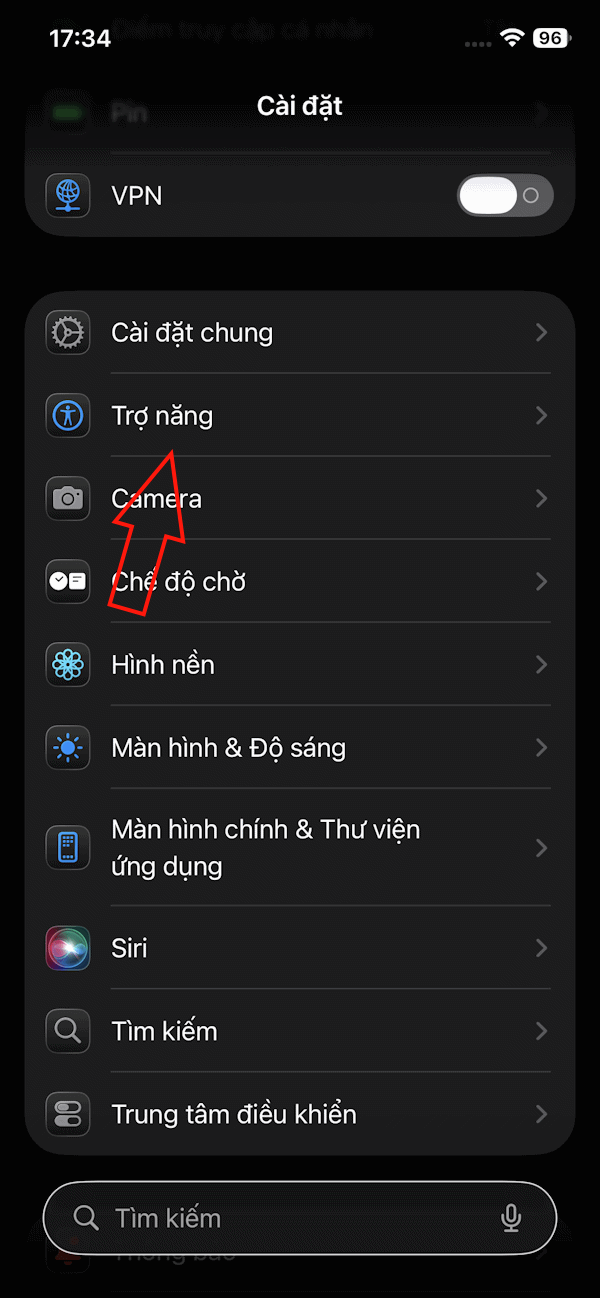
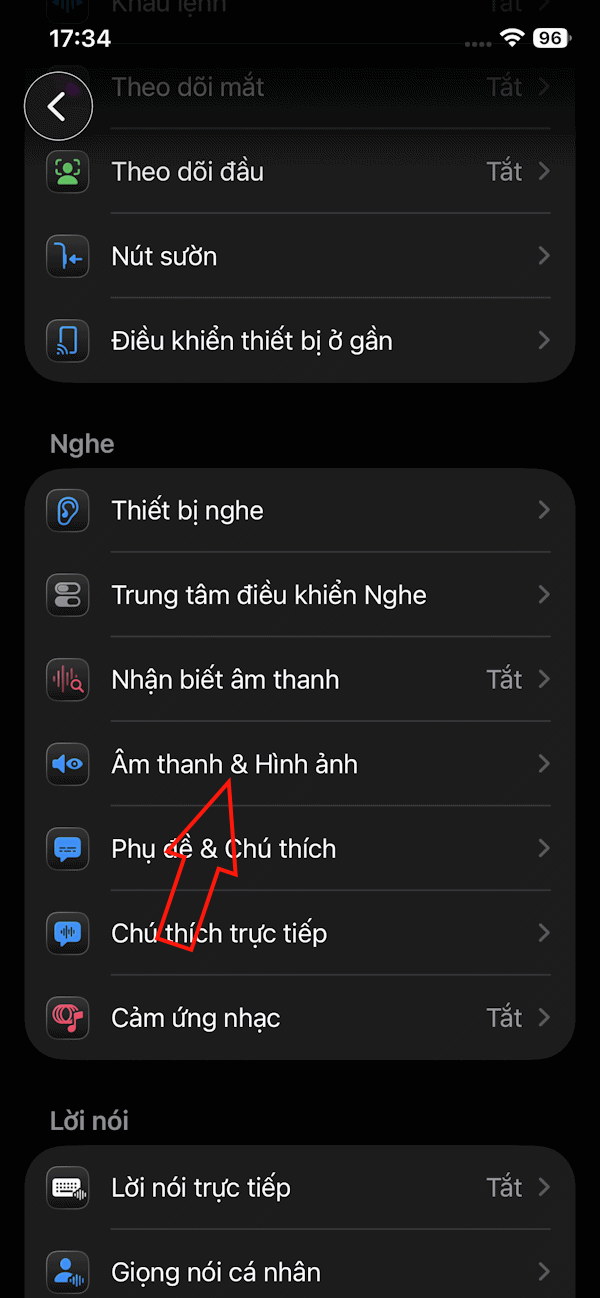
Go to Settings Then click on Accessibility . Switch to the new interface and click on Sound & Image To set up.
Step 2:
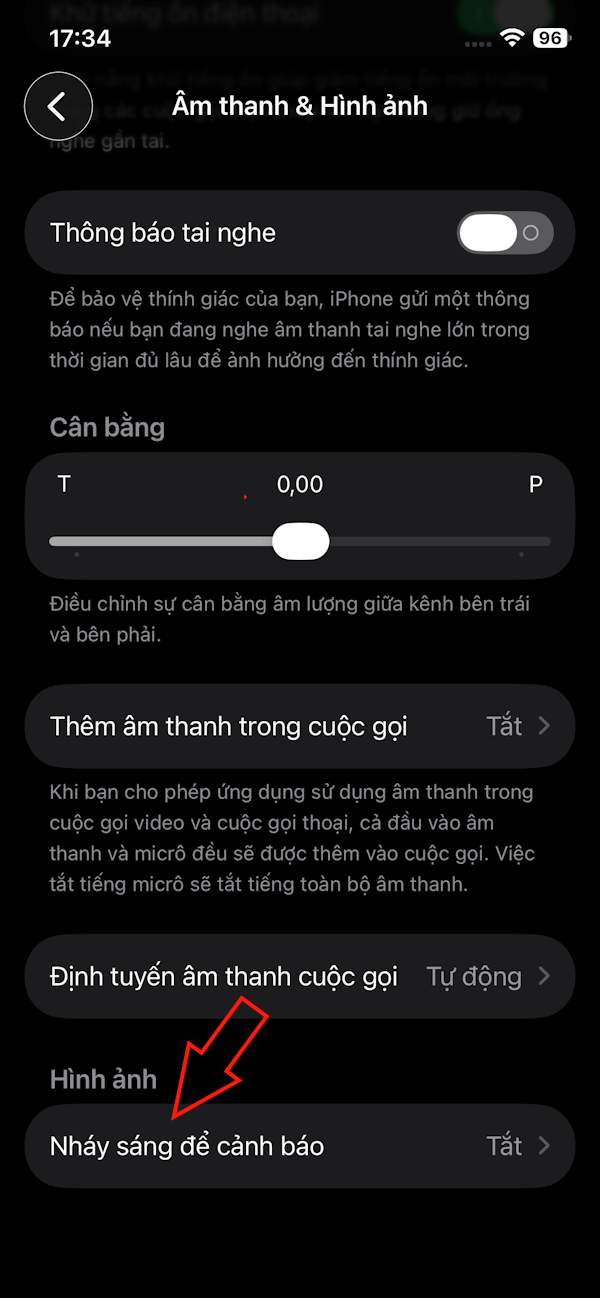
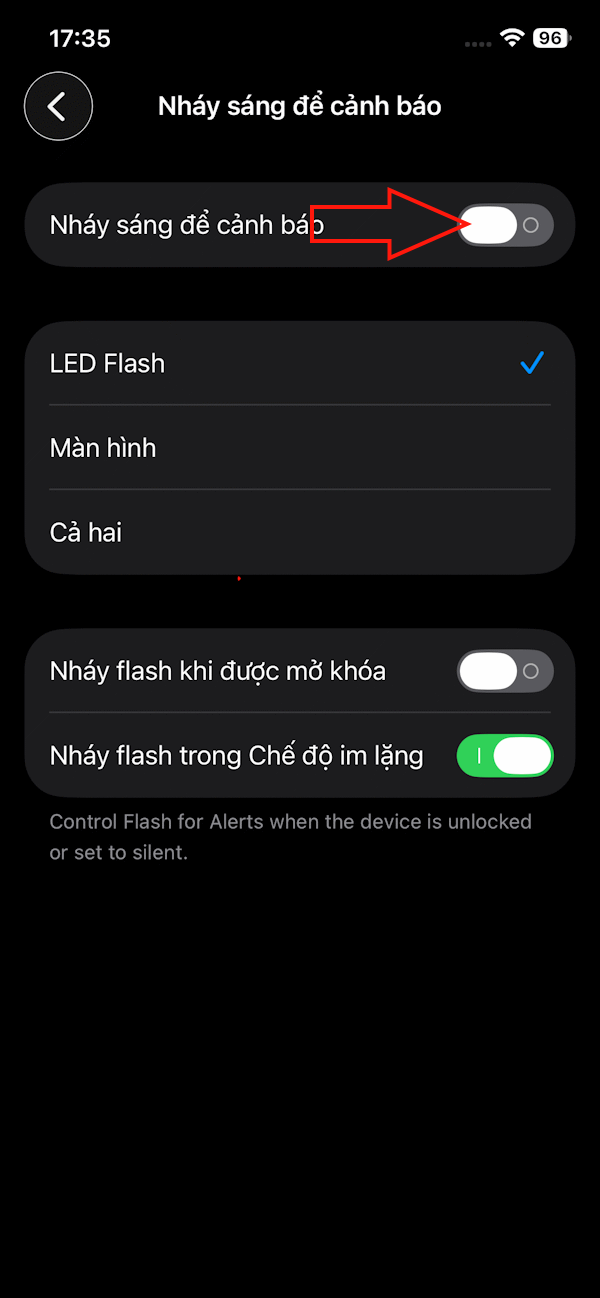
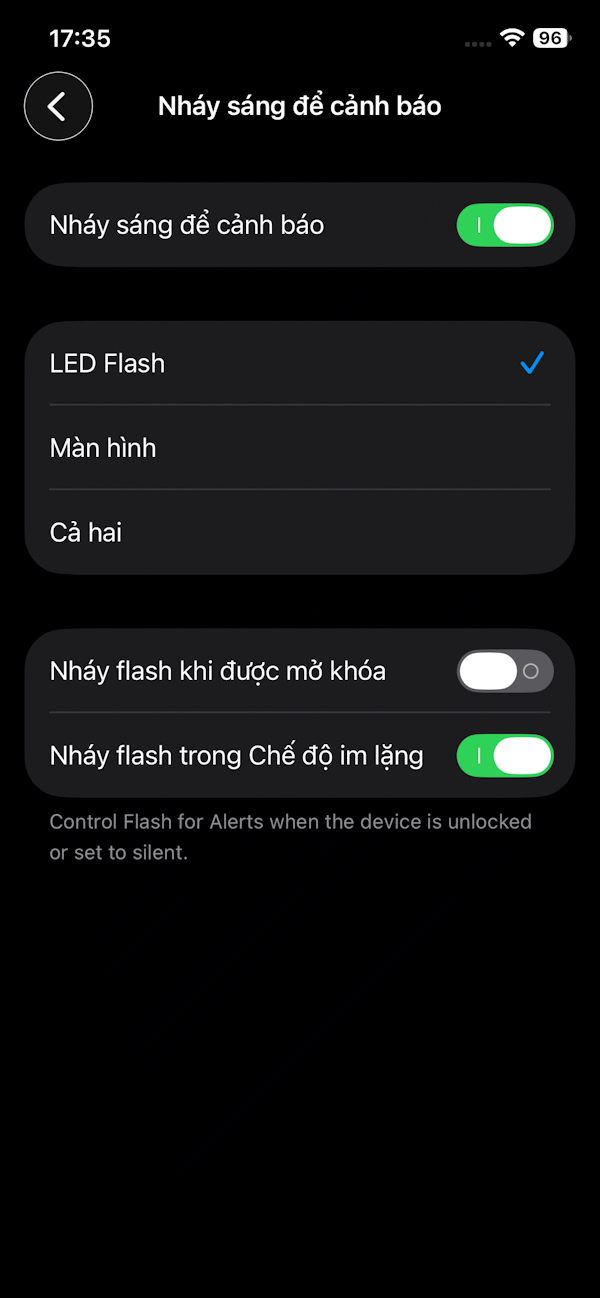
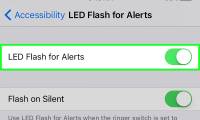
Go to the next interface, the user scrolls down to the bottom and then Taps Flash to warn . Now You should Activate Flash To warn mode.
Step 3:
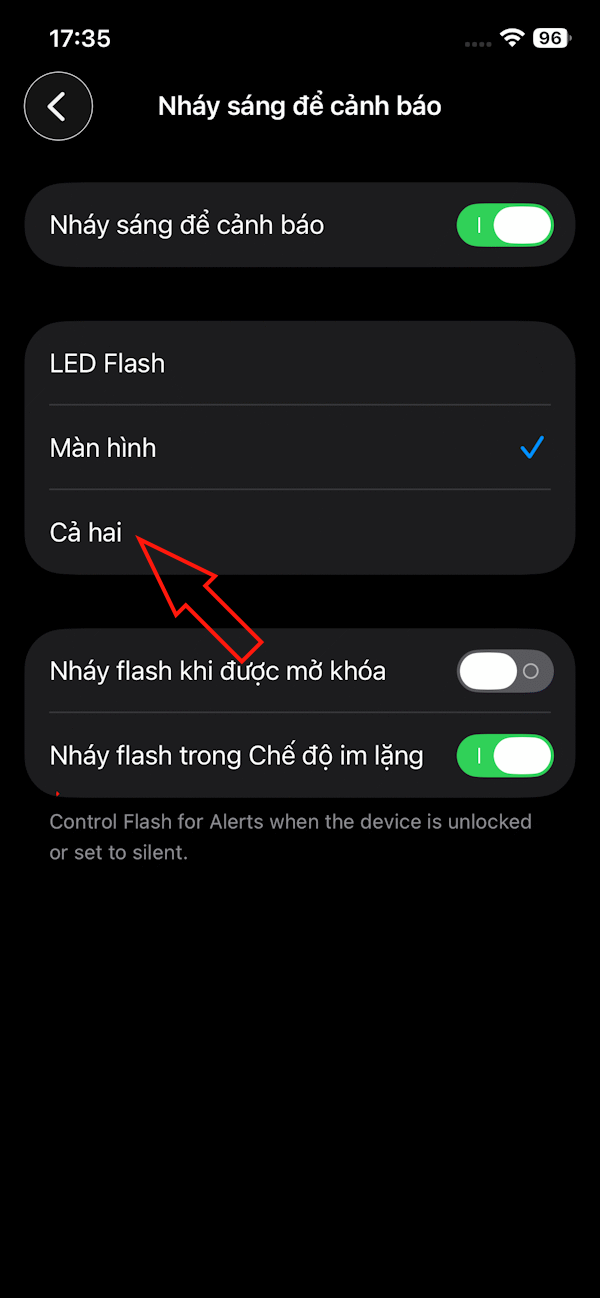
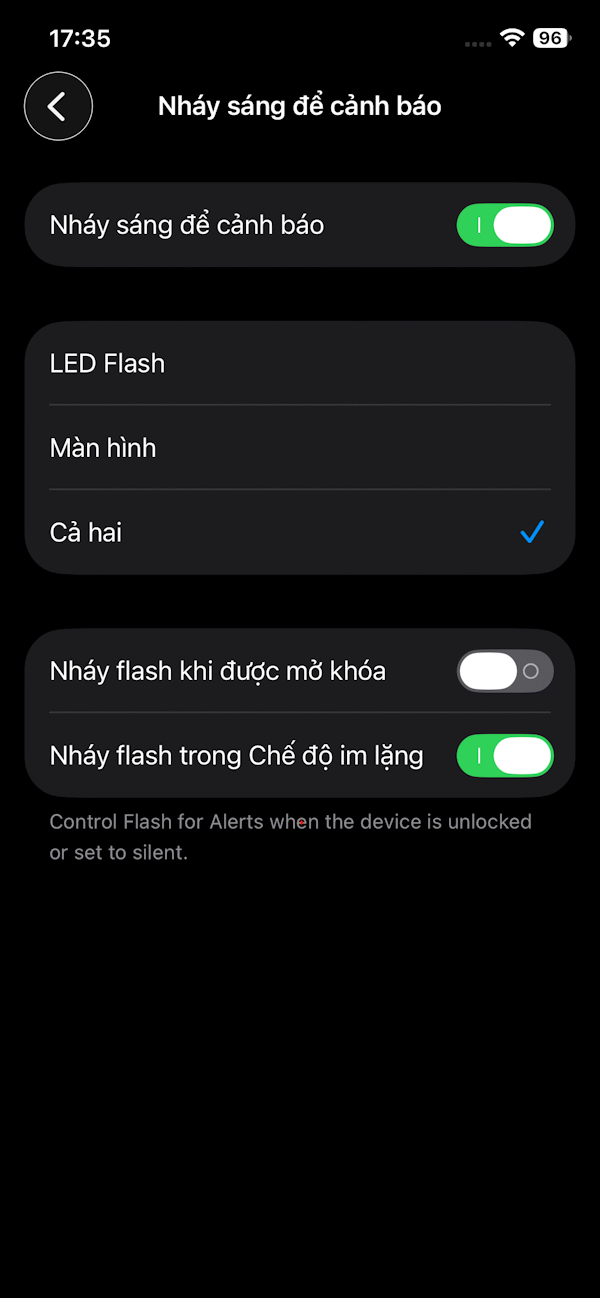
Next, you Choose to turn on the warning light for the screen or for both the LED light and the screen , depending on user needs.
Step 4:
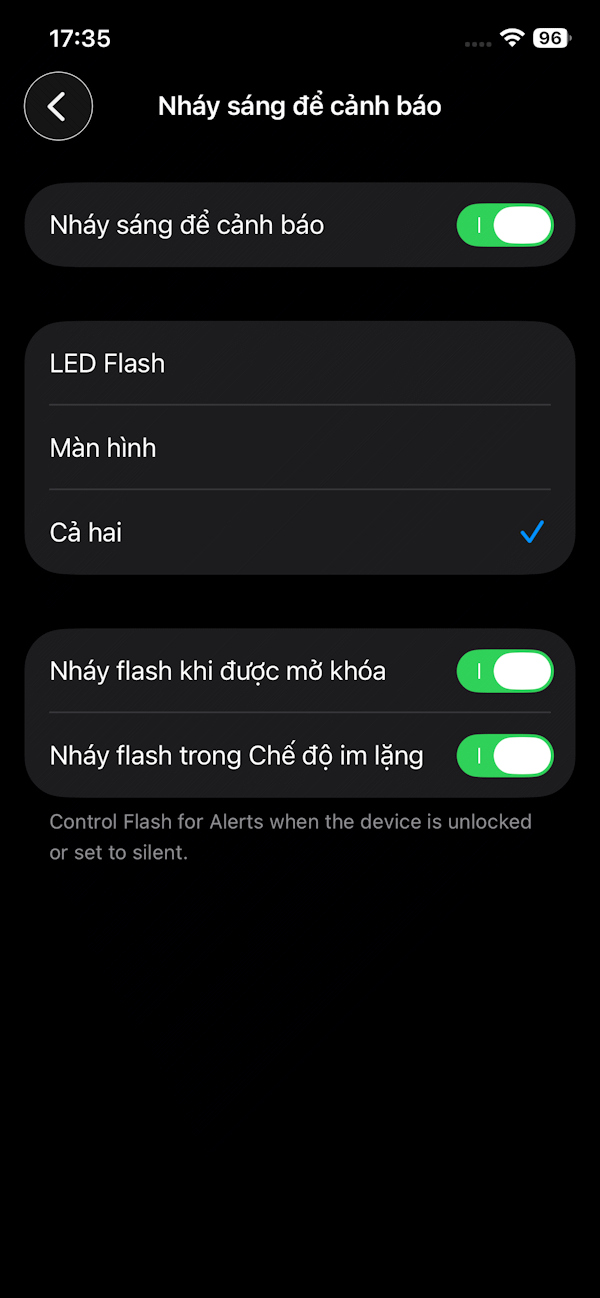
You can also set The flash to blink when unlocked , or in silent iPhone mode.
FAQ
How do you turn on iPhone screen flash?
In practical terms, iOS 26.2 introduces a new feature that displays a screen notification light to alert users. You can choose to have both the screen LED and the camera LED flash when you have a new notification.
What should you check before getting started?
Review the requirements, compatible device or software version, and any warnings described in the guide before making changes.
What should you do if the steps do not work?
Repeat the steps in order, confirm that your app or system is up to date, and review the troubleshooting details provided above.
Related Articles
 How to Enable and Disable Screen Flash Effects on Windows 115 minutes read
 How to Turn on the Flash on iPhone When a Message Arrives3 minutes read
 Small Tips to Turn on 2 Flash at the Same Time on iPhone4 minutes read
 Instructions for Using USB Flash Drive with iPhone7 minutes read
 Turn Off iPhone Screen Auto-Brightness When Touched: How-To Guide3 minutes read
 How to Fix Flash Errors on iPhone4 minutes read
Reader Comments 0
Sign in with email or Google to join the discussion.