Table of Contents
To password-protect a PDF in WPS Office, open the file, select Protect > Encrypt, then set an open password, a permissions password, or both. The open password prevents the PDF from being viewed without the password; the permissions password controls actions such as editing, copying, extracting, and printing.
Menu names can vary slightly by WPS Office version and platform. The steps below describe the desktop PDF editor. Some PDF features may depend on the installed edition or subscription.
Choose the type of PDF protection
| Protection | What it does | Use it when |
|---|---|---|
| Open password | Requires a password before the document can be viewed | The PDF contains private or confidential information |
| Permissions password | Restricts selected actions after the file is opened | Recipients may read the PDF but should not casually edit, copy, extract, or print it |
| Both | Controls access and restricts permitted actions | You need both confidentiality and usage restrictions |
WPS advises using different values for the open and permissions passwords. Do not send a protected file and its password through the same insecure channel.
How to encrypt a PDF in WPS Office
1. Open the PDF
Launch WPS Office and open the PDF you want to protect. Save a backup copy before changing its security settings, particularly if it is the only copy of an important document.
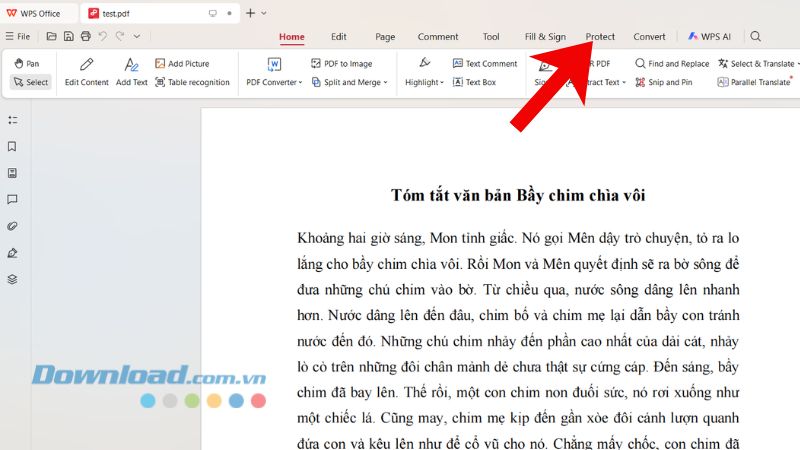
2. Open the Encrypt tool
Select the Protect tab on the PDF toolbar, then choose Encrypt. If the command is missing, update WPS Office and confirm that your edition includes PDF encryption.
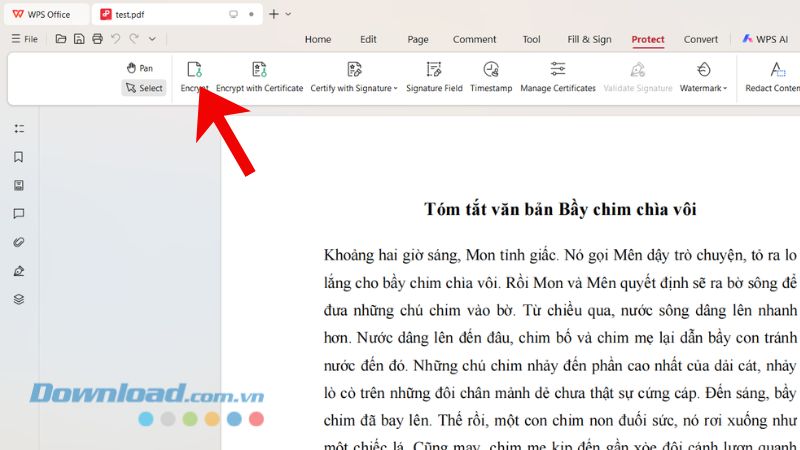
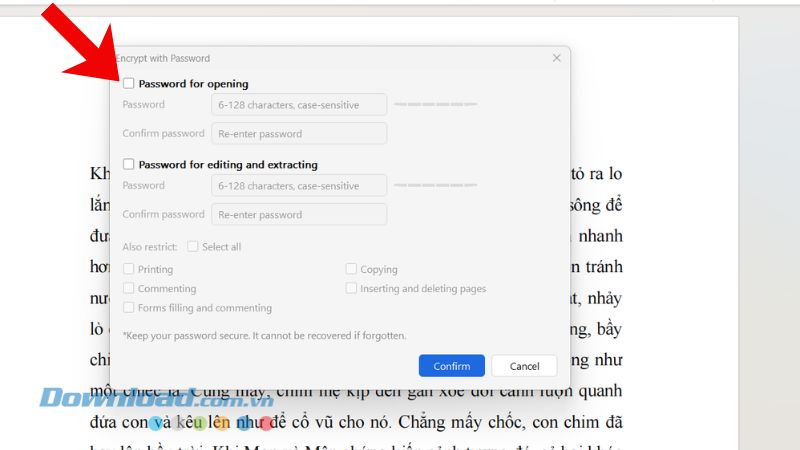
3. Set an open password
Enable Set the open password (the wording may appear as Password for opening), enter a strong password, and type it again to confirm. Anyone opening the saved PDF will need this password.
Use a long, unique passphrase that is not reused for an email, cloud-storage, or work account. Store it in a password manager. WPS notes that a forgotten open password may not be recoverable.
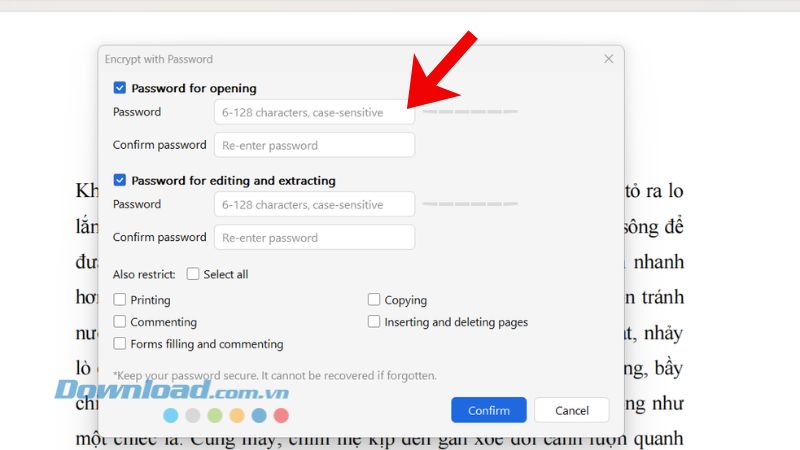
4. Set editing and extraction permissions
If recipients should be able to open the document without an access password but not freely modify it, enable Set password for editing and extracting. Enter and confirm a separate permissions password, then select which actions the recipient may perform. Depending on the version, the dialog can provide controls for printing, editing, copying text or graphics, annotations, and page extraction.
Permissions restrictions discourage ordinary changes, but they should not be treated as an absolute digital-rights-management system. For sensitive data, use the open password as well and distribute the file only to authorized recipients.
5. Confirm and save the PDF
Select Confirm, then save the document. If WPS prompts you to choose a location, save a new protected copy instead of immediately overwriting the unprotected original. Close the PDF after saving.
Test the protected file before sharing it
- Close WPS Office completely so the current session does not keep the document unlocked.
- Reopen the saved PDF and confirm that the open password is requested, if you enabled it.
- Enter the open password and test the actions you restricted, such as copying or printing.
- Verify that the correct document was protected and that all pages, forms, signatures, and attachments still appear.
- Keep the original in a secure location until the protected copy has been validated.
How to remove or change the password
You must know the current password. Open and unlock the PDF, return to Protect > Encrypt, and clear the open-password or permissions-password option. To change a password, replace it with a new value and confirm it. Save the file and reopen it to test the new setting.
WPS provides current details on its official PDF password-protection page. Interface labels and plan requirements can change, so refer to that page if your dialog differs from the screenshots.
Important security practices
- Do not use names, birthdays, document titles, or short dictionary words as passwords.
- Do not place the password in the email that contains the PDF; share it through a separate trusted channel.
- Remove unnecessary personal or confidential information before distribution.
- Remember that encryption protects the saved file, not an unlocked copy, screenshot, or text that an authorized recipient exports.
- For regulated or highly sensitive documents, follow your organization's approved encryption and file-sharing policy rather than relying on a consumer PDF workflow alone.
Related Articles
 3 Simple Ways to Enable // Disable the Encrypting File System4 minutes read
 How to Open Locked Files in Office 20135 minutes read
 How to Save Excel Files as PDFs in Office 2010, 2013, 20162 minutes read
 Instructions for Converting Docx to Doc Files Online: Docx Files2 minutes read
 How to Fix the Issue of Office Files Automatically Resetting When You Exit the Application4 minutes read
 How to Encrypt Files10 minutes read
Reader Comments 0
Sign in with email or Google to join the discussion.