Table of Contents
You can replace Microsoft Office for many everyday tasks without giving up local files or collaboration. The best alternative depends on what matters most: LibreOffice for a complete offline open-source suite, ONLYOFFICE for a Microsoft-style editing experience and strong OOXML focus, WPS Office for a polished cross-platform freemium suite, Google Docs, Sheets, and Slides for browser-based teamwork, or Apple Pages, Numbers, and Keynote for Apple users.
No alternative reproduces every Microsoft 365 feature. Test real DOCX, XLSX, and PPTX files before changing tools, especially if they contain macros, advanced formulas, linked data, complex layouts, or specialized add-ins.
Microsoft Office alternatives compared
| Suite | Best for | Offline use | Main platforms |
|---|---|---|---|
| LibreOffice | A full free desktop suite, open formats, and no account requirement | Yes | Windows, macOS, Linux |
| ONLYOFFICE Desktop Editors | Editing DOCX, XLSX, and PPTX in a familiar tabbed interface | Yes | Windows, macOS, Linux; mobile and server options also exist |
| WPS Office | A lightweight, familiar suite with integrated PDF tools | Yes | Windows, macOS, Linux, Android, iOS |
| Google Docs, Sheets, and Slides | Fast sharing and real-time collaboration in a browser | Limited offline mode after setup | Web, Android, iOS |
| Apple Pages, Numbers, and Keynote | People working mainly on Mac, iPad, and iPhone | Yes on Apple devices | macOS, iPadOS, iOS; web access through iCloud |
LibreOffice: the strongest fully offline open-source option
LibreOffice includes Writer, Calc, Impress, Draw, Base, and Math. It uses the OpenDocument formats ODT, ODS, and ODP by default, while also opening and saving common Microsoft Office formats. It runs locally, does not require a cloud account, and can export documents to PDF.
LibreOffice is a good choice for home users, schools, public organizations, and anyone who wants control over local files. Calc supports substantial spreadsheet work, and extensions and templates can expand the suite.
The main tradeoff is Microsoft-format fidelity. Straightforward files usually transfer well, but complex Word layouts, Excel macros, advanced formulas, and elaborate PowerPoint effects can change. If colleagues require DOCX or XLSX, set the expected save format and verify the output in Microsoft Office. Download it from the official LibreOffice site.

ONLYOFFICE: a strong choice for Office Open XML files
ONLYOFFICE Desktop Editors combines document, spreadsheet, presentation, form, and PDF tools in a tabbed desktop application. It is free and open source, works offline on Windows, macOS, and Linux, and supports DOCX, XLSX, and PPTX as primary working formats.
Its ribbon-like interface makes the transition from Microsoft Office relatively easy. It is particularly appealing when most incoming files use modern Microsoft formats and users want to minimize conversion between OOXML and another native format.
Teams can also use ONLYOFFICE's collaborative and self-hosted products, but those deployments have different licensing and administration requirements from the free desktop editors. Treat the desktop app and server products as separate decisions. See the official Desktop Editors page for supported platforms and current features.
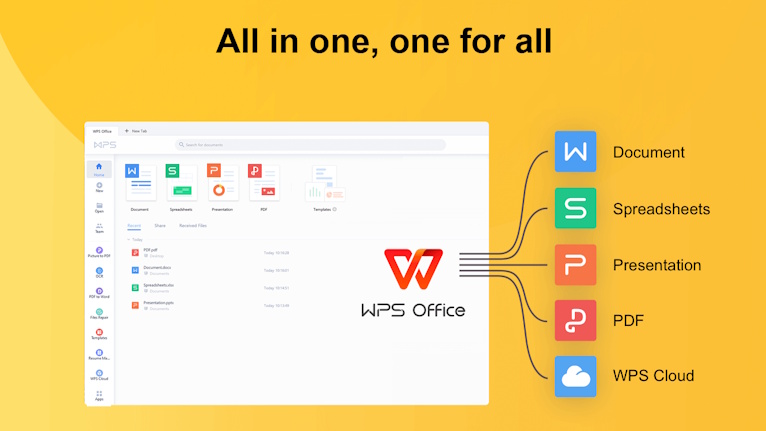
WPS Office: familiar design and useful PDF tools
WPS Office bundles Writer, Spreadsheet, Presentation, and PDF features in a compact application. It opens common Microsoft Office formats, is available on desktop and mobile platforms, and offers both free and paid plans. The interface is familiar enough that many Word and Excel users can start quickly.
WPS is well suited to routine documents, schoolwork, budgets, and mobile editing. Its integrated PDF workflow is convenient, although advanced PDF conversion, OCR, AI, cloud storage, and other premium functions can depend on the selected plan.
Check the current edition carefully. Advertisements, account requirements, storage, feature limits, and pricing can differ by platform or region. For complex Office files, use the same compatibility tests you would apply to any alternative. The official WPS Office site lists the current applications and plans.
Google Docs, Sheets, and Slides: best for browser collaboration
Google's editors are built around Drive storage, automatic saving, link sharing, comments, version history, and simultaneous editing. They are often the easiest choice for group assignments, shared planning documents, and lightweight spreadsheets that several people must update at once.
A free Google Account includes a shared storage allowance across Drive, Gmail, and Google Photos. Google-format files created or edited under current storage rules can count toward that quota, so do not rely on the old claim that Docs, Sheets, and Slides never use storage. Business Workspace plans use different storage and administration models.
The browser apps can open and edit many Microsoft Office files, but complex formatting, VBA macros, specialized Excel features, and advanced PowerPoint content may not survive unchanged. Offline access is possible for supported files after it has been enabled on a compatible browser and device; it is not the same as a fully local desktop suite.
Apple Pages, Numbers, and Keynote: best inside the Apple ecosystem
Pages, Numbers, and Keynote provide clean templates, strong visual design, and smooth integration across Mac, iPad, and iPhone. Keynote is especially capable for presentation design, while Pages is approachable for polished documents and Numbers favors visually arranged tables and charts.
Windows users can access the web versions through iCloud.com, but there are no equivalent native Windows desktop apps. The web experience is useful for lighter edits and collaboration, though Apple-device users receive the most complete workflow.
The core apps remain usable without a Microsoft subscription. Apple also offers optional premium content and features through its current services, so check the App Store and Apple's plan descriptions rather than assuming every new feature is free. Export to DOCX, XLSX, PPTX, or PDF is available, but complex files should be reviewed after conversion.
How to choose the right replacement
- Need a free local suite with open formats? Start with LibreOffice.
- Exchange modern Office files frequently? Test ONLYOFFICE first.
- Want a familiar interface and integrated PDF tools? Consider WPS Office.
- Prioritize real-time sharing? Google Docs, Sheets, and Slides are the simplest option.
- Work mainly on Apple hardware? Pages, Numbers, and Keynote fit naturally.
Run a compatibility test before switching
- Copy several representative Word, Excel, and PowerPoint files; never test on the only copy.
- Open each copy in the alternative suite and inspect fonts, page breaks, tables, comments, tracked changes, formulas, charts, and animations.
- Recalculate spreadsheet totals and verify that external connections, macros, or add-ins are supported.
- Save the file, reopen it in Microsoft Office if recipients use Office, and compare the result.
- Test sharing permissions, version history, offline access, mobile editing, and PDF export.
A suite that handles 95 percent of simple documents may still fail on the one workbook your job depends on. Choose based on those critical files and collaboration requirements, not just the number of features in a marketing list.
Related Articles
 Top 5 Office Alternatives on Mac6 minutes read
 Let Microsoft Office Become More Perfect8 minutes read
 4 Garageband Alternatives for Windows 106 minutes read
 How to Cancel an Office 365 Subscription3 minutes read
 Today, Office 2013 Will Debut with Office 365?4 minutes read
 How to Activate Microsoft Office on PC or Mac6 minutes read
Reader Comments 0
Sign in with email or Google to join the discussion.