Table of Contents
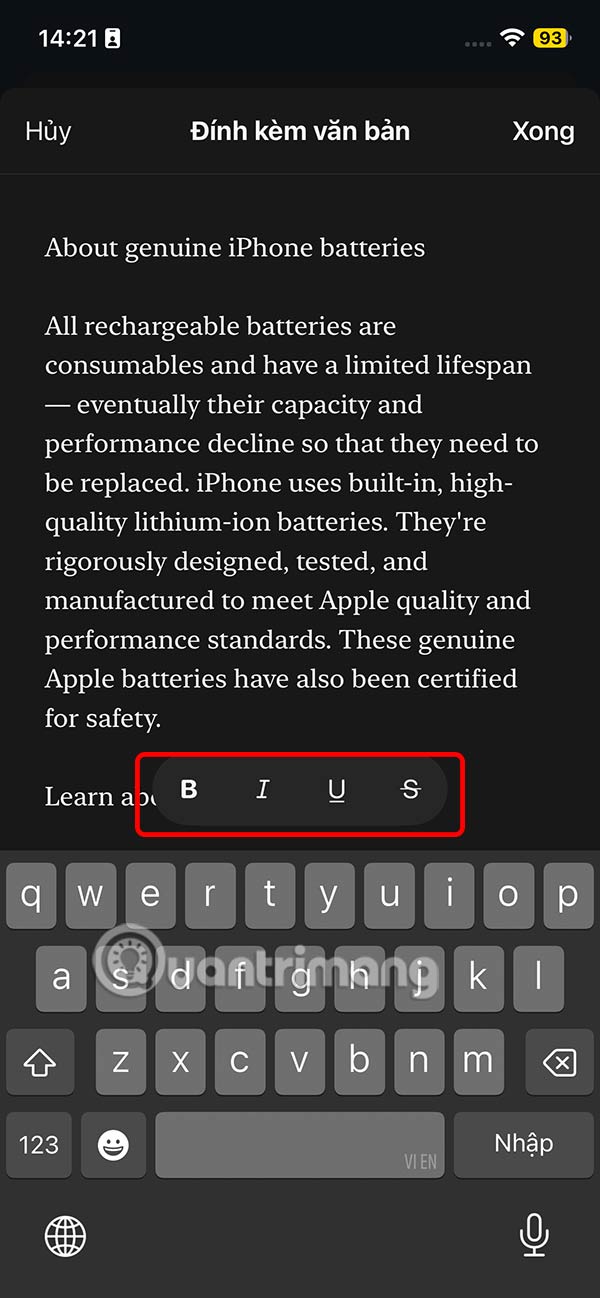
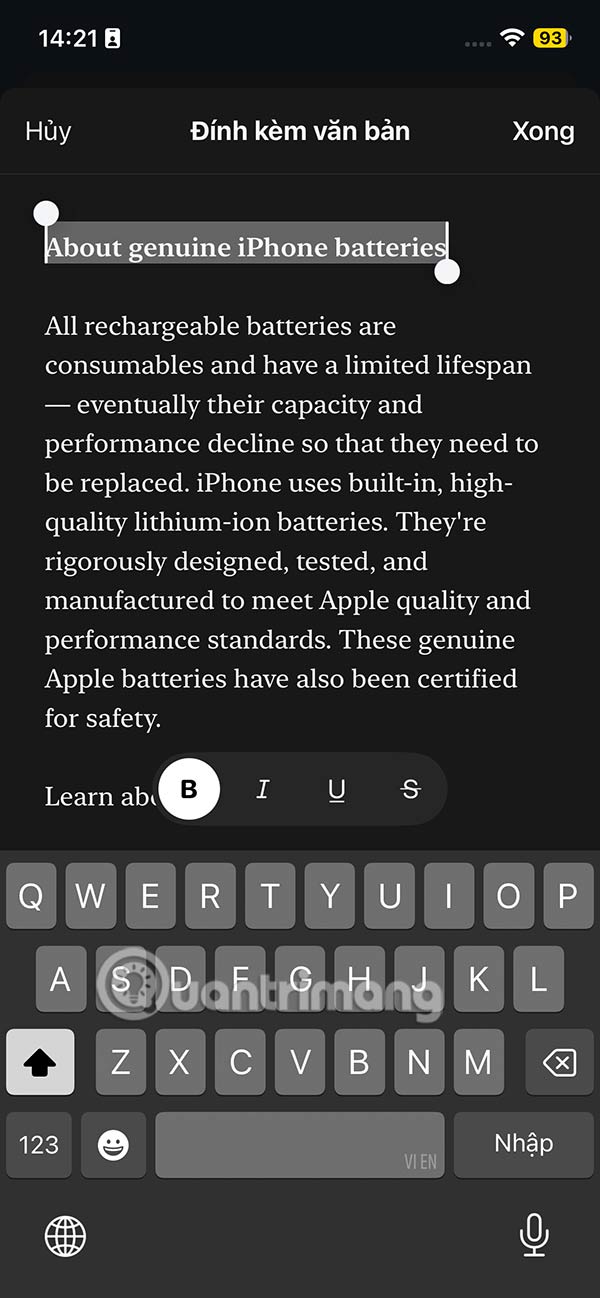
Threads has recently updated the attachment text option for you to post articles when you want to post long content, when the normal posting mode of Threads limits the number of characters. In addition, Threads has added basic text formatting, such as italics, bold,. Below are instructions for creating attachment text on Threads.
How to create text attachments on mobile Threads
Step 1:
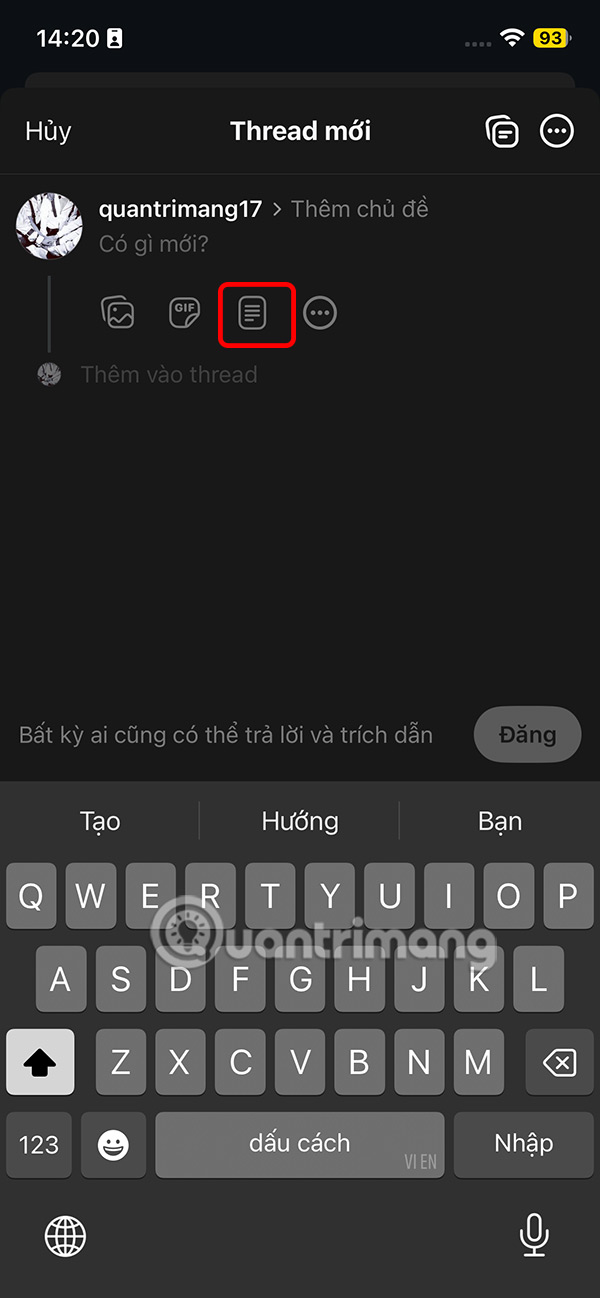
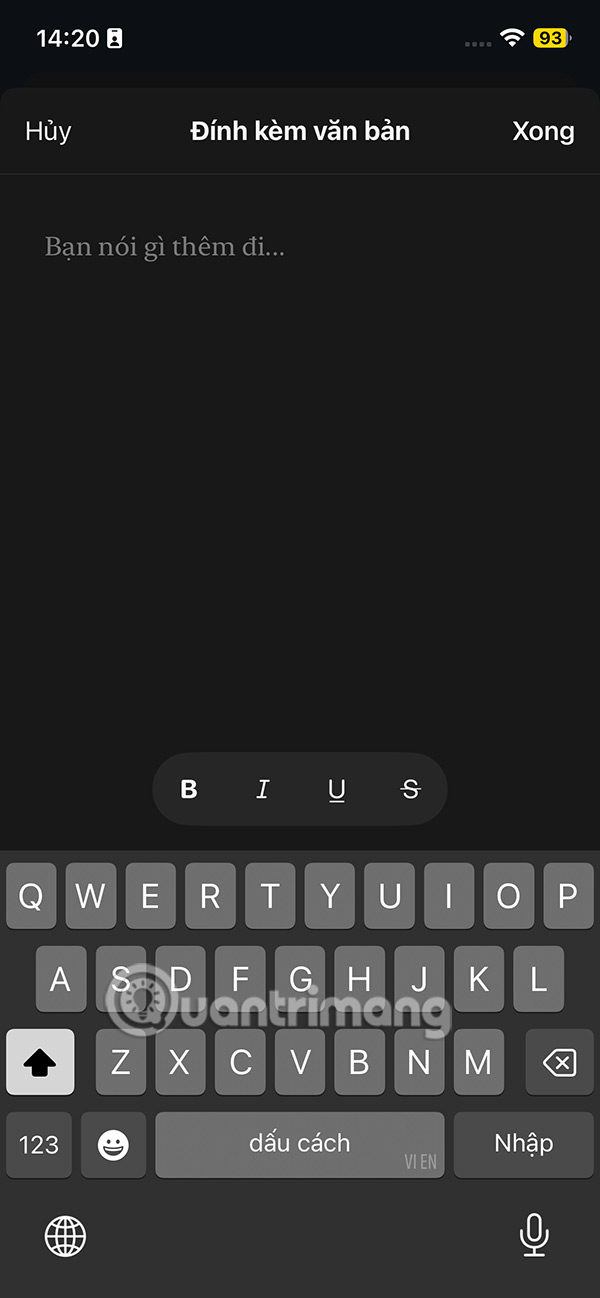
At the interface on Threads, users select the plus icon , then select the text icon as shown. Display the interface for you to enter text and proceed with formatting .
Step 2:
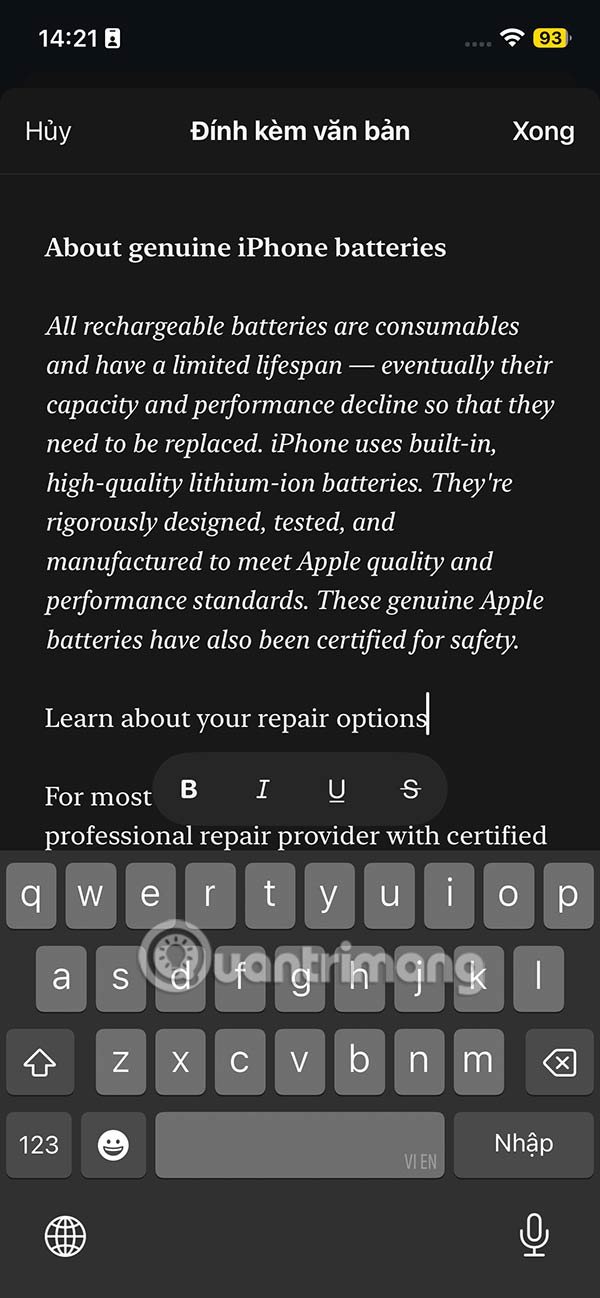
You enter content as usual and format the text as you wish.
Step 3:
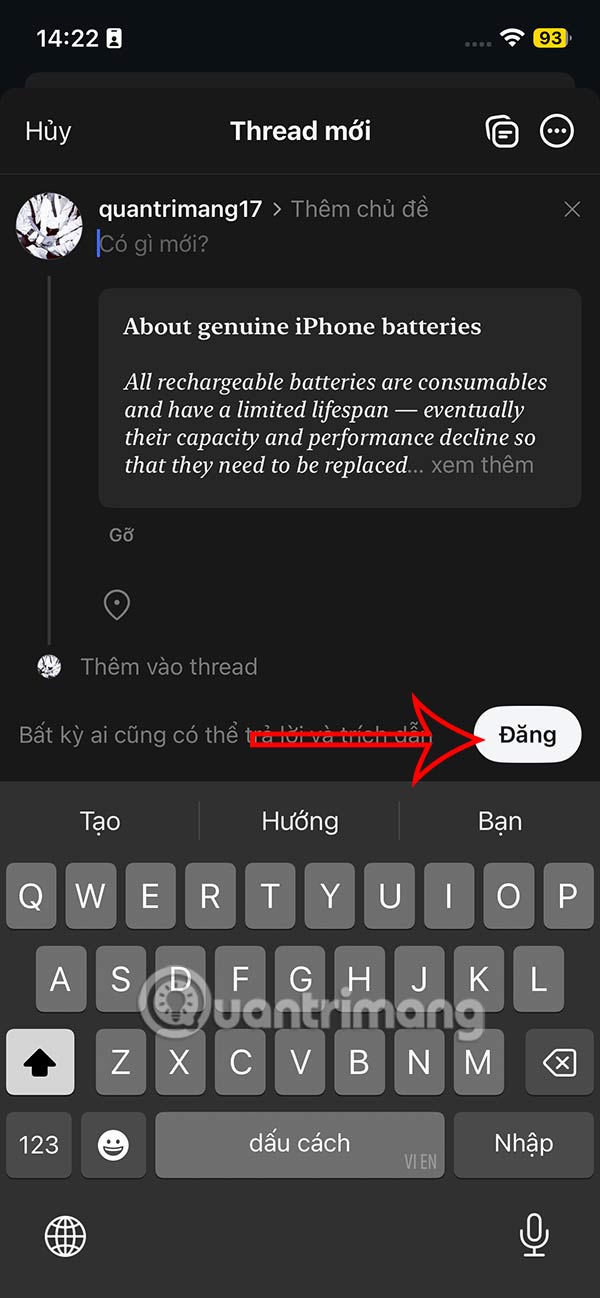
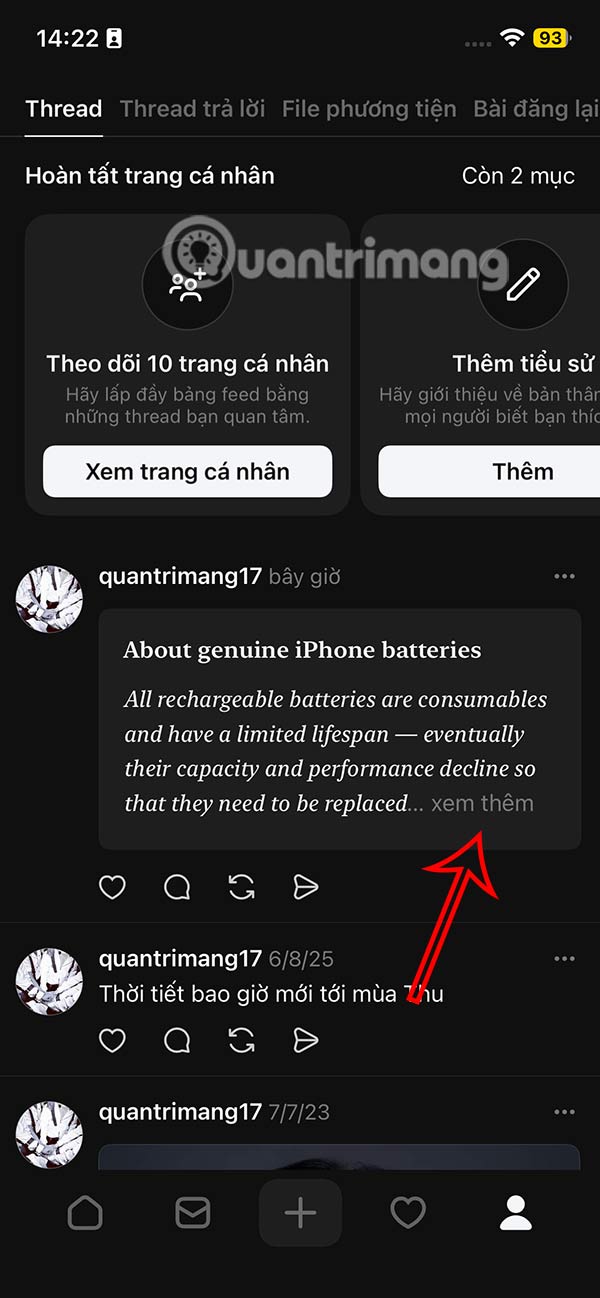
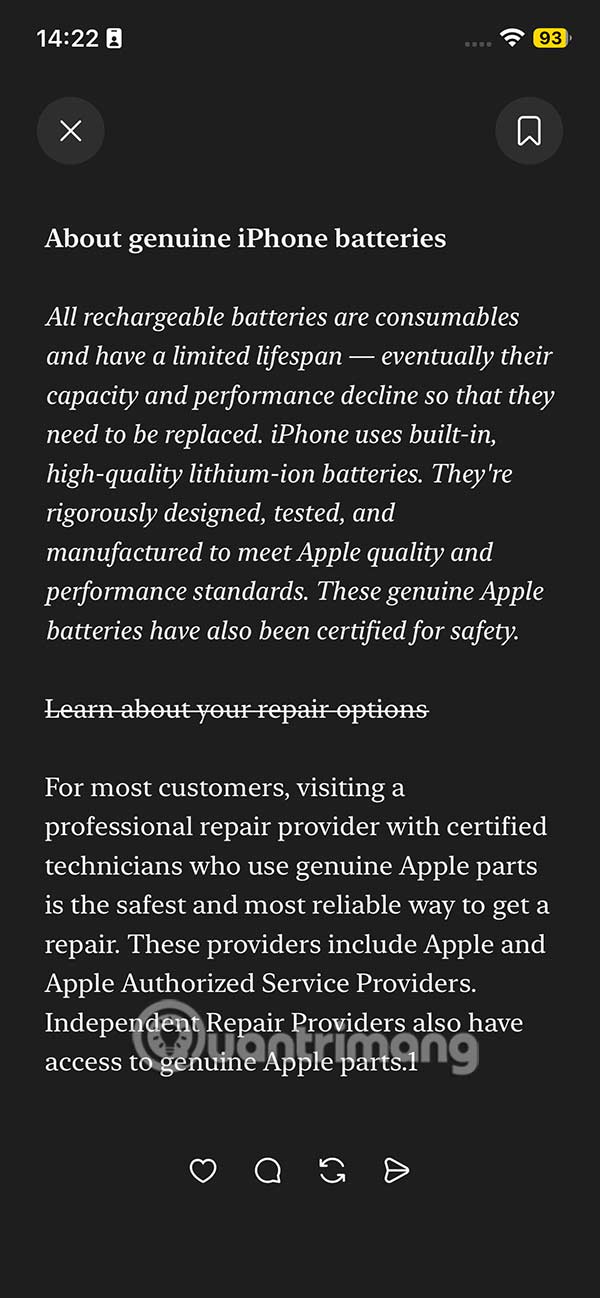
Finally, click Post Attachment to Threads. The attachment posted to Threads is displayed as shown. When you click See more, there are still interaction icons and content storage icons.
How to post attachments on Threads PC
Step 1:
In the Threads interface, select the plus icon to post content, then select the attached text icon .
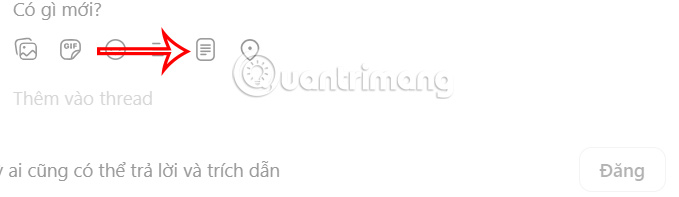
Step 2:
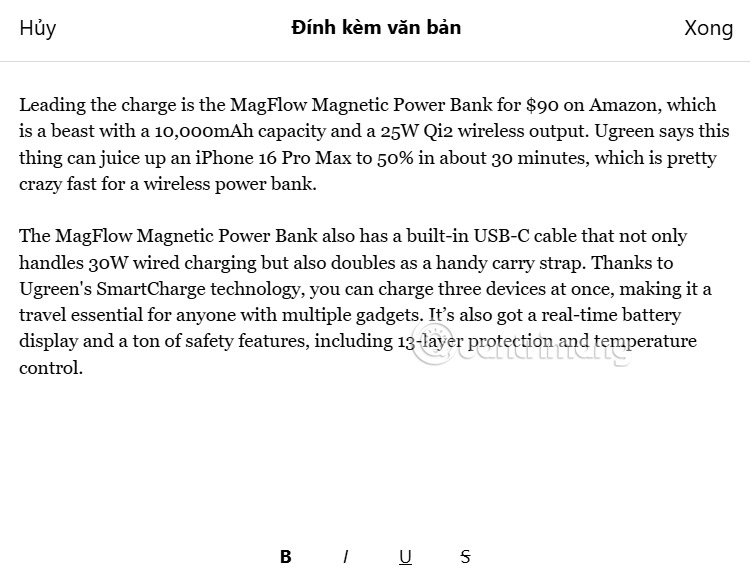
Displays the interface for you to enter text content, below is the text formatting tool .
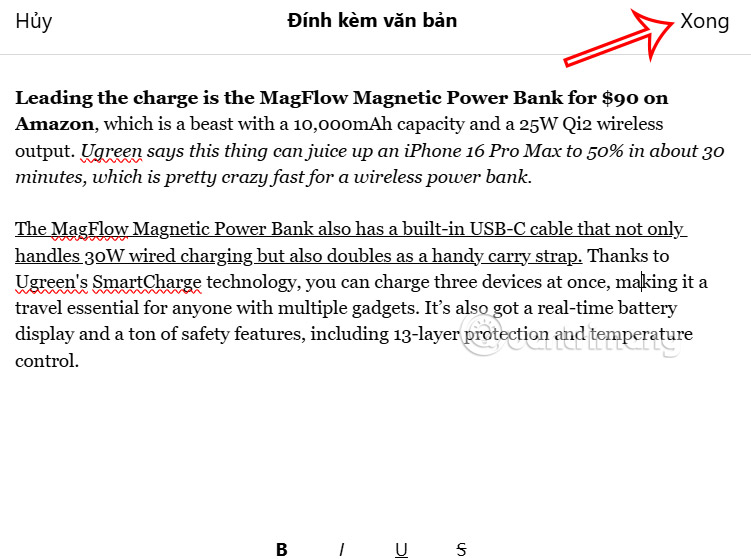
You use the available tools to change the text to your liking, then post it to your account.
Step 3:
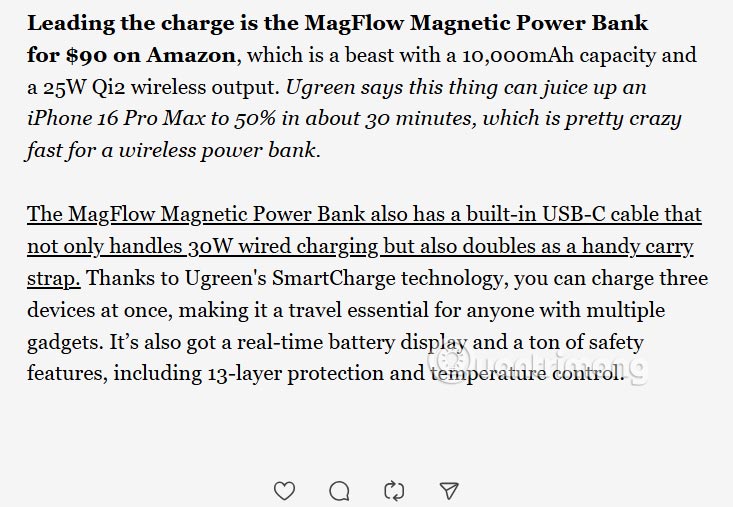
Attachments posted to Threads will appear as shown, along with response icons.
Final Thoughts
Following the steps in order and checking version-specific settings should make it easier to Create Attachments on Threads. If an option looks different, verify the device, app, or operating-system version before changing additional settings.
FAQ
What is the best way to Create Attachments on Threads?
Start with the requirements described in the article and follow the steps in order. Threads has recently updated the attachment text option for you to post articles when you want to post long content, when the normal posting mode of Threads limits the number of characters.
What should you know about How to create text attachments on mobile Threads?
At the interface on Threads, users select the plus icon, then select the text icon as shown. Display the interface for you to enter text and proceed with formatting.
What should you do if the instructions do not match your screen?
Check the device, software version, account permissions, and regional settings. Interfaces can change after updates, so use the closest matching option and consult the official support documentation when necessary.
Related Articles
 minutes read
 How to Create a Chat Group on Threads3 minutes read
 What's Coming to Threads9 minutes read
 What Are Threads? Everything About Meta.'s New Social Network8 minutes read
 How to Hide Comments on Threads, Filter Inappropriate Comments Threads3 minutes read
 How to Turn Off Threads Account Online Status3 minutes read
Reader Comments 0
Sign in with email or Google to join the discussion.