Table of Contents
Gemini Scheduled Actions can run a prompt at a specified time and deliver the result in the same chat. They are useful for recurring briefings, practice questions, and summaries—not just simple reminder text. The feature is limited to eligible Google AI subscriptions and qualifying Workspace plans, and a school or work administrator may restrict access.
Create a scheduled action from a chat
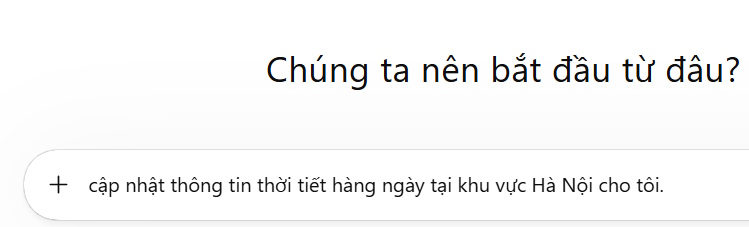
1. Describe the task and schedule
Start a new Gemini conversation and state four details clearly: what Gemini should do, when it should run, how often it should repeat, and what the response should contain. Include a time zone or location when it matters.
Every weekday at 7:00 AM, send me Hanoi's weather forecast for the day. Include the temperature range, chance of rain, and one short clothing suggestion.A precise request is easier to verify than “update me on the weather every day.” For news or research digests, specify the subjects, time window, number of items, and whether links should be included.
2. Check Gemini's confirmation
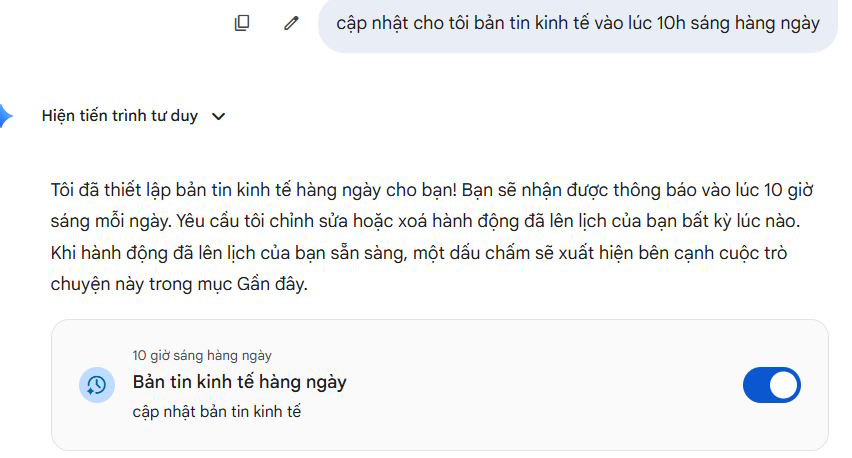
Gemini should confirm that it created a scheduled action and summarize the recurrence. Read that confirmation carefully. If Gemini chose a time because your prompt omitted one, edit the action instead of accepting an unintended default.

You can create other recurring actions in separate chats. Useful examples include a Monday project brief, a daily language quiz, or a Friday summary of selected topics.
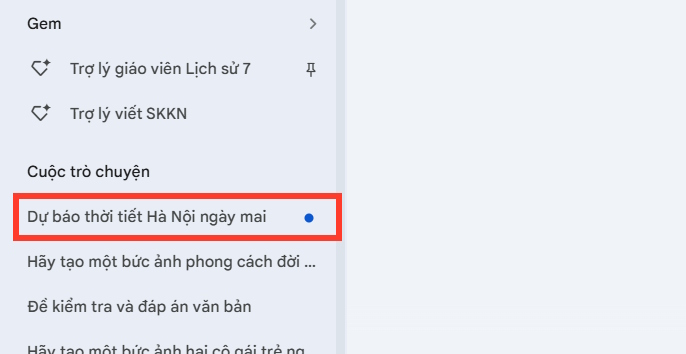
When a scheduled response is ready, the related web chat can be marked unread; the mobile app can also send a notification if device notifications are enabled.
Manage scheduled actions
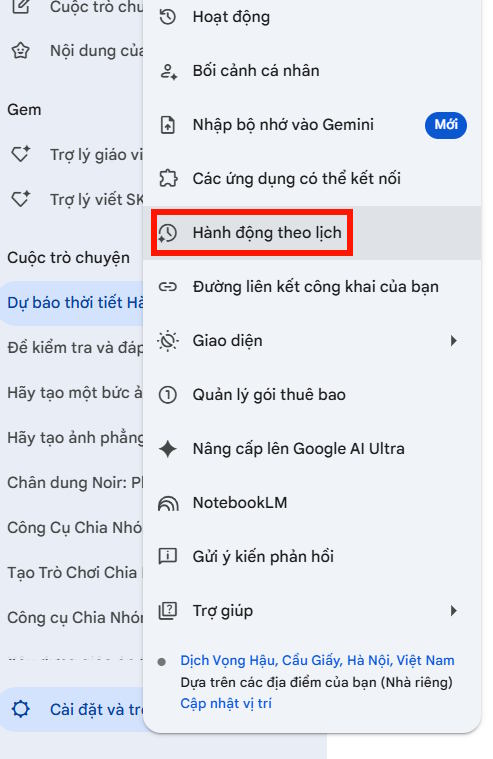
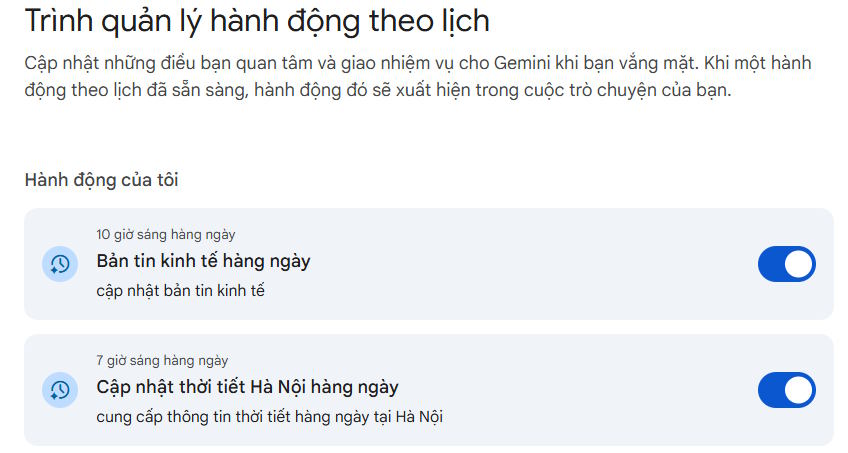
Open Settings and help, then select Scheduled actions. The wording and icon placement can vary slightly between the web and mobile interfaces.
The management page lists the actions connected to the current Google account. Open an action to confirm its prompt, recurrence, and status.
- Pause: turn the action off. Gemini keeps the setup but stops running it.
- Resume: turn the saved action back on.
- Edit: open the More menu, change the instructions or schedule, and save.
- Delete: use the More menu and confirm deletion when the action is no longer needed.
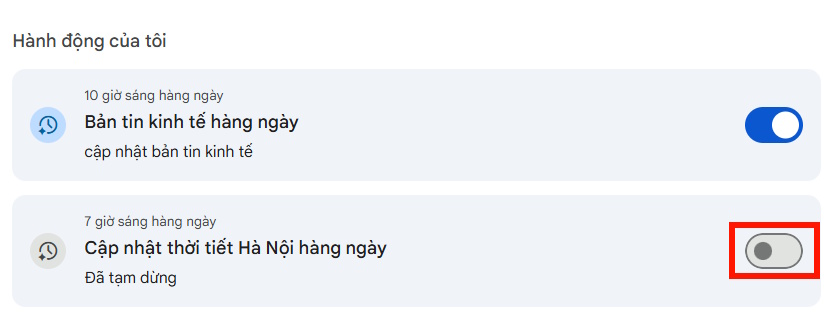
You can also request a change in the action's own chat, but inspect the updated confirmation afterward. Google's Scheduled Actions help page documents the current management steps and notification behavior.
Write a schedule that produces useful results
- Set an explicit cadence: “every weekday” and “on the first day of each month” are clearer than “regularly.”
- Define the output: ask for a table, a five-item digest, or three practice questions rather than an open-ended update.
- Name sources or boundaries: state which calendar, inbox, location, project, or topic the action should cover.
- Avoid duplicate notifications: check the Scheduled actions page before recreating a prompt that appeared to fail.
- Review recurring prompts: pause actions that no longer support a current goal.
If the action needs Gmail, Calendar, or another service, Gemini may ask you to connect the relevant app. Review the requested permissions before enabling it. For a broader look at what an assistant can manage, see TipsMake's guide to the best AI assistants. If a deterministic calendar or to-do workflow would be safer, compare dedicated options such as these Google Calendar alternatives.
Know the limitations
Scheduled responses may be prepared before the delivery time. Google warns that rapidly changing information, such as market prices, may therefore not be current when the notification arrives. Use Scheduled Actions for summaries and routine updates, not as the only source for urgent weather warnings, financial decisions, medication, security alerts, or deadlines with serious consequences.
A location-based action continues to use the location recorded when it was created unless you edit it. An action may also be paused after inactivity. If a result does not arrive, check the action status, account eligibility, connected apps, and browser or device notification settings.
Related Articles
 How to Create Mind Maps for Lessons Using Gemini5 minutes read
 Tips for Quickly Creating Automated Tests on Gemini4 minutes read
 A Guide to Creating Presentation Slides Quickly Using Gemini4 minutes read
 Instructions on Creating Multiple-choice Questions on Gemini3 minutes read
 Instructions on Creating a Mind Map for a Lesson Using Gemini5 minutes read
 How to Designing Learning Activities on Twitter3 minutes read
Reader Comments 0
Sign in with email or Google to join the discussion.