Table of Contents
AI text-to-speech tools can turn a written dialogue into a two-speaker listening exercise. DupDub offers a visual voiceover editor, while Google AI Studio can generate controlled multi-speaker speech from a script. Whichever tool you choose, the lesson quality still depends on the script, pacing, pronunciation, and follow-up task.
Prepare the dialogue before generating audio
Choose one listening objective, such as identifying the main idea, recognizing prices and times, or noticing a grammar pattern. Keep the vocabulary appropriate for the learners' level, give each speaker a distinct name, and write contractions as people normally say them. Add a transcript and comprehension questions separately so students can listen before reading.
Read the script aloud once. This catches lines that look natural on screen but sound awkward. Proper names, abbreviations, and homographs may need phonetic spelling or a pronunciation note.
Create a multi-speaker dialogue in DupDub
1. Start a voiceover project
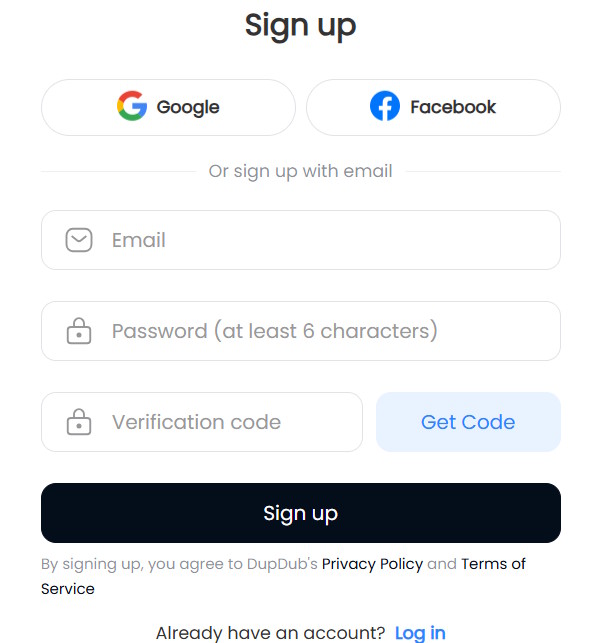
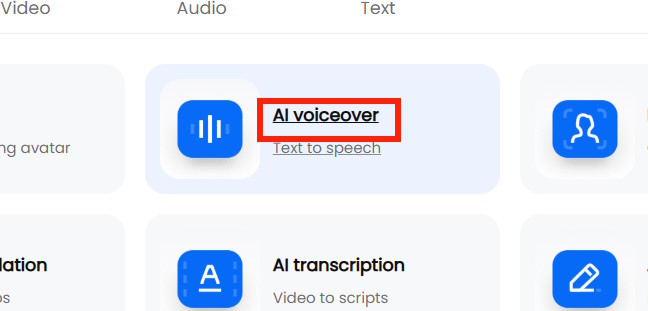
Open DupDub, sign in, and choose the AI voiceover tool. Plans, credits, and export options can change, so check the current limits before building a long lesson.
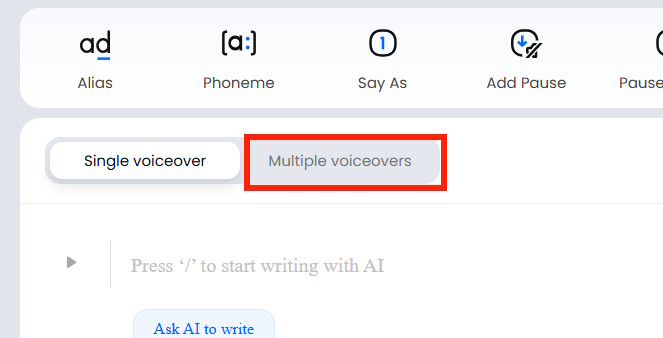
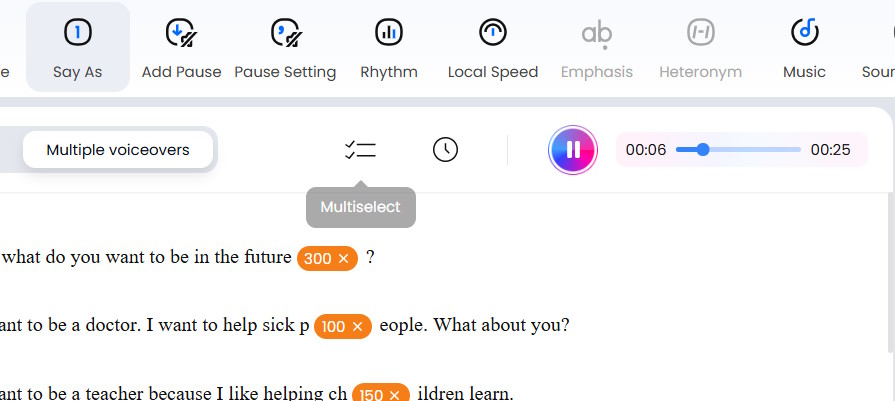
Choose Multiple Voiceovers so different parts of the script can use different speakers.
2. Divide the script by speaker
Paste or type one character's turn per segment. Keep the speaker labels in your lesson notes; remove them from spoken text unless you want the names read aloud.
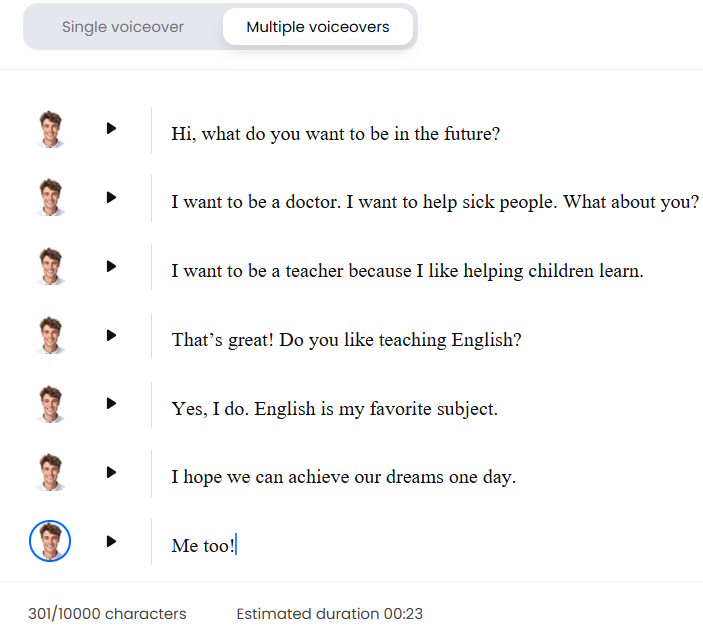
Select the portrait or voice control beside a segment, then filter the voice library by language, accent, and other available characteristics. Assign one voice to every line for Speaker A and another to every line for Speaker B.
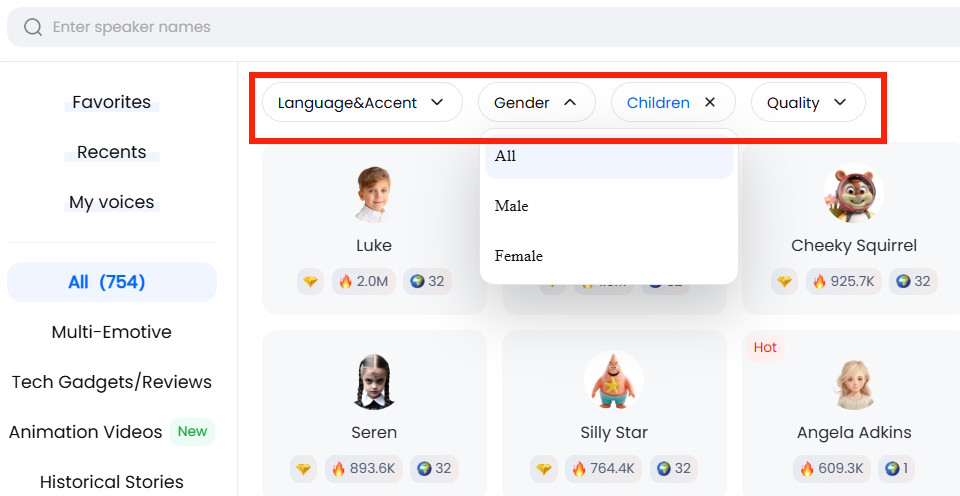
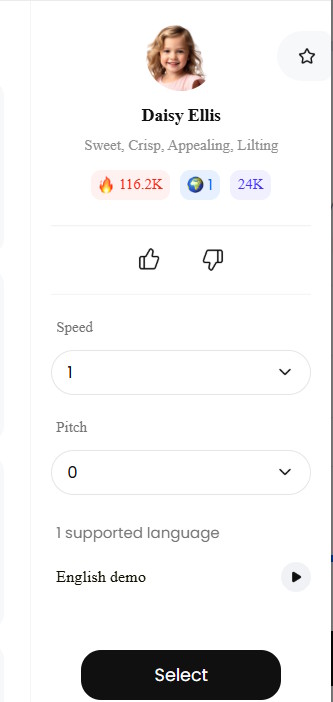
Adjust speed and pitch conservatively. Slower audio is not automatically easier: excessive slowing distorts rhythm and linking. For beginner material, shorten sentences and add clean pauses before reducing the speaking rate.
3. Add pauses and generate a preview
Place a short pause at a natural boundary such as a change of speaker or the end of a sentence. Longer pauses can be useful where learners must write an answer, but they should be planned as part of the activity rather than scattered through the conversation.
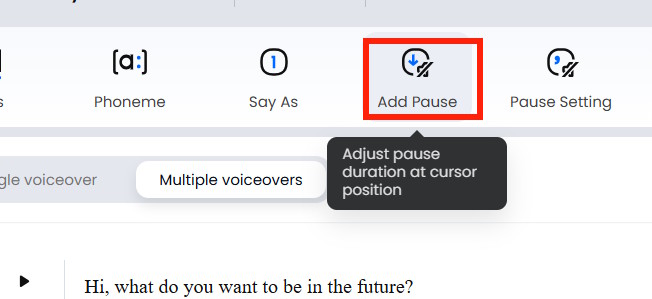
Choose the available pause duration or enter one manually, then preview the surrounding lines.
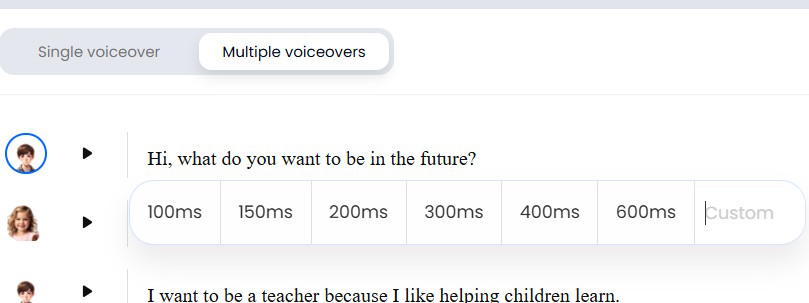
Generate the dialogue. Listen from beginning to end with headphones and check voice consistency, stress, names, numbers, and clipped words.
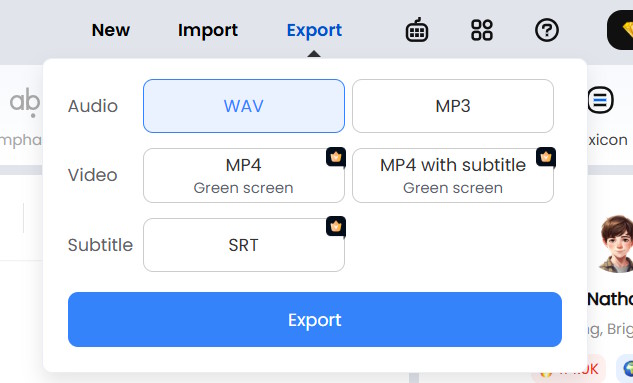
When the recording is ready, select Export and choose an audio format supported by your lesson platform. DupDub's current documentation describes MP3 and WAV among its audio export options, but availability can depend on the account.
Create dialogue audio in Google AI Studio
1. Write and label a two-speaker script
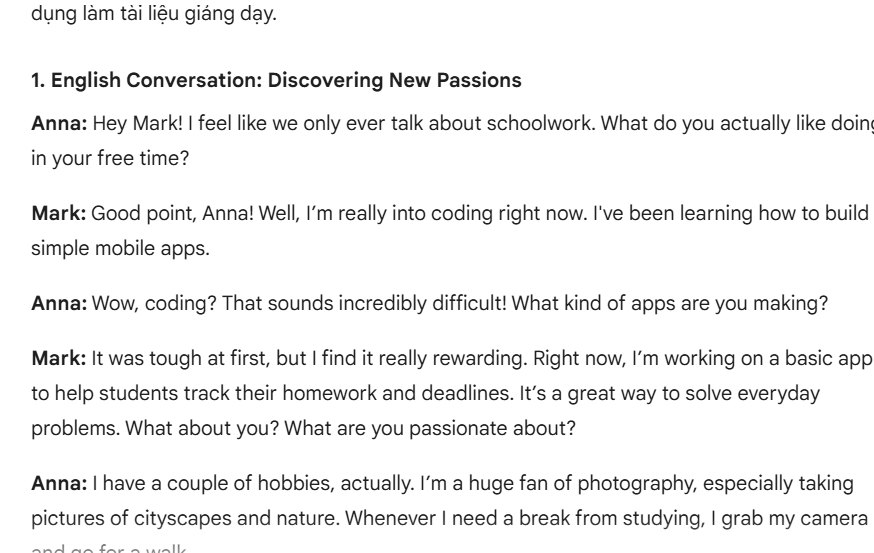
You can write the conversation yourself or ask Gemini for a first draft. If AI generates it, verify grammar, register, cultural context, and factual details. The script should use consistent labels, for example Maya: and Leo:.
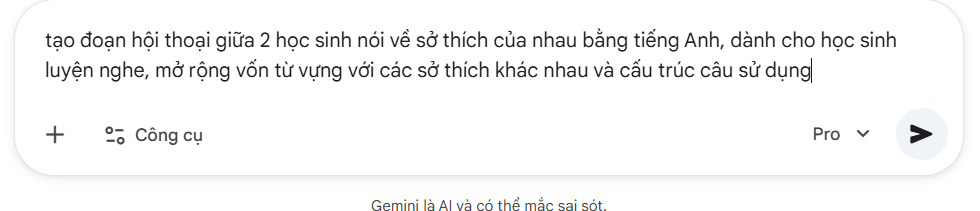
Edit the draft for the exact skill being taught. Remove filler turns that do not support the lesson.
2. Open the text-to-speech interface
In Google AI Studio, open the speech-generation or Text-to-Speech workspace. Select a current model that explicitly supports TTS; do not rely on the older general model name shown in a screenshot. Google's speech-generation guide lists the supported models and explains single- and multi-speaker output.
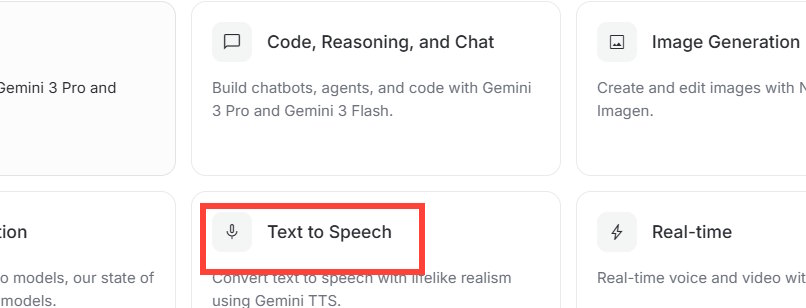
Model choices are updated over time. Select based on the capabilities displayed in AI Studio, then run a short test before generating the full activity.
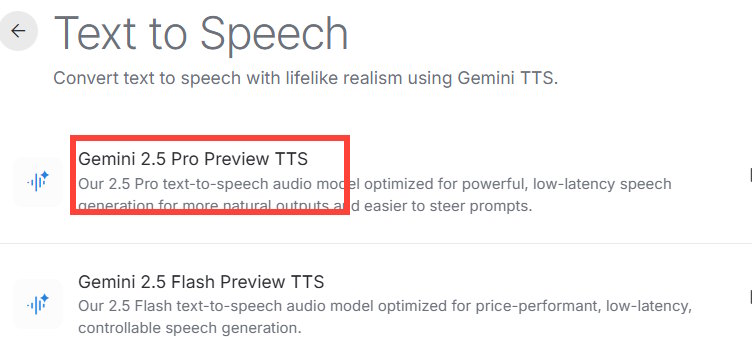
3. Assign a voice to each speaker
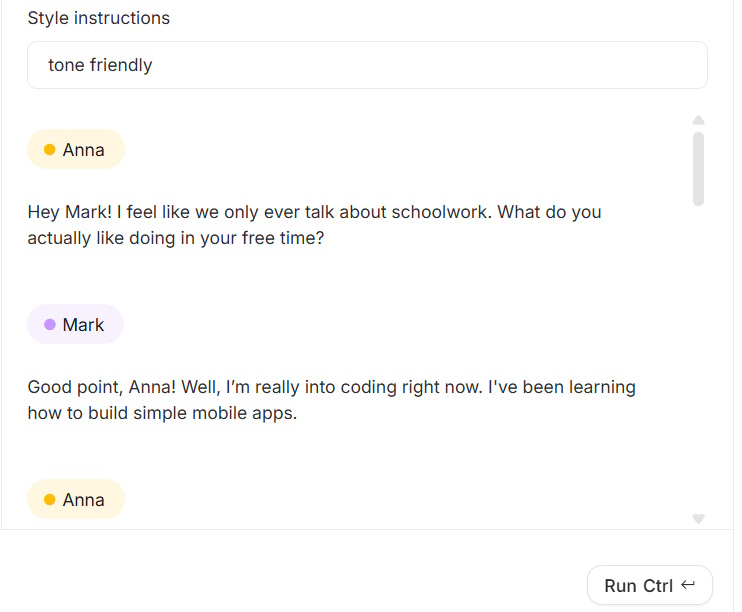
Paste the complete script into the input area and confirm that the speaker names match the labels used in the configuration.
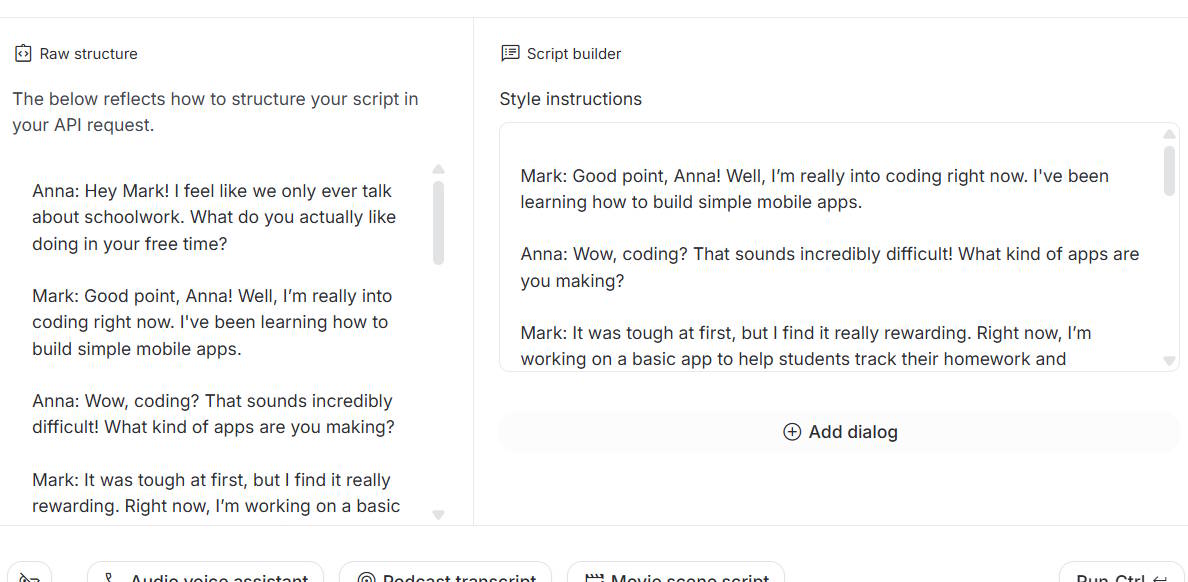
Add both speaker names and choose a different voice for each. Use a natural-language direction for delivery, such as “a calm, friendly conversation between classmates at a normal pace.” Avoid requesting an imitation of a real person.
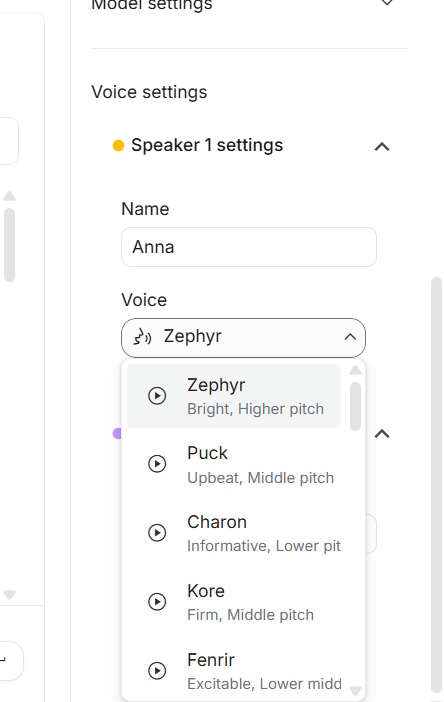
4. Generate, review, and download
Select Run to create the audio. If a word is mispronounced, revise that word or sentence rather than regenerating an unchanged script and hoping for a different result.
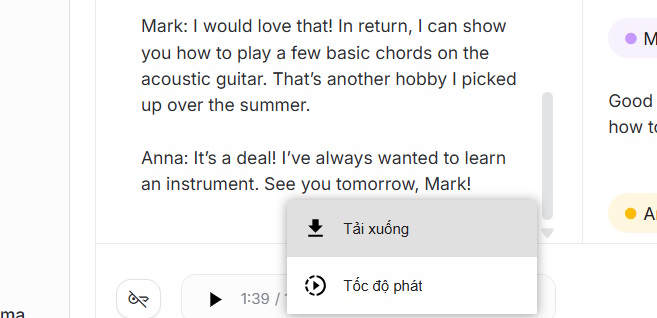
Play the result, then use the download control provided by AI Studio. Preview models and interfaces can change, so save the script and settings alongside the audio for reproducibility.
Turn the recording into a useful listening task
- First listen: ask one gist question without showing the transcript.
- Second listen: add two or three questions about specific details.
- Language focus: replay one short excerpt for pronunciation, vocabulary, or grammar noticing.
- Transcript check: let learners compare answers with the written dialogue.
- Production: ask pairs to adapt the situation and record their own version.
Test the audio on the same speakers or learning platform students will use, and provide a transcript for accessibility. For additional practice options, review these English learning apps for Android and iOS and the guide to English pronunciation tools on a PC.
Protect learners and respect voice rights
Do not upload student names, recordings, or personal information without the permissions required by your school. Use licensed voices, do not clone a person's voice without informed consent, and disclose synthetic audio when the context could otherwise mislead listeners.
Related Articles
 Create English Listening Practice Conversations Using Google AI Studio4 minutes read
 To Be Good at English, Don't Forget to Visit These 13 Youtube7 minutes read
 How to Create an English Review Conversation on Educaplay3 minutes read
 12 Facebook Pages Useful for English Learners: Learn English5 minutes read
 Shadowing Technique: Practice Speaking English Effectively4 minutes read
 How to Create Dialogue for a Topic on Twitter3 minutes read
Reader Comments 0
Sign in with email or Google to join the discussion.