Table of Contents
Copilot Vision lets Microsoft Copilot answer voice questions about a screen, app, web page, or mobile camera feed that you choose to share. It can explain visible text, charts, interfaces, and objects, but it does not click, type, scroll, or operate the device for you.
Availability depends on the account, region, language, platform, and rollout. Microsoft’s current consumer support page says Vision requires a Microsoft 365 Personal, Family, or Premium subscription. Work-account availability and controls can differ.
Use Copilot Vision on Windows
- Open Microsoft Copilot and start a Voice call. Vision is off until you deliberately share something.
- Select Share screen.
- Choose the screen or app you want Copilot to see, then confirm the share. Microsoft currently allows up to two apps at a time.
- Check for the visible outline around the shared app or screen and the floating Vision toolbar.
- Ask a specific voice question, such as “What does this error message mean?” or “Explain the trend in this chart.”
- Select Stop in the floating toolbar when you are finished.
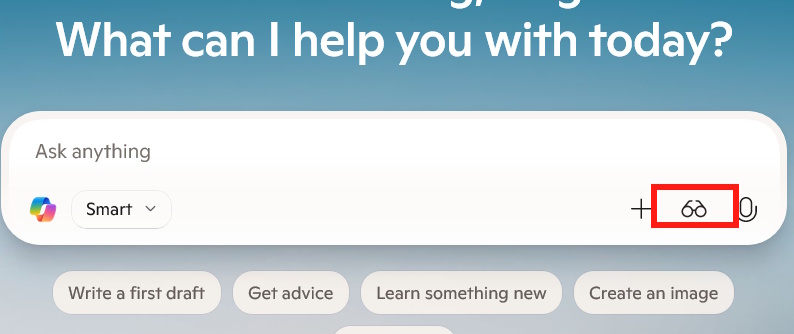
The button may appear as a glasses icon or as a screen-sharing control, depending on the app version. The current Microsoft instructions begin with a Voice call and then use Share screen.
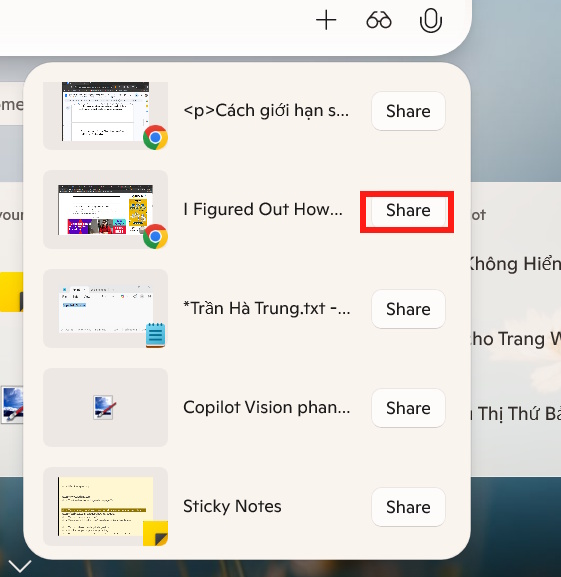
Choose the narrowest useful share. If the question concerns one application, share that app instead of the full desktop so unrelated notifications and windows are not exposed.
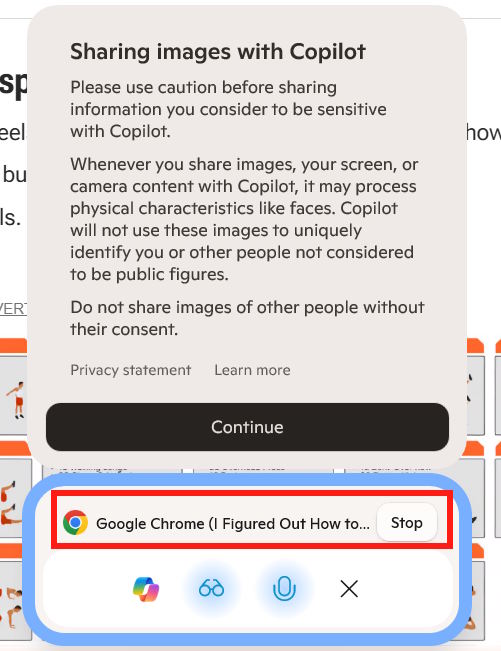
Use Copilot Vision in Microsoft Edge
- Sign in to Edge with a personal Microsoft account.
- Select the Copilot icon in the Edge toolbar.
- Select the Voice button and begin a voice session.
- Select Share screen to add Vision.
- Open the supported website, video, or PDF you want to discuss and ask your question.
- To end Vision, select X in its toolbar, close the Copilot side pane, or exit Edge.
Some pages cannot be analyzed, including unsupported, restricted, harmful, adult, or DRM-protected content. A disabled Vision control usually indicates that the current page is not supported.
Use the mobile camera
- Open the Microsoft Copilot app on iOS or Android.
- Start a Voice session, then select Share screen or the camera control shown in your version.
- Grant camera permission if prompted.
- Point the camera at the object, document, or interface and keep it steady while asking a question.
- Select X or the camera control again to stop the Vision session.
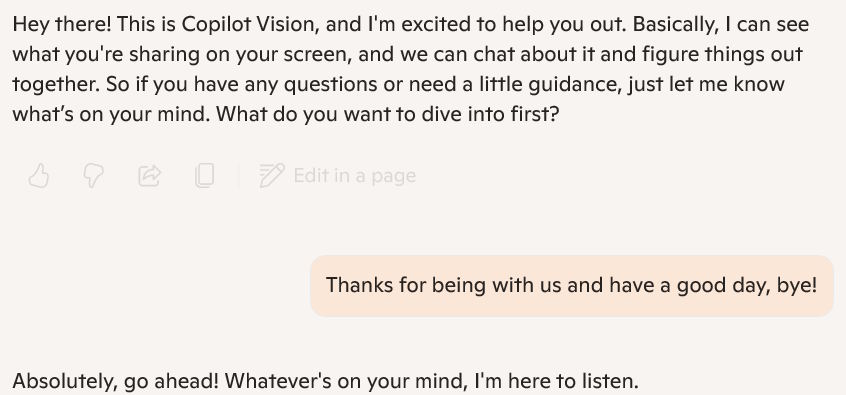
Microsoft says mobile Vision and screen sharing are being enabled gradually, so the control may not yet appear for every account. If the feature is missing, update the app, confirm eligibility, and check again later rather than installing an unofficial copy.
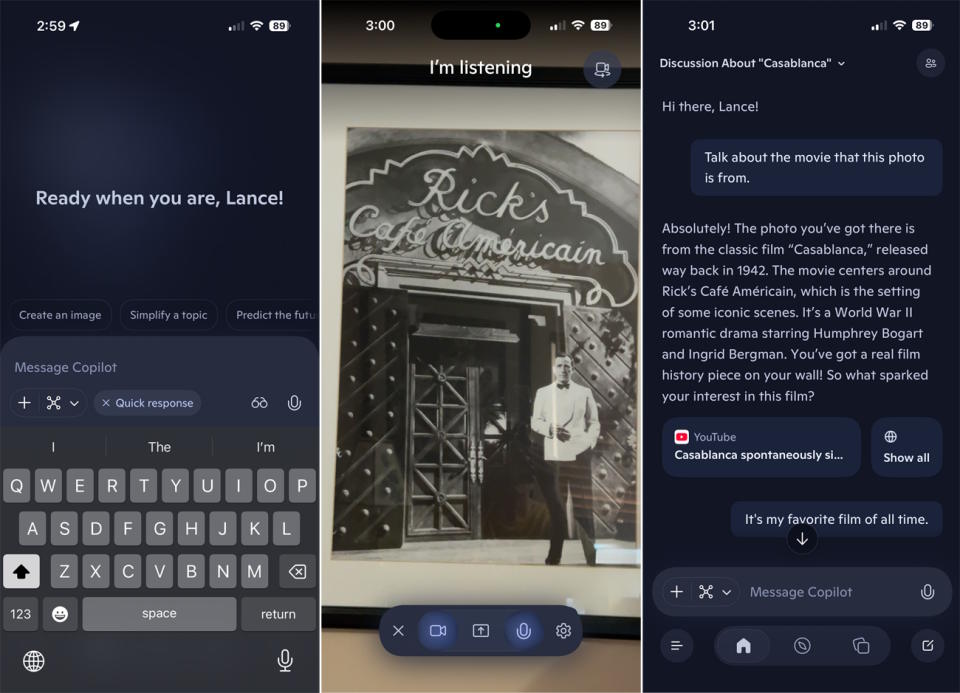
Questions Copilot Vision handles well
- “Summarize the visible sections of this page.”
- “Where is the setting for changing the page layout?”
- “Read this error and give me two likely causes to check.”
- “Describe the differences between these two charts.”
- “What is this connector or household object, and what details should I check before using it?”
Keep the relevant content visible and ask one concrete question at a time. If you need a dedicated image-search tool instead of continuous guidance, compare Copilot Vision and Google Lens.
Accuracy and safety limits
Vision may misread small text, overlook part of the screen, confuse similar objects, or give an answer that sounds more certain than the image supports. Zoom in, improve lighting, and verify critical details yourself. Do not rely on it to identify medication, diagnose a health problem, assess an electrical or mechanical hazard, or make another safety-critical decision.
Copilot Vision provides guidance rather than remote control. If you need step-by-step help, ask it to describe the next visible action and confirm the screen after each step. Never enter a password, payment code, or other secret while it is in view.
What happens to shared data
Microsoft’s Copilot Vision support page says Vision activates only when the user starts a session. It also says the visual input is not used to train models or personalize the experience; session data may be retained temporarily for up to 47 hours to support user-submitted feedback, while a text transcript can remain in chat history until deleted.
Do not share confidential records or another person’s image without permission. Microsoft may request consent for processing faces or hands in Vision features. Review the current Copilot privacy FAQ before using the camera or screen sharing with sensitive material.
If Copilot Vision is missing or cannot see the right content
- Confirm that the Microsoft account and subscription are eligible.
- Update Copilot, Edge, iOS, or Android and restart the app.
- Start a Voice session before looking for the screen-sharing control.
- Check microphone, screen-recording, and camera permissions in the operating system.
- Stop the session and share only the intended app or screen again.
- Try a supported page if the Vision icon is disabled in Edge.
For a broader comparison of the assistant rather than this one feature, see ChatGPT vs. Microsoft Copilot.
Related Articles
 Microsoft Launches Copilot Vision on Windows: Letting AI 'See' Your3 minutes read
 Windows 11 Supports Full Desktop Sharing with Copilot3 minutes read
 Comparing Microsoft Copilot Vision and Google Lens9 minutes read
 7 Reasons Copilot Is Worth Using7 minutes read
 Instructions on Disabling New Tab Copilot on Microsoft Edge3 minutes read
 How to Use the Copilot Library3 minutes read
Reader Comments 0
Sign in with email or Google to join the discussion.