Table of Contents
n8n can run locally on Windows 11 in a Docker container. The safest beginner setup keeps the editor available only on your computer, stores workflows in a persistent Docker volume, and uses n8n's first-run owner account instead of obsolete basic-auth variables.
This guide covers a local learning or personal-automation setup. If other people or internet services must reach your n8n instance, do not expose port 5678 directly; use a properly configured HTTPS reverse proxy and follow the current n8n documentation.
What you need
- A supported 64-bit edition of Windows 11 with hardware virtualization enabled.
- Docker Desktop using the WSL 2 backend. Check the current requirements before installing, because supported Windows and WSL versions change.
- Enough free disk space for Docker, the n8n image, and your workflow data.
n8n describes itself as a fair-code licensed workflow automation tool. It is self-hostable, but that does not mean every use is covered by a conventional open-source license.
1. Install Docker Desktop and verify WSL 2
Download Docker Desktop from the official Windows installation page. Use the recommended per-user installation unless your organization has different requirements, and select the WSL 2 backend when prompted.
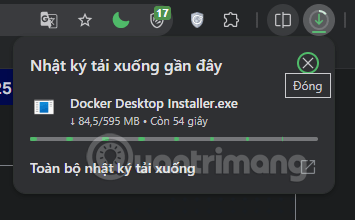
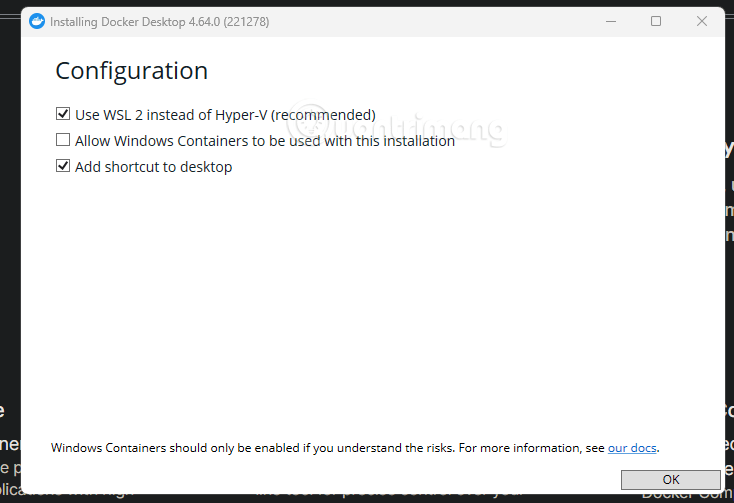
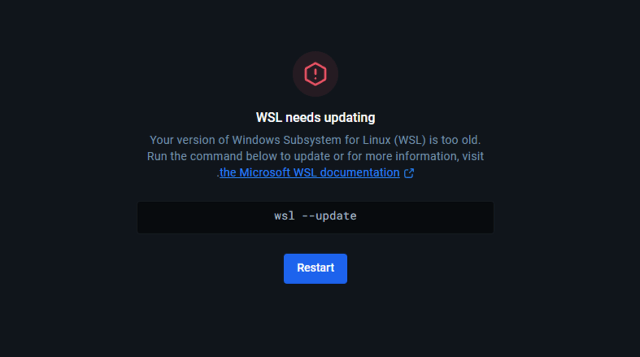
If Docker reports that WSL needs attention, open PowerShell as administrator and check the installed version:
wsl --versionInstall or update WSL with the appropriate Microsoft command:
wsl --install
wsl --update
Restart Windows if the installer requests it, then open Docker Desktop and wait until its engine is running.

2. Create persistent storage for n8n
A container can be replaced during an update. A named volume keeps n8n's database, settings, encryption key, workflows, and credentials outside that disposable container.
Open PowerShell and create the volume:
docker volume create n8n_dataYou can also create n8n_data from Docker Desktop's Volumes screen. Do not casually delete this volume; back it up before major upgrades or configuration changes.
3. Download and run the n8n container
In Docker Desktop, open Images and search for the official n8n image. The interface may show n8nio/n8n; current n8n examples use the registry path docker.n8n.io/n8nio/n8n.


After the image downloads, select Run and open the optional settings.

Container settings
- Name: n8n
- Port: map host port 5678 to container port 5678. For a local-only setup, bind the host side to 127.0.0.1 if the interface offers a host-IP field.
- Volume: mount n8n_data at /home/node/.n8n.
- Environment: set TZ and GENERIC_TIMEZONE to Asia/Ho_Chi_Minh if that is your timezone. You can also set N8N_ENFORCE_SETTINGS_FILE_PERMISSIONS=true.
Do not add old N8N_BASIC_AUTH_* examples. Current versions use the owner account created on first launch. Also avoid placing API keys or service passwords directly in screenshots or shared configuration files.
Select Run, then confirm that the container appears as running in Docker Desktop.

Command-line alternative
The same local-only setup can be created in PowerShell. This command uses the named volume created above:
docker run --name n8n ^
  -p 127.0.0.1:5678:5678 ^
  -e TZ=Asia/Ho_Chi_Minh ^
  -e GENERIC_TIMEZONE=Asia/Ho_Chi_Minh ^
  -e N8N_ENFORCE_SETTINGS_FILE_PERMISSIONS=true ^
  -v n8n_data:/home/node/.n8n ^
  docker.n8n.io/n8nio/n8n
PowerShell also accepts the command on one line. For a repeatable production deployment, use Docker Compose and pin a tested n8n version instead of automatically adopting every new release.
4. Create the owner account
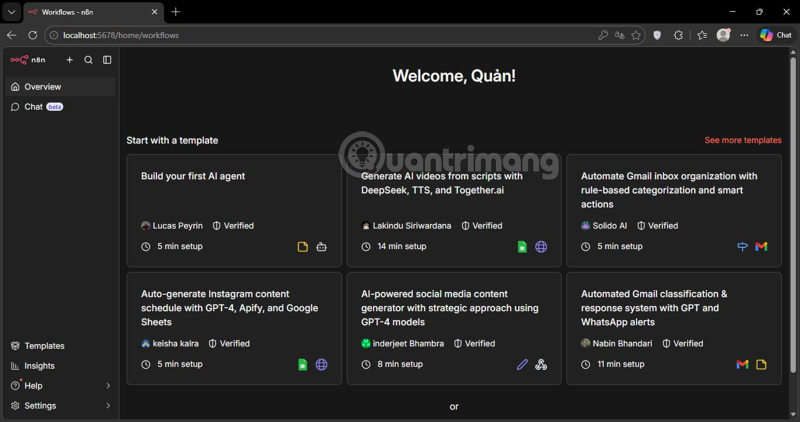
- Open http://localhost:5678 in your browser.
- Create the owner account with an email address and a unique, strong password.
- Complete or skip optional onboarding, then open the workflow editor.
5. Build and activate a simple workflow
- Select New workflow.
- Add a Manual Trigger while testing, or a Schedule Trigger for timed automation.
- Add an action such as HTTP Request, Google Sheets, Telegram, or Email. Configure credentials through n8n's credential interface rather than pasting secrets into ordinary fields.
- Connect the nodes and run the workflow manually. Inspect each node's input, output, and error details.
- Save the workflow. Activate it only after the test run produces the expected result.
Webhook workflows need a URL that the calling service can reach. A localhost URL works only from the same computer. Public webhooks require a secured deployment with a correct public URL and HTTPS.
Troubleshooting
localhost:5678 does not open
- Confirm Docker Desktop is running and the n8n container status is Running.
- Open the container's Logs tab, or run
docker logs n8n. - Check whether another program already uses port 5678. If it does, recreate the container with a different host port, such as 5679, while keeping container port 5678.
- Run
docker versionandwsl --versionto confirm Docker and WSL are available.
Do not disable Windows Firewall as a general troubleshooting step. Fix the port mapping or create only the narrowly scoped firewall rule the deployment actually needs.
The container stops after launch
Read the container logs first. Common causes include a malformed environment value, a port conflict, or a volume permission problem. Correct the specific error instead of repeatedly deleting the volume.
Updating and backing up n8n
Before an update, back up the n8n_data volume and review the release notes for breaking changes. Pull the intended image version, stop and remove the old container, then recreate it with the same volume and environment settings. Removing the container does not remove a separately managed named volume, but deleting the volume will remove the stored n8n data.
For a server used by a team or exposed to the internet, move beyond this desktop setup: use HTTPS, a reverse proxy, controlled backups, restricted network access, and a supported database configuration appropriate to the workload.
Related Articles
 What Are Screensavers: How to Installing Screensavers on Windows6 minutes read
 Instructions for Installing GIT and Configuring GIT on5 minutes read
 Instructions for Installing Windows 11, Installing Windows 11 Using ISO File8 minutes read
 Instructions for Installing the Window 10X Emulator on Window 106 minutes read
 Detailed Instructions on How to Install Windows 7 for Beginners4 minutes read
 Instructions for Installing Windows XP with USB Step by Step from a to Z5 minutes read
Reader Comments 0
Sign in with email or Google to join the discussion.