Table of Contents
This guide explains how to zoom in and Out of Computer Screen with Magnifier on Windows 7 &, with clear steps, practical tips, and important checks before you begin.
1. For windows 10
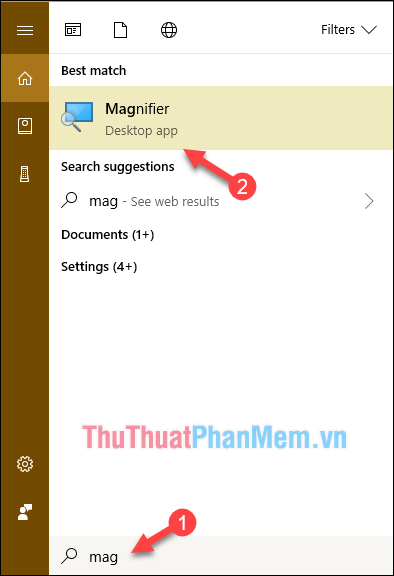
To activate the Magnifier feature, you have 2 ways, the first way is to press Windows key and plus sign (+) and the second way is to open the search feature and enter the word Magnifier, then the result of Magnifier feature will be appear:
And here is the interface of the magnifier, which can be said to be simpler and easier to use:
We have 2 buttons - and + to zoom in and out, besides the zoom percentage parameter.

Click the Views button we will have 3 Zoom modes as follows:

- Full screen mode : Your entire screen will be maximized.

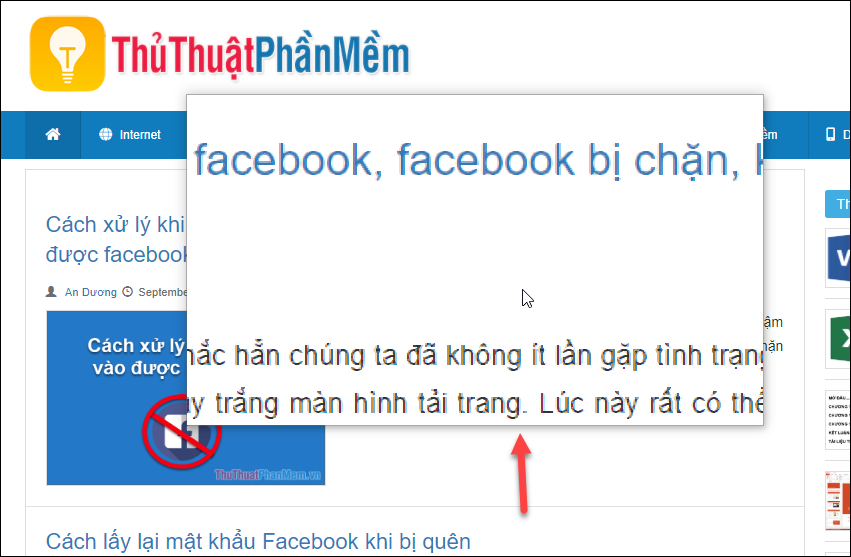
- Lens mode : Zoom in an area around your mouse cursor, ie you hover the mouse to any position, that position will be zoomed up.
- Dock mode : The zoom location will be at a specified position on the screen, the default will be at the top of the screen.
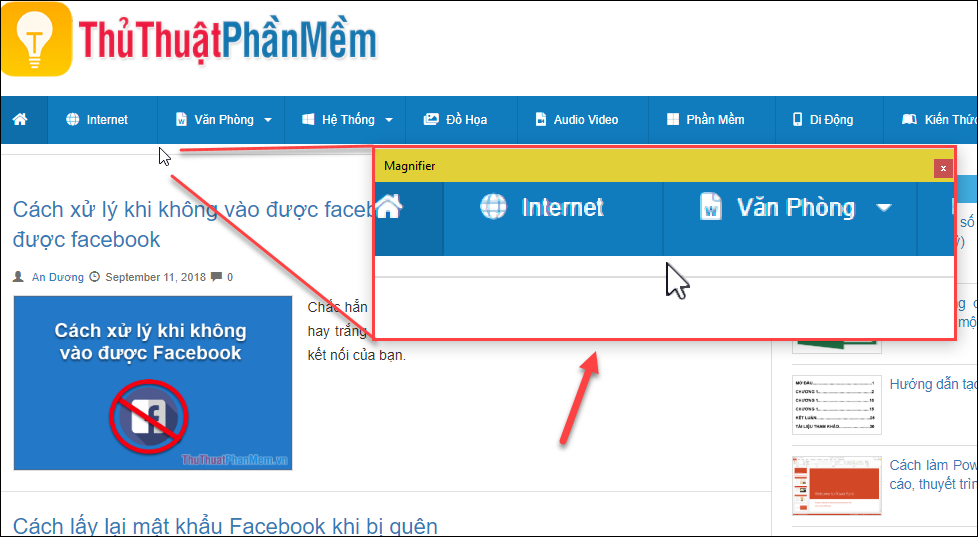
As you can see in the image below, the entire rectangular strip at the top of the screen displays the enlarged area.
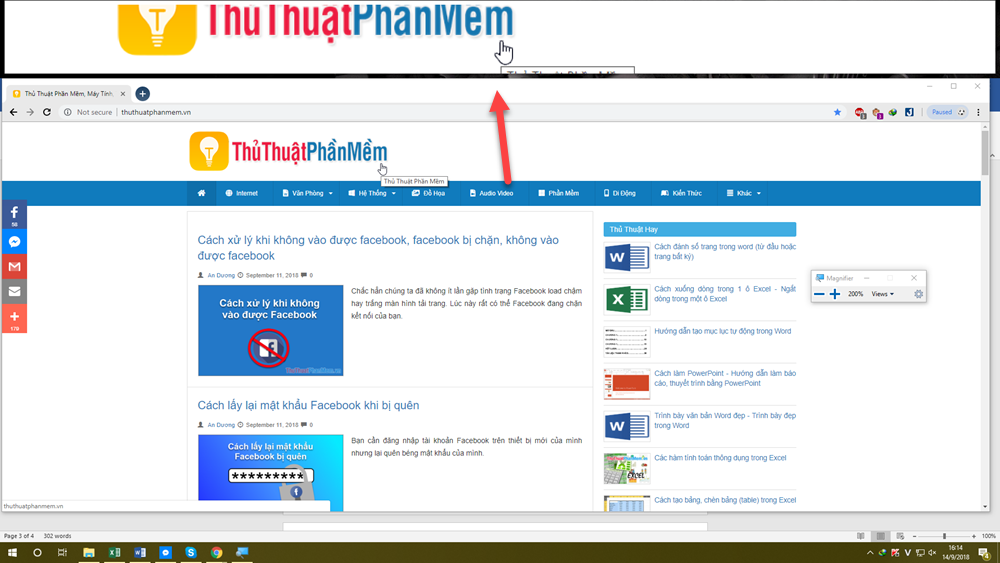
The zoom area is not necessarily on the top, you can expand or drag it elsewhere as shown below:
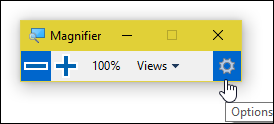
In addition, when you click on the settings icon, the Magnifier setup window will appear:
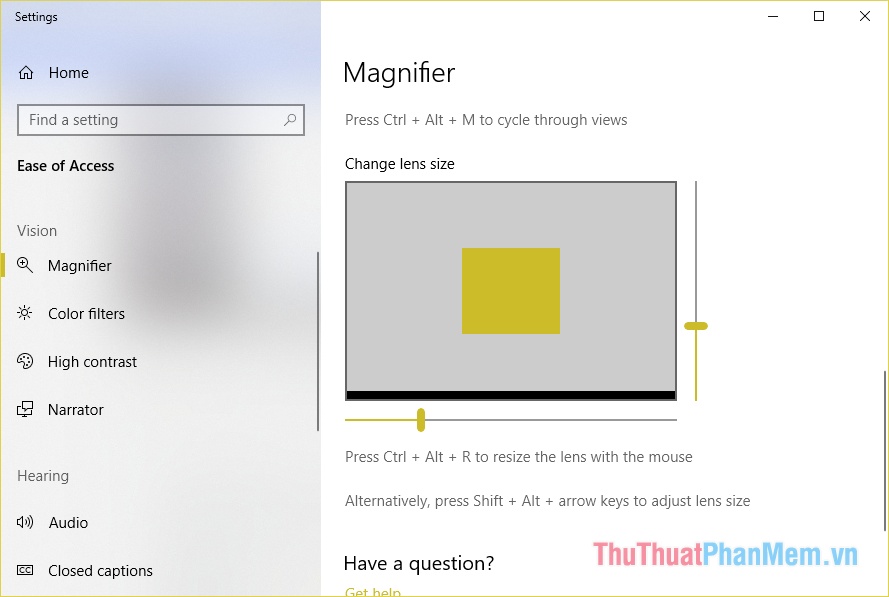
You can also customize some of the magnifier's features such as changing the zoom area color, resizing the zoom area in Lens mode.
When there is no need to use anymore, you just need to press Windows key + Esc to exit.
2. For Windows 7
On Windows 7, the Magnifier function is no different, to activate you also press the Windows key with the + button or open Start to search for Magnifier
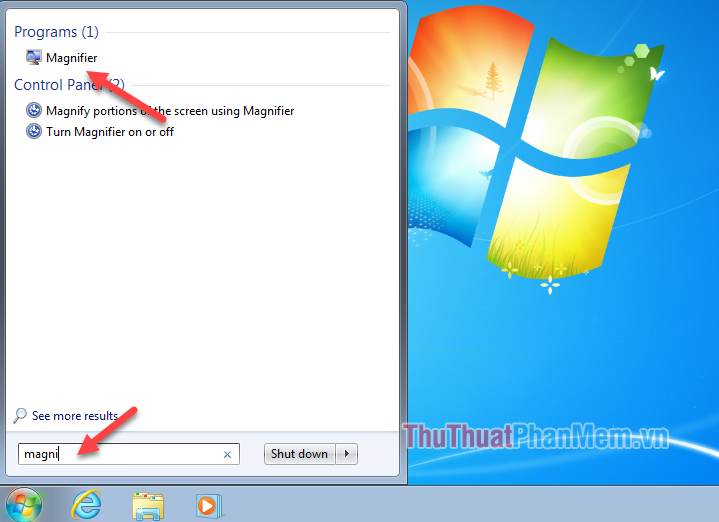
Magnifier's interface is the same as on windows 10:
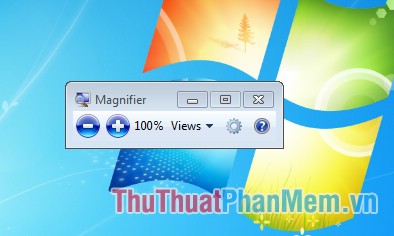
How to use Magnifier on windows 7 is exactly the same on windows 10, please do the same.
Some useful keyboard shortcuts when using Magnifier:
- Windows + (+/-): zoom in and out
- Ctrl + Alt + Spacebar: View the entire desktop desktop in full screen mode
- Ctrl + Alt + D: switch to docked mode
- Ctrl + Alt + F: switch to full screen mode
- Ctrl + Alt + I: change color
- Ctrl + Alt + L: switch to lens mode
- Ctrl + Alt + R: Resize Len
- Windows key + Esc: exit the magnifying glass
Above is an article on how to enlarge your computer screen with the Magnifier tool available in windows 7 and windows 10. Hope you will find the article helpful, thank you for watching.
FAQ
What should I know about Zoom in and Out of Computer Screen with Magnifier on Windows 7 &?
Focus on the key features, requirements, limitations, and practical use cases explained in this guide.
How do I get the best results with Zoom in and Out of Computer Screen with Magnifier on Windows 7 &?
Follow the recommended steps, use current software or information, confirm compatibility, and review settings before major changes.
Are there any risks or limitations?
Potential limitations depend on compatibility, data quality, cost, privacy, support, and how the product or method is used.
Related Articles
 Zoom in, Zoom Out the Computer Screen with Magnifier on Windows 76 minutes read
 How to Invert Screen Colors Using Magnifier Windows 112 minutes read
 How to Change Voice Speed Magnifier in Windows 113 minutes read
 Detailed Instructions for Using Magnifier on iPhone: Key Facts4 minutes read
 Magnifier: How to Invert Colors on Windows 73 minutes read
 Have You Tried Using the Magnifying Glass Feature on iOS 10?5 minutes read
Reader Comments 0
Sign in with email or Google to join the discussion.