Table of Contents
This practical guide explains how to view Windows 11 text and image creation apps. Follow the steps in order, review the requirements first, and use the troubleshooting notes when a setting or option does not work as expected.
How to view Windows 11 text and image creation applications
Step 1:
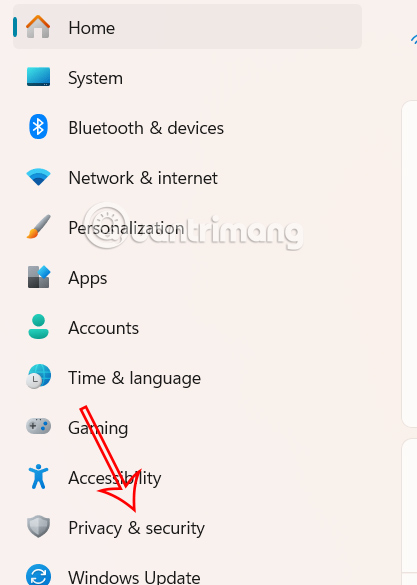
Press the Windows + I key combination to access Settings on your computer, then select Privacy & security .
Step 2:
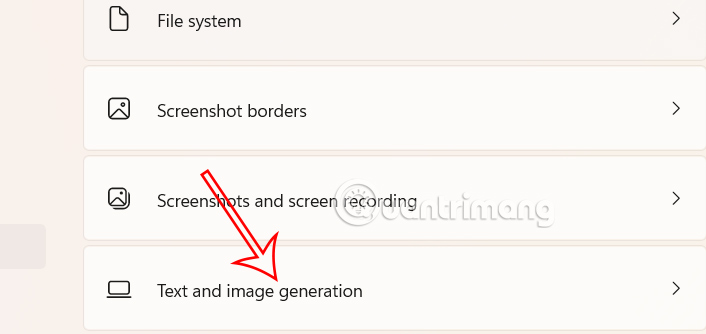
Look at the content next to it and select Text and image generation at the bottom of the interface to do it.
Step 3:
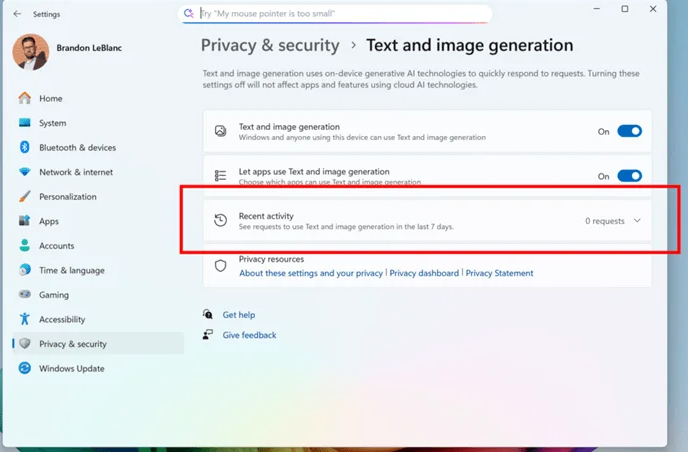
Switch to the new interface, just select Recent activity to check the list of applications that have requested to use the feature within the last 7 days. Any application that has created images and text using AI tools on Windows will be displayed in this list.
FAQ
How to view Windows 11 text and image creation applications?
Press the Windows + I key combination to access Settings on your computer, then select Privacy & security.
What does this guide cover?
This guide explains view Windows 11 text and image creation apps, including the main steps, important details, and practical considerations.
Who is this guide for?
It is designed for readers who want a clear, practical overview and a reliable process they can follow without unnecessary complexity.
Related Articles
 6 Best Android OCR Apps for Extracting Text from Photos7 minutes read
 How to Display Image Alt Text on Threads2 minutes read
 Prompt to Create Toy Models with Gemini4 minutes read
 6 Best Free GIF Creation Apps for Mac8 minutes read
 5 Best AI App Builders in 2026: No-Code Compared13 minutes read
 Experience Lexica.art with its vast library of image2 minutes read
Reader Comments 0
Sign in with email or Google to join the discussion.