Table of Contents
Quick answer
You don't need complex formulas to handle data in Excel 2013. With Flash Fill, splitting, merging, formatting, or reversing strings becomes simple. This feature saves you time, especially when working with repetitive data.
Flash Fill first appeared in Excel 2013. This feature helps you separate first names, dates, email addresses, and much more data with just a few steps. It's fast, simple, and doesn't require formulas.
Ways to use the Flash Fill function in Excel 2013
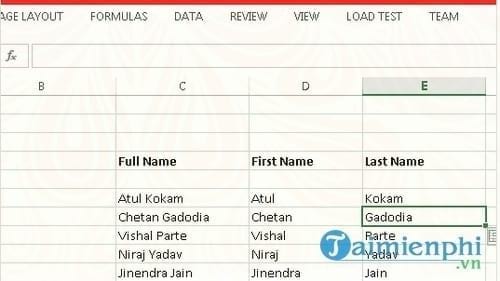
1. Separate first and last names in Excel
You have a column containing full names. Use Flash Fill to split it into two columns: one for the last name, and one for the first name.
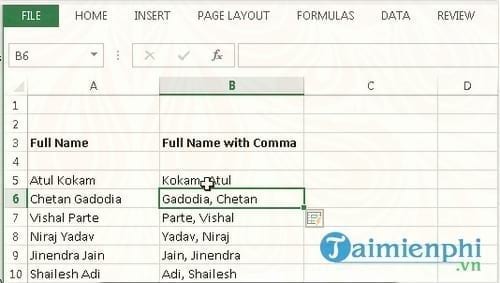
2. Combine the first and last names, separated by commas.
You have a column containing first and last names. Use Flash Fill to separate them into: last name, comma, and then first name.
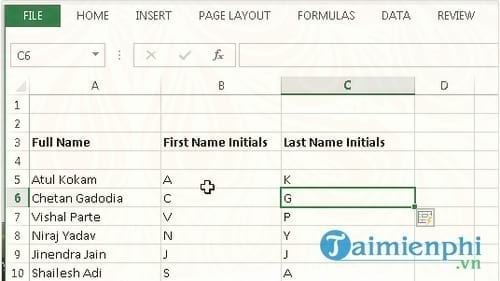
3. Separate the first letter of the full name.
The list below contains full names. Use Flash Fill to extract the first letter and place it in two separate columns.
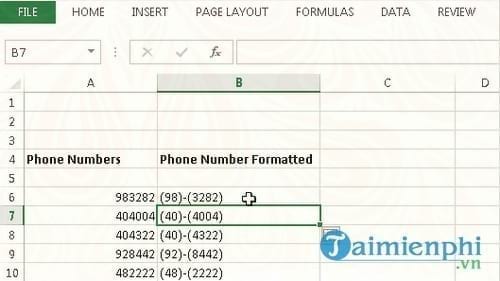
4. Phone number format
Use Flash Fill to format phone numbers. You can add parentheses or hyphens for better readability.
5. Unzip the text before the @ symbol in the email address.
With Flash Fill, you can easily separate the part before the @ symbol in an email address.
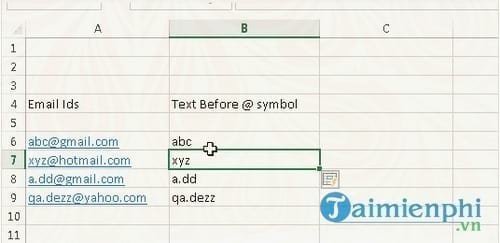
Note : The Flash Fill function cannot recognize changes to the source data.
Flash Fill does not update when you change the original data. Unlike formulas, it does not automatically correct the generated results. Therefore, it should only be used when the data is stable and does not need to be modified later.
Additionally, you can save time by filtering data between sheets . tipsmake has shared this trick; you can refer to it for more information.
Excel has many other useful functions for handling character strings . You can learn more about them on tipsmake to apply them to your work.
Related Articles
 How to Use the FILTER Function in Excel6 minutes read
 MS Excel 2007 - Lesson 8: Sort and Filter: Excel Data Filtering3 minutes read
 How to Use the Subtotal Function6 minutes read
 Guide to Automatic Filter and Filter Detailed Data in Excel6 minutes read
 Data Filtering (Data Filter) in Excel2 minutes read
 How to Filter Duplicate Data on 2 Excel Sheets7 minutes read
Reader Comments 0
Sign in with email or Google to join the discussion.