Table of Contents
Quick answer
Are macros in Excel causing problems or unexpected errors? Check out these simple and quick ways to remove macros to ensure your Excel files run more smoothly.
Before deleting macros in Excel, you need to consider carefully. This may remove previously set up automation features, but your data will remain intact.
 Instructions on how to delete Excel macro files
1. How to delete individual macros in an Excel file
Note: Once a macro is deleted, it cannot be recovered. You should create a backup of the workbook before deleting it.
Step 1: Open the Excel spreadsheet containing the macro, select View => click the down arrow in the Macro section .
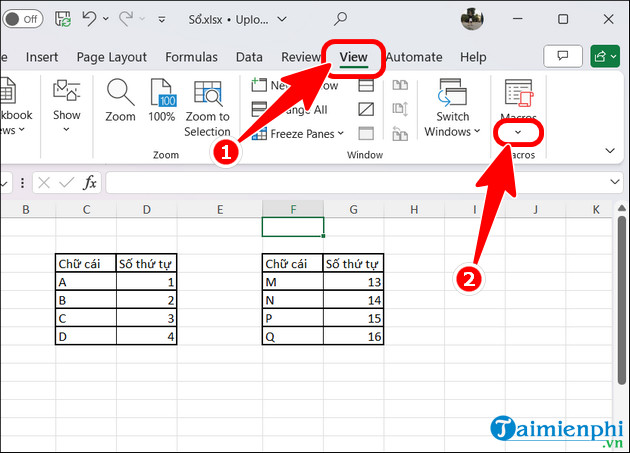
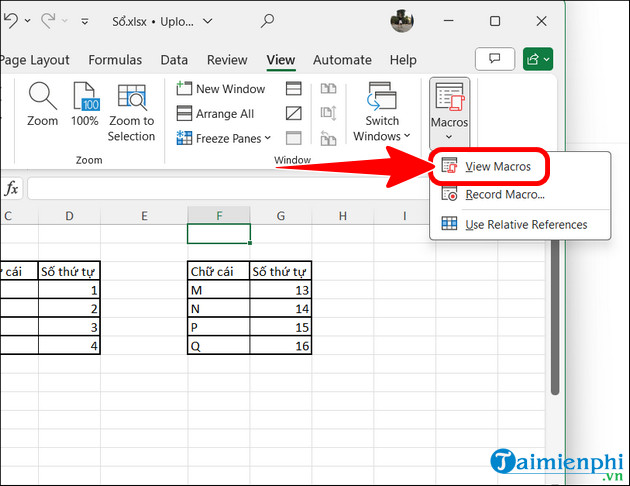
- Click View Macros .
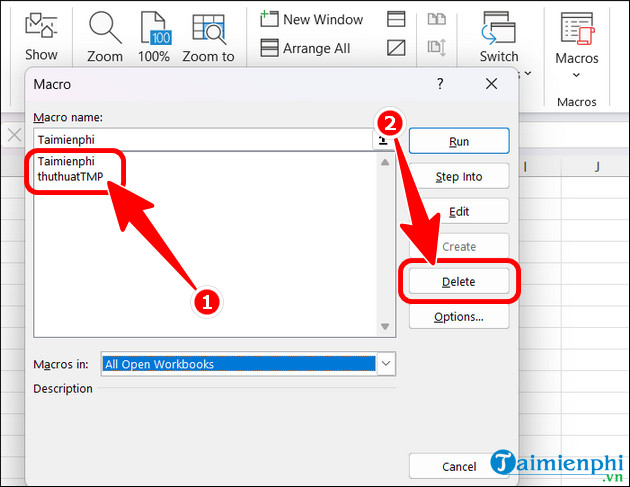
Step 2: Change it to "All open Workbooks" .
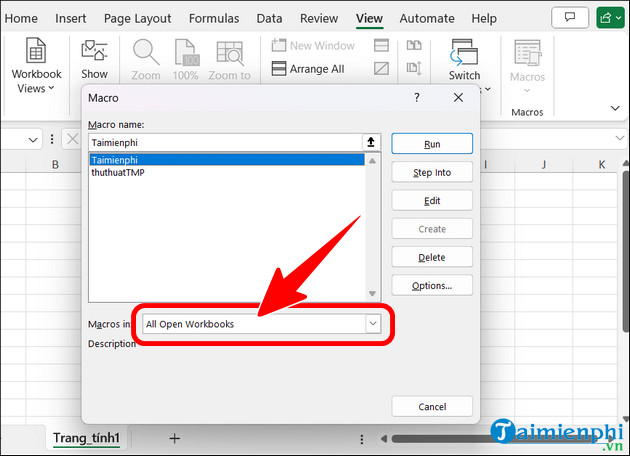
- Select the macro you want to delete => click Delete .
2. How to delete all macros in Excel
If you need to delete multiple macros at once, the following method will help remove all macros from the workbook:
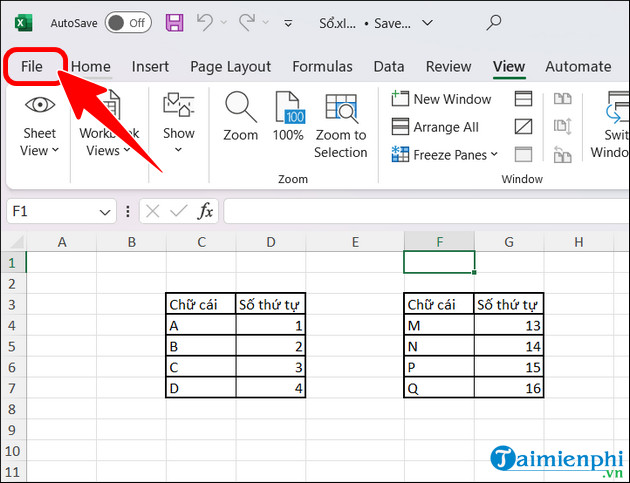
Step 1: In the Excel spreadsheet interface, select File .
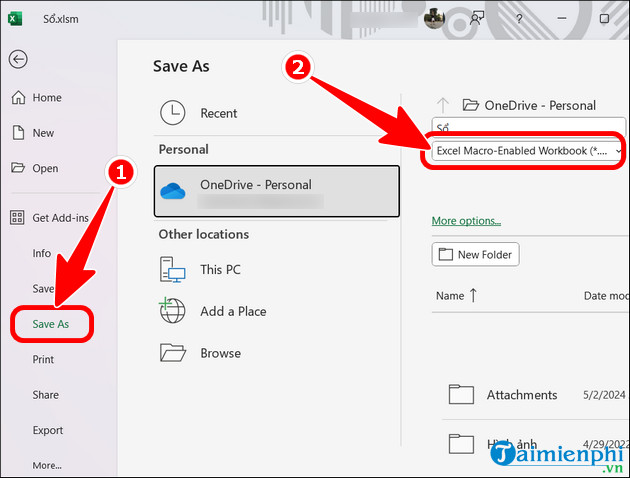
Step 2: Click Save As => adjust the formatting for the spreadsheet.
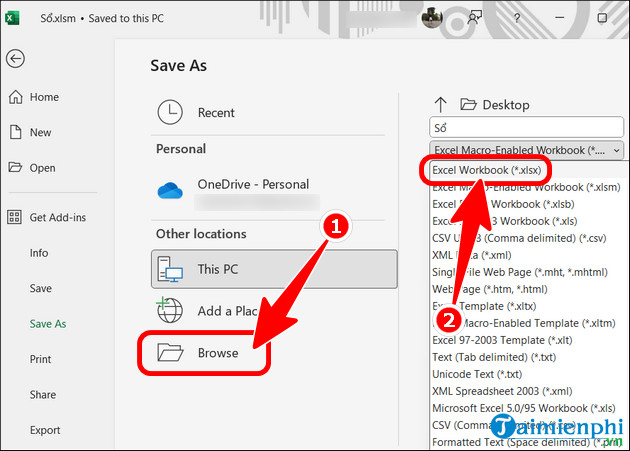
- Select Excel Workbook (*.xlsx) => click Browse to choose a location and save it to your computer.
3. Why can't I delete the macro?
If you are unable to delete macros, check the following causes:
- Macro running: If the macro is active, you need to stop it before starting the deletion process.
- Workbook in read-only mode: If the workbook is open in read-only mode, you will not be able to make changes. Save a copy of the workbook, reopen it, and enable editing to edit.
- Sheet or workbook protection: If the sheet or workbook is password-protected, you need to remove this protection before deleting the macro.
- Restricted access: Your account may not have sufficient access to delete the macro. Please check your permissions or contact your folder administrator.
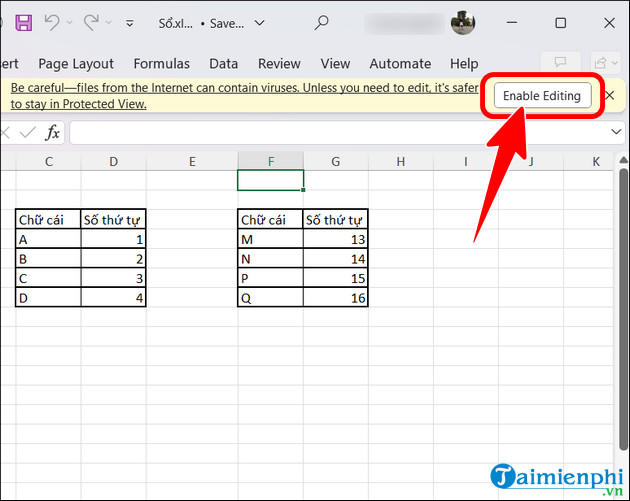
Above are the complete steps to help you delete macros in Excel extremely simply and easily. Additionally, you can access the incredibly useful Excel tips from Tai Mien Phi and discover many more great tricks when using this spreadsheet tool.
Related Articles
 How to Delete Macros in Excel Item by Item, All Quickly4 minutes read
 MS Excel 2007 - Lesson 7: Create Macros in Excel 20072 minutes read
 How to Enable and Disable Macros in Excel: Step-by-Step Guide5 minutes read
 How to Quickly Delete Multiple Sheets in Excel3 minutes read
 How to Turn on, Turn Off, Delete Macro in Excel4 minutes read
 Instructions on How to Create and Use Macros in Excel Create Macros, Save6 minutes read
Reader Comments 0
Sign in with email or Google to join the discussion.