Table of Contents
Windows 7's Backup and Restore can create a system image and restore the included partitions to their state at the time of that backup. Use it when you need whole-system recovery, rather than only recovering an individual file.
Restoring an image overwrites the affected destination partitions. Files and changes made after the image was created can be lost. Back up newer files separately before recovery.
This guide shows Windows 7 screens for maintaining or recovering a legacy computer. Windows 8 and 8.1 have different entry points, and newer Windows backup products are not identical to this image workflow. These older Windows releases are outside standard support.
Create a Windows 7 system image
1. Open Backup and Restore
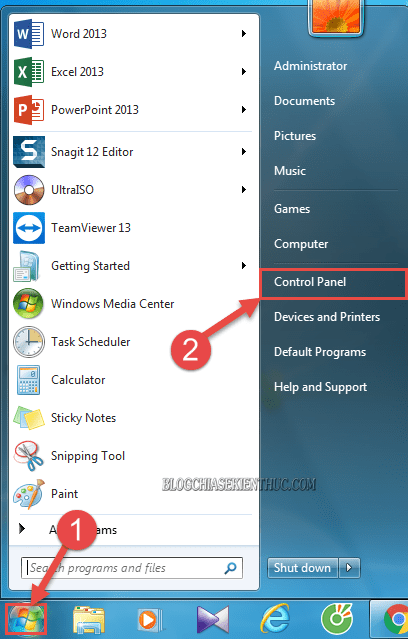
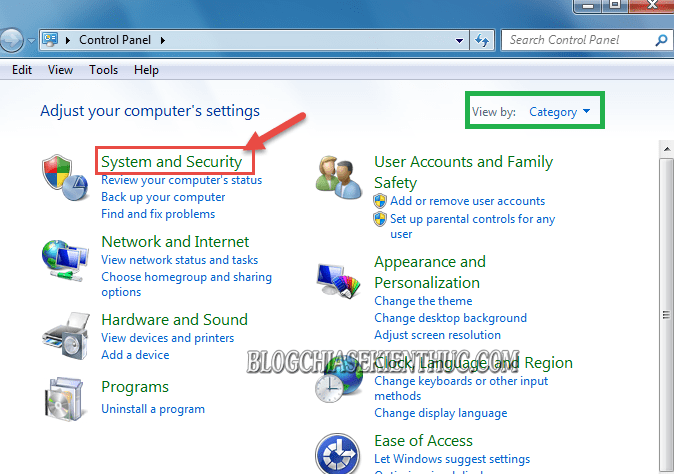
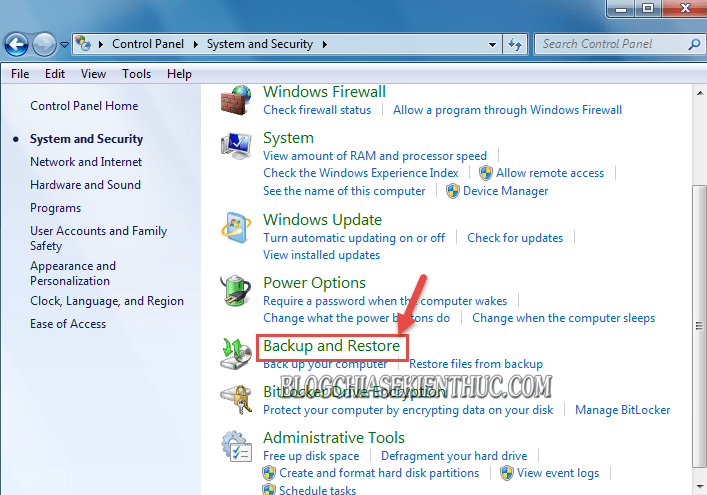
Open Start > Control Panel > System and Security > Backup and Restore. Alternatively, press Windows + R, enter control, and navigate from Control Panel.
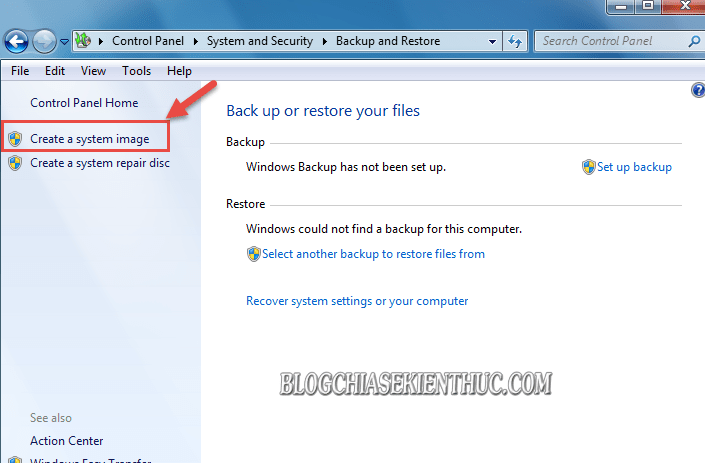
Select Create a system image in the left pane.
2. Choose a separate backup destination
Select a supported destination with enough free space, preferably an external physical drive. A backup kept only on another partition of the system disk will not protect against that disk failing.
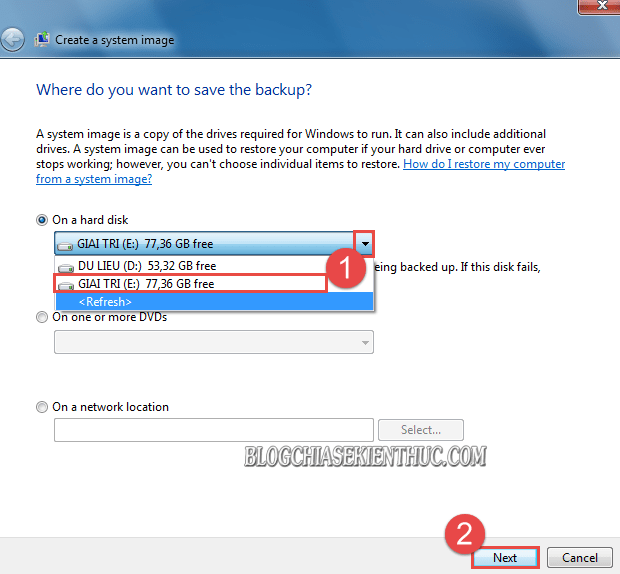
3. Include the required system partitions
Keep the partitions Windows marks as necessary for the operating system. Do not deselect a required boot partition merely to make the image smaller. Include other volumes only when they are part of your recovery plan and the destination has enough room.
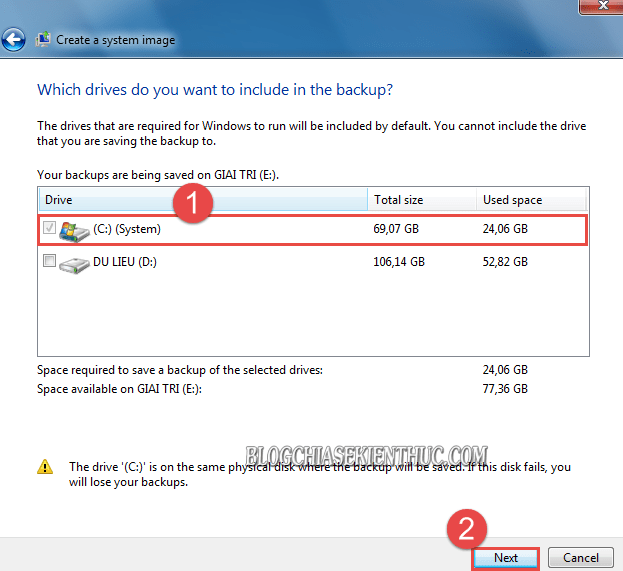
Review the destination and selected volumes, then click Start backup. Keep the destination connected and the computer powered until completion.
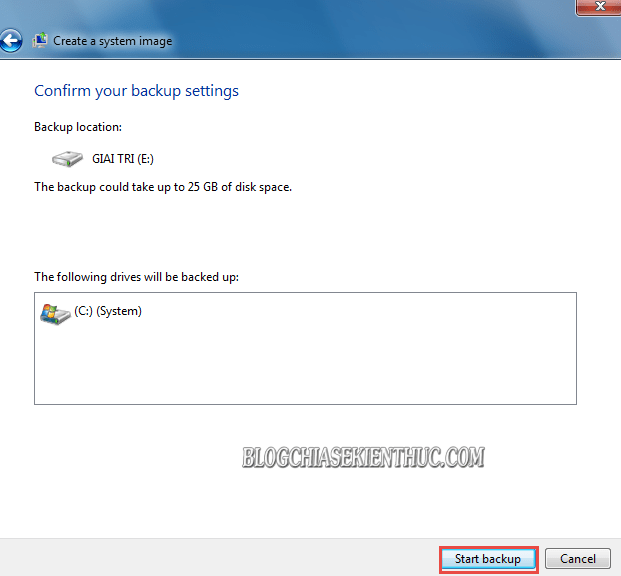
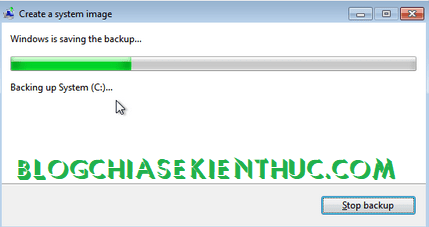
4. Check the result and recovery access
Confirm that the backup completed successfully and that the backup set is present on the intended drive. Keep its folder structure intact; do not casually rename or move its internal files. The drive letters in these older screenshots are examples.
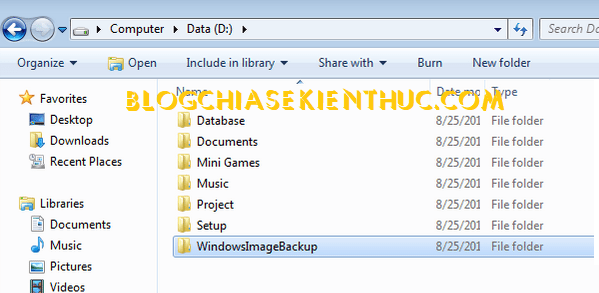
Prepare and test compatible system-repair or installation media so you can reach recovery even if Windows will not start. An image that you cannot access from the recovery environment is not a usable recovery plan.
Start image recovery while Windows still works
Before restoring, copy any newer documents to a separate backup. In Windows 7, open Backup and Restore, select Recover system settings or your computer, then Advanced recovery methods.
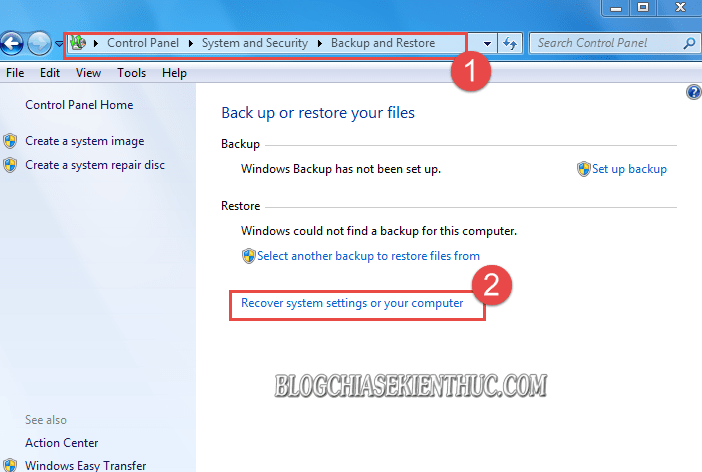
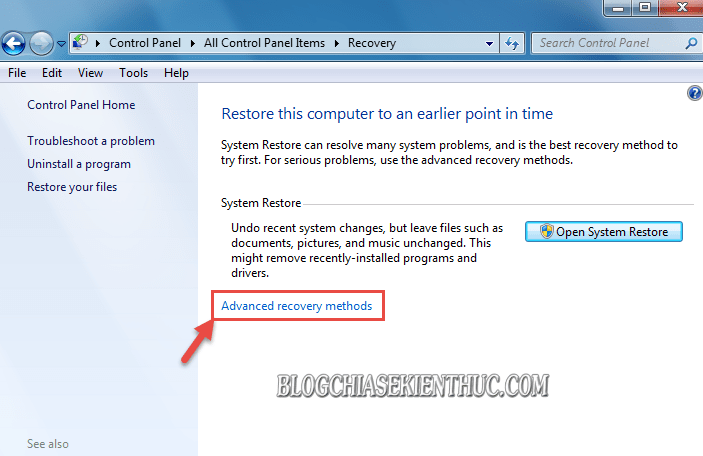
Choose Use a system image you created earlier to recover your computer.
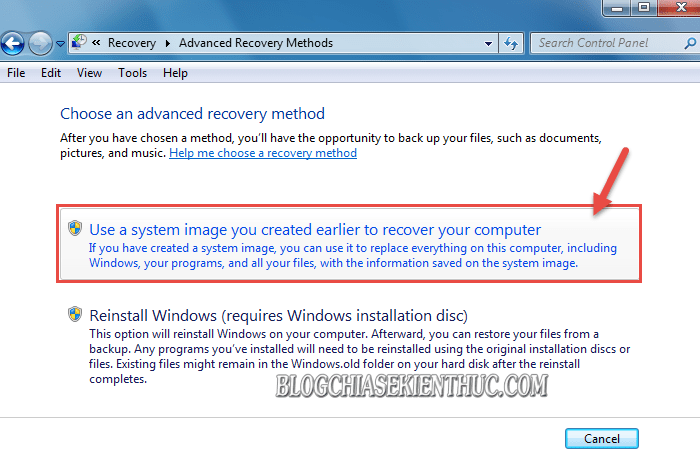
If Windows offers Back up now, that is an opportunity to protect current files before recovery; it is not the button for selecting the old system image. Complete that backup if needed, then follow the prompts to restart into the recovery environment.
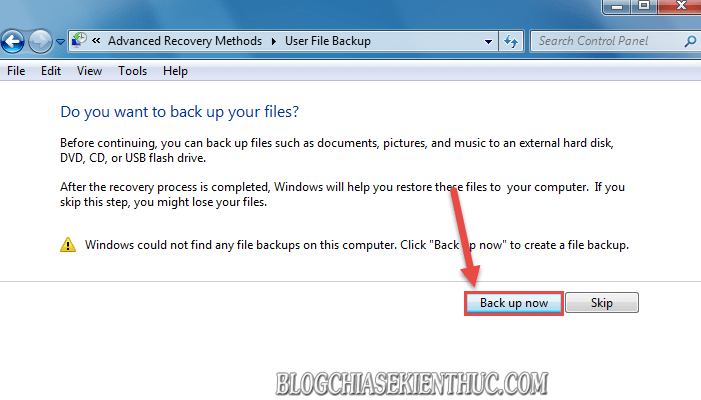
Once the image-recovery wizard opens, select the intended backup and use the verification steps below.
Start recovery when Windows will not boot
Use the installed Windows Recovery Environment
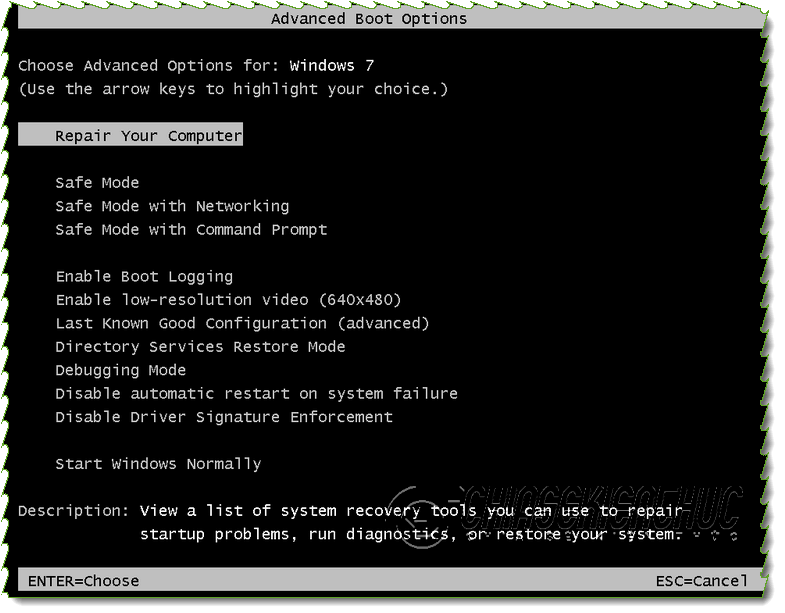
On a Windows 7 computer with working recovery tools, open the F8 advanced startup menu and select Repair Your Computer. This is a recovery option, not the same as booting Safe Mode.
Choose the keyboard settings and supply an authorized account's credentials if prompted.
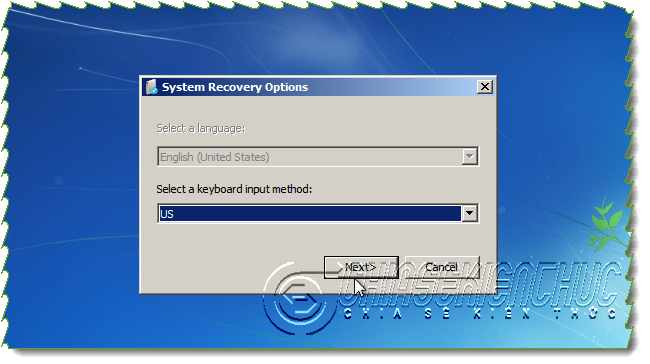
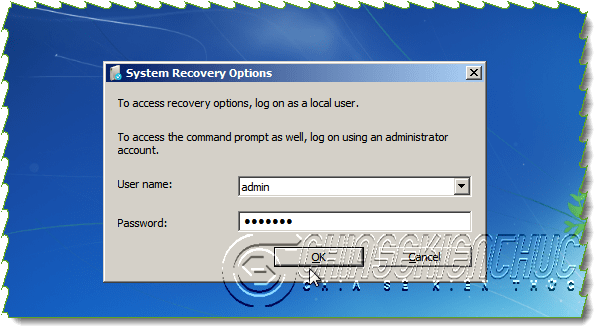
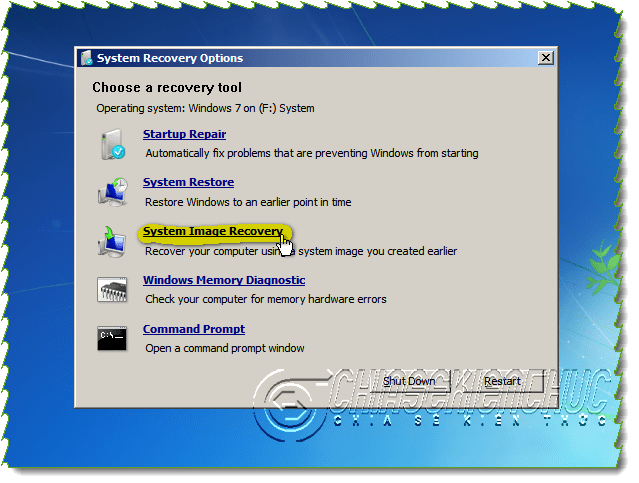
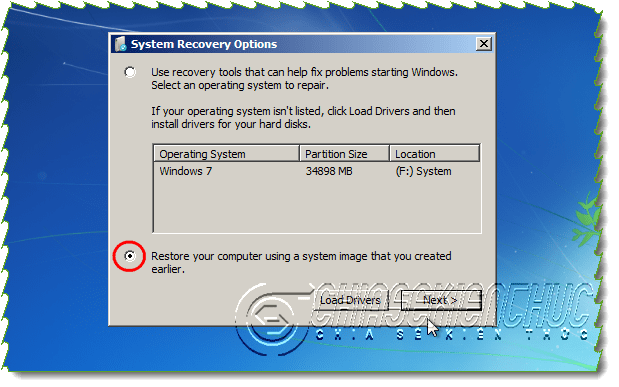
In System Recovery Options, choose System Image Recovery.
Or use compatible repair or installation media
If the installed recovery tools are unavailable, start from compatible Windows repair or installation media. Select the appropriate USB or DVD in the one-time boot menu.
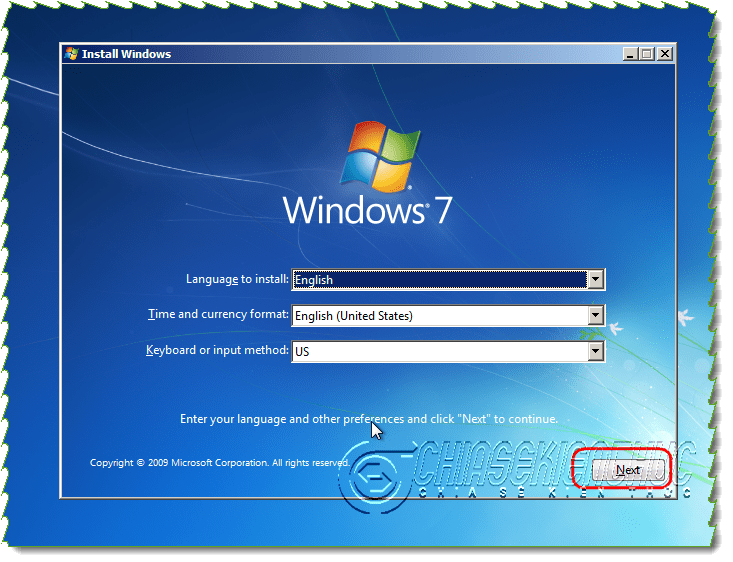
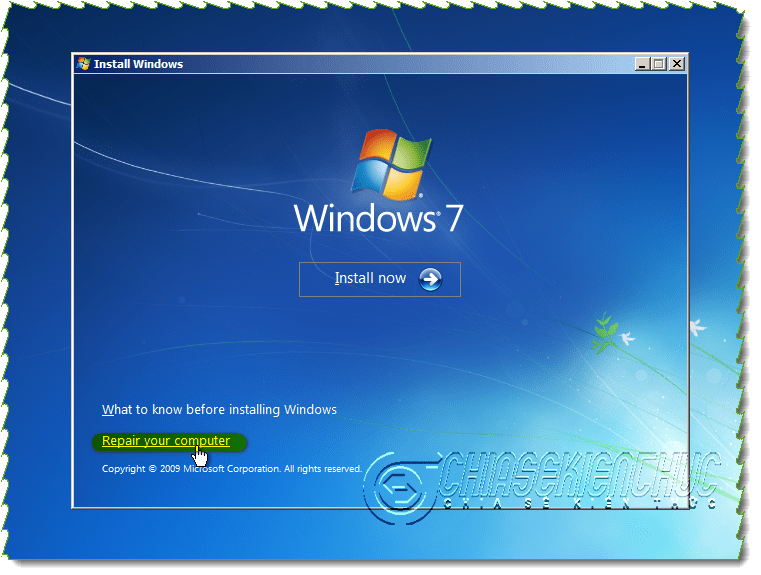
Choose Repair your computer, rather than starting a new Windows installation, then open the system image recovery option.
The boot-menu guide can help identify the startup key. Microsoft's backup and recovery overview also explains repair-disc access.
Select and verify the system image
- Connect the drive containing the image.
- Use the detected image only if it is the intended backup, or choose Select a system image.
- Select the correct backup location, computer backup set, and recovery date.
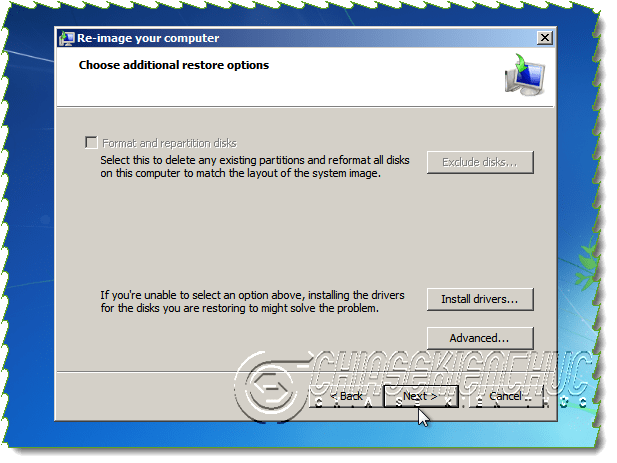
- Review the disks and partitions the wizard proposes to restore or reformat.
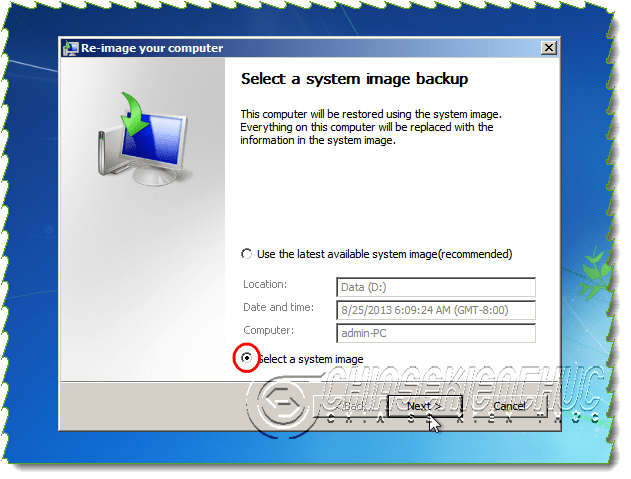
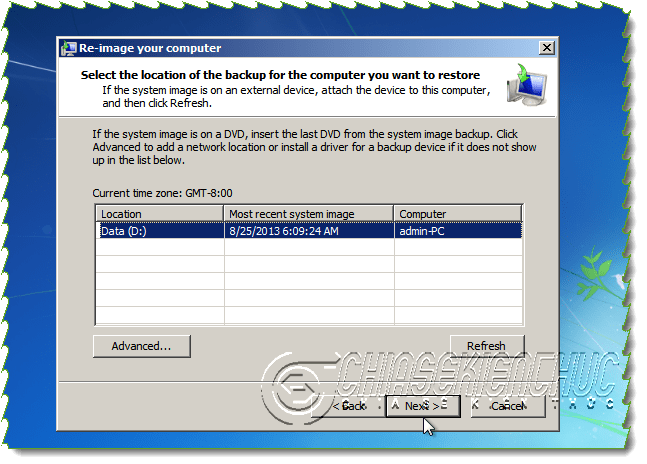
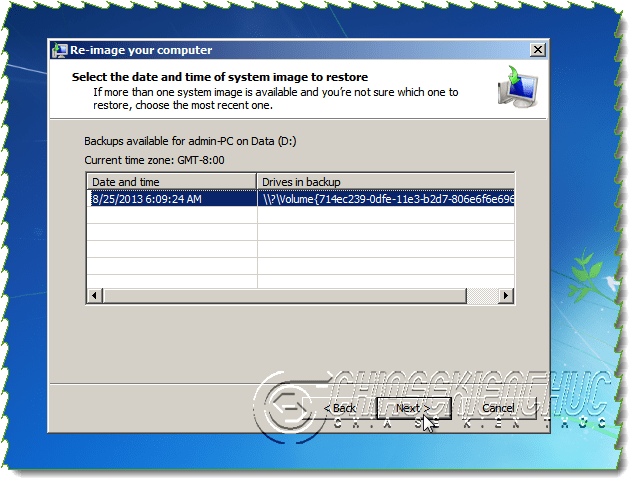
Do not confuse the backup location with the destination that will be overwritten. If formatting or repartitioning is offered, review its effect on every connected disk and exclude unrelated disks where the wizard permits it.
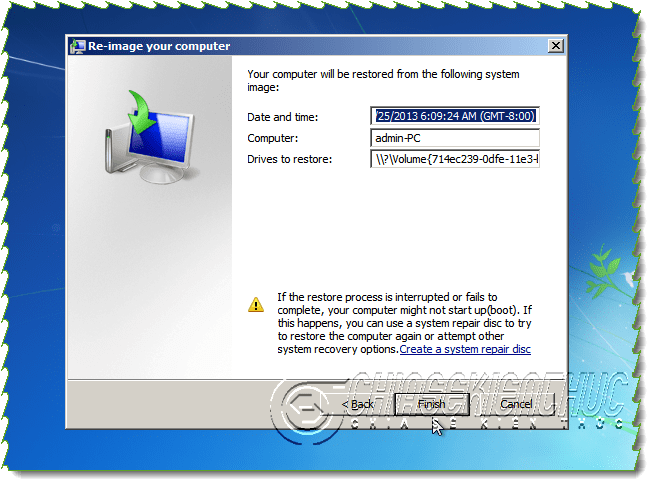
Read the final summary before selecting Finish. Confirm the warning only when you are ready to overwrite the affected partitions.
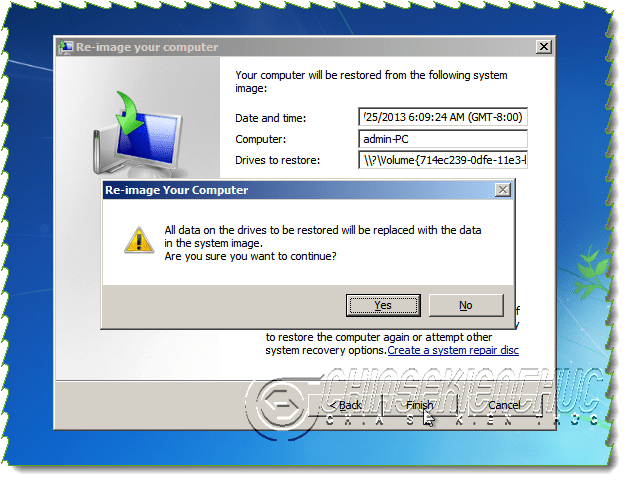
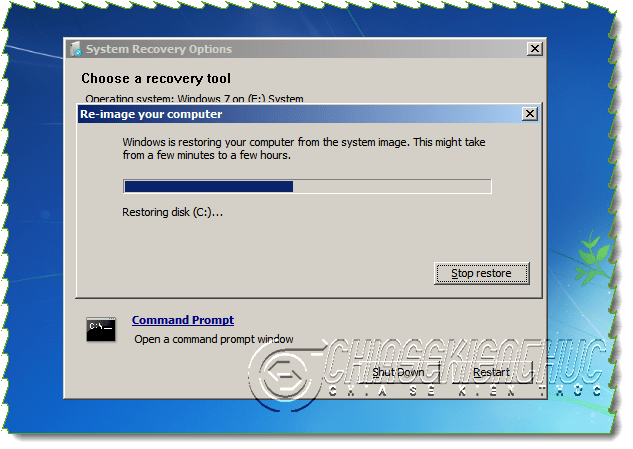
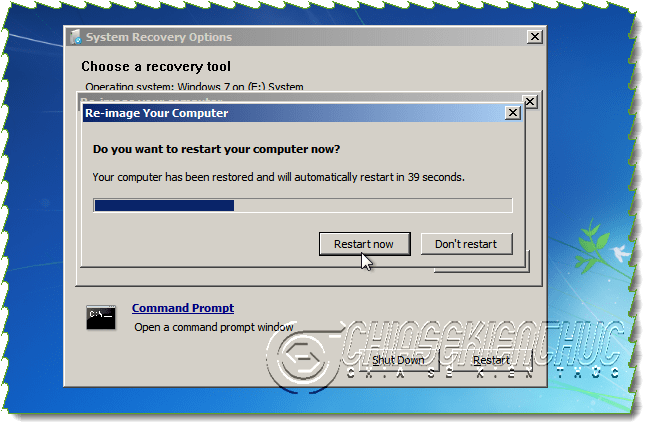
Wait for recovery to complete without unplugging storage or interrupting power. Restart when prompted, then verify that Windows boots and the expected applications and files are present.
If the image cannot be found
- Check that the backup drive is connected and visible in recovery.
- Confirm that the backup folder structure has not been renamed or rearranged.
- Use recovery media compatible with the installation and its boot mode.
- Check whether additional storage drivers are needed.
Do not format a drive merely because the recovery wizard cannot find its backup. For newer Windows systems, use the version-specific Windows 11 system image guide rather than assuming all Windows 7 menu paths still apply.






Reader Comments 0
Sign in with email or Google to join the discussion.