Table of Contents
Restoring a UEFI Windows system from a TIB backup requires the Windows partition and the boot components needed by that installation. In Acronis True Image, select the correct archive, inspect its partition contents, and map them to the intended GPT disk before starting recovery.
This walkthrough uses older Acronis True Image 2017 screenshots with a Windows 7 example. It is a legacy recovery procedure, not a recommendation to install Windows 7 on a current PC. Firmware, drivers, Windows support, and archive compatibility must be checked separately.
Prepare the backup and destination
- Use a trusted backup, preferably your own known-good system image.
- Confirm that the recovery media can read the archive and see the destination storage.
- Back up existing destination files to a separate physical drive.
- Check that the Windows image and hardware are compatible with the intended UEFI boot configuration.
- Allow enough destination space for the actual image and required partitions; the 20GB demonstration is not a universal sizing recommendation.
Do not delete small partitions merely because they are smaller than 500MB. They may be EFI, reserved, recovery, or manufacturer partitions. Identify each by its role before changing it.
Likewise, do not convert a disk to GPT automatically as a preparation step. First review whether it is already GPT and whether conversion or recovery will overwrite data you need. See the UEFI and legacy boot guide for background.
1. Open disk recovery
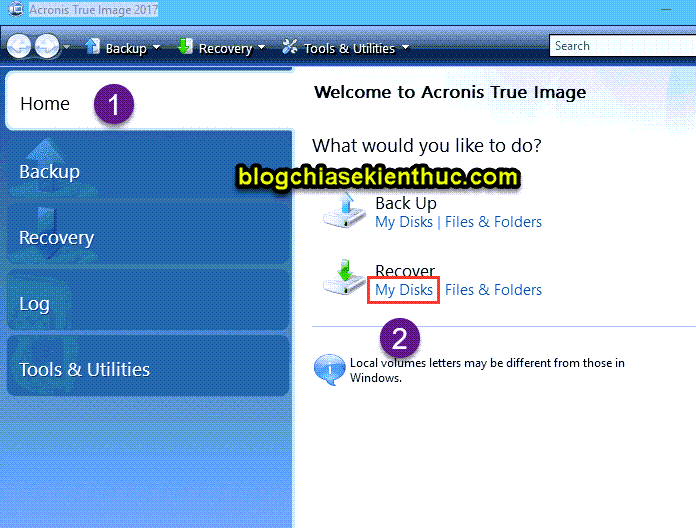
Boot compatible recovery media and open Acronis True Image. In the illustrated interface, use Recover > My Disks. Current versions may use different labels.
2. Locate and inspect the TIB backup
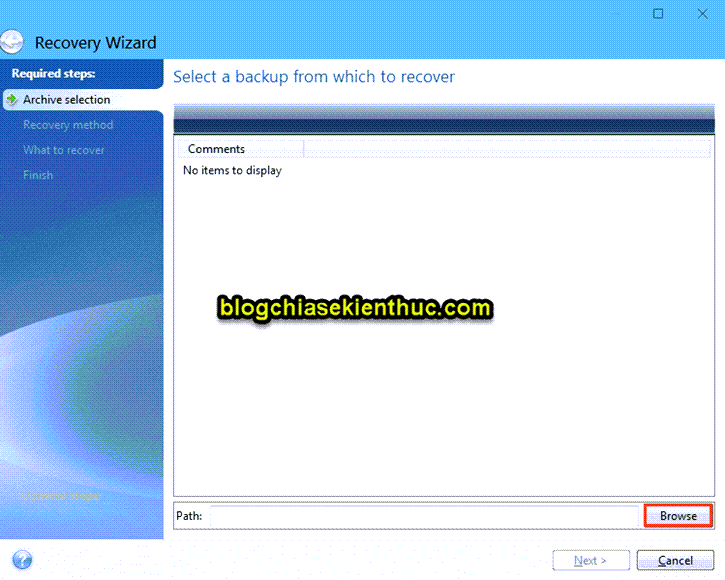
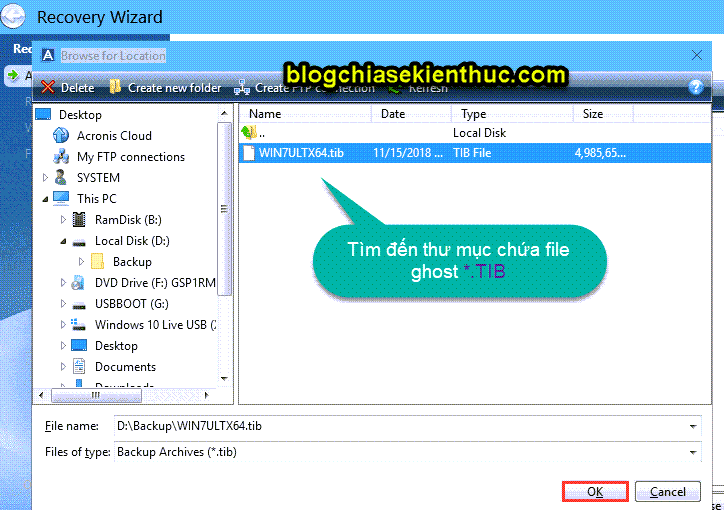
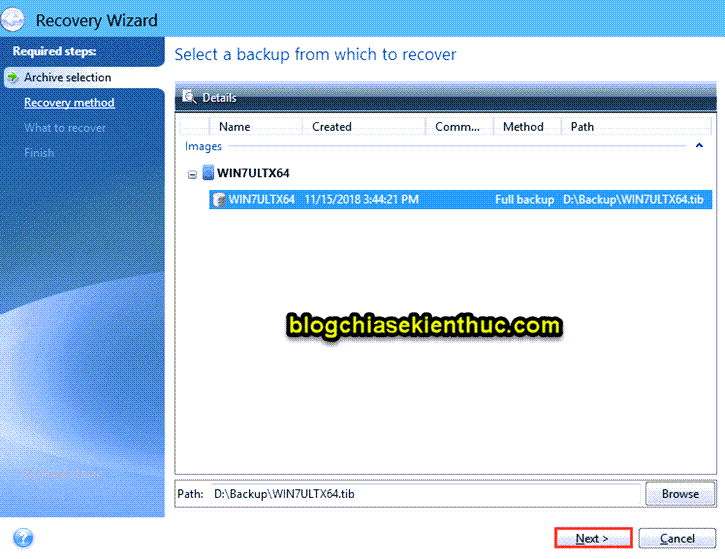
Click Browse, locate the archive, and select it. Check that it is the intended machine's backup and choose the correct recovery point.
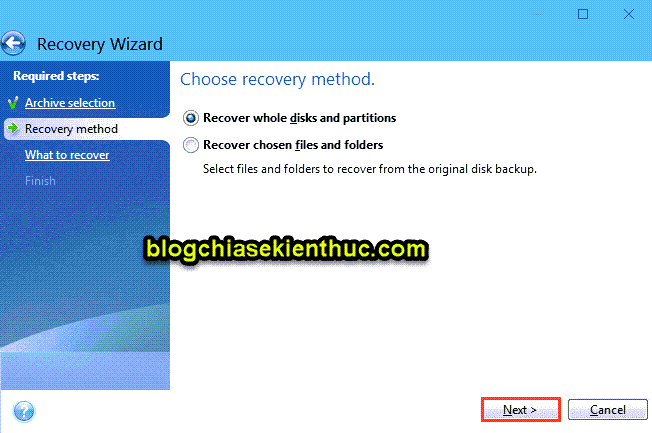
Continue to the recovery-method screen. For a system image, choose disk-and-partition recovery rather than file-only recovery. Do not advance through defaults without reading them.
3. Choose the required source partitions
Inspect the archive's layout. A UEFI Windows backup normally needs its EFI System Partition and Windows partition, along with any other components required by the recovery plan. The exact selection depends on whether you are recovering a whole disk or specific partitions.
The source screenshot shows an EFI-and-Windows partition selection. Its Track 0 choice belongs to that example and should not be treated as a universal rule for every disk recovery.
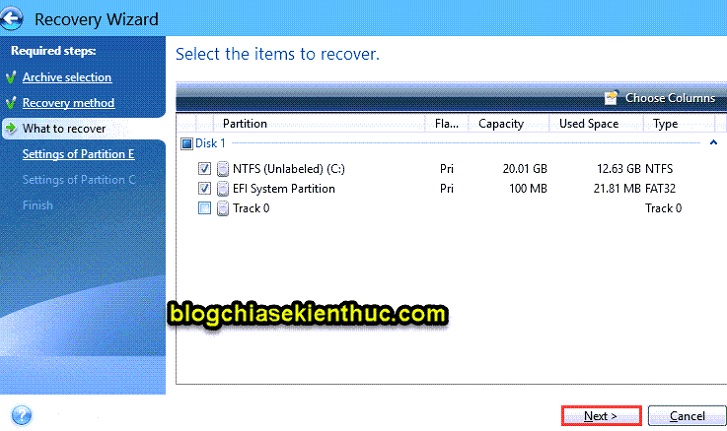
If the archive contains only Windows files without the boot components needed for the target, restoring it may not produce a bootable system. Resolve that gap before proceeding.
4. Map the EFI partition
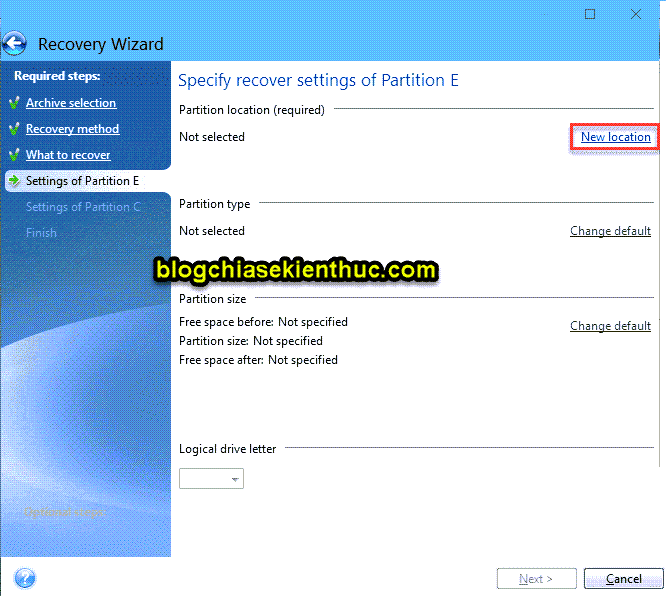
Use New location for the EFI source partition. Identify the destination physical disk by model, capacity, and layout. Choose an appropriate existing destination or prepared unallocated space according to the wizard's recovery plan.
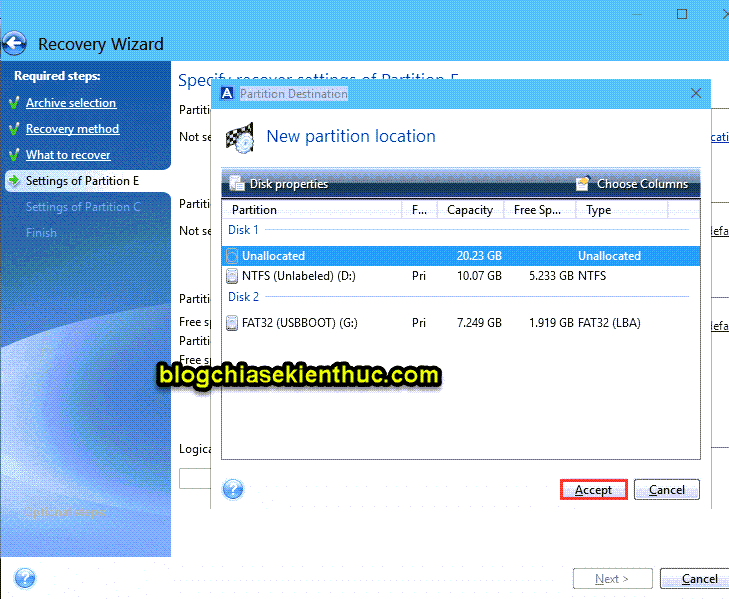
Unallocated space is not yet a formatted partition. Check the resulting partition size and type; do not interpret the screenshot's large free-space region as a recommendation to make the EFI partition 20GB.
5. Map the Windows partition
Use New location for the Windows source partition and choose its intended destination. Review the available space and the partition that will be overwritten.
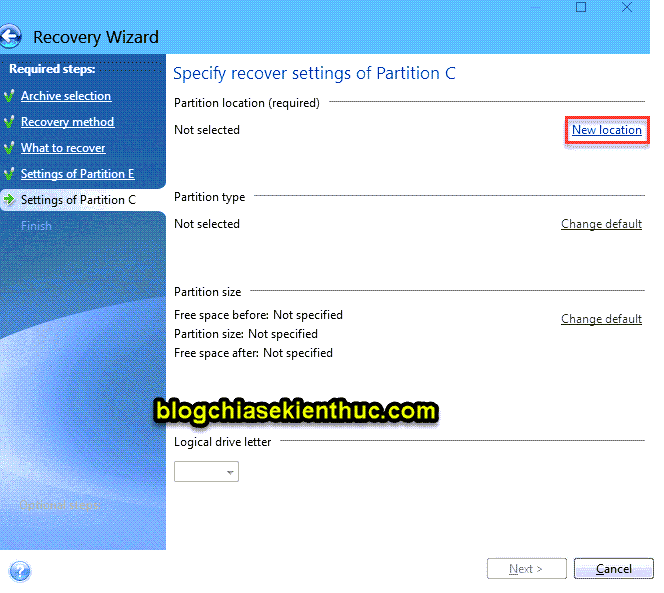
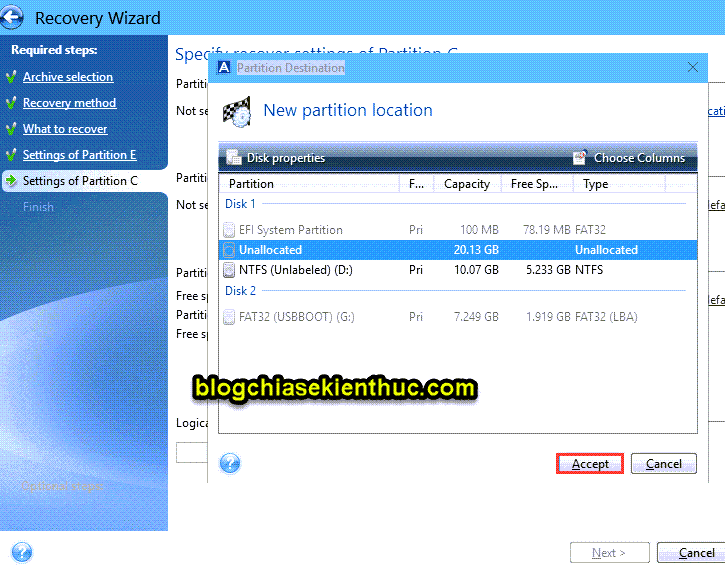
Drive letters may differ in the recovery environment. Do not choose C: solely by letter, and do not map both source partitions onto the same existing destination partition.
6. Review the final layout and recover
Before clicking Proceed, verify the source backup, every destination, the final partition layout, and any deletion or formatting operations. Cancel if the summary would overwrite unrelated data.
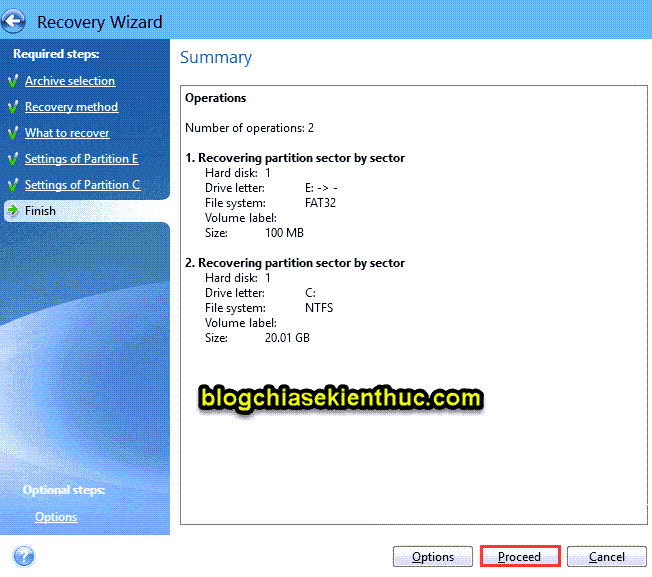
Start recovery and keep the system powered until the tool reports completion. A restore may take time depending on the archive and storage devices.
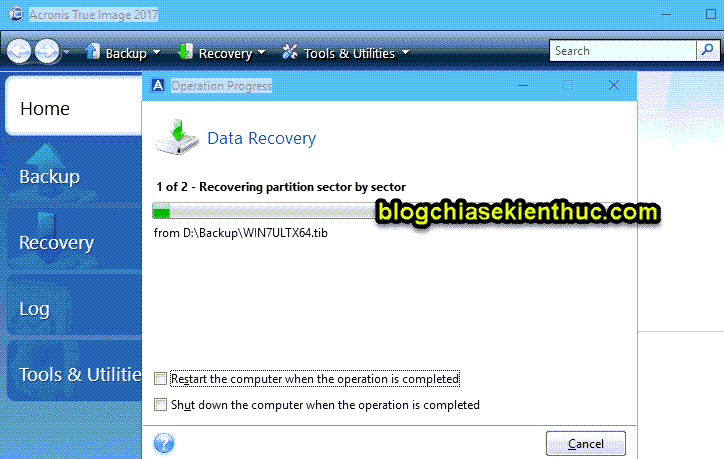
7. Verify UEFI startup
Restart from the restored disk's Windows Boot Manager entry in UEFI mode. Check that Windows loads and that expected files, drivers, and applications are present. A successful archive restore does not guarantee driver compatibility on different hardware.
If startup fails, check the selected boot entry and the restored EFI partition before making more disk changes. Consult documentation for the Acronis version and Windows image you used. The Acronis system recovery guide provides current recovery context; the TIB and UEFI/GPT overview explains related image-recovery concepts.
Related Articles
 Restore a GHO Windows Image on UEFI: Compatibility and Boot Checks
 How to create and extract Ghost in UEFI standard and standard GPT hard drive
 Restore a Windows System Image on a UEFI/GPT Computer
 What is a TIB file? How to ghost a computer with a standard .tib file UEFI - GPT
 How to ghost UEFI-GPT standard tib file for computer, laptop
 Download Ghost win xp, win 7, 8, 10 32 and 64bit Link Google Drive
Reader Comments 0
Sign in with email or Google to join the discussion.